You can use the rolling update feature of Auto Scaling to efficiently update images and run scripts on ECS instances in a scaling group.
Background
This tutorial uses a scaling group with the following properties:
-
Located in the China (Hangzhou) region.
-
The active scaling configuration uses the CentOS 6.4 64-bit public image.
-
The scaling group contains 100 ECS instances created from the active scaling configuration. All instances are in the In Service state.
-
No scaling activities are in progress in the scaling group.
Procedure
In this tutorial, you will update the images on ECS instances in a scaling group to Alibaba Cloud Linux 2 and then run a script to install Apache.
Step 1: Prepare custom images
Log in to the ECS console.
In the left-side navigation pane, choose .
In the upper-left corner of the page, select a region and resource group.

-
Create an ECS instance.
-
In the upper-left corner of the Instances page, click Create Instance.
-
On the Custom Launch tab, select a billing method, region, instance type, image, and other configurations.
For more information about the parameters, see Create an instance by using the wizard.
The following table provides sample configurations. Configure other parameters as needed, and ensure that the configurations match the active scaling configuration of your scaling group.
Parameter
Example
Billing Method
pay-as-you-go
Region
China (Hangzhou)
Network and availability zone
-
Network: VPC
-
Availability zone: Randomly Assigned
Images
-
Type: public image
-
Version: Alibaba Cloud Linux 2.1903 LTS 64-bit
-
-
Before creating the instance, review its configurations and options, such as the subscription duration, to ensure they meet your requirements.
-
Read and accept agreements, such as the ECS Terms of Service. You can skip this step if you have already accepted the terms. Then, click Confirm Order.
-
Confirm the fees for the ECS instance and complete the payment.
After the instance is created, go to the instance list page to view the creation progress. The instance is ready when its status changes to Running. Change the instance name to
Instance-ForCustomImage.NoteTo reduce post-update maintenance, you can configure the
Instance-ForCustomImageinstance before you create the custom image. For example, you can deploy applications or copy data to the instance.
-
-
Prepare the custom image for the update.
-
Find the ECS instance named
Instance-ForCustomImage. In the Actions column, click . -
Configure the custom image.
The following table lists sample configurations. Configure other parameters as needed.
Parameter
Example
Custom image name
Image-AliyunLinux
Custom image description
The image used to perform a rolling update on the ECS instances in the scaling group.
-
Click Create.
-
-
Prepare the custom image for rollback.
-
Find an ECS instance that belongs to the scaling group. In the Actions column, click .
-
Configure the custom image.
The following table lists sample configurations. Configure other parameters as needed.
Parameter
Example
Custom image name
Image-CentOSBck
Custom image description
The image used to roll back the ECS instances in the scaling group if the rolling update fails.
-
Click Create.
-
-
In the navigation pane on the left, choose to view the creation progress of Image-AliyunLinux and Image-CentOSBck on the Images page.
A progress of 100% means the images are created.
Step 2: Update image and run script
-
Log on to the Auto Scaling console.
-
In the left-side navigation pane, click Scaling Groups.
-
In the top navigation bar, select a region.
-
Find the desired scaling group and use one of the following methods to open the scaling group details page.
-
Click the ID of the scaling group in the Scaling Group Name/ID column.
-
Click Details in the Actions column.
-
-
In the upper part of the details page, click the Instance Refresh tab and then find the Rolling Update list.
-
Create and run an image update task.
-
Click Create Execution Task.
-
Configure the image update task.
The following table lists sample configurations. Configure other parameters as needed.
Parameter
Example
Task Description
Batch update images from CentOS 6.4 64-bit to Alibaba Cloud Linux 2.1903 LTS 64-bit.
Task Type
Image Update
Update image
Image-AliyunLinux
Rollback image
Image-CentOSBck
Batch size
10
Suspension policy
No suspension
-
Click Create Task.
-
Review the impacts of the rolling update task. If the information is correct, click OK.
After clicking OK, the rolling update task runs automatically.
After the task is complete, the images on the 100 ECS instances in the scaling group are updated to Alibaba Cloud Linux 2.1903 LTS 64-bit.
-
-
Create and run a script execution task.
-
Click Create Execution Task.
-
Configure the script execution task.
The following table lists sample configurations. Configure other parameters as needed.
Parameter
Example
Task Description
Install Apache and view the Apache service status.
Task Type
Script Execution
Execution script
# Install Apache.
yum install -y httpd
# Start Apache.
systemctl start httpd
# Enable Apache to start on boot.
systemctl enable httpd
# View Apache status.
systemctl status httpd
Rollback script
# View Apache status.
systemctl status httpd
Batch size
10
Suspension policy
No suspension
-
Click Create Task.
-
Review the impacts of the rolling update task. If the information is correct, click OK.
After clicking OK, the rolling update task runs automatically.
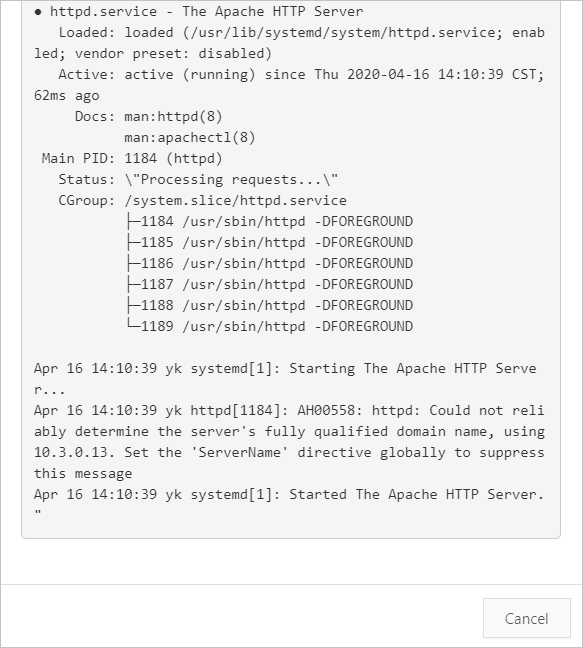
After the task is complete, the Apache service is installed on the 100 ECS instances in the scaling group, and its status is active.
-