Migrate from a self-managed Istio ingress gateway to a Service Mesh (ASM) ingress gateway with zero downtime. This procedure uses a shared Classic Load Balancer (CLB) instance to gradually shift traffic between the two gateways through weight-based service annotations.
How it works
Both the Istio and ASM ingress gateways register their pods as backend servers in the same CLB vServer groups. The CLB distributes incoming traffic based on weight values in Kubernetes service annotations. During migration, you gradually increase the ASM gateway weight and decrease the Istio gateway weight until all traffic flows through ASM.
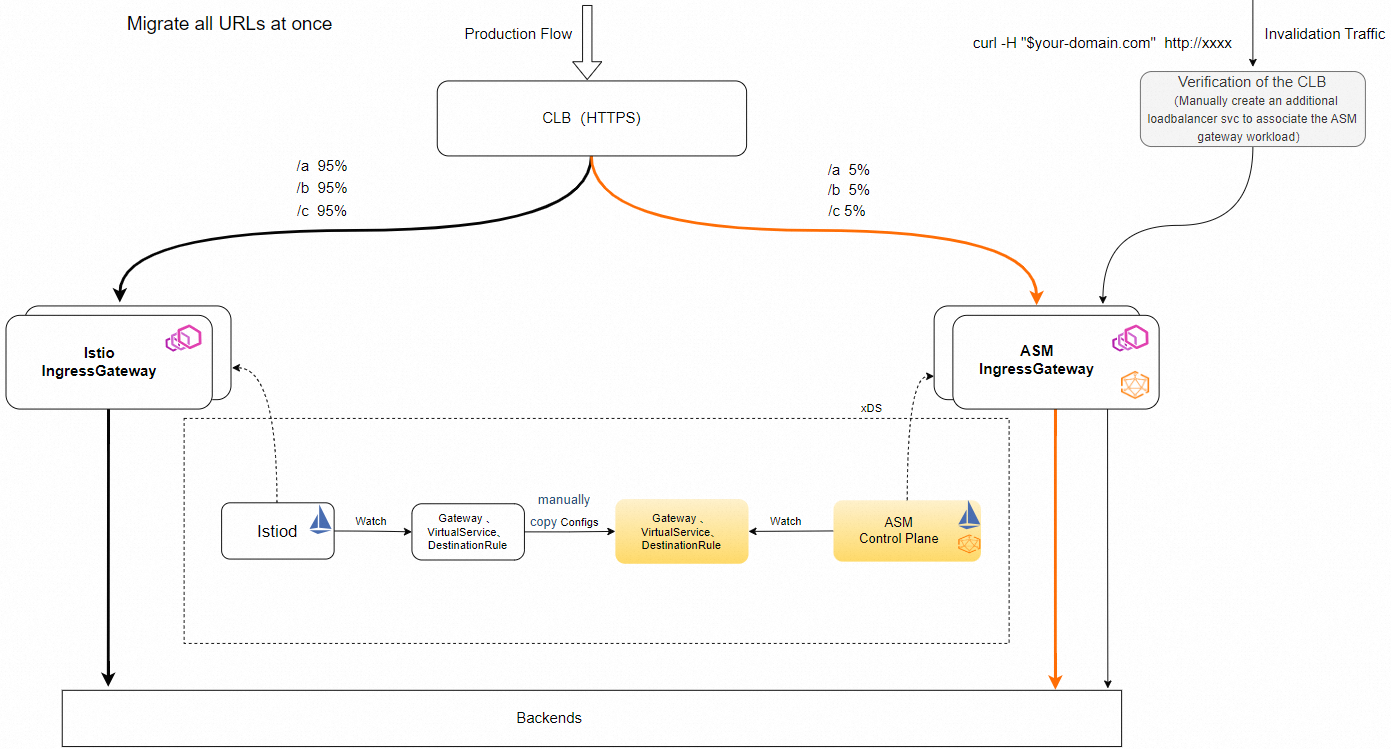
Prerequisites
Before you begin, make sure that you have:
A self-managed Istio ingress gateway running in your Container Service for Kubernetes (ACK) cluster
An ASM instance associated with the ACK cluster
Access to the CLB console
Permissions to modify Kubernetes Service resources and CLB instance configurations
Step 1: Make the CLB instance reusable
The CLB instance created by the Istio ingress gateway Service is not reusable by default. To allow both gateways to share the same CLB instance, reconfigure it as follows:
Log on to the CLB console, find the CLB instance used by the Istio ingress gateway, and click its instance ID to open the configuration page.
Disable the configuration read-only mode for the instance.
Remove the following two tags from the CLB instance:
kubernetes.do.not.deleteack.aliyun.com
Add the following annotations to the Istio ingress gateway Service: Replace the placeholders with your actual values: Example:
Find the vServer group IDs on the CLB instance management page under the vServer Group tab.
Placeholder Description Example <your-clb-instance-id>CLB instance ID lb-bp1onpskfeceg********<vserver-group-id>vServer group ID from the CLB console rsp-bp1r4xk******<port>Listener port 80,443,15021annotations: service.beta.kubernetes.io/alibaba-cloud-loadbalancer-force-override-listeners: "false" service.beta.kubernetes.io/alibaba-cloud-loadbalancer-id: <your-clb-instance-id> service.beta.kubernetes.io/alibaba-cloud-loadbalancer-vgroup-port: <vserver-group-id>:<port>,<vserver-group-id>:<port> service.beta.kubernetes.io/alibaba-cloud-loadbalancer-weight: "100"annotations: service.beta.kubernetes.io/alibaba-cloud-loadbalancer-force-override-listeners: "false" service.beta.kubernetes.io/alibaba-cloud-loadbalancer-id: lb-bp1onpskfeceg******** # List all vServer groups of the CLB instance. Format: <vserver-group-id>:<port> # Separate multiple entries with commas. service.beta.kubernetes.io/alibaba-cloud-loadbalancer-vgroup-port: rsp-bp1r4xk******:15021,rsp-bp1kaqd******:80,rsp-bp1jyz0******:443 # Weight 100 means all traffic goes to the Istio ingress gateway. service.beta.kubernetes.io/alibaba-cloud-loadbalancer-weight: "100"
Verify
Open the CLB console, navigate to the CLB instance, and confirm that the Istio ingress gateway pod addresses appear in the vServer group backend server list.
Run the following command to confirm the Service annotations are applied: The output should include all four
alibaba-cloud-loadbalancer-*annotations with the values you configured.kubectl get svc <istio-ingress-gateway-service-name> -n <namespace> -o yaml | grep alibaba-cloud-loadbalancer
Step 2: Create an ASM ingress gateway
Create an ASM ingress gateway with the same port configuration as the Istio ingress gateway. For detailed instructions, see Create an ingress gateway.
When you create the gateway with a YAML file, follow these guidelines:
Use a distinct name. The ASM ingress gateway name must differ from the Istio ingress gateway. Add an
-asmsuffix for clarity (for example,ingressgateway-asm).Match the port configuration. Set the port list and
targetPortvalues to match the Istio ingress gateway exactly.Configure CLB annotations with weight 0. In the gateway Custom Resource Definition (CRD), set the
serviceAnnotationfield with the same annotations from Step 1, except set the weight to"0": For the full list of CRD fields, see CRD fields for an ASM gateway.service.beta.kubernetes.io/alibaba-cloud-loadbalancer-weight: "0"
Verify
Log on to the CLB console, select a vServer group, and click the group name. Confirm that both the Istio gateway pod addresses and the ASM gateway pod addresses appear in the backend server list. This confirms that the CLB instance is shared successfully.
Run the following command to check that both sets of gateway pods are registered: The output should list the ASM ingress gateway pods with their IP addresses. Cross-check these IPs against the backend server list in the CLB console.
kubectl get pods -n <namespace> -l istio=ingressgateway-asm -o wide
Step 3: Migrate Istio gateway configurations to ASM
Apply the Istio ingress gateway configurations to the ASM ingress gateway so both gateways handle traffic identically.
Update the Gateway CR selector. Change the
spec.selector.istiovalue in the Gateway Custom Resource (CR) to the ASM ingress gateway name:spec: selector: istio: ingressgateway-asmMigrate VirtualService and DestinationRule CRs. Apply the VirtualService CR and DestinationRule CR configurations directly to ASM without modification.
Verify
Send test requests to the ASM ingress gateway pod IP directly (bypassing the CLB) and confirm that the routing rules work as expected:
# Get the ASM ingress gateway pod IP
ASM_POD_IP=$(kubectl get pods -n <namespace> -l istio=ingressgateway-asm -o jsonpath='{.items[0].status.podIP}')

# Send a test request
curl -H "Host: <your-domain>" http://$ASM_POD_IP:<port>/
A successful response confirms that the Gateway CR, VirtualService, and DestinationRule configurations are working correctly on the ASM ingress gateway.
Step 4: Shift traffic from Istio to ASM
Shift traffic gradually by adjusting the service.beta.kubernetes.io/alibaba-cloud-loadbalancer-weight annotation on both gateway Services. Increase the ASM weight and decrease the Istio weight in phases.
Recommended weight progression:
| Phase | Istio weight | ASM weight | Suggested duration | Validation |
|---|---|---|---|---|
| 1 | 100 | 0 | Initial state | Confirm CLB reuse (Step 2) |
| 2 | 90 | 10 | 1 hour | Monitor error rates and latency |
| 3 | 50 | 50 | 2 hours | Check all routes and backend health |
| 4 | 10 | 90 | 1 hour | Verify edge cases |
| 5 | 0 | 100 | Final state | Full validation |
To adjust weights at each phase, edit the Service annotations for both gateways. For example, to route 10% of traffic to ASM:
Istio ingress gateway Service:
service.beta.kubernetes.io/alibaba-cloud-loadbalancer-weight: "90"ASM ingress gateway Service:
service.beta.kubernetes.io/alibaba-cloud-loadbalancer-weight: "10"
Monitor application metrics (error rates, latency, and throughput) at each phase before proceeding to the next. If issues occur, roll back immediately by reverting the weights.
Roll back
If issues arise at any phase, revert the traffic weights to restore all traffic to the Istio ingress gateway:
Set the Istio ingress gateway weight back to
"100":service.beta.kubernetes.io/alibaba-cloud-loadbalancer-weight: "100"Set the ASM ingress gateway weight to
"0":service.beta.kubernetes.io/alibaba-cloud-loadbalancer-weight: "0"Investigate and resolve the issue before restarting the migration.
After a successful rollback, the original Istio ingress gateway handles all traffic. No configuration changes to Gateway, VirtualService, or DestinationRule CRs affect traffic flow when the ASM gateway weight is set to 0.