Istio's Envoy-based ingress gateway natively supports WebSocket. WebSocket connections start as standard HTTP requests and then upgrade to persistent TCP connections. The same Gateway and VirtualService routing rules that handle regular HTTP traffic also handle WebSocket traffic, so no protocol-specific configuration is required.
This guide walks you through deploying a sample WebSocket application, routing external traffic to it through an ASM ingress gateway, and enabling WebSocket Secure (wss) with TLS.
Prerequisites
Before you begin, make sure that you have:
kubectl configured to connect to the Container Service for Kubernetes (ACK) cluster. See Obtain the kubeconfig file of a cluster and use kubectl to connect to the cluster
Deploy a sample WebSocket application
This step creates a Kubernetes Service and Deployment for tornado, a WebSocket demo application that pushes real-time chart data to connected browsers.
Save the following YAML to a file named tornado.yaml:
apiVersion: v1
kind: Service
metadata:
  name: tornado
  labels:
    app: tornado
    service: tornado
spec:
  ports:
  - port: 8888
    name: http
  selector:
    app: tornado
---
apiVersion: apps/v1
kind: Deployment
metadata:
  name: tornado
spec:
  replicas: 1
  selector:
    matchLabels:
      app: tornado
      version: v1
  template:
    metadata:
      labels:
        app: tornado
        version: v1
    spec:
      containers:
      - name: tornado
        image: registry.cn-beijing.aliyuncs.com/aliacs-app-catalog/tornado:lastest
        imagePullPolicy: Always
        ports:
        - containerPort: 8888
Apply the file:
kubectl apply -f tornado.yamlVerify that the pod is running:
kubectl get pods -l app=tornadoExpected output:
NAME                       READY   STATUS    RESTARTS   AGE
tornado-xxxxxxxxx-xxxxx    2/2     Running   0          30s
A 2/2 in the READY column confirms that both the application container and the Envoy sidecar proxy are running.
Configure routing rules
Create a Gateway and a VirtualService to route external HTTP traffic through the ingress gateway to the tornado application.
Create an Istio gateway
Log on to the ASM console.
In the left-side navigation pane, choose Service Mesh > Mesh Management.
On the Mesh Management page, find the target ASM instance and click its name, or click Manage in the Actions column.
In the left-side navigation pane, choose ASM Gateways > Gateway. On the page that appears, click Create from YAML.
Select default from the Namespace drop-down list, paste the following YAML into the code editor, and click Create.
apiVersion: networking.istio.io/v1alpha3
kind: Gateway
metadata:
  name: tornado-gateway
spec:
  selector:
    istio: ingressgateway
  servers:
  - port:
      number: 80
      name: http
      protocol: HTTP
    hosts:
    - "*"
Setting protocol to HTTP on port 80 allows the gateway to accept both standard HTTP requests and WebSocket upgrade requests.
The wildcard host"*"is used here for demonstration. In production, replace"*"with your specific domain to restrict access.
Create a VirtualService
In the left-side navigation pane of the ASM instance details page, choose Traffic Management Center > VirtualService. Click Create from YAML.
Select default from the Namespace drop-down list, paste the following YAML into the code editor, and click Create.
apiVersion: networking.istio.io/v1alpha3
kind: VirtualService
metadata:
  name: tornado
spec:
  hosts:
  - "*"
  gateways:
  - tornado-gateway
  http:
  - match:
    - uri:
        prefix: /
    route:
    - destination:
        host: tornado
      weight: 100
This VirtualService forwards all HTTP traffic that arrives at tornado-gateway to the tornado Service.
Get the ingress gateway IP address
Get the external IP address of the ingress gateway from either the ASM console or the ACK console.
Option A: ASM console
Log on to the ASM console. In the left-side navigation pane, choose Service Mesh > Mesh Management.
Click the name of the ASM instance. In the left-side navigation pane, choose ASM Gateways > Ingress Gateway.
On the Ingress Gateway page, note the value in Service address.
Option B: ACK console
Log on to the ACK console. In the left-side navigation pane, click Clusters.
Click the name of the target cluster. In the left-side navigation pane, choose Network > Services.
Select istio-system from the Namespace drop-down list. In the External IP column, find the IP address for the istio-ingressgateway Service on port 80.
Verify WebSocket connectivity
Open http://<ingress-gateway-ip> in four separate browser tabs. The tornado application renders a real-time chart that updates through WebSocket push.
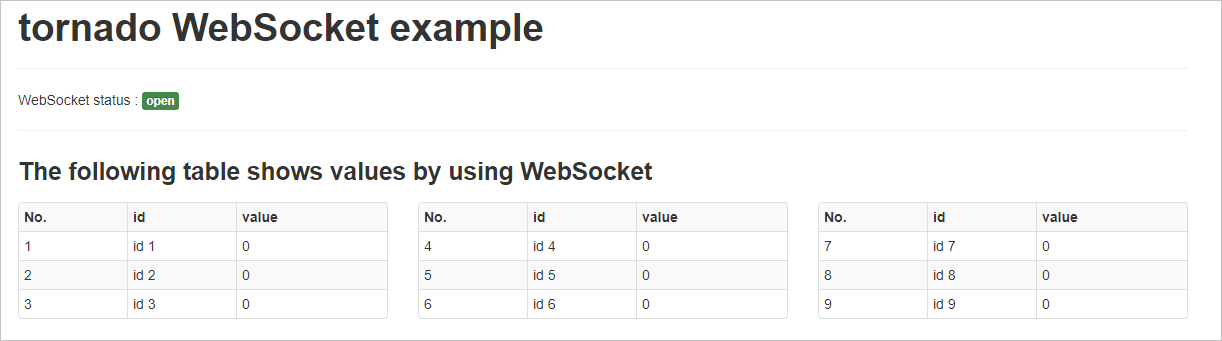
Send data to the application:
curl "http://<ingress-gateway-ip>/api?id=8&value=300"
curl "http://<ingress-gateway-ip>/api?id=5&value=600"
curl "http://<ingress-gateway-ip>/api?id=1&value=200"
curl "http://<ingress-gateway-ip>/api?id=3&value=290"
Replace <ingress-gateway-ip> with the actual IP address from the previous step.
All four browser tabs update simultaneously with identical data. This confirms that the ingress gateway correctly proxies WebSocket traffic between the clients and the tornado application.
Enable WebSocket Secure (wss)
To encrypt WebSocket traffic with TLS, add an HTTPS server block to the Gateway resource.
Prepare TLS certificates
Generate a server certificate and private key for the ingress gateway. For step-by-step instructions, see Prepare server certificates and private keys for multiple servers.
Create a Kubernetes Secret named
myexample-credentialin theistio-systemnamespace of the ACK cluster. The Secret must contain the server certificate and private key.
Update the gateway
Modify the Gateway created earlier to add an HTTPS listener on port 443:
apiVersion: networking.istio.io/v1alpha3
kind: Gateway
metadata:
  name: tornado-gateway
spec:
  selector:
    istio: ingressgateway
  servers:
  - port:
      number: 80
      name: http
      protocol: HTTP
    hosts:
    - "*"
  - port:
      number: 443
      name: https
      protocol: HTTPS
    hosts:
    - "*"
    tls:
      credentialName: myexample-credential
      mode: SIMPLE
The credentialName field references the Secret containing the TLS certificate and private key. SIMPLE TLS mode terminates TLS at the gateway and forwards unencrypted traffic to the backend.
Verify wss connectivity
Add a DNS record or update the hosts file on your local machine to resolve the domain in your certificate (for example,
a.aliyun.com) to the ingress gateway IP address.Open
https://a.aliyun.comin four separate browser tabs.
Send data over HTTPS:
curl -k "https://a.aliyun.com/api?id=8&value=300"
curl -k "https://a.aliyun.com/api?id=5&value=600"
curl -k "https://a.aliyun.com/api?id=1&value=200"
curl -k "https://a.aliyun.com/api?id=3&value=290"The-kflag skips certificate verification, which is acceptable for testing with self-signed certificates. In production, use a certificate from a trusted certificate authority (CA) and omit-k.
All four browser tabs update simultaneously with identical data. This confirms that WebSocket traffic is encrypted through the gateway.