Alibaba Cloud Service Mesh (ASM) lets you view your application topology. This topic uses the Bookinfo application, accessed through an ingress gateway, to demonstrate how to observe zone-aware routing with Service Mesh.
Prerequisites
An ASM instance is created. For more information, see Create an ASM instance.
An ACK managed cluster is created. For more information, see Create an ACK managed cluster.
-
The nodes in the ACK cluster are distributed across at least two zones. This topic uses
cn-hangzhou-jandcn-hangzhou-kas examples. You can view the region and zone of the ECS instances for your cluster nodes in the ACK console. For more information, see Regions and zones. -
An ingress gateway is deployed, and Mesh Topology is accessible. For more information, see Getting started.
-
A Helm v3 client is installed. For more information, see Helm.
Step 1: Deploy the sample application
-
Download the Helm chart for the sample application.
-
Extract the package to the
asm-az-routingdirectory and specify the zones in thevalues.yamlfile.The following is a sample configuration:
zone1: cn-hangzhou-j zone2: cn-hangzhou-k -
Run the following command to deploy the sample application.
helm install --namespace azdemo azdemo ./ -
After the pods are running, run the following command to access the service through the ingress gateway.
while true; do
  curl -I http://{IP address of the ingress gateway}/productpage ;
  echo;sleep 1;
done
Step 2: Configure Mesh Topology
-
Log on to the ASM console. In the left-side navigation pane, choose .
-
On the Mesh Management page, click the name of the ASM instance. In the left-side navigation pane, choose .
-
On the Mesh Topology page, click Copy token and open in new window.
-
On the Log in to Mesh Topology page, paste the token into the Login Token text box and click Log In.
-
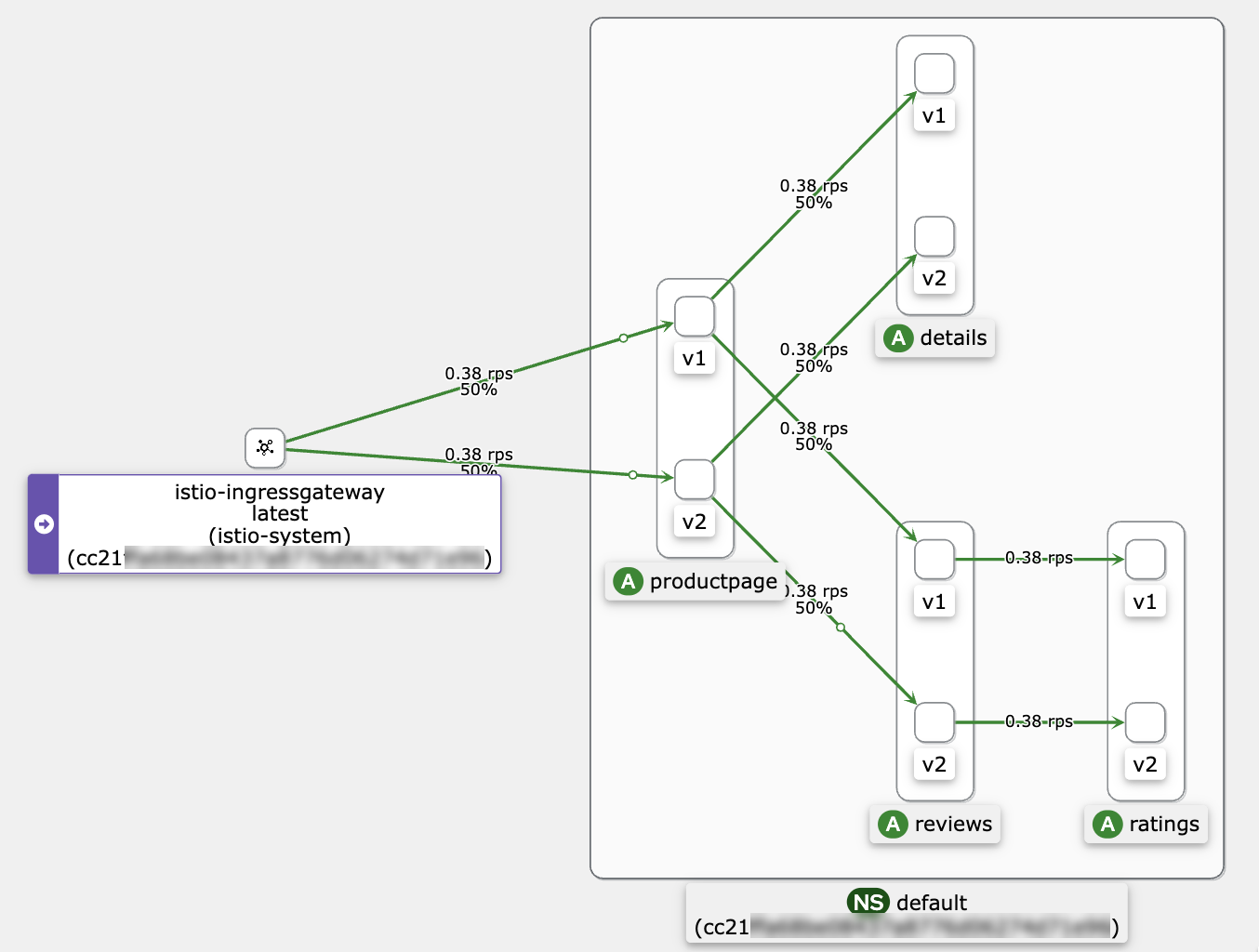
Select the target namespace. From the Display drop-down list, select Traffic Distribution, Traffic Rate, and Traffic Animation, and clear the Service Nodes checkbox.
The following figure shows an example.
Step 3: Verify automatic route failover
-
Scale down the reviews-v1 deployment in the first zone to 0 pods to simulate a service failure.
-
Log on to the ACK console. In the left navigation pane, click Clusters.
-
On the Clusters page, click the name of your cluster. In the left navigation pane, click .
-
In the Actions column of the target application, click Scale, set Desired Pod Count to 0, and then click OK.
-
-
Return to the Mesh Topology page as described in Step 2: Configure Mesh Topology and view the topology.
The following figure shows an example.
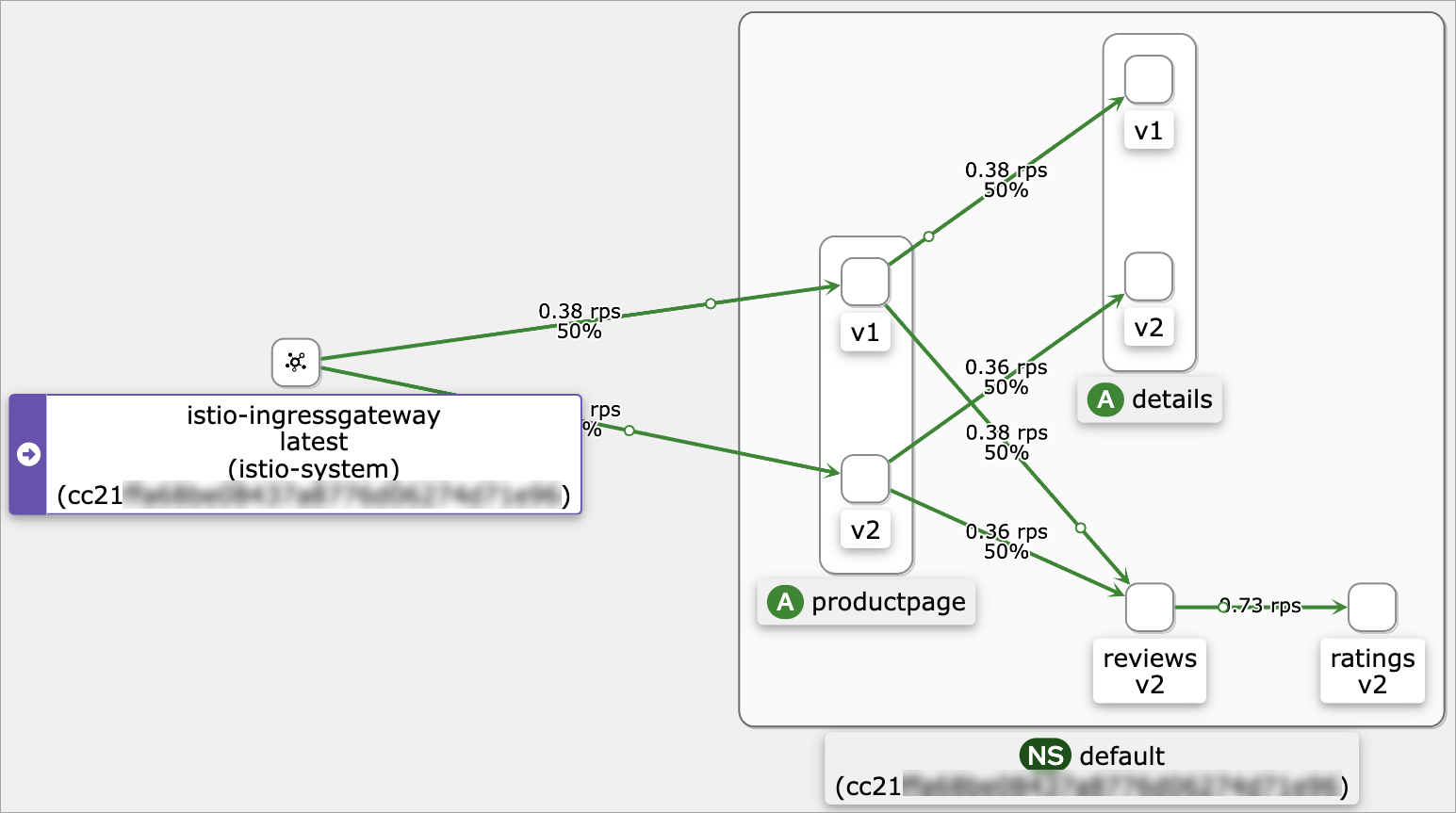 The topology shows that traffic from productpage-v1 is now routed to reviews-v2. This indicates that when the reviews service in the local zone is unavailable, traffic automatically fails over to the other zone.
Step 4: Verify zone-aware routing
-
Scale up the reviews-v1 deployment in the first zone to 1 pod to restore the service.
-
Log on to the ACK console. In the left navigation pane, click Clusters.
-
On the Clusters page, click the name of your cluster. In the left navigation pane, click .
-
In the Actions column of the target application, click Scale, set Desired Pod Count to 1, and then click OK.
-
-
Return to the Mesh Topology page as described in Step 2: Configure Mesh Topology and view the topology.
The following figure shows an example.
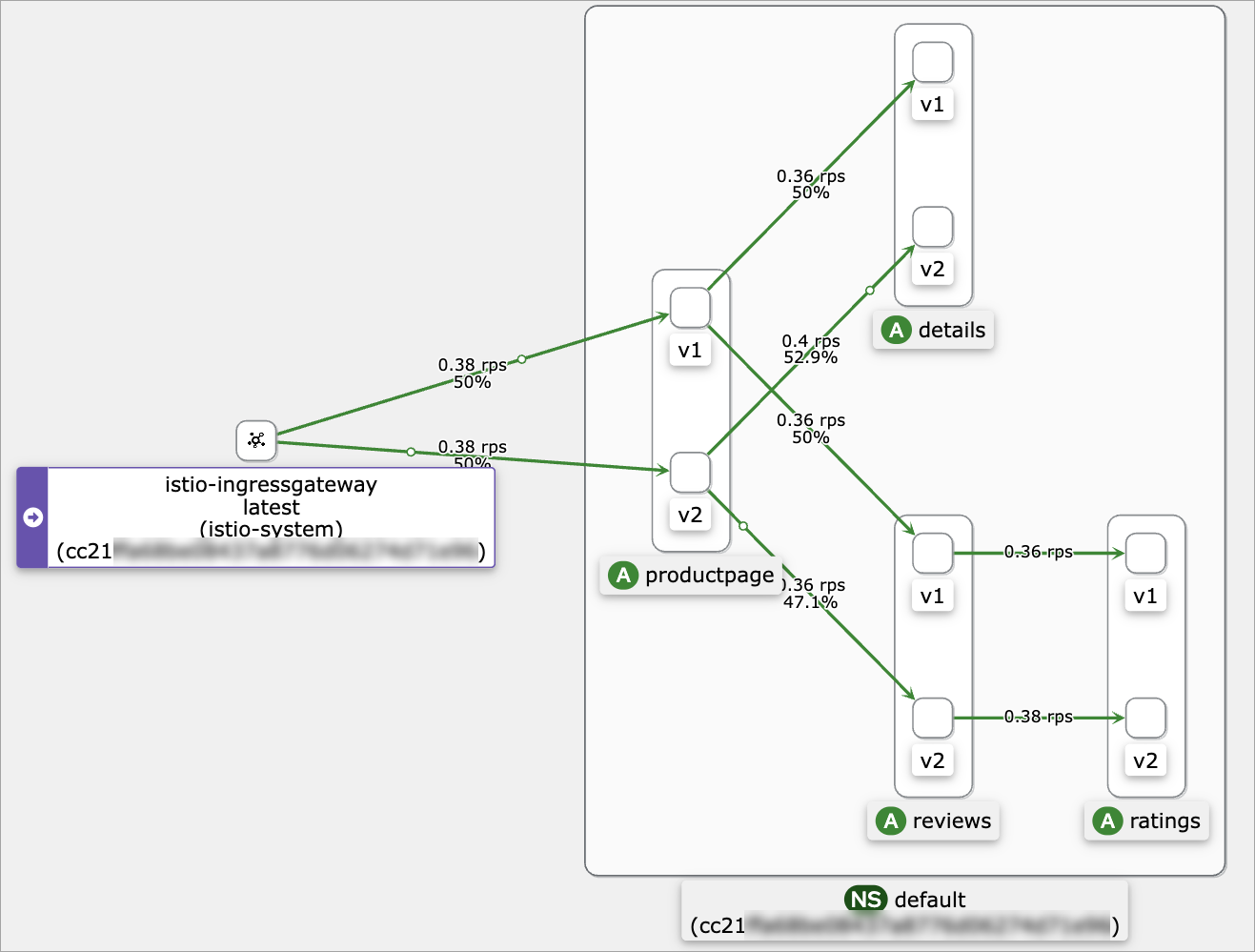 The topology shows that traffic from productpage-v1 is routed back to reviews-v1 in the local zone. This confirms that zone-aware routing is working correctly.