When you run machine learning models on Kubernetes, you need automated scaling, traffic routing, and lifecycle management for inference endpoints. KServe (formerly KFServing) provides these capabilities as a Kubernetes-native inference platform. By integrating KServe with Alibaba Cloud Service Mesh (ASM), you deploy and manage inference services through the ASM control plane -- with automatic traffic-based scaling, scale-to-zero, and canary deployments built in.
Prerequisites
Before you begin, make sure you have:
An ACK cluster added to an ASM instance of v1.17.2.7 or later. See Add a cluster to an ASM instance
The feature that allows Istio resources to be accessed through the Kubernetes API of clusters enabled. See Enable the feature that allows Istio resources to be accessed by using the Kubernetes API of clusters
Knative components deployed in the ACK cluster with the Knative on ASM feature enabled. See Step 1 in Use Knative on ASM to deploy a serverless application
How it works
KServe runs on your Container Service for Kubernetes (ACK) cluster, managed by ASM. When you deploy an InferenceService resource, KServe:
Provisions a model server and loads the model from the specified storage URI.
Creates Knative services for serverless scaling, including scale-to-zero when idle.
Generates Istio routing resources (a
VirtualServiceand aGateway) so the model is accessible through the ASM ingress gateway.
KServe supports two deployment modes:
| Mode | Scaling behavior |
|---|---|
| Serverless (Knative) | Automatic scaling, including scale-to-zero |
| Kubernetes Deployment | Standard Kubernetes resource allocation |
The following procedure uses serverless mode with Knative.
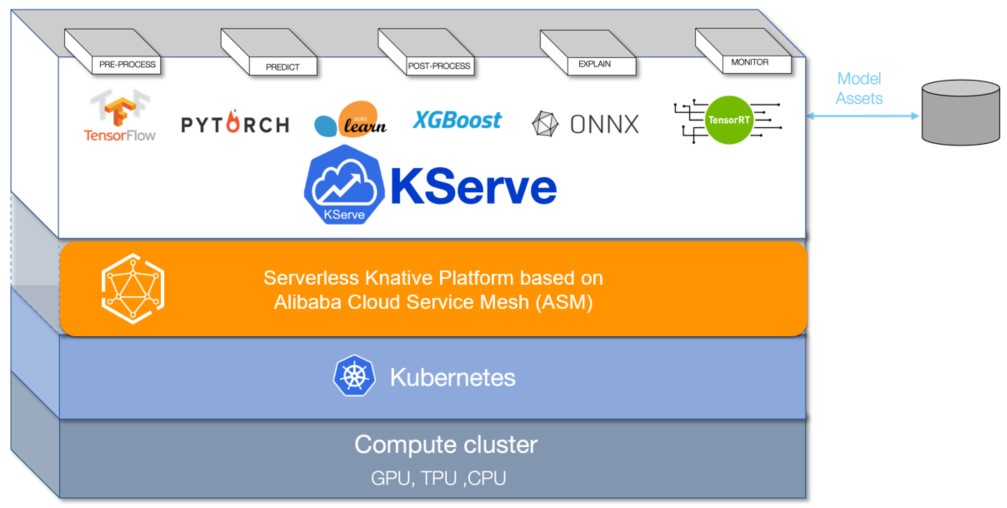
For more details, see the KServe project on GitHub.
Step 1: Enable KServe on ASM
KServe depends on cert-manager for certificate management. When you enable KServe, cert-manager is installed automatically.
Log on to the ASM console. In the left-side navigation pane, choose Service Mesh > Mesh Management.
On the Mesh Management page, click the name of the ASM instance. In the left-side navigation pane, choose Ecosystem > KServe on ASM.
On the KServe on ASM page, click Enable KServe on ASM.
If you already have cert-manager installed in your cluster, turn off Automatically install the CertManager component in the cluster to avoid conflicts.
Step 2: Get the ingress gateway IP address
Record the ASM ingress gateway IP address. You need it to send inference requests in Step 4.
Log on to the ASM console. In the left-side navigation pane, choose Service Mesh > Mesh Management.
On the Mesh Management page, click the name of the ASM instance. In the left-side navigation pane, choose ASM Gateways > Ingress Gateway.
On the Ingress Gateway page, note the Service address of the ingress gateway.
Step 3: Create an inference service
Deploy a scikit-learn iris classification model as an InferenceService to verify the integration.
Connect to the ACK cluster with kubectl and create a namespace for KServe resources:
kubectl create namespace kserve-testCreate a file named isvc.yaml with the following content:
apiVersion: "serving.kserve.io/v1beta1"
kind: "InferenceService"
metadata:
  name: "sklearn-iris"
spec:
  predictor:
    model:
      modelFormat:
        name: sklearn
      storageUri: "gs://kfserving-examples/models/sklearn/1.0/model"
Deploy the inference service in the
kserve-testnamespace:kubectl apply -f isvc.yaml -n kserve-testVerify the service is ready:
kubectl get inferenceservices sklearn-iris -n kserve-testExpected output:
NAME           URL                                           READY   PREV   LATEST   PREVROLLEDOUTREVISION   LATESTREADYREVISION            AGE
sklearn-iris   http://sklearn-iris.kserve-test.example.com   True           100                              sklearn-iris-predictor-00001   3h26m
The
READYcolumn showsTruewhen the service is available.(Optional) View the auto-generated Istio resources
After the inference service is created, KServe automatically generates a virtual service and an Istio gateway for routing traffic to the model. To view these resources:
Log on to the ASM console. In the left-side navigation pane, choose Service Mesh > Mesh Management.
On the Mesh Management page, click the name of the ASM instance. In the left-side navigation pane, choose Traffic Management Center > VirtualService.
On the VirtualService page, click the
 icon next to Namespace and select kserve-test from the drop-down list to view the virtual service.
In the left-side navigation pane, choose ASM Gateways > Gateway. On the Gateway page, select knative-serving from the Namespace drop-down list to view the Istio gateway.
Step 4: Send inference requests
After the inference service is running, send prediction requests through the ASM ingress gateway. The following steps apply to Linux and macOS.
Create an input file with sample data for the iris classification model:
cat <<EOF > "./iris-input.json"
{
  "instances": [
    [6.8,  2.8,  4.8,  1.4],
    [6.0,  3.4,  4.5,  1.6]
  ]
}
EOF
Get the service hostname:
SERVICE_HOSTNAME=$(kubectl get inferenceservice sklearn-iris -n kserve-test -o jsonpath='{.status.url}' | cut -d "/" -f 3)
echo $SERVICE_HOSTNAME
Expected output:
sklearn-iris.kserve-test.example.comSend a prediction request through the ingress gateway. Replace
<ingress-gateway-ip>with the IP address from Step 2:curl -H "Host: ${SERVICE_HOSTNAME}" \ http://<ingress-gateway-ip>:80/v1/models/sklearn-iris:predict \ -d @./iris-input.jsonExpected output:
{"predictions": [1, 1]}The model classifies both input samples as class
1(Iris versicolor).Run a load test
To evaluate throughput and latency under sustained traffic, deploy a preconfigured load test job:
Deploy the load test application:
kubectl create -f https://alibabacloudservicemesh.oss-cn-beijing.aliyuncs.com/kserve/v0.7/loadtest.yamlFind the load test pod name:
kubectl get podExpected output:
NAME                                                       READY   STATUS      RESTARTS   AGE
load-testxhwtq-pj9fq                                       0/1     Completed   0          3m24s
sklearn-iris-predictor-00001-deployment-857f9bb56c-vg8tf   2/2     Running     0          51m
View the test results. Replace
<load-test-pod-name>with the actual pod name from the previous step:kubectl logs <load-test-pod-name>Expected output:
Requests      [total, rate, throughput]         30000, 500.02, 500.01
Duration      [total, attack, wait]             59.999s, 59.998s, 1.352ms
Latencies     [min, mean, 50, 90, 95, 99, max]  1.196ms, 1.463ms, 1.378ms, 1.588ms, 1.746ms, 2.99ms, 18.873ms
Bytes In      [total, mean]                     690000, 23.00
Bytes Out     [total, mean]                     2460000, 82.00
Success       [ratio]                           100.00%
Status Codes  [code:count]                      200:30000
Error Set:
This result shows a 100% success rate across 30,000 requests at 500 requests per second, with a mean latency of 1.463 ms.
What's next
Accelerate model loading: For data-intensive AI applications, integrate KServe on ASM with Fluid to speed up data access. See Integrate the KServe on ASM feature with Fluid to implement AI Serving that accelerates data access.
Transform input data: Deploy a transformer to convert raw input into the format required by the model server. See Use InferenceService to deploy a transformer.
Manage multiple models: For large-scale, high-density model deployments, use Model Service Mesh to schedule and manage multiple model services. See Model Service Mesh.