A sidecar proxy enhances the security, reliability, and observability of service calls. For scenarios that do not require these features, Service Mesh allows you to selectively bypass the sidecar proxy. This topic describes how to configure inbound traffic, outbound traffic, and traffic to specific destinations to bypass the sidecar proxy.
Prerequisites
An ASM instance is created. For more information, see Create an ASM instance.
An ACK managed cluster is created. For more information, see Create an ACK managed cluster.
An ingress gateway is deployed. For more information, see Create an ingress gateway.
Configure sidecar bypass for inbound and outbound traffic
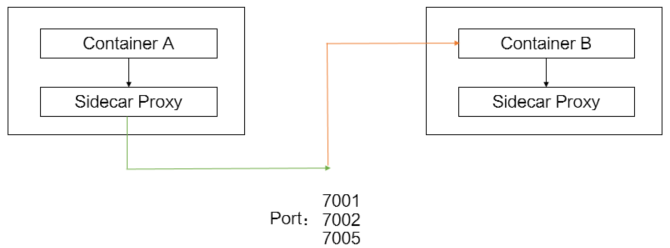
In performance-sensitive scenarios, some pods may not require the security authentication, such as mTLS, or Service Mesh capabilities that ASM provides. This example demonstrates how to exclude inbound traffic on ports 7001, 7002, and 7005 from the sidecar proxy, while routing outbound traffic on the same ports through it. This approach reduces the resource footprint of the istio-proxy and improves overall performance. Because outbound traffic is still intercepted, you can continue to use Service Mesh features like load balancing.
ASM console
This example shows how to configure a namespace-level sidecar interception policy for the default namespace by using the Ports on Which Outbound Traffic Redirected to Sidecar Proxy and Ports on Which Inbound Traffic Not Redirected to Sidecar Proxy settings.
-
Log on to the ASM console.
-
In the left-side navigation pane, choose .
-
On the Mesh Management page, find the ASM instance that you want to configure. Click the name of the ASM instance or click Manage in the Actions column.
-
On the details page of the ASM instance, choose in the left-side navigation pane.
-
On the Configure the agent parameters of the injected Sidecar page, click the Namespace tab.
-
Select the default namespace. Expand Enable/Disable Sidecar Proxy by Ports or IP Addresses by clicking the
 icon, select the checkbox, configure the following parameters, and then click Update Settings.
Parameter
Description
Ports on Which Outbound Traffic Redirected to Sidecar Proxy
Set this parameter to 7001,7002,7005.
Ports on Which Inbound Traffic Not Redirected to Sidecar Proxy
Set this parameter to 7001,7002,7005.
-
Restart the pods to apply the configuration.
Log on to the ACK console. In the left navigation pane, click Clusters.
On the Clusters page, click the name of your cluster. In the left navigation pane, click .
-
On the Pods page, find the target pod, and in the Actions column, choose .
-
In the dialog box, click OK.
Wait for the container to restart.
ACK console
This example shows how to configure a sidecar interception policy for an individual pod by adding annotations to a Deployment. For more information, see Configure a sidecar proxy by using annotations.
Log on to the ACK console. In the left navigation pane, click Clusters.
On the Clusters page, click the name of your cluster. In the left navigation pane, click .
-
On the Deployments page, find the target application, and click Details in the Actions column.
-
In the upper-right corner of the application details page, click View in YAML.
-
In the Edit YAML dialog box, add the following content under the spec.template.metadata parameter, and then click Update.
annotations:
  traffic.sidecar.istio.io/excludeInboundPorts: '7001,7002,7005'
  traffic.sidecar.istio.io/includeOutboundPorts: '7001,7002,7005'
template: metadata: annotations: traffic.sidecar.istio.io/excludeInboundPorts: '7001,7002,7005' traffic.sidecar.istio.io/includeOutboundPorts: '7001,7002,7005' -
Restart the pods to apply the configuration.
Log on to the ACK console. In the left navigation pane, click Clusters.
On the Clusters page, click the name of your cluster. In the left navigation pane, click .
-
On the Pods page, find the target pod, and in the Actions column, choose .
-
In the dialog box, click OK.
Wait for the container to restart.
Configure bypass for specific destinations
This example shows how to configure the sidecar proxy to bypass traffic to the 47.XX.XX.144/32 address range.
ASM console
-
Log on to the ASM console.
-
In the left-side navigation pane, choose .
-
On the Mesh Management page, find the ASM instance that you want to configure. Click the name of the ASM instance or click Manage in the Actions column.
-
On the details page of the ASM instance, choose in the left-side navigation pane.
-
Configure the sidecar interception policy at the global or namespace level.
-
global
-
On the Configure the agent parameters of the injected Sidecar page, click the global tab.
-
Expand Enable/Disable Sidecar Proxy by Ports or IP Addresses by clicking the
icon, set Addresses to Which External Access Is Not Redirected to Sidecar Proxy to 47.XX.XX.144/32, and then click Update Settings.
-
-
Namespace
-
On the Configure the agent parameters of the injected Sidecar page, click the Namespace tab.
-
Select the default namespace. Expand Enable/Disable Sidecar Proxy by Ports or IP Addresses by clicking the
icon, select the checkbox, set Addresses to Which External Access Is Not Redirected to Sidecar Proxy to 47.XX.XX.144/32, and then click Update Settings.
-
-
-
Restart the pods to apply the configuration.
Log on to the ACK console. In the left navigation pane, click Clusters.
On the Clusters page, click the name of your cluster. In the left navigation pane, click .
-
On the Pods page, find the target pod, and in the Actions column, choose .
-
In the dialog box, click OK.
Wait for the container to restart.
ACK console
This example shows how to configure a sidecar interception policy for an individual pod by adding annotations to a Deployment. For more information, see Configure a sidecar proxy by using annotations.
Log on to the ACK console. In the left navigation pane, click Clusters.
On the Clusters page, click the name of your cluster. In the left navigation pane, click .
-
On the Deployments page, click the target application.
-
In the upper-right corner of the application details page, click View in YAML.
-
In the Edit YAML dialog box, add the following content under the spec.template.metadata parameter, and then click Update.
annotations:
  traffic.sidecar.istio.io/excludeOutboundIPRanges: 47.XX.XX.144/32
template: metadata: annotations: traffic.sidecar.istio.io/excludeOutboundIPRanges: 47.XX.XX.144/32 -
Restart the pods to apply the configuration.
Log on to the ACK console. In the left navigation pane, click Clusters.
On the Clusters page, click the name of your cluster. In the left navigation pane, click .
-
On the Pods page, find the target pod, and in the Actions column, choose .
-
In the dialog box, click OK.
Wait for the container to restart.
Verify the result
You can verify that traffic is bypassing the sidecar proxy by setting the Outbound Traffic Policy to REGISTRY_ONLY. In REGISTRY_ONLY mode, the sidecar proxy blocks traffic that it intercepts. Therefore, a successful connection confirms that the traffic bypassed the proxy.
-
In the ASM console, go to the Configure the agent parameters of the injected Sidecar page and click the global tab.
-
Expand Outbound Traffic Policy by clicking the
icon, select REGISTRY_ONLY, and then click Update Settings. -
Run the following command to access http://47.XX.XX.144/productpage.
curl -I http://47.XX.XX.144/productpageExpected output: The following response headers are returned. The
HTTP/1.1 200 OKstatus code indicates that the access is successful.HTTP/1.1 200 OK content-type: text/html; charset=utf-8 content-length: 5179 server: istio-envoy date: Thu, 07 Apr 2022 13:46:22 GMT x-envoy-upstream-service-time: 23After you configure 47.XX.XX.144/32 to bypass the sidecar proxy, you can successfully access http://47.XX.XX.144/productpage. You can configure specific destination addresses to bypass the sidecar proxy based on your actual situation.