After you add an ingress gateway to an ASM instance, you can deploy applications to the cluster associated with the instance. This topic shows you how to deploy the Bookinfo sample application to an ACK cluster associated with an ASM instance.
Bookinfo application
This topic uses a sample book review application named Bookinfo. The following figure shows its microservice architecture: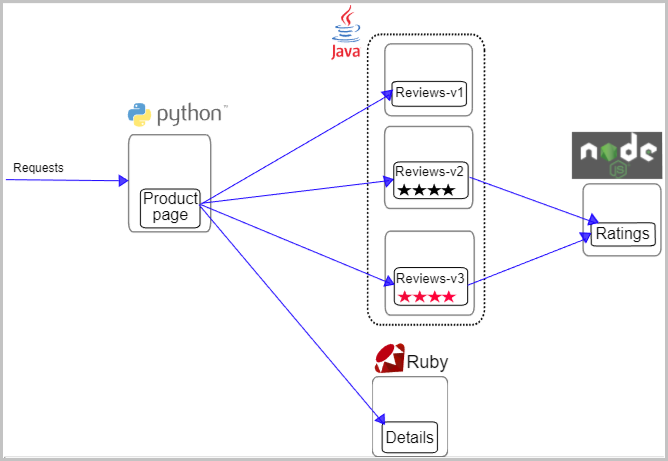
The application consists of the following four microservices:
-
Productpage: This microservice calls the Details and Reviews microservices to generate the page.
-
Details: This microservice contains book information.
-
Reviews: This microservice contains book reviews and calls the Ratings microservice.
-
Ratings: This microservice contains rating information from book reviews.
The Reviews microservice has three versions:
-
Version v1 does not call the Ratings service.
-
Version v2 calls the Ratings service and displays ratings as 1 to 5 black stars.
-
Version v3 calls the Ratings service and displays ratings as 1 to 5 red stars.
Prerequisites
-
You have created an ingress gateway.
-
The ACK cluster is integrated with Managed Service for Prometheus or a self-managed Prometheus instance to collect metrics. This topic uses Managed Service for Prometheus as an example. For more information, see Integrate with Managed Service for Prometheus to monitor the mesh or Integrate with a self-managed Prometheus instance to monitor the mesh.
Deploy the Bookinfo application
-
Create a file named bookinfo.yaml with the following content.
-
Run the following command to deploy the sample application in the
defaultnamespace.kubectl apply -f bookinfo.yaml
Deploy and configure the ingress gateway
-
Create a file named bookinfo-gateway.yaml with the following content.
apiVersion: networking.istio.io/v1beta1 kind: Gateway metadata: name: bookinfo-gateway namespace: default spec: selector: istio: ingressgateway servers: - port: number: 80 name: http protocol: HTTP hosts: - '*' --- apiVersion: networking.istio.io/v1beta1 kind: VirtualService metadata: name: vs-demo namespace: default spec: hosts: - '*' http: - name: gw-to-productage match: - uri: exact: /productpage - uri: prefix: /static - uri: exact: /login - uri: exact: /logout - uri: prefix: /api/v1/products route: - destination: host: productpage port: number: 9080 gateways: - bookinfo-gateway -
Deploy the ingress gateway.
kubectl apply -f bookinfo-gateway.yaml
Access the application
You will connect to the Bookinfo productpage service through the gateway that you just configured.
-
Get the IP address of the ingress gateway.
echo $(kubectl -n istio-system get istiogateway ingressgateway -o jsonpath="{.status.GatewayAddress[0]}") -
In a browser, visit
http://<IP_address_of_the_ingress_gateway>/productpageto view the Bookinfo application.The page displays product information for the book "The Comedy of Errors". The Book Details section in the middle of the page lists fields such as ISBN-10, Publisher, Pages, Type, and Language. The Book Reviews section at the bottom displays two reviews with red star ratings from the reviews-v3 version.
Refresh the page several times. You will notice that the ratings in the Book Reviews section alternate between versions v1, v2, and v3 of the reviews application.
Enable ambient mode for Bookinfo
-
Log on to the ASM console. In the left-side navigation pane, choose .
-
On the Mesh Management page, click the name of the ASM instance. In the left-side navigation pane, choose .
-
In the Dataplane Mode column for the default namespace, click Switch to Ambient Mesh Mode.
You can switch the Dataplane Mode for the namespace back to sidecar mode on the page at any time.
-
In your browser, visit
http://<IP_address_of_the_ingress_gateway>/productpageto view the Bookinfo application. The application remains accessible. The only difference is that mTLS encryption is enabled for all communication between the Bookinfo application pods.
View the mesh topology
-
Enable monitoring metric collection.
-
On the Mesh Management page, click the name of the ASM instance. In the left-side navigation pane, choose .
-
Click Collect Metrics to Managed Service for Prometheus. In the Confirm dialog box, select the name of your cluster and click OK.
You can skip this step if you use a self-managed Prometheus instance.
-
-
Enable mesh topology.
-
On the Mesh Management page, click the name of the ASM instance. In the left-side navigation pane, choose .
-
Click Activate, configure the mesh topology with the following parameters, and then click Activate.
The following configuration is for accessing the topology through an ASM gateway.
Parameter
Example value
Service deployment mode
Data plane deployment within the Kubernetes cluster.
When using the managed deployment mode, you can only access the service through a Serverless ASM gateway.
Observability cluster
c6118d720xxxxxxxxxxxxxx58410a9c7d0.
Prometheus scrape address
This parameter is not required for this example.
If you use a self-managed Prometheus instance, enter the actual scrape address here.
If you add multiple clusters to the ASM instance, you must create an aggregation instance and enter the scrape address of the aggregation instance.
Identity authentication-logon mode
Token.
Entry
ASM .
-
Select an ASM Gateway: Select the name of the ingress gateway, which is ingressgateway in this example.
-
Select an ASM gateway port: Select 443.
You can also edit the gateway to add a dedicated port for the mesh topology.
-
-
-
Send test traffic to generate the traffic topology graph.
export GATEWAY_ADDRESS=$(kubectl -n istio-system get istiogateway ingressgateway -o jsonpath="{.status.GatewayAddress[0]}") for i in $(seq 1 100); do echo "Request $i: $(curl -sSI -o /dev/null -w "%{http_code}" "http://${GATEWAY_ADDRESS}:80/productpage")" done -
On the Mesh Topology page, click Access ASM mesh topology next to Topology address. In the Logon Method section, click View the logon token and copy the token. On the Kiali page, paste the token into the Token field and click Log in.