Query Application Real-Time Monitoring Service (ARMS) User Experience Monitoring bills and track data usage.
ARMS provides two ways to manage monitoring costs:
| Tool | Purpose |
|---|---|
| Expenses and Costs console | Review bill details by billing cycle, account, or instance |
| ARMS console | Monitor data usage and set daily write quotas on the Usage statistics page |
Query bills
Log on to the Expenses and Costs console.
In the left-side navigation pane, choose .
On the Billing Details tab, set the following filter conditions:
Filter Description Billing Cycle Select the month to query Account/Owner Account Select the account Product Details Select the ARMS sub-service from the drop-down list Click Search.
Set Statistic Item to Instance to view the bill for each ARMS instance separately.
Allocate costs across teams
Use cost units to break down charges by instance. This makes it easier to track spending across teams or projects without manual calculation. For details, see Cost unit.
View resource usage
Log on to the ARMS console.
In the left-side navigation pane, choose .
On the Usage statistics page, set the time range in the upper-right corner. Use the Quick Filter section to narrow results by application type or data type.
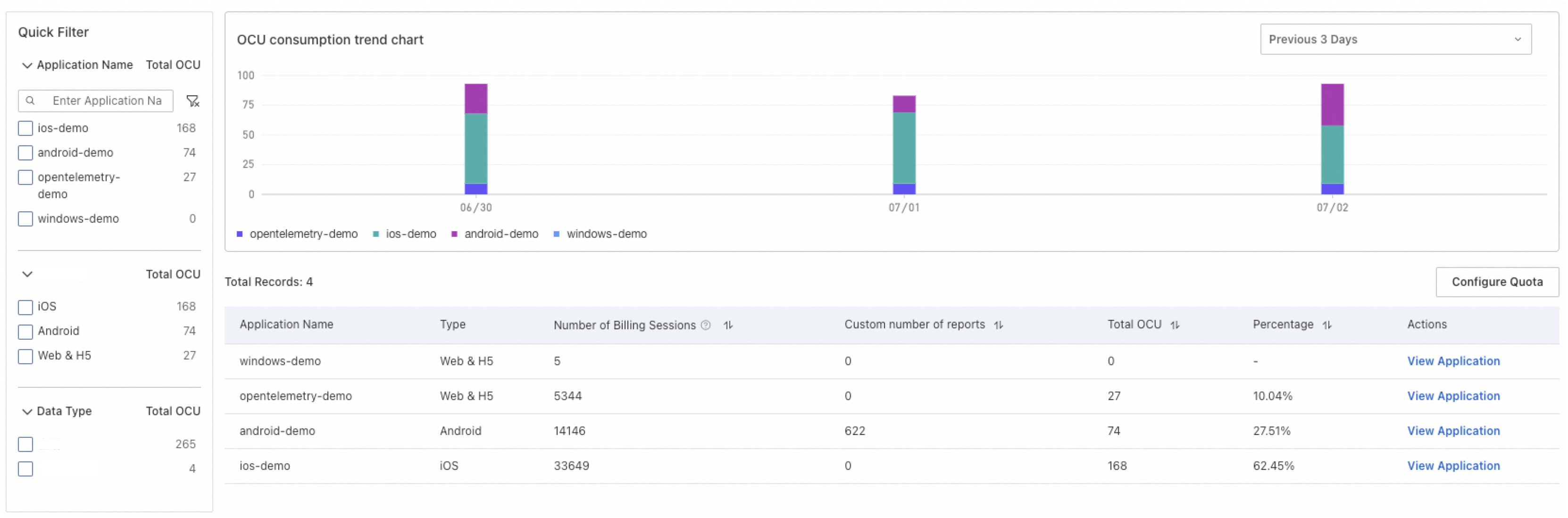
From the usage list, you can perform the following operations:
Action How to access Description View monitoring data Click View Application in the Actions column Opens the monitoring details page. See View monitoring details. Set a daily write quota Click Configure Quota in the upper-right corner Set the maximum daily data write amount and enable alert notifications. 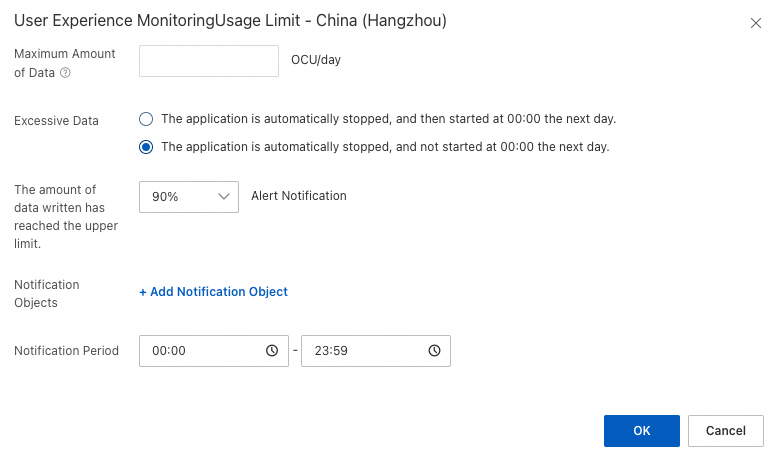
Best practices
Set daily quotas to control costs
Set a daily data write quota to cap the amount of data collected per day. Enable alert notifications to receive warnings before usage reaches the limit.
On the Usage statistics page, click Configure Quota.
Set the maximum daily data write amount.
Enable alert notifications.
Use cost units for multi-team billing
If multiple teams share an ARMS instance, assign cost units to each team's resources. This generates per-team billing reports without manual calculation. See Cost unit.
Review usage trends regularly
Check the Usage statistics page periodically to spot unexpected spikes in data volume.
What's next
View monitoring details -- Explore the monitoring data collected by User Experience Monitoring.
Cost unit -- Set up cost allocation for multi-team environments.