When you manage Kubernetes clusters at scale, manually configuring alert rules per cluster is repetitive and error-prone. PrometheusRule, the Custom Resource Definition (CRD) from Prometheus Operator, defines alert rules and recording rules in standard Prometheus format. Managed Service for Prometheus supports PrometheusRule as an implementation of Monitoring as Code (MaC), so you can version-control alert configurations and integrate them into GitOps workflows.
By default, Managed Service for Prometheus does not read PrometheusRule rules from Kubernetes clusters. Choose one of the following methods based on your workflow:
| Method | Best for | How it works |
|---|---|---|
| Import as a template | GUI-based management across multiple clusters | Paste PrometheusRule YAML into the console, then apply the template to one or more Prometheus instances |
| Sync from the Prometheus agent | MaC and GitOps workflows on ACK clusters | Enable the Prometheus agent to automatically sync PrometheusRule rules from your cluster |
Import a PrometheusRule as an alert rule template
Alert rule templates let you define alert configurations once and apply them to multiple Prometheus instances across regions and clusters, without creating individual PrometheusRule CRDs in each cluster.
Log on to the ARMS console.
In the left-side navigation pane, choose Managed Service for Prometheus > Prometheus Alert Rule Templates.
On the Prometheus Alert Rule Templates page, click Import Templates.
In the Import dialog box, paste the
speccontent of the PrometheusRule.The following figure shows the
speccontent in a sample PrometheusRule.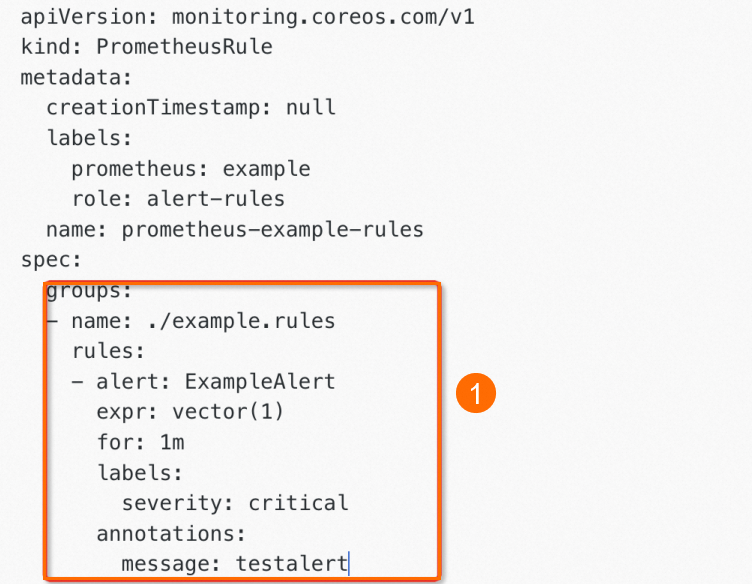
Click Import Alert Rule Template.
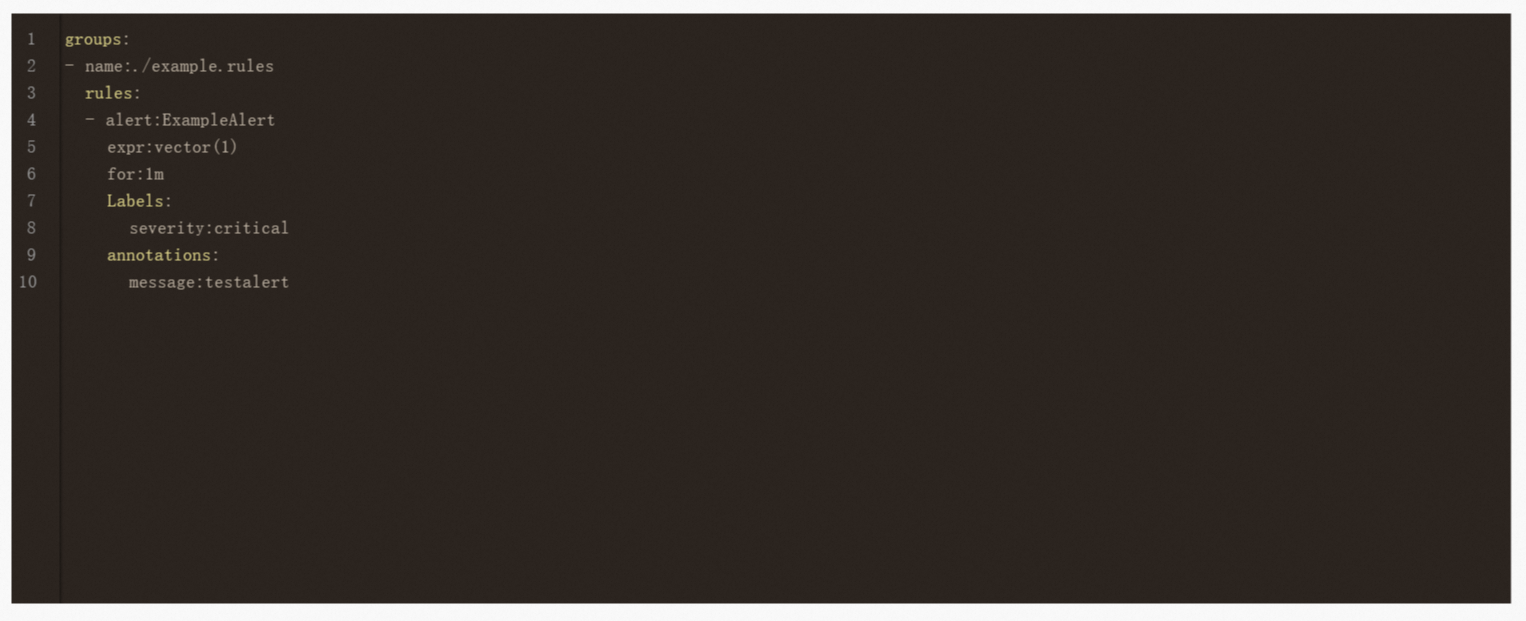
On the Prometheus Alert Rule Templates page, click Apply Templates to apply the imported template to one or more Prometheus instances.
To learn more, see Create and manage an alert rule template.
Sync PrometheusRule alert rules from the Prometheus agent
The Prometheus agent can automatically detect and sync PrometheusRule CRDs from your Container Service for Kubernetes (ACK) cluster. This method fits MaC and GitOps workflows: define PrometheusRule rules in your Git repository and the agent syncs them to Managed Service for Prometheus. Use this method when you want to:
Manage alert rules as code in a GitOps pipeline.
Maintain consistent alert configurations across development, staging, and production clusters by storing PrometheusRule manifests in version control.
Enable PrometheusRule sync
Log on to the ACK console. In the left-side navigation pane, click Clusters.
On the Clusters page, find the target cluster and click Applications in the Actions column.
On the Deployments page, select arms-prom from the Namespace drop-down list. Find the Deployment whose name starts with
arms-prometheus(for example,arms-prometheus-ack-arms-prometheus), and click Edit in the Actions column.
In the Lifecycle section, add
--alert=trueto the Parameter field of the Start parameter. In the upper-right corner, click Update.
Wait 3 to 5 minutes for the agent to sync. On the Prometheus Alert Rules page in the ARMS console, verify that all alert rules are in the Running state.
After you enable PrometheusRule sync, do not modify the synced alert rules in the Managed Service for Prometheus console. Console edits conflict with the MaC mechanism: rule name changes or deletions may fail, and modifications are not synced back to external systems such as GitOps. Manage all alert rule changes through your PrometheusRule manifests instead.
Built-in alert rules
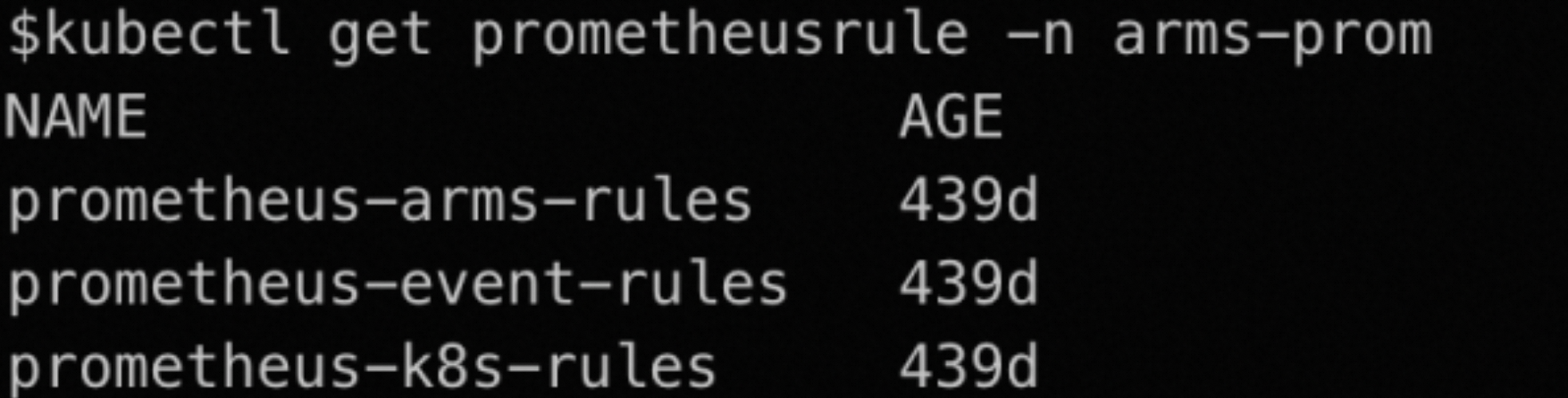
After you enable the --alert=true option, Managed Service for Prometheus creates a set of built-in alert rules in the arms-prom namespace. See Description of alert rules for the full list.
Disable built-in alert rules
To prevent the Prometheus agent from creating default alert rules, set the defaultAlert parameter to false.
The defaultAlert parameter controls automatic creation of default alert rules:
| Value | Behavior |
|---|---|
true | The agent creates default alert rules. |
false | The agent does not create default alert rules. |
Log on to the ACK console. In the left-side navigation pane, click Clusters.
On the Clusters page, find the target cluster and click Applications in the Actions column.
On the Deployments page, select arms-prom from the Namespace drop-down list. Find the Deployment whose name starts with
arms-prom, and click Edit in the Actions column.In the Lifecycle section, add
--defaultAlert=falseto the Parameter field of the Start parameter. In the upper-right corner, click Update.Wait 3 to 5 minutes for the change to take effect. The agent stops creating default alert rules for this cluster.
(Optional) Delete a default alert rule
To delete a specific default alert rule:
Log on to the ARMS console.
In the left-side navigation pane, choose Managed Service for Prometheus > Instances.
Click the name of the Prometheus instance that monitors the target cluster.
In the left-side navigation pane, click Alert rules. On the Prometheus Alert Rules page, find the alert rule and click Delete in the Actions column. Click OK to confirm.