Spring Boot applications generate JVM, process, and application metrics through Micrometer. By adding two dependencies and a few configuration lines, you expose these metrics at a Prometheus-compatible endpoint. Application Real-Time Monitoring Service (ARMS) scrapes this endpoint and feeds the data into Managed Service for Prometheus, where you can view dashboards and configure alerts.
How it works
Micrometer is a metrics instrumentation library for JVM-based applications. When combined with Spring Boot Actuator, it exposes application and JVM metrics at an HTTP endpoint in Prometheus text format. After you deploy your application on Alibaba Cloud, the ARMS Integration Center scrapes this endpoint and stores the data in Managed Service for Prometheus.
Prerequisites
Before you begin, make sure that you have:
A Java application built with Spring Boot 2.x
The application deployed (or ready to deploy) on Container Service for Kubernetes (ACK) or Elastic Compute Service (ECS)
Step 1: Add dependencies and expose the Prometheus endpoint
This guide uses a Spring Boot 2.x application as an example.
Add the dependencies
Add the Spring Boot Actuator, Micrometer Prometheus registry, and Micrometer JVM Extras dependencies to your project.
Maven (pom.xml)
<dependency>
    <groupId>org.springframework.boot</groupId>
    <artifactId>spring-boot-starter-actuator</artifactId>
    <version>x.y.z</version>
</dependency>

<dependency>
    <groupId>io.micrometer</groupId>
    <artifactId>micrometer-registry-prometheus</artifactId>
    <version>x.y.z</version>
</dependency>To obtain the latest Maven project version, visit the Alibaba Cloud repository.
Expose the Prometheus endpoint
Add the following properties to your application.properties file:
management.server.port=8080
management.endpoints.web.exposure.include=xxx, prometheus| Property | Description |
|---|---|
management.server.port | The port for the Actuator management server. Replace 8080 with the port your environment requires. |
management.endpoints.web.exposure.include | Controls which Actuator endpoints are accessible over HTTP. The value xxx is a placeholder for your desired endpoints. Add the endpoint names you need alongside prometheus, separated by commas. |
If you use application.yml:
management:
  server:
    port: 8080
  endpoints:
    web:
      exposure:
        include: xxx, prometheus
Collect extended process metrics
To collect extended process-level memory and thread metrics, add the Micrometer JVM Extras library:
Maven (pom.xml)
<dependency>
    <groupId>io.github.mweirauch</groupId>
    <artifactId>micrometer-jvm-extras</artifactId>
    <version>0.2.2</version>
</dependency>To obtain the latest Maven project version, visit the Alibaba Cloud repository.
Then register the metric binders as Spring beans:
@Bean
public MeterBinder processMemoryMetrics() {
    return new ProcessMemoryMetrics();
}

@Bean
public MeterBinder processThreadMetrics() {
    return new ProcessThreadMetrics();
}
Step 2: Verify metrics locally
After you add the dependencies and configure the properties, start your application and verify that the Prometheus endpoint returns metrics.
Run the following command:
curl http://localhost:8080/actuator/prometheusReplace 8080 with the port configured in management.server.port. A successful response contains metrics in Prometheus text format:
# HELP jvm_memory_used_bytes The amount of used memory
# TYPE jvm_memory_used_bytes gauge
jvm_memory_used_bytes{area="heap",id="G1 Eden Space",} 2.5165824E7
...
If the endpoint returns a 404 error, verify that:
The
spring-boot-starter-actuatordependency is on your classpath.The
management.endpoints.web.exposure.includeproperty includesprometheus.The port in your request matches
management.server.port.
Step 3: Deploy and connect to Managed Service for Prometheus
Deploy your application to an ACK cluster or an ECS instance, then configure the Micrometer integration in the ARMS console.
Log on to the ARMS console.
In the left-side navigation pane, click Integration Center.
Search for the Micrometer component.
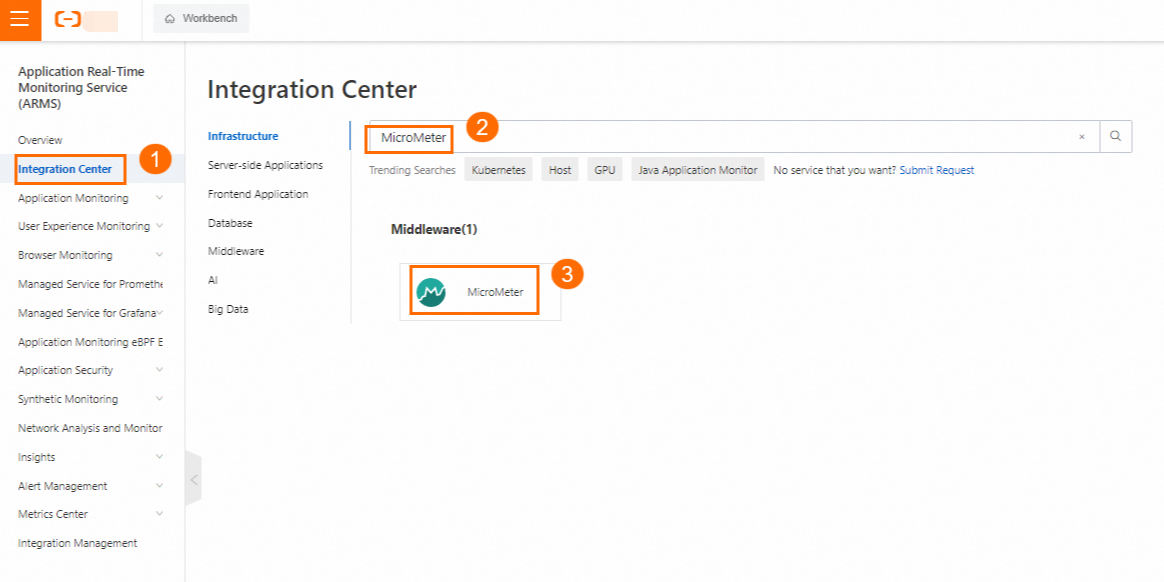
On the Start Integration tab of the Micrometer panel, configure the following parameters and click OK.
Parameter Description Select the environment type The environment where your application runs. Valid values: Kubernetes Environment, ECS(VPC). Select a Kubernetes cluster The ACK cluster where your application runs. This parameter appears only when you select Kubernetes Environment. Labels Labels of the pod where Micrometer is deployed. Use meaningful labels to identify your application. Service Port The port of the application. The default port number is automatically filled in. Metrics Collection Path The endpoint that exposes the metrics. The default endpoint is automatically filled in. Use HTTPS to Collect Data Turn on this switch to scrape metrics over HTTPS instead of HTTP. Metric Scrape interval (unit/second) How often metrics are collected, in seconds. Default: 30.
Step 4: View dashboards
Log on to the ARMS console.
In the left-side navigation pane, click Integration Management.
On the Integrated Environments tab, click the name of your environment.
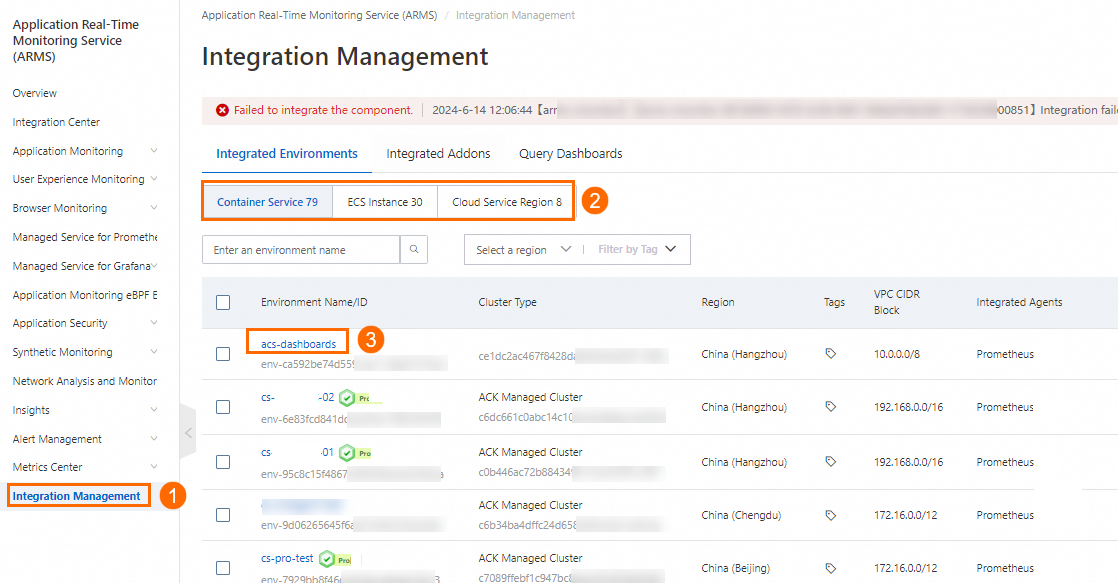
On the Component Management tab, in the Addon Type section, click MicroMeter, then click Dashboards.
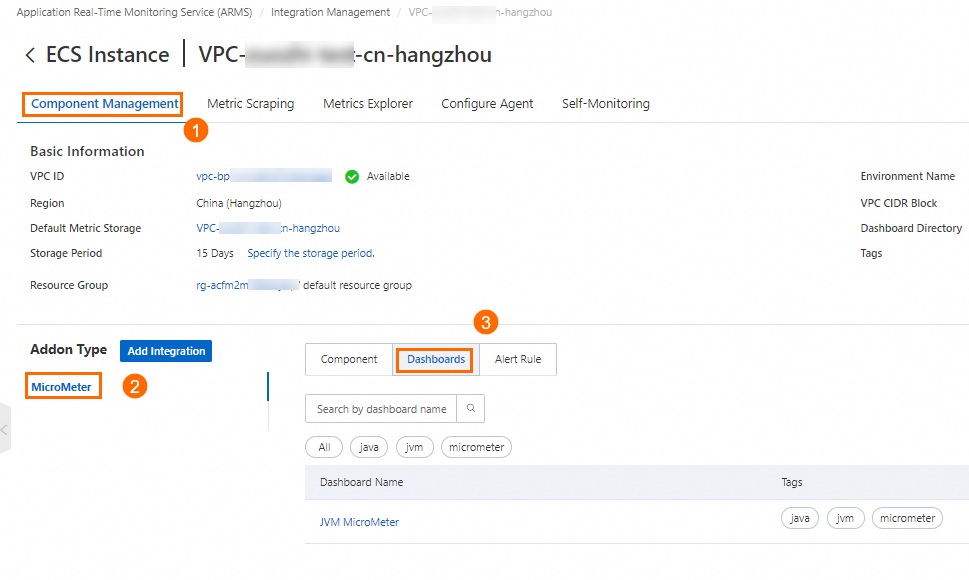
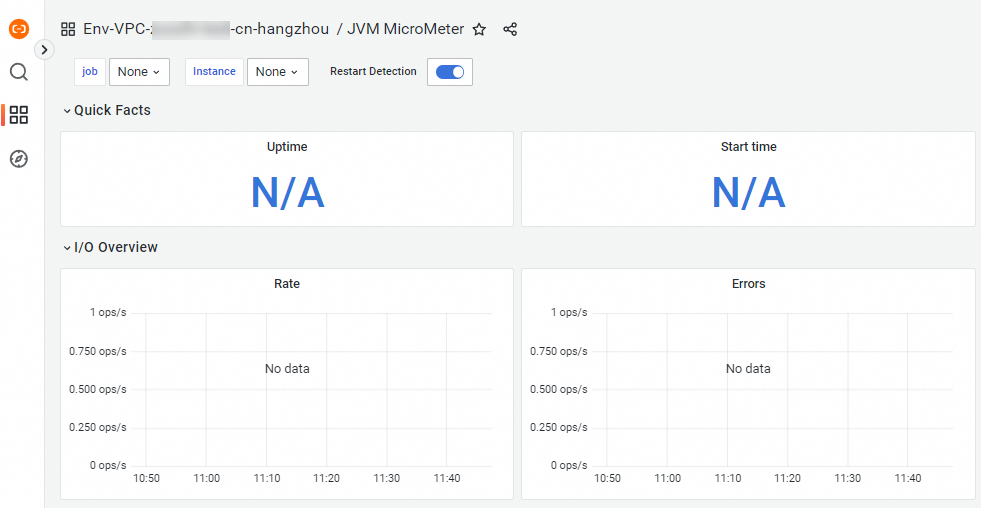
Click a dashboard name to open it.
Step 5: Configure alerting
On the Component Management tab, in the Addon Type section, click MicroMeter, then click Alert Rule to view default alert rules.
Create custom alert rules based on your requirements. For details, see .