You can install plug-ins in Managed Service for Grafana, which are then displayed on the Plugins page of the Grafana console. This topic describes how to install them in Managed Service for Grafana.
This feature is available only in Managed Service for Grafana Pro Edition and Advanced Edition V7.5.x. If you are using the Developer Edition, update your Managed Service for Grafana to the Pro Edition or Advanced Edition first.
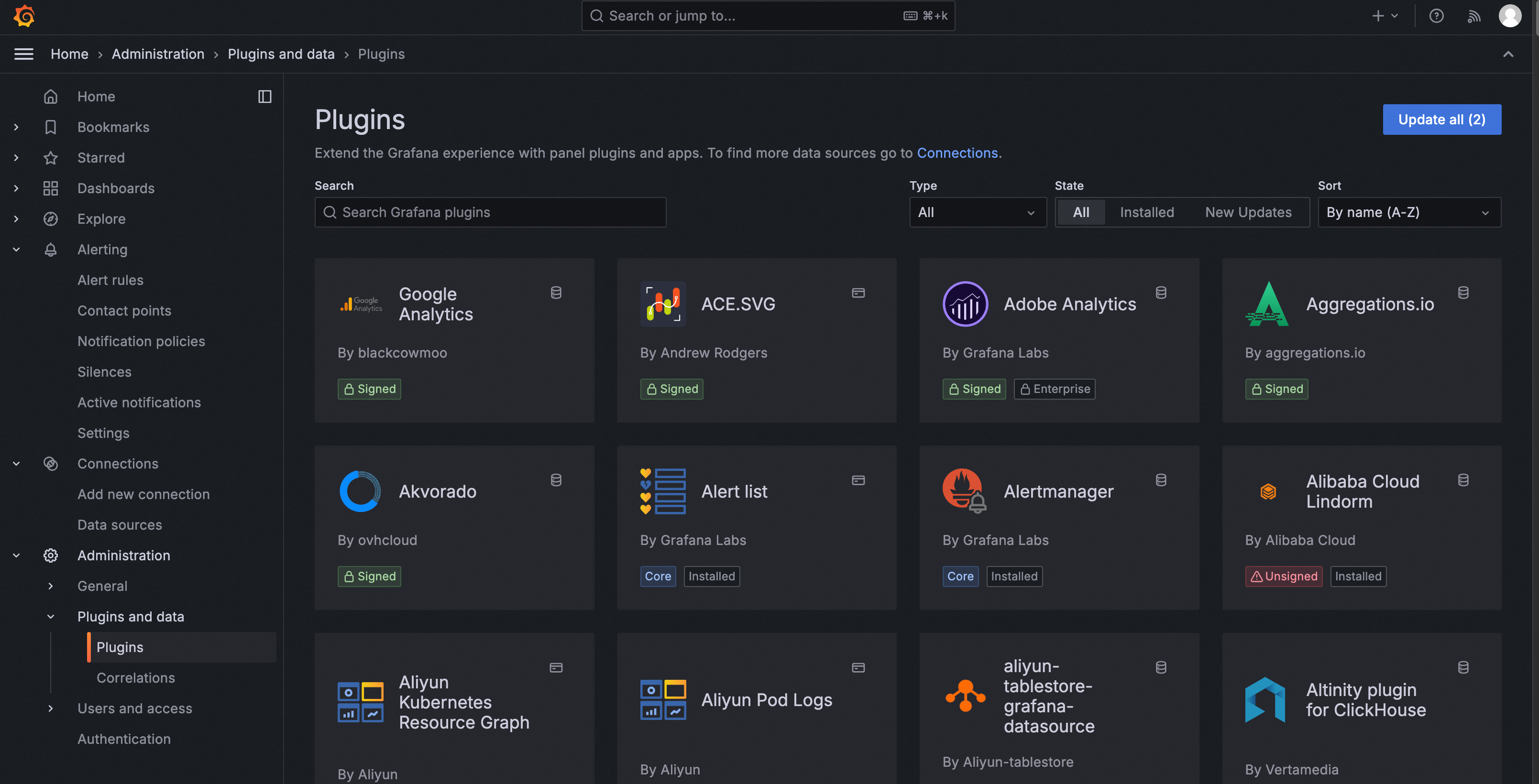
In Grafana V8.2.x and later, you can directly install plug-ins on the page of the Grafana console. For more information, see Grafana documentation.
Install a plug-in
Log on to the ARMS console. In the left-side navigation pane, choose .
On the Workspace Management page, click the ID of the workspace that you want to manage.
In the left-side navigation pane, click Plug-ins.
Optional:In the search box, enter the keyword of the plug-in that you want to install, and click the
 icon.
icon. 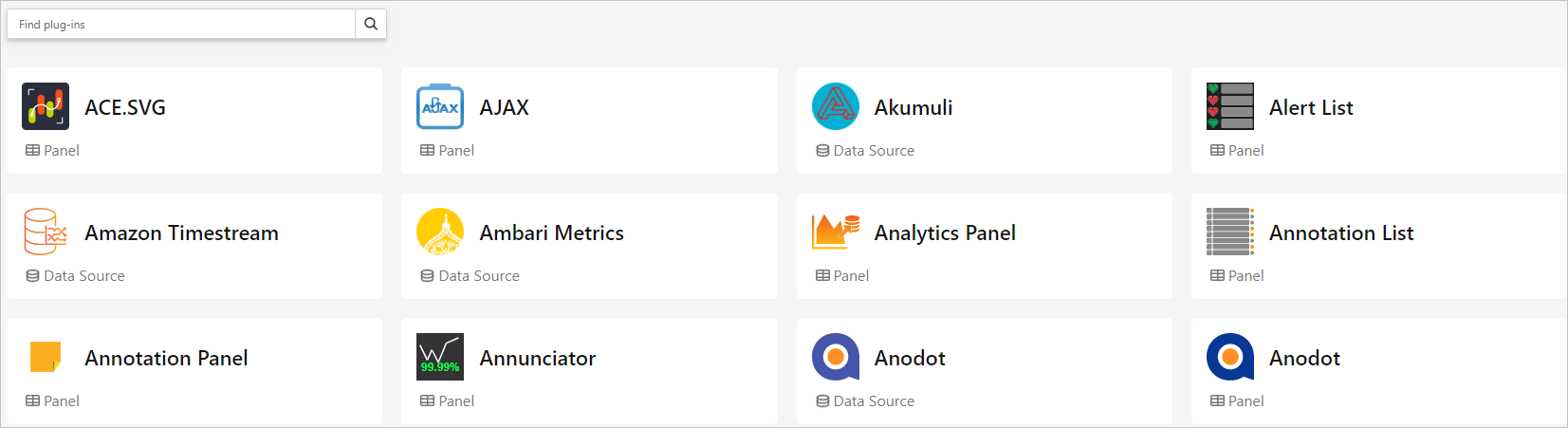
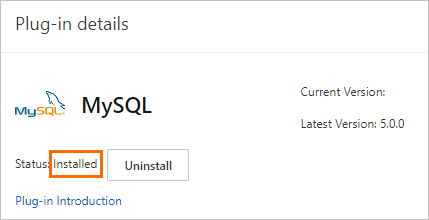
Click the section where the plug-in is displayed. In the Plug-in details panel, click Install.
In the Install the plug-in dialog box, select a plug-in version and click Install.
NoteAbout 1 to 5 minutes is required to install a plug-in. The time varies with the plug-in size.
After the plug-in is installed, the plug-in enters the Installed state in the Plug-in details panel.
View installed plug-ins in the Grafana console
In the left-side navigation pane of the Managed Service for Grafana console, click Workspace Information.
O the Workspace Information page, click the URL next to Connection information to go to the Grafana console.
In the left-side navigation pane of the Grafana console, choose
 > Plugins.
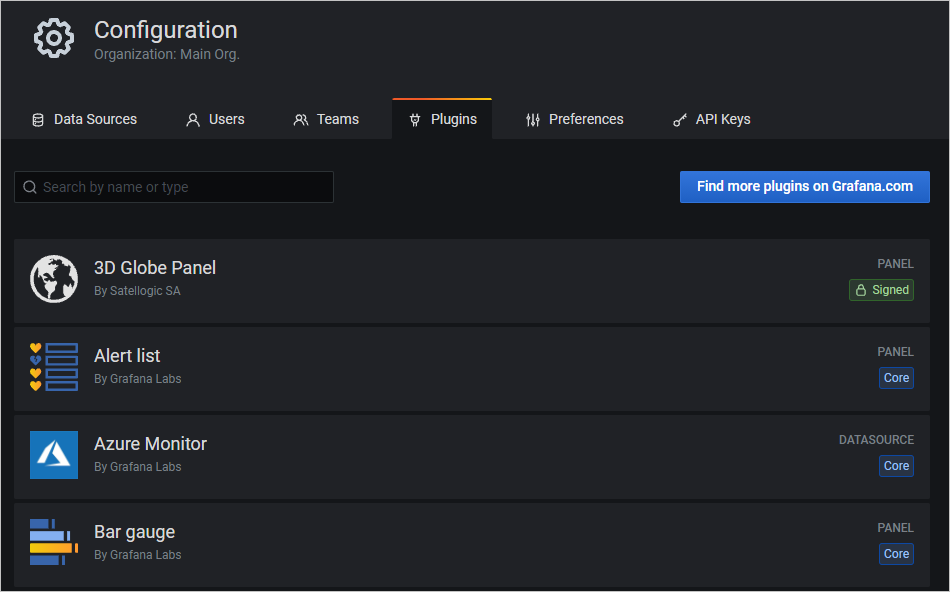
 On the Plugins tab of the Configuration page, you can view all the installed Grafana plug-ins.
Uninstall a plug-in
In the left-side navigation pane of the Managed Service for Grafana console, click Plug-ins.
Optional:In the search box, enter the keyword of the plug-in that you want to uninstall, and click the
icon. Click the section where the plug-in is displayed. In the Plug-in details panel, click Uninstall.
In the Uninstall message, click Uninstall.
NoteThe plug-in enters the Not installed state in 10 minutes in the Plug-in details section due to asynchronous loading.
Update the version of a plug-in
You cannot directly update the version of an installed plug-in Managed Service for Grafana. You must uninstall the plug-in and then install the plug-in of the latest version.