Manually creating Grafana users for multiple customers or O&M personnel and then sharing their credentials is a tedious process. A more efficient approach is to invite users through an SMTP-enabled email account. This allows them to create their own Grafana accounts from an invitation email sent by Grafana. This topic uses a NetEase email account to demonstrate how to invite users to a specific Grafana organization.
Step 1: Enable SMTP for your email account
This email account sends Grafana invitation emails.
In the top navigation bar of your NetEase email account, choose .
In the POP3/SMTP/IMAP section, enable the POP3/SMTP service.
ImportantFollow the on-screen prompts to complete the security verification and save the provided authorization password.
After you enable the SMTP service, find the SMTP server address in the Note section.
NoteYou can also find the SMTP server address and port number in the official NetEase Mail documentation.
Step 2: Configure Grafana parameters
-
Log on to the ARMS console. In the left-side navigation pane, choose .
-
On the Workspace Management page, click the ID of the workspace that you want to manage.
In the left-side navigation pane, click Parameter Settings.
On the Parameter Settings page, click Modify Parameters, and then select smtp.
Modify the following smtp parameters and then click Save and Apply.
enabled: Set this parameter to true.
host: The SMTP server address and port, such as
smtp.163.com:465.NoteThe SMTP server address and port in this example are for NetEase Mail. Replace them with the actual address and port for your email provider.
user: Your email address.
password: The authorization password that you obtained in Step 1.
from_address: The sender's email address.
from_name: Not required.
Step 3: Invite new users in Grafana
In the left-side navigation pane of the Managed Service for Grafana console, click Workspace Information. In the Connection Information section, click Log On in the Actions column to open Grafana.
NoteTo log on to Grafana, you can use the Grafana Admin account and the password that you set when you created the workspace. Alternatively, click Sign in with Alibaba Cloud to log on with the Alibaba Cloud account used to purchase the workspace.
Optional: On the Grafana page, click the avatar icon in the lower-left corner and then click Switch. On the Switch Organization page, switch to the target organization.
In the left-side navigation pane of Grafana, choose
 > Users.
On the Users tab, click Invite.
On the Invite User page, enter the invitee's email address in the Email or Username field, assign a role to the user, and then click Submit.
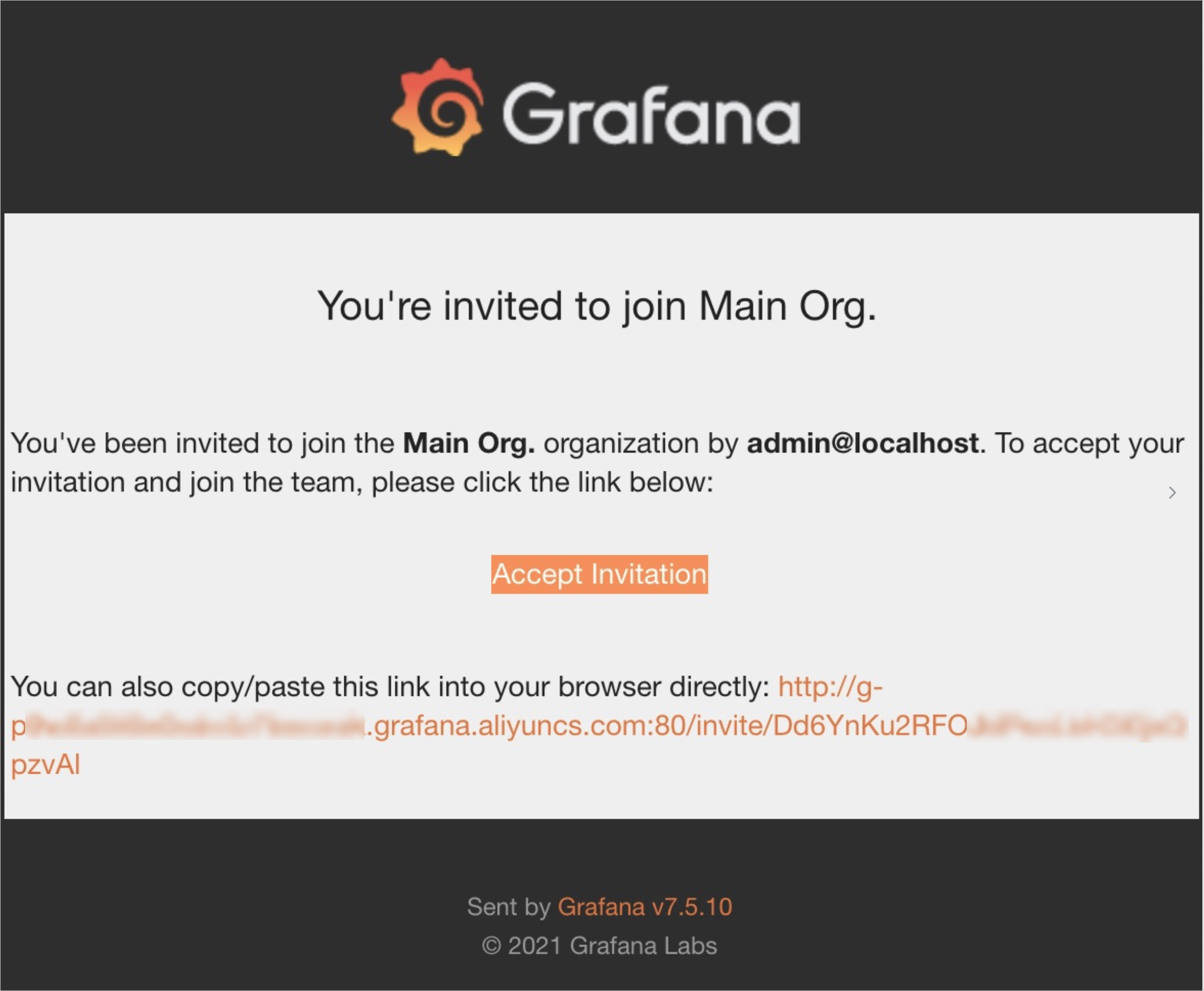
The invitee will receive a Grafana invitation email from the email account you configured in Step 1. You can set the Role to Viewer, Editor, or Admin. The Send invite email switch is on by default.
The invitee clicks Accept Invitation in the email to go to the Grafana page.
On the Grafana page, the invitee sets a password and then clicks Sign Up.