Function Compute (FC) provides a built-in Go runtime that supports Application Real-Time Monitoring Service (ARMS). This topic describes how to integrate the Go runtime with ARMS.
Background information
By integrating Function Compute with the ARMS platform, you can monitor and trace your functions. This integration provides instance-level observability, Tracing Analysis data, Go runtime metrics, and CPU profiling data.
Prerequisites
Go version 1.18 or later is required.
Get a license key
Obtain the license key through OpenAPI. For more information, see DescribeTraceLicenseKey - List license keys.
Method 1: Create a function in FC using a compiled Go binary file
-
Compile your Go application with the ARMS Go agent. For more information, see Compile a Go binary file.
-
Upload and run the compiled Go binary file in Function Compute. For more information, see Create an event-triggered function.
When you create the event-triggered function, set Runtime to Go 1 and Code Upload Method to Upload Code with ZIP Package. Package the locally compiled Go binary file into a ZIP package, upload the package, and then click Create.
-
Configure environment variables.
ARMS_ENABLE=true ARMS_APP_NAME=xxx # The name of your application. ARMS_REGION_ID=xxx # The region ID of your Alibaba Cloud account. ARMS_LICENSE_KEY=xxx # The license key you obtained. -
After you complete the configuration, run the function. The configured application appears on the page in the ARMS console.
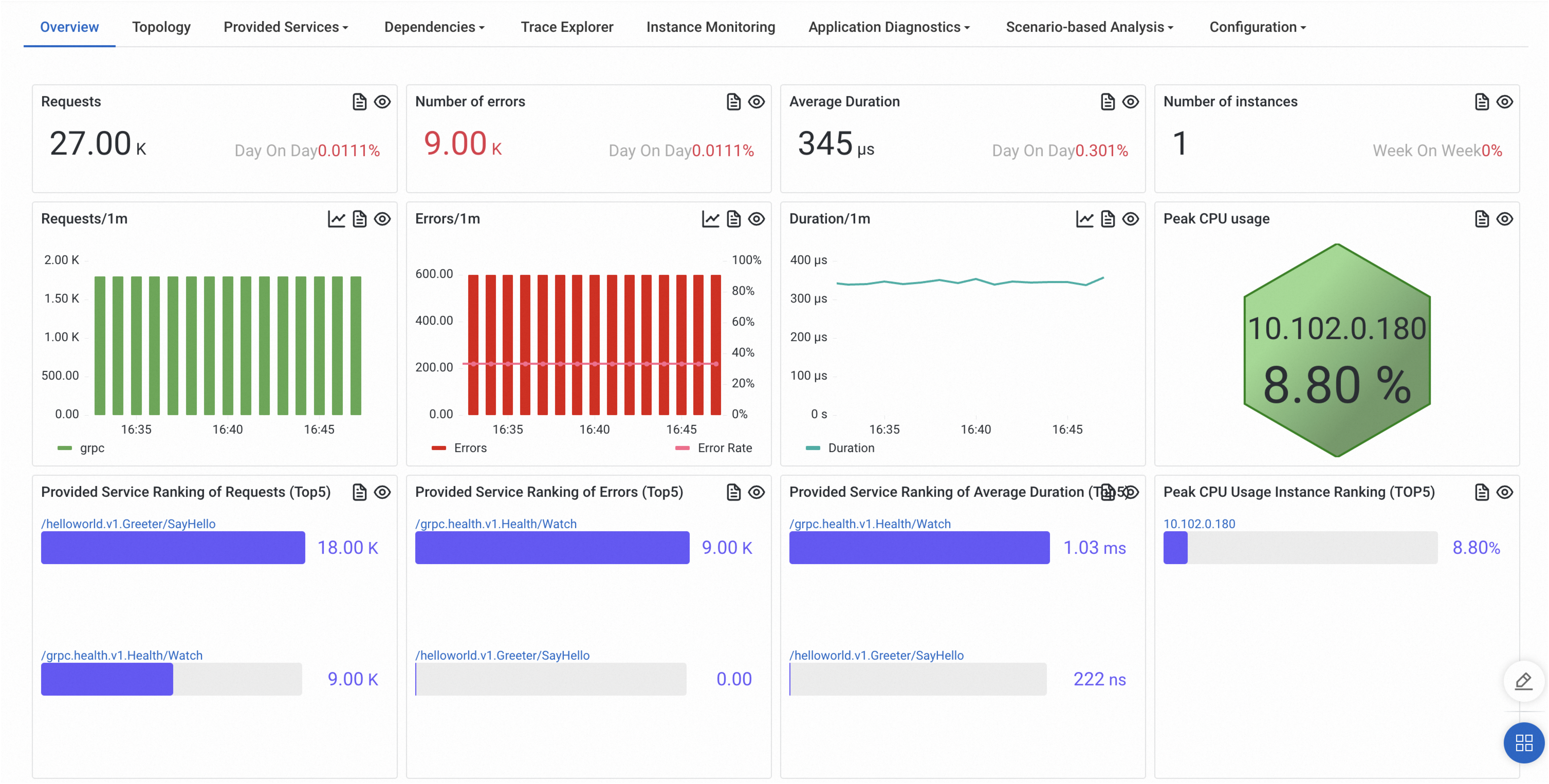
Click the application name. On the Application Overview page, you can view metrics for the function, such as the number of requests, the number of errors, and the average response time. You can also view other internal call data.
Method 2: Build a Go application using the FC Application Center
-
Modify the actions in the s.yaml file.
-
The sample code uses the download URL for the China (Hangzhou) region. Replace the download URL for the compilation tool based on your operating system and region. For a list of download URLs, see Obtain a download URL.
-
Replace the LicenseKey with the license key that you obtained.
edition: 3.0.0 name: hello-world-app access: "{{ access }}" vars: # Global variables region: "{{ region }}" resources: hello_world: component: fc3 actions: pre-${regex('deploy|local')}: - run: GO111MODULE=on go mod tidy path: ./code - run: wget "http://arms-apm-cn-hangzhou.oss-cn-hangzhou.aliyuncs.com/instgo/instgo-linux-amd64" -O instgo path: ./code - run: chmod +x instgo path: ./code - run: GOOS=linux GOARCH=amd64 CGO_ENABLED=0 ./instgo build --licenseKey="{licenseKey}" --cacheDir=./ -- -o target/main main.go path: ./code props: region: ${vars.region} functionName: "{{ functionName }}" description: 'hello world by serverless devs' runtime: "{{ runtime }}" code: ./code/target handler: main memorySize: 128 timeout: 10 # triggers: # - triggerName: httpTrigger # Trigger name # triggerType: http # Trigger type # description: 'xxxx' # qualifier: LATEST # The service version to trigger # triggerConfig: # authType: anonymous # Authentication type. Valid values: anonymous, function # disableURLInternet: false # Specifies whether to disable the public endpoint # methods: # The supported HTTP methods. Valid values: GET, POST, PUT, DELETE, HEAD # - GET # - POST -
-
In the FC Application Center, import the application from a repository. For more information, see Import an application.
On the Create Application page, select Import an application from a repository. In the Basic Settings section, select a repository type such as GitHub, then select the repository user or organization, the repository name and the repository branch, and enter the Application Name and the Description. If Serverless Devs has not been authorized yet, click Authorize first to grant it read access to the code repository.
-
After the application is created, go to the application details page. In the section, click the function name and add the following environment variables. For more information, see Configure environment variables.
ARMS_ENABLE=true ARMS_APP_NAME=xxx # The name of your application. ARMS_REGION_ID=xxx # The region ID of your Alibaba Cloud account. ARMS_LICENSE_KEY=xxx # The license key you obtained. -
Start the application. The configured application appears on the page in the ARMS console.
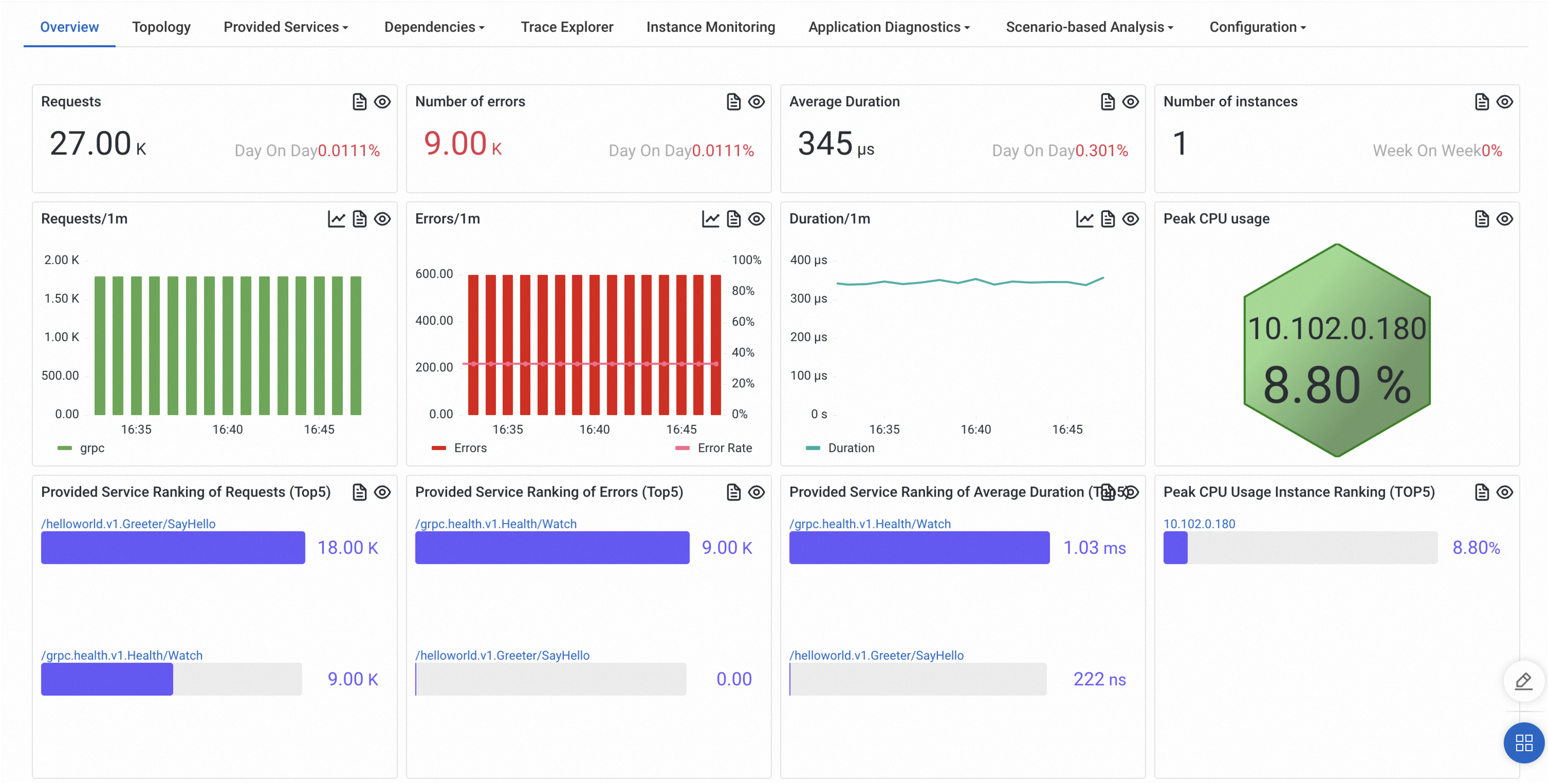
Click the application name. On the Application Overview page, you can view metrics such as the number of requests, the number of errors, and the average response time.