All Products
Search
Document Center

Application Real-Time Monitoring Service:Scenario-based analysis

Last Updated:Mar 11, 2026

When monitoring LLM applications, you need visibility into both individual conversations and model-level performance trends. The Scenario-based Analysis page in Application Real-Time Monitoring Service (ARMS) provides two tabs -- Session analysis and Model analysis -- to help you inspect multi-turn conversations and compare model usage metrics across a specified time period.

How sessions and traces relate

ARMS organizes LLM monitoring data into a hierarchy of sessions and traces:

ConceptDefinitionExample
SessionA group of related traces from a multi-turn conversationA user asks a chatbot three follow-up questions. All resulting traces belong to one session.
TraceA single request-response cycle within a sessionOne question-and-answer exchange, including token usage, latency, and execution spans

Use Session analysis to view conversation-level data, then drill down into individual traces for execution details. Switch to Model analysis to view aggregated performance metrics for a specific model.

Prerequisites

Before you begin, make sure that you have:

  • An ARMS agent for Python installed for your LLM applications

For installation instructions, see Monitor LLM applications in ARMS.

Session analysis

The Session analysis tab lists all sessions within the selected time period.

Session analysis page overview

Filter sessions

Click the search box at the top of the page to open the filter drop-down menu. The following filter criteria are available:

FilterDescriptionExample use case
Session IDUnique identifier for the sessionLocate a specific session reported by a user
UserEnd user associated with the sessionAnalyze usage patterns for a specific user
Session durationTotal duration of the sessionFind slow interactions that exceed a latency threshold
Number of tracesTotal request-response cycles in the sessionIdentify sessions with unusually many turns
Total tokensCombined input and output tokens consumedDetect expensive conversations with high token consumption
Input tokensTokens in user promptsFind sessions with long or complex user inputs
Output tokensTokens in model responsesFind sessions with verbose model outputs
Session filter drop-down menu

Combine multiple filters to narrow results. For example, filter by high total token counts and long session duration together to identify conversations that are both expensive and slow.

View session details

Click a session name or click Details in the Actions column to open the session details page.

The details page lists all traces within the selected session. Each row shows trace-level metrics such as token usage and latency. Click a trace ID to view its execution path, including individual spans and timing data. For more information, see LLM Trace Explorer.

Session details with trace list

Model analysis

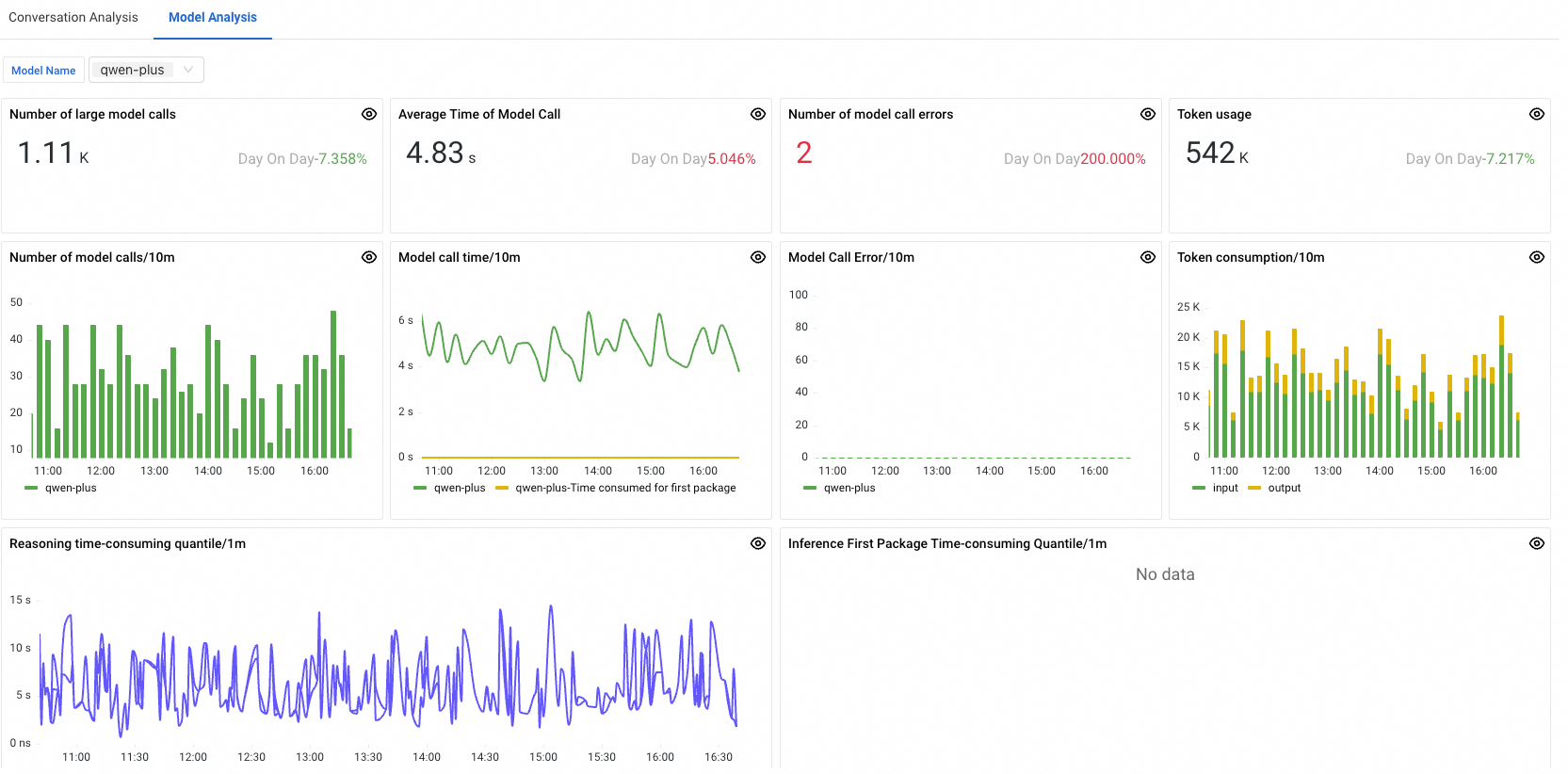
The Model analysis tab aggregates performance metrics by model, allowing you to compare token consumption, latency, and error rates across the models used by your LLM application.

To view metrics for a specific model, select the model from the drop-down list in the upper-left corner of the tab.

Model analysis page

For definitions of all available LLM metrics, see LLM metrics.

Related topics