When diagnosing production issues, standard trace data often lacks the business context needed to pinpoint root causes -- you cannot filter traces by order ID, user ID, or transaction code. Application Real-Time Monitoring Service (ARMS) solves this by extracting specific parameters from HTTP requests, responses, and exceptions at the span level, without modifying application code. Extracted parameters become span attributes that you can use to filter traces, detect business-logic errors, and trigger alerts.
Use cases
After you configure extraction rules, the ARMS agent captures parameter values and writes them as span attributes. These attributes enable the following capabilities:
Filter traces by business context -- Locate all requests for a specific order ID, user ID, or transaction code on the Trace Explorer page.
Detect business-logic errors -- Mark spans as failed when an extracted parameter value matches a custom error code rule.
Set up alerting -- Trigger alerts when error counts based on extracted parameters exceed thresholds.
Prerequisites
Business parameter extraction applies only to Java applications.
Before you begin, make sure that:
An ARMS agent V4.1.0 or later is installed. For more information, see Application Monitoring overview. The feature does not take effect on agents earlier than V4.1.0, even if rules are configured.
V4.2.0 or later: Multiple API match rules and parameter extraction rules can be added to a single business parameter extraction rule.
V4.1.0 to V4.2.0: Only the first match rule takes effect per rule.
The following example configures two rules:
The first rule applies to interfaces that start with
/api/book, uses Body as the parameter source, and uses the OGNL expression#this.data.code.The second rule applies to interfaces that start with
/api/stationery, uses Body as the parameter source, and uses the OGNL expression#this.responseCode.
Supported parameter types and sources
The ARMS agent dynamically detects rule changes and extracts parameters based on all enabled rules. The following table lists the supported parameter types, sources, and framework requirements.
Parameter type | Parameter source | Supported framework | Remarks |
HTTP server request | Header, Cookie, Parameter | Tomcat 7.0.4+, Jetty 8.0.0+, Undertow 1.4.0.Final+ | The ARMS agent calls the |
HTTP server request | Body | Spring MVC 4.2.0+ | The class must be annotated with @Controller and the method must be annotated with @RequestBody. |
HTTP server response | Header, Cookie | Tomcat 7.0.4+, Jetty 8.0.0+, Undertow 1.4.0.Final+ | - |
HTTP server response | Body | Spring MVC 4.2.0+ | The class must be annotated with @Controller and the method must be annotated with @ResponseBody. |
HTTP client request | Header, Parameter | Apache HttpClient 2.0+, OkHTTP 2.2+ | - |
HTTP client response | Header | Apache HttpClient 2.0+, OkHTTP 2.2+ | - |
Exception information | Message | - | The class must inherit java.lang.Exception. |
Open the extraction rules page
Log on to the ARMS console. In the left-side navigation pane, choose Application Monitoring > Application List.
Select a region in the top navigation bar and click the application.
NoteIcons in the Language column indicate the application's programming language: -
 : Java -
  : Go -
  : Python - - (Hyphen): an application monitored in Managed Service for OpenTelemetry
In the top navigation bar, choose Configuration > Business Parameter Extraction Rules.
In the Business Parameter Extraction Rules section, create, view, or modify extraction rules for the application.
The rule list contains the following columns: Rule Name, Attribute name, Parameter extraction type, the match rule column, the extracted parameter column, Enabling Status, and the Actions column (Edit and Delete). Above the list, a New Rule button, a rule name search box, and a parameter extraction type filter are provided. Below the list, the Batch Delete and Bulk Copy to Other Applications buttons are provided.
In the Customizing Error Settings section, configure matching rules of custom error codes to filter extracted parameter values.
After you turn on the Custom error code switch, add matching rules: a span is marked as an error when the value of the biz.resp.body attribute is greater than 200, and when the value of the biz.exception attribute is greater than 0.
Create an extraction rule
Rules are delivered to the agent in real time upon creation and enabling. The first rule requires an application restart to take effect. Subsequent rules take effect in 1 to 2 minutes without a restart.
Extracted parameters are recorded as span attributes. Query them on the Trace Explorer page.
Attribute names are prefixed with
biz.by default and must be unique.Whether span data is reported depends on the sampling policy. To make sure important data is reported, adjust the sampling policy. For more information, see Select a trace sampling mode for the ARMS agent earlier than V3.2.8.
If extracted parameters do not appear in the trace, verify that the rule configuration is correct.
In the Business Parameter Extraction Rules section, click New Rule. Configure the following parameters and click OK.
Parameter | Description |
Rule Name | The name of the rule. |
Attribute name | The span attribute key for the extracted value. Format: |
Parameter extraction type | The type of parameter to extract: HTTP server request, HTTP server response, HTTP client request, HTTP client response, or Exception information. |
Effective Interface | The HTTP interfaces to which the rule applies. The ARMS agent extracts parameters only from matched interfaces. Available only when Parameter extraction type is set to HTTP server request or HTTP server response. |
Exception Class Name | The exception class names to match. The ARMS agent extracts parameters only from matched exceptions. Available only when Parameter extraction type is set to Exception information. |
Text encoding type | The encoding format of the parameters to extract. |
Enabling Status | Whether to enable the rule. |
Parameter extraction rules
Specify the sources that contain the parameters to extract and the extraction method. Multiple parameter sources and processing steps are supported. If parameters can be extracted from multiple sources, they are extracted in the order the steps are defined. For more information, see Extraction rule examples.
Parameter Source: The source from which to extract parameters. If you select Header, Cookie, or Parameter, enter the key for initial extraction. If you select Body or Message, parameters are extracted from the entire body or message.
Add parameter processing steps: Define steps to parse the parameter values from one or more sources. Each step's output becomes the next step's input. If no step is specified, the raw JSON text of the source is used. For more information, see Parameter extraction steps. The following extraction methods are supported:
Method
Description
Example
OGNL
Input must be a Java object. Supports OGNL expressions with dot notation.
#this.data.getCode()JsonPath
Input must be a JSON string. Supports JsonPath expressions with dot notation.
$.data.codeRegex
Input must be a string. Uses named capturing groups. The substring to extract must correspond to a capturing group named
res..*from:(?<res>[a-z]+).*
Verify an extraction rule
After a rule takes effect, check the Trace Explorer page for the related trace. If a custom attribute appears on the span of the corresponding interface, the rule is working.
Find the attribute name that corresponds to the rule.
In the Business Parameter Extraction Rules list, find the Attribute name of the rule that you created, for example the rule whose attribute is
biz.resp.body.On the Trace Explorer page, add
attributes.$attributesNameas a filter condition to query spans.In the advanced query area, add the filter condition
attributes.biz.resp.body=211.Click a trace to view the custom attributes of the span.
Manage extraction rules
To enable or disable a rule, toggle the Enabling Status switch.
To modify or delete a rule, click Edit or Delete in the Actions column.
To delete multiple rules, select them and click Batch Delete below the list.
To copy rules to other applications, select them and click Bulk Copy to Other Applications. In the dialog box, specify whether to copy the rules to all applications or a specific one.
Wait 1 to 2 minutes for changes to take effect.
Only extraction rules are copied. Custom error settings are not included.
Attribute names must be unique. If an attribute with the same name exists in the target application, the rule is not copied.
Configure custom error code matching
If an extracted parameter value matches a custom error code rule, the span is marked as failed. Failed spans increment the arms_$callType_requests_error_count metric, which you can use for alerting.
The sampling policy does not affect data collection for custom error codes. Failed spans that are not sampled are still counted.
For service access types and available dimensions, see Application monitoring metrics.
Create a custom error code rule
In the Customizing Error Settings section, turn on the Custom error code switch.
Click Add matching rules.
Select an extraction rule and configure the filter condition.
After you turn on the Custom error code switch, add matching rules: a span is marked as an error when the value of the
biz.resp.bodyattribute is greater than 200, and when the value of thebiz.exceptionattribute is greater than 0.Click Save. The rule takes effect within 1 to 2 minutes without an application restart.
Verify a custom error code rule
After you configure a rule, check the Trace Explorer page for failed spans that match the rule conditions.
Confirm the attribute name and condition used by the rule.
On the Trace Explorer page, filter for failed spans.
On the Trace Explorer page, use the quick filter area on the left to filter for spans whose status is error. The resulting query condition is
serviceName="arms-custom-extraction-demoextracted" AND statusCode IN (2, 3) AND spanName="/api/v1/http_server/body". In this example, the query returns 3,642 error calls, each with a duration of 0 ms and an error status.Click a trace and check whether the attribute value matches the rule condition. In the following example, the
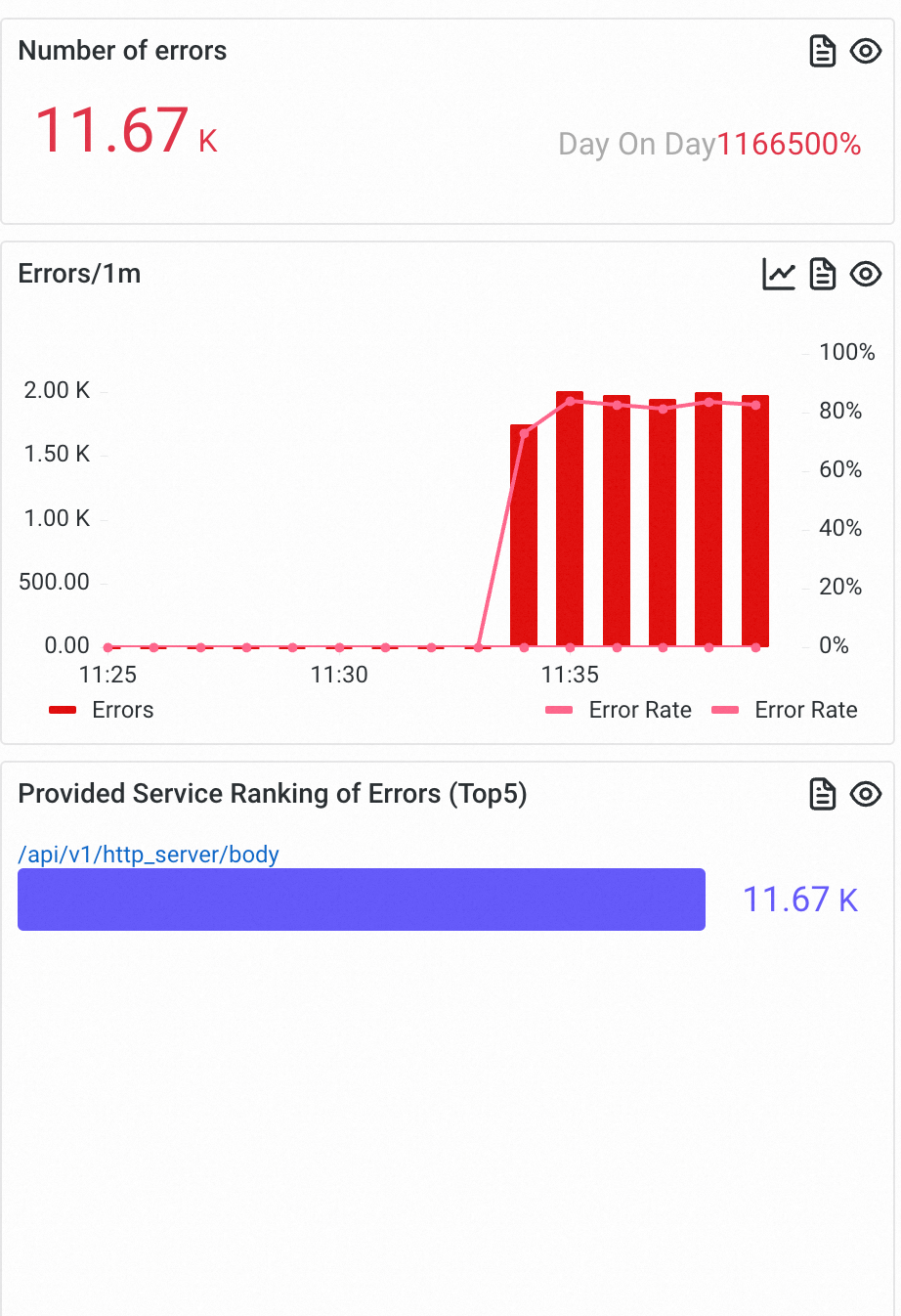
biz.resp.bodyattribute value is 670, which is greater than 499 (the threshold specified by the error matching rule).On the Overview page, verify that the error count is correctly reflected in the error dashboard.
Extraction rule examples
The following examples chain OGNL, JsonPath, and Regex methods. Each step's output feeds into the next step as input.
OGNL
Object-Graph Navigation Language (OGNL) reads and sets properties of Java objects. Use it to extract fields from objects annotated with @ResponseBody or @RequestBody. The result is converted to a string. If the extracted value is a Java object, it is serialized to a JSON string for further extraction.
@RestController
@RequestMapping("/components/api/v1/mall")
public class MallController {
  @RequestMapping("/product")
  @ResponseBody
  public ResponseBody product(@RequestBody RequestBody req) {
    // Business code
  }

  static class RequestBody {
    String requestId;
    Map<String, String> queryParam;

    public String getQueryJsonStr() {
      return JSON.toJsonString(queryParam);
    }
  }

  static class ResponseBody {
    int code;
    boolean success;
    String message;
  }
}
Extract the requestId field from RequestBody.
Extract the code field from ResponseBody.
Call a getter method to extract the result of getQueryJsonStr().
Make sure the getQueryJsonStr() method exists in the class.
JsonPath
JsonPath expressions extract properties from a JSON string.
{
  "code": 200,
  "message": "Query success.",
  "success": true,
  "data": {
    "name": "John",
    "age": 21
  }
}
Extract data.age from the JSON data.
Regex
Regular expressions match character combinations in strings. Use a capturing group named res to specify the extraction result.
By default, a regex starts matching from the beginning of a string. To match at any position, add .* before and after the expression.
https://test.aliyun.com/v2/workitem#requestId=0c978f115b6f7&cityCode=34&env=onlineExtract the cityCode value from the URL.
Multi-step extraction
This example chains OGNL, JsonPath, and Regex to extract a nested value from a response body.
The following class contains the response body object:
class DemoResponse {
    int code = 200;
    boolean success = true;
    String message = "text content";
    String extraInfo = "{\"id\": 15, \"cityInfo\": \"from:hangzhou,to:beijing\"}";

    public String getExtraInfo() {
        return this.extraInfo;
    }
}Goal: Extract the city name indicated by "from" in the cityInfo sub-field of extraInfo.
The ARMS agent processes the extraction in these steps:
Get the
DemoResponseobject from the response body.Run
#this.getExtraInfo()(OGNL) to get theextraInfofield.Run
$.cityInfo(JsonPath) to parseextraInfoas JSON and get thecityInfosub-field.Run
^from:(?<res>[a-z]+).*(Regex) to match the capturing group namedres, which returnshangzhou.Write
hangzhouas the attribute value on the span.
Parameter extraction steps
How steps work
Extraction steps retrieve and parse values from source data. Steps form a pipeline: each step's output becomes the next step's input.

Each method requires a specific input type. If the input does not match, the pipeline stops and records the current result as the final value.
Extraction method | Input data type | Output data type |
OGNL | Java object | String or JSON string after serialization |
JsonPath | JSON string | String |
Regex | String | String |
Syntax restrictions
ARMS imposes stricter syntax restrictions than open-source OGNL, JsonPath, and regex to maintain security.
Method | Syntax reference | Restrictions | Valid example |
OGNL | Dot notation only. Call methods must start with |
| |
JsonPath | Dot notation only. Maximum access depth: 10. |
| |
Regex | Must include exactly one capturing group named |
|
Performance considerations
Extraction steps involve serialization/deserialization, Java reflection, and regex processing -- the most resource-intensive operations in the extraction pipeline. For latency-sensitive interfaces, consider these alternatives:
Write parameters to HTTP headers in your business code (if security compliance allows).
Use OpenTelemetry SDK for Java to write attributes directly to spans. For more information, see Use OpenTelemetry SDK for Java to add custom instrumentation code for an application.
Performance overhead
Business parameter extraction adds CPU and memory overhead due to serialization/deserialization and Java reflection. The following benchmark quantifies the impact.
Test environment:
Pod specifications: 1 core, 2 GB memory
5 HTTP interfaces at 2,000 QPS each
240 custom parameters extracted per 100 calls: 20 regex, 40 JsonPath, and 40 OGNL expressions

Item | Feature disabled (baseline) | Feature enabled | Increase |
CPU | 0.230 c | 0.257 c | +0.027 c |
Memory (20 minutes after startup) | 575 MB | 693 MB | +118 MB |
Response time | 101 ms | 101 ms | +0 ms |
Extraction involves Java reflection and serialization/deserialization, which increase CPU and memory usage. For interfaces with strict latency requirements, write parameters to headers or use the OpenTelemetry SDK instead.
FAQ
What do I do if parameter extraction fails?
The cause depends on the parameter source:
Body: Make sure Spring MVC is used, the class has the @Controller annotation, and the method has the @RequestBody or @ResponseBody annotation.
Response Cookie: Make sure you are running Tomcat v7.0.4-9.x or Undertow v1.4.0.Final+. Otherwise, use request Cookie instead.
What is the scope of exception extraction?
The ARMS agent for Java captures only custom exceptions thrown outside spans. To extract exceptions from key call methods inside spans and mark them as errors, instrument the call method. For more information, see Add custom methods for monitoring.
How do I map Spring MVC annotations to extraction rules?
Annotation | Parameter type | Parameter source |
@RequestParam | HTTP server request | Parameter |
@RequestHeader | HTTP server request | Header |
@CookieValue | HTTP server request | Cookie |
@RequestBody | HTTP server request | Body |
@ResponseBody | HTTP server response | Body |
How do I extract unsupported parameter types?
Use OpenTelemetry SDKs to instrument your application and write the parameters as span attributes directly. For more information, see Use OpenTelemetry SDK for Java to add custom instrumentation code to traces.
Does extraction support Body objects with RequestBodyAdvice and ResponseBodyAdvice?
Yes. The ARMS agent extracts parameters after user-defined BodyAdvice runs, but before Spring's built-in BodyAdvice.