Application anomalies in a production environment, such as latency spikes and error rate spikes, have many causes. Common causes include uneven traffic, single-instance failures, application defects, and failures in dependent components. Before you launch a new application or prepare for a major promotion, we recommend that you perform systematic performance tuning. This involves analyzing existing performance bottlenecks and optimizing interfaces and components that frequently cause errors or high latency. This topic explains how to use the Wrong/slow Trace analysis feature in ARMS Trace Explorer to identify the root cause of incorrect and slow calls in your system or application, helping you troubleshoot issues and pinpoint performance bottlenecks.
Prerequisites
-
You have installed an agent for your application. For more information, see Application Monitoring overview.
-
You have switched to the new version of the ARMS console.
On the Applications page, click the Switch to New Version button next to the page title.
Try the demo
Analyze incorrect calls
Step 1: Identify when the incorrect calls occurred
-
Log on to the ARMS console. In the left-side navigation pane, choose .
-
On the Application List page, select a region at the top of the page and then click the name of the application.
NoteThe icons in the Language column indicate the following:
 : A Java application connected to Application Monitoring.
 : A Go application connected to Application Monitoring.
 : A Python application connected to Application Monitoring.
-: An application integrated with Tracing Analysis.
-
In the top navigation bar, click Trace Explorer.
NoteThe Trace Explorer page is available only in the new version of the console. For information about how to switch to the new version, see Prerequisites.
You can see that the sample application mall-gateway experienced several HTTP error calls between 15:20 and 15:28.

-
To begin troubleshooting, set the query time range to when the HTTP errors occurred.
On the Trace Explorer tab, narrow the time range in the upper-right corner to 8 min (for example, from 2024-06-26 15:20 to 2024-06-26 15:28). The page displays bar charts for the number of calls and HTTP 500 errors, along with a line chart for the Time Percentile. Use these charts to pinpoint the exact time window when errors spiked.
Step 2: Pinpoint the source interface or component
On the Wrong/slow Trace analysis tab, the incorrect traces are concentrated on the /components/api/v1/mall/product interface, all of which return HTTP 500 errors.
Troubleshoot the /components/api/v1/mall/product interface
-
In the charts below, click spanName: /components/api/v1/mall/product.
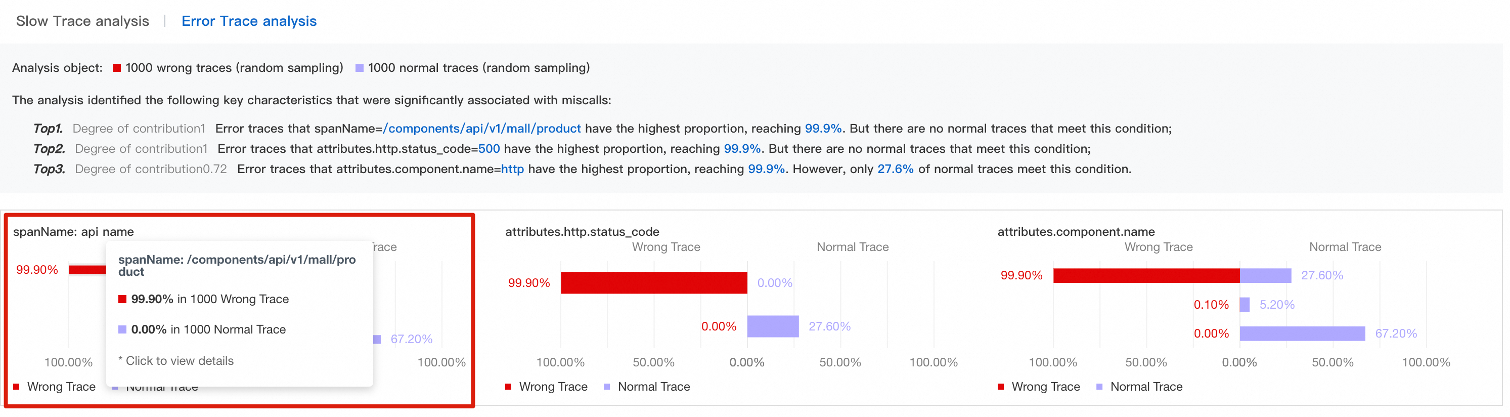
At this point, Trace Explorer automatically sets
serviceName="mall-gateway" AND spanName="/components/api/v1/mall/product"as the filter condition.You can see that all traces for the /components/api/v1/mall/product interface have failed.
The search returns 1,440 calls, all with an HTTP
500error code. The Wrong/slow Trace analysis tab shows that the analysis is based on 1,000 incorrect traces (randomly sampled) and 0 normal traces. -
On the List tab, click Details next to any trace to view its details.
The trace details show that the trace contains three spans, and the
/components/api/v1/http/successinterface of the mall-user-server service returned a status code of 500. In the span details panel on the right, the Attribute tab shows that thehttp.status_codeattribute is500, confirming this interface as the error source.
Analyze slow interfaces
Step 1: Identify when the slow calls occurred
-
Log on to the ARMS console. In the left-side navigation pane, choose .
-
On the Application List page, select a region at the top of the page and then click the name of the application.
NoteThe icons in the Language column indicate the following:
: A Java application connected to Application Monitoring.: A Go application connected to Application Monitoring.: A Python application connected to Application Monitoring.-: An application connected to Tracing Analysis.
-
In the top navigation bar, click Trace Explorer.
You can see that the sample application mall-user-server has many slow calls that take more than 5 s between 15:40 and 15:49.

-
Set the query time range to when the slow calls occurred.
For example, in the time picker in the upper-right corner, select the 9-minute interval from
2024-06-26 15:40to2024-06-26 15:49. -
On the Wrong/slow Trace analysis tab, set the duration threshold to 5000 ms to start troubleshooting.
The analysis results for slow traces are displayed at the bottom of the page, ranking the key contributing features by impact, such as interface name, HTTP response status code, and namespace. Each item compares the feature's prevalence in slow versus normal traces.
Step 2: Pinpoint the source interface or component
On the Wrong/slow Trace analysis tab, slow traces are primarily concentrated on spans with the interface name /components/api/v1/http/success, the protocol type EagleEye, and the namespace arms-test.
The analysis is based on a comparison between 54 slow traces (defined as duration ≥ 5 s) and 837 normal traces (randomly sampled). The top-ranked feature, /components/api/v1/http/success, accounts for 100.0% of slow traces and 0.0% of normal traces. The second-ranked feature, the EagleEye protocol, accounts for 100.0% of slow traces and 37.28% of normal traces. The third-ranked feature, the arms-test namespace, accounts for 100.0% of slow traces and 37.28% of normal traces.
Troubleshoot the /components/api/v1/http/success interface
In the charts below, click spanName: /components/api/v1/http/success.

Trace Explorer automatically sets serviceName="mall-user-server" AND spanName="/components/api/v1/http/success" as the filter condition.
With this filter applied, all calls take longer than 5 s, indicating the /components/api/v1/http/success interface is the root cause of the slow calls.
In the Time Percentile area, you can also see that the average call duration exceeds 5 s.
Troubleshoot spans with attributes._arms.trace.protocol.type=EagleEye
In the charts below, click attributes._arms.trace.protocol.type: EagleEye.

In this case, Trace Explorer automatically sets serviceName="mall-user-server" AND attributes._arms.trace.protocol.type="EagleEye" as the filter condition.
Under this filter condition, you can see that the slow traces also point to the /components/api/v1/http/success interface.
The slow trace analysis, based on a comparison of 54 slow traces and 312 normal traces, shows that besides the top feature pointing to the /components/api/v1/http/success interface (100% of slow traces), the second-ranked feature is the server IP 10.0.0.42 (46.3% of slow traces), and the third is the http component type (100% of slow traces).
If you add the /components/api/v1/http/success interface to the filter, all calls take longer than 5 seconds.
In the Time Percentile area, you can also see that the average call duration exceeds 5 s.
Troubleshoot spans in the arms-test namespace
Under the serviceName="mall-user-server" AND attributes.namespace="arms-test" filter condition, you can see that the slow Trace still points to the /components/api/v1/http/success interface.
The Wrong/slow Trace analysis results, based on a comparison of 54 slow traces and 312 normal traces, show the top contributing feature is the interface /components/api/v1/http/success, with a contribution score of 1. This interface accounts for 100% of slow traces and 0% of normal traces.
If you add the /components/api/v1/http/success interface to the filter, all calls take longer than 5 seconds.
This investigation concludes that all slow calls originate from the /components/api/v1/http/success interface. The attributes._arms.trace.protocol.type="EagleEye" attribute and the arms-test namespace themselves are not the root cause. They appear in the analysis because the /components/api/v1/http/success interface service is deployed in the arms-test namespace, and its trace protocol type is EagleEye.