Application Real-Time Monitoring Service (ARMS) allows you to install an ARMS agent for Java applications deployed on Elastic Compute Service (ECS) instances in the ARMS console. The first time that you install an ARMS agent, you need to restart application processes only once without modifying the application startup script. The subsequent upgrade and maintenance of the ARMS agent will also be automatically completed. This topic describes how to install an ARMS agent for a Java application deployed on ECS instances.
Prerequisites
Your application is deployed on ECS instances and Cloud Assistant Agent is installed. For more information, see Install Cloud Assistant Agent.
Your ECS instances run Linux. ECS instances that run other operating systems are not displayed in the list.
Your ECS instances are deployed in virtual private clouds (VPCs). ECS applications in the classic network do not support the installation method described in this topic.
NoteYou can manually install an ARMS agent for ECS applications in the classic network. For more information, see Manually install an ARMS agent for a Java application.
Your application is deployed on a host. The method in this topic is not applicable to applications deployed in Docker or Kubernetes clusters.
NoteFor information about how to install an ARMS agent for applications deployed in Container Service for Kubernetes (ACK) clusters, see Automatically install an ARMS agent in ACK.
For information about how to install an ARMS agent for applications deployed in Kubernetes environments, see Automatically install an ARMS agent in a Kubernetes environment.
The version of the JDK is supported by Application Monitoring. For more information, see Java components and frameworks supported by ARMS.
The maximum heap memory of the process is greater than 256 MB.
Install an ARMS agent
If you have manually installed an ARMS agent for your application, you must remove the manually installed configurations from the deployment script and then install an ARMS agent in the ARMS console. For more information, see Uninstall an ARMS agent.
Log on to the ARMS console. In the left-side navigation pane, choose .
On the Application List page, select a region in the top navigation bar and click Add Application.
In the Backend Applications section of the Integration Center page, click Java. In the Monitor Java panel, click Automatic Installation on ECS.
Enter an application name, select the ECS instance where the application resides, and then click Detect Java Processes.
NoteYou can query ECS instances by ECS tag or select ECS instances based on the connected applications.
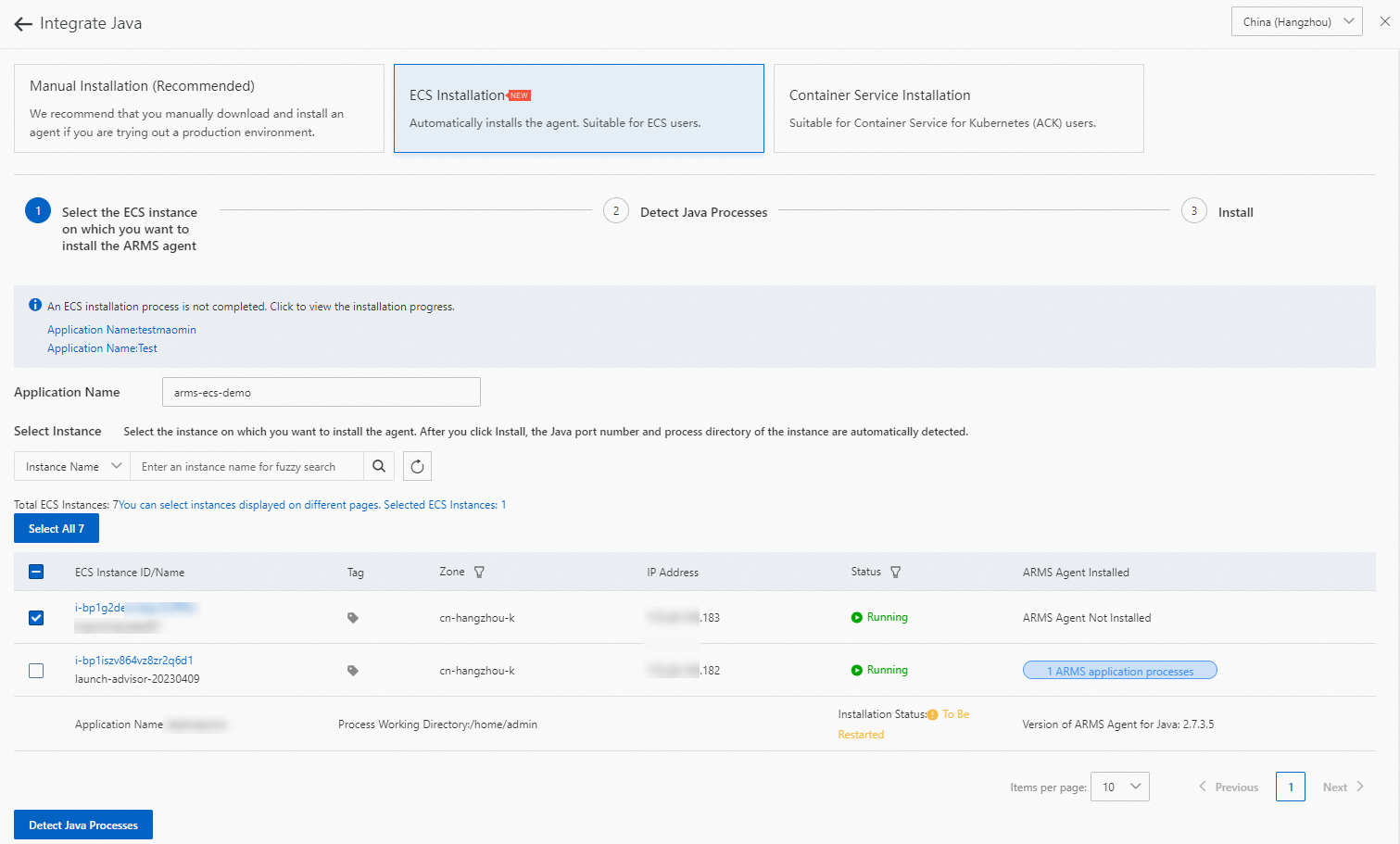
In the Detect Java Processes step, select the process group of the application.
NoteBy default, the processes that are scanned by ECS are grouped by Process Working Directory. You can select multiple process groups.
You can run the
ls -al /proc/${pid}/cwdcommand on ECS instances to view the process working directory.
If your Java process is not found, check whether the application is deployed on ECS instances. The procedures in this topic do not apply to Java applications deployed in containers. If the application is deployed on ECS instances, run the following commands on the ECS instances and send the screenshot of the returned result to DingTalk account arms160804 for technical support.
View the version of the detector plug-in:
ls -al /usr/local/share/aliyun-assist/plugin/arms-plugin-detector/In this example, the version is 0.4.
Run the detector plug-in in debug mode and view the returned result:
/usr/local/share/aliyun-assist/plugin/arms-plugin-detector/0.4/bin/detector --logger-level=DEBUG
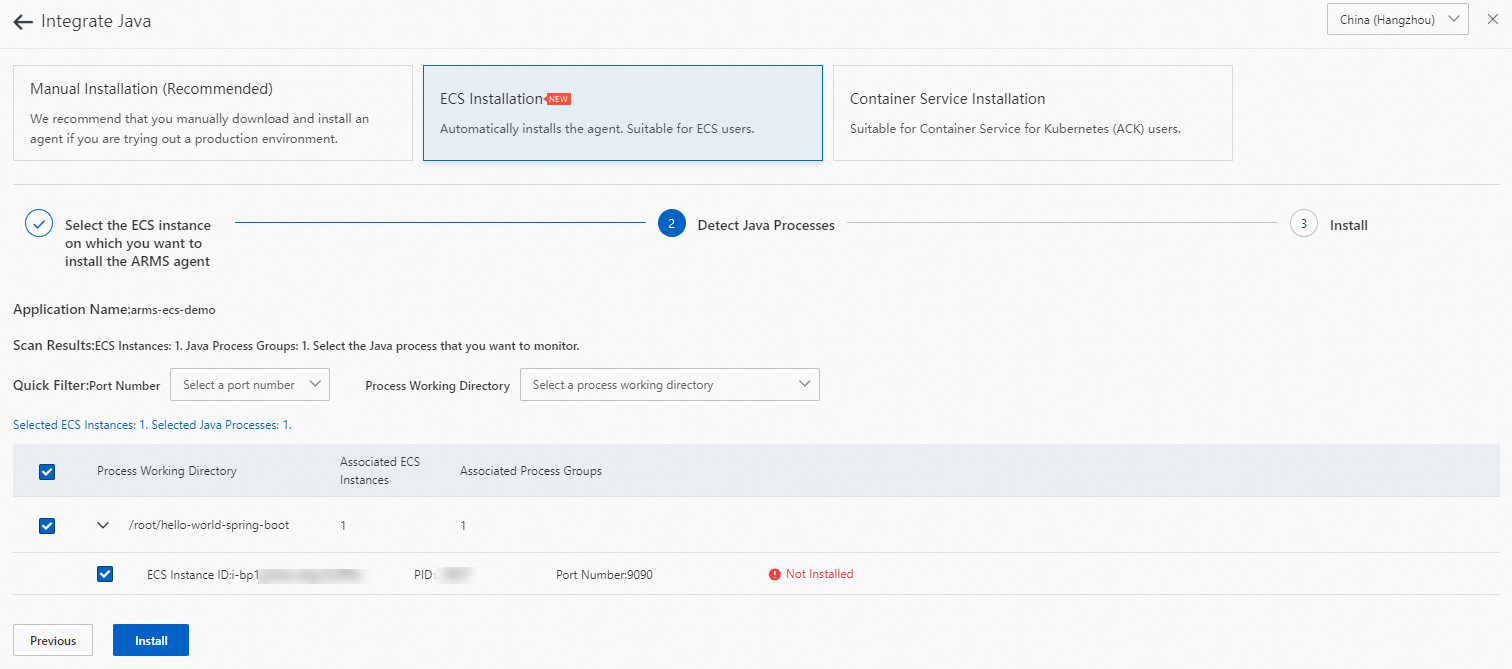
Click Install. In the Install step, view the installation result.
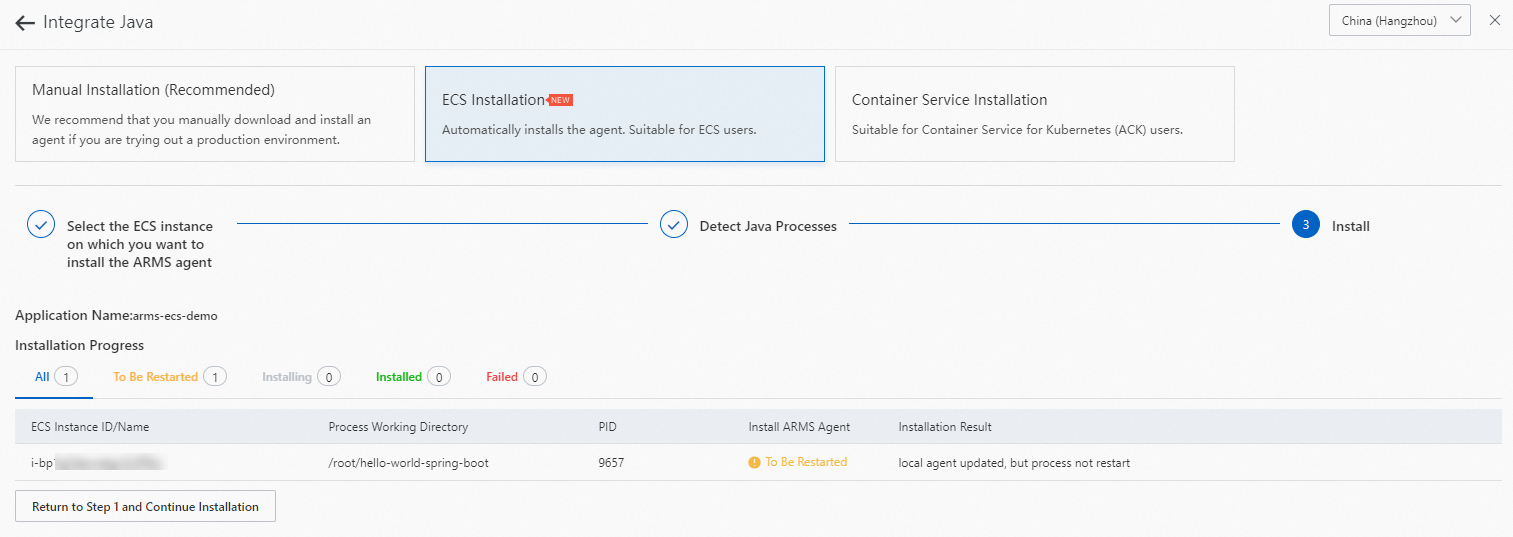
The first time that you integrate the application, the system prompts you to restart the application process. Then, you can install an ARMS agent for the application.
If Agent installed and monitoring data ready is displayed in the Installation Result column, the ARMS agent is installed.
NoteThe initial installation requires about 1 minute to complete.
If Target Java Process Not Found appears after you restart the application process, the process working directory may be changed due to command and script-execution directory changes. You can run the following commands to check whether the commands and script execution directory are changed.
Find the corresponding Java process and obtain the process ID (PID):
ps -ef | grep javaView the process working directory:
ls -al /proc/${pid}/cwd
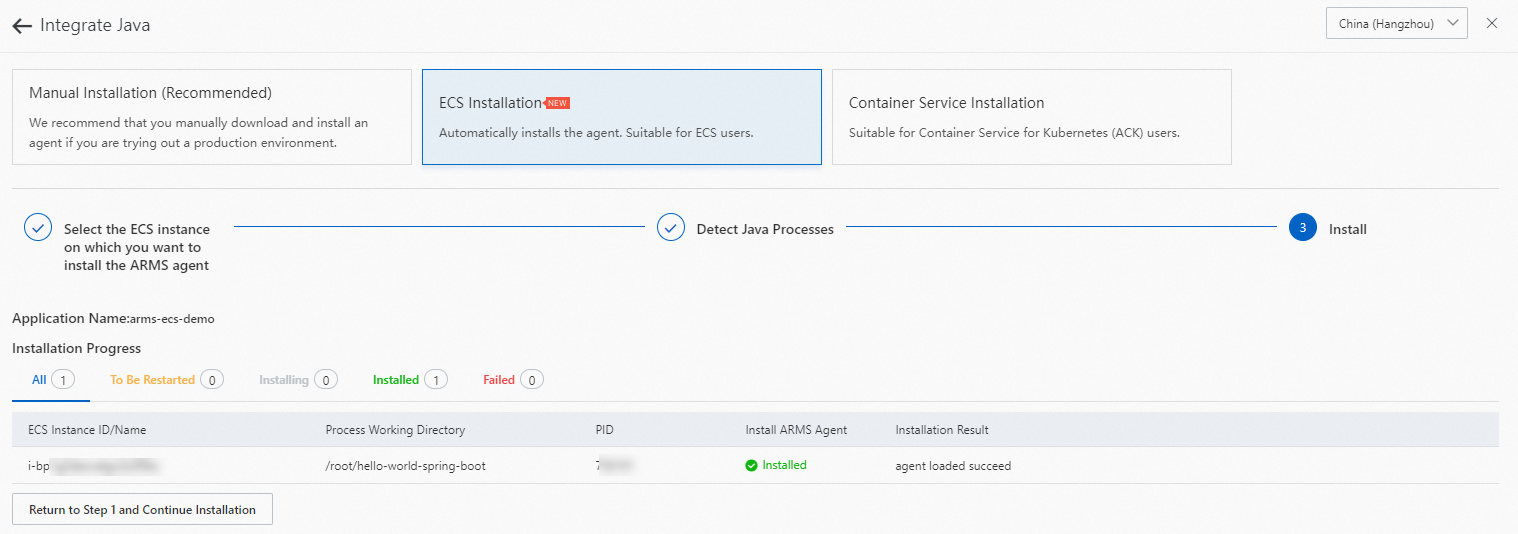
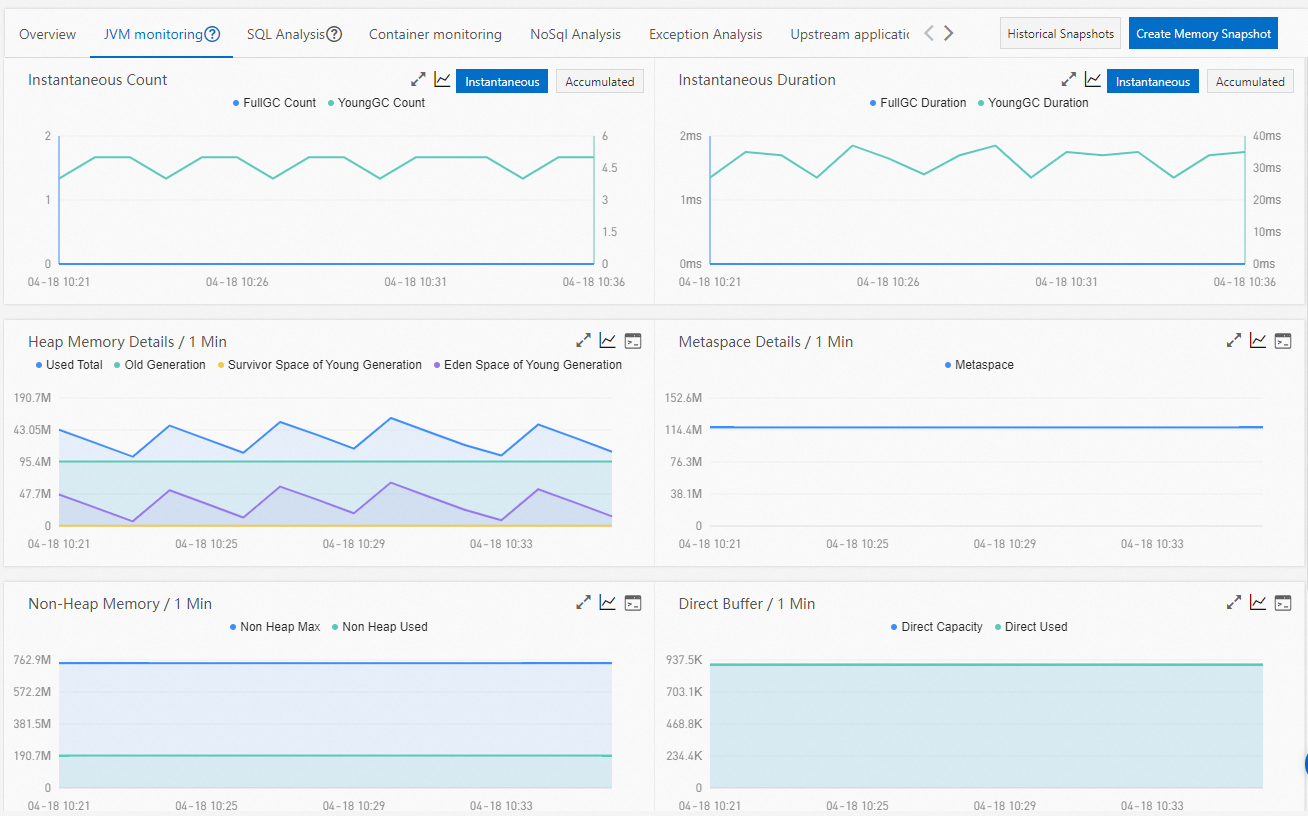
Click View Application to go to the ARMS application details page.
NoteThe first time that you install an ARMS agent for Java applications deployed on ECS instances, you may need to wait for 1 to 2 minutes. This is because it takes some time to start applications and load monitoring data.
Verify the result
In the left-side navigation pane of the ARMS console, choose . On the Application List page, check whether the Java application is displayed in the application list.
Click the name of the application to check whether data is reported on the Application Overview page.
If data exists, the ARMS agent is installed.