Global Message Replication synchronizes messages across regions, but replication failures or lag can go unnoticed without active monitoring. ApsaraMQ for RocketMQ exposes throughput, reliability, and latency metrics for each replication task through EventBridge event streams. Configure alert rules in CloudMonitor to get notified when these metrics cross the thresholds you define.
How it works
Global Message Replication is built on EventBridge. When you add topic mappings to and enable consumer progress synchronization for a Global Message Replication task, EventBridge automatically creates an event stream in the same region as the task. This event stream exposes the following metric categories:
Category | Metrics | What they tell you |
Throughput | Inbound and outbound event counts | Volume of events entering and leaving the stream per unit time |
Reliability | Success and failure counts for delivery and filtering | Whether events reach the downstream system and pass filter conditions |
Latency | Downstream response time | How long the event target takes to respond after receiving an event |
View metrics
Log on to the EventBridge console. In the left-side navigation pane, click Event Streams.
In the top navigation bar, select the region where the event stream resides. Find the target event stream and click its name.
In the left-side navigation pane, click Metric Monitoring.
On the Metric Monitoring page, review the following metrics.
Input/output metrics
Metric | Description |
input data(count) | Number of inbound events to the event stream per unit time. |
output_data(count) | Number of outbound events from the event stream per unit time. Broken down into: |
-- Output_data_success | Events successfully forwarded to the downstream system. |
-- Output_data_fail | Events that failed to reach the downstream system. A non-zero value may indicate connectivity issues or downstream errors. |
Downstream Response Time of Event Stream | Time the event target takes to respond after receiving an event. |
Processing capacity metrics
Metric | Description |
Processing capacity(count) | Number of events processed per unit time. Measures the real-time processing throughput of the system. Broken down into: |
-- Filter_data_success | Events that matched the specified filter conditions. |
-- Filter_data_fail | Events that matched based on the specified filter conditions. |
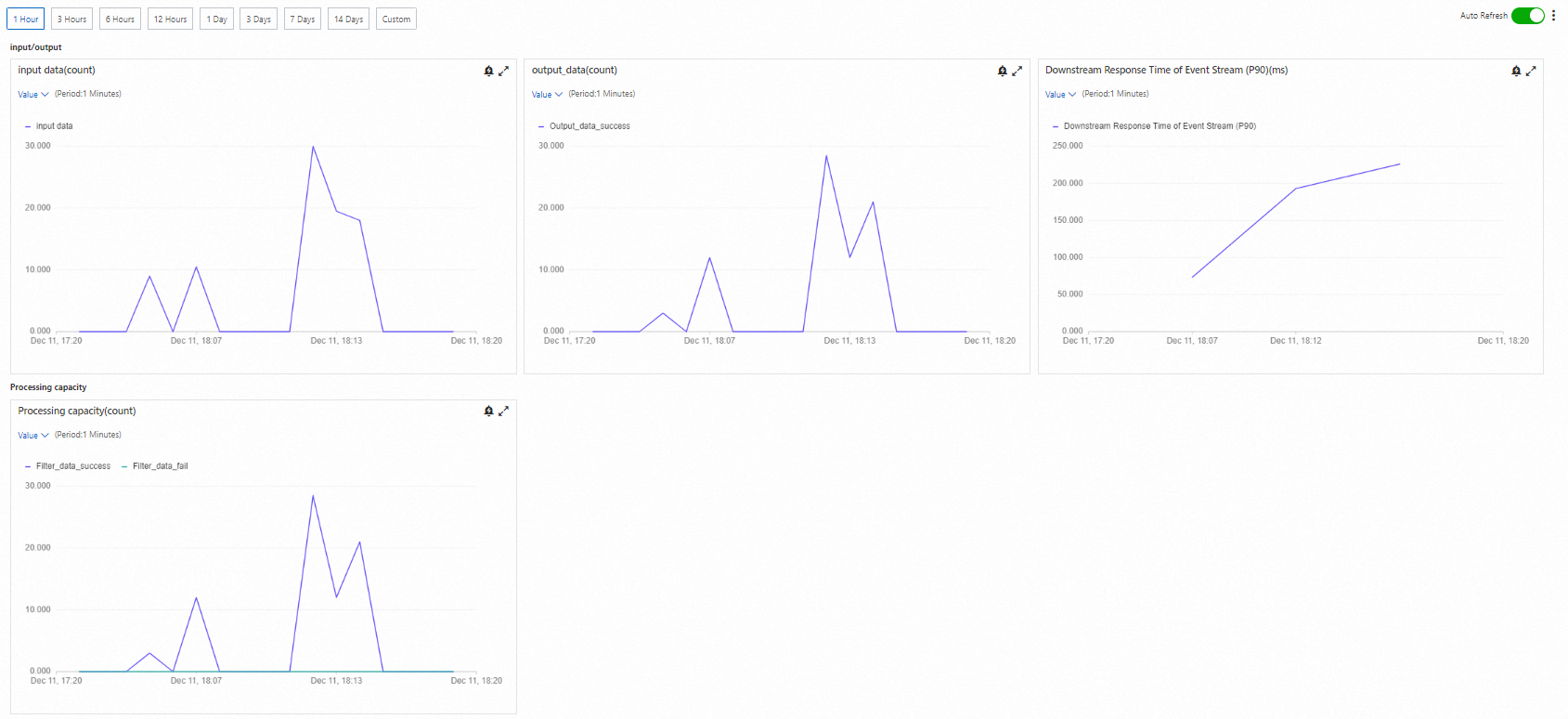
Note
The EventBridge console displays metric data from the past hour by default. Select a different time range in the upper part of the page as needed. Click the  icon next to any metric chart to zoom in and inspect details.
Create an alert rule
To set up alerting, navigate to the alert rule configuration page, then define alert conditions and notification targets.
Log on to the EventBridge console. In the left-side navigation pane, click Event Streams.
In the top navigation bar, select the region where the event stream resides. Find the target event stream and click its name.
In the left-side navigation pane, click Metric Monitoring.
In the upper-right corner of the Metric Monitoring page, click the
 icon, then click Configure Alert Rules.
On the Alert Rules page in the CloudMonitor console, click Create Alert Rule.
In the Create Alert Rule panel, configure the following parameters and click Confirm.
Alert rule parameters
Parameter | Description | Example |
Product | The Alibaba Cloud service to monitor. Select EventStreaming. | EventStreaming |
Resource Range | Scope of monitored resources. Select All Resources. | All Resources |
Rule Description | Alert trigger conditions. See Create dynamic threshold-triggered alert rules for details. | Rule Name: demo, Metric: eventStreaming input events, Alert Level: Warning(Warn), Threshold: 1000 count |
Mute For | Interval for resending notifications while the alert persists. If the threshold is exceeded again within the mute period, no duplicate notification is sent. After the mute period expires, CloudMonitor resends the notification if the alert remains active. Valid values: 1 Minutes, 5 Minutes, 15 Minutes, 30 Minutes, 60 Minutes, 3 Hours, 6 Hours, 12 Hours, and 24 Hours. | 15 Minutes |
Effective Period | Time window during which the rule is active. Outside this window, no notifications are sent, but alert records still appear on the Alert History tab. | Start At: 00:00, End At: 23:59, Cycle: Monday to Sunday |
Tag | Optional labels for organizing alert rules. Each tag has a key and a value. Up to six tags per rule. | Tag Key: key, Tag Value: value |
Alert Contact Group | Contact group that receives alert notifications. For setup instructions, see Create an alert contact or an alert contact group. | test |
Configure a rule description
Click Add Rule and select a metric type from the drop-down list.
In the Configure Rule Description panel, enter a rule name in the Alert Rule field, then set the Metric Type to one of the following:
Simple Metric: Select a metric and set the threshold and alert level.
Combined Metrics: Select an alert level and specify alert expressions. If you define multiple rules, set the Relationship Between Metrics:
Generate alerts if all metrics meet the conditions (&&): Triggers only when all conditions are met.
Generate alerts if one of the conditions is met (||): Triggers when any single condition is met.
Expression: Select an alert level and write a custom alert expression. For syntax details, see Alert rule expressions.
Dynamic Threshold: Automatically adjusts thresholds based on historical patterns. For details, see Overview and Create dynamic threshold-triggered alert rules.
Click OK.
Advanced settings
The following parameters are in the Advanced Settings section of the Create Alert Rule panel.
Alert Callback
A publicly accessible callback URL. CloudMonitor sends an HTTP POST request to this URL when an alert triggers. Only HTTP is supported.
To verify connectivity, click Test next to the URL, configure the Test Template Type and Language, and click Test. In the Webhook test panel, review the status code and test result to troubleshoot connectivity. Click Close when finished.
For details, see Use the alert callback feature to send notifications about threshold-triggered alerts.
Example: http://alert.aliyun.com:8080/callback
Push Channel
Forward alert data to other Alibaba Cloud services when an alert triggers:
Channel | Action | Setup reference |
Auto Scaling | Triggers a specified scaling rule. | |
Log Service | Writes alert data to a Logstore in Simple Log Service. | |
Simple Message Queue (formerly MNS) - Topic | Writes alert data to a specified topic. | |
Function Compute | Sends alert data to a function for custom processing. |
Method to handle alarms when no monitoring data is found
Action to take when no monitoring data is available:
Do not do anything (default)
Send alert notifications
Treated as normal