ApsaraMQ for Kafka can be used as an output for Logstash. This topic describes how to use Logstash to send messages to ApsaraMQ for Kafka in a VPC environment.
Prerequisites
-
Purchase and deploy an ApsaraMQ for Kafka instance. This topic uses a non-serverless instance as an example. For more information, see Connect to an ApsaraMQ for Kafka instance over a VPC.
-
Download and install Logstash. For more information, see Download Logstash.
-
Download and install JDK 8. For more information, see Download JDK 8.
Step 1: Obtain an endpoint
Logstash uses an endpoint to connect to your ApsaraMQ for Kafka instance.
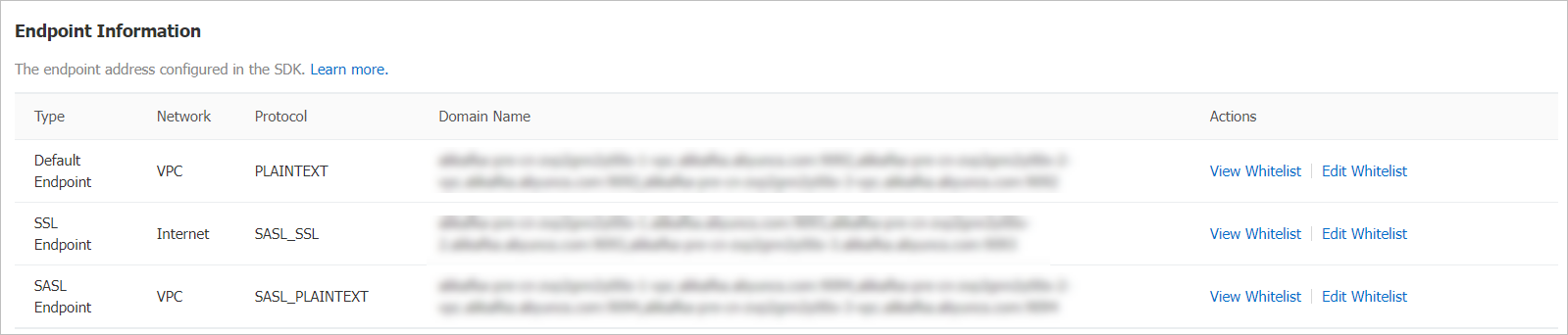
ApsaraMQ for Kafka provides the following endpoints for connections from a VPC:
-
Default endpoint: uses port 9092.
-
SASL endpoint: uses port 9094. To use a SASL endpoint, you must enable the access control list (ACL) feature. For more information, see Enable the ACL feature.
Log on to the ApsaraMQ for Kafka console.
In the Resource Distribution section of the Overview page, select the region where the ApsaraMQ for Kafka instance that you want to manage resides.
-
On the Instances page, click the name of the instance you want to use as the Logstash output.
In the Endpoint Information section of the Instance Details page, view the endpoints of the instance. In the Configuration Information section, obtain the values of the Username and Password parameters.
 Note
NoteFor information about the differences among different types of endpoints, see Endpoints and protocols.
Step 2: Create a topic
Create a topic to store messages.
Log on to the ApsaraMQ for Kafka console.
In the Resource Distribution section of the Overview page, select the region where the ApsaraMQ for Kafka instance that you want to manage resides.
ImportantYou must create topics in the region where your Elastic Compute Service (ECS) instance is deployed. A topic cannot be used across regions. For example, if the producers and consumers of messages run on an ECS instance that is deployed in the China (Beijing) region, the topic must also be created in the China (Beijing) region.
On the Instances page, click the name of the instance that you want to manage.
In the left-side navigation pane, click Topics.
On the Topics page, click Create Topic.
In the Create Topic panel, specify the properties of the topic and click OK.
Parameter
Description
Example
Name
The topic name.
demo
Description
The topic description.
demo test
Partitions
The number of partitions in the topic.
12
Storage Engine
NoteYou can specify the storage engine type only if you use a non-serverless Professional Edition instance. For other types of instances, Cloud Storage is selected by default.
The type of the storage engine that is used to store messages in the topic.
ApsaraMQ for Kafka supports the following types of storage engines:
Cloud Storage: If you select this value, the system uses Alibaba Cloud disks for the topic and stores data in three replicas in distributed mode. This storage engine features low latency, high performance, long durability, and high reliability. If you set the Instance Edition parameter to Standard (High Write) when you created the instance, you can set this parameter only to Cloud Storage.
Local Storage: If you select this value, the system uses the in-sync replicas (ISR) algorithm of open source Apache Kafka and stores data in three replicas in distributed mode.
Cloud Storage
Message Type
The message type of the topic. Valid values:
Normal Message: By default, messages that have the same key are stored in the same partition in the order in which the messages are sent. If a broker in the cluster fails, the order of messages that are stored in the partitions may not be preserved. If you set the Storage Engine parameter to Cloud Storage, this parameter is automatically set to Normal Message.
Partitionally Ordered Message: By default, messages that have the same key are stored in the same partition in the order in which the messages are sent. If a broker in the cluster fails, messages are still stored in the partitions in the order in which the messages are sent. Messages in some partitions cannot be sent until the partitions are restored. If you set the Storage Engine parameter to Local Storage, this parameter is automatically set to Partitionally Ordered Message.
Normal Message
Log Cleanup Policy
The log cleanup policy that is used by the topic.
If you set the Storage Engine parameter to Local Storage, you must configure the Log Cleanup Policy parameter. You can set the Storage Engine parameter to Local Storage only if you use an ApsaraMQ for Kafka Professional Edition instance.
ApsaraMQ for Kafka provides the following log cleanup policies:
Delete: the default log cleanup policy. If sufficient storage space is available in the system, messages are retained based on the maximum retention period. After the storage usage exceeds 85%, the system deletes the earliest stored messages to ensure service availability.
Compact: the log compaction policy that is used in Apache Kafka. Log compaction ensures that the latest values are retained for messages that have the same key. This policy is suitable for scenarios such as restoring a failed system or reloading the cache after a system restarts. For example, when you use Kafka Connect or Confluent Schema Registry, you must store the information about the system status and configurations in a log-compacted topic.
ImportantYou can use log-compacted topics only in specific cloud-native components, such as Kafka Connect and Confluent Schema Registry. For more information, see aliware-kafka-demos.
Compact
Tag
The tags that you want to attach to the topic.
demo
After a topic is created, you can view the topic on the Topics page.
Step 3: Send messages from Logstash
On your Logstash machine, start Logstash to send messages to the topic you created.
-
Run the cd command to change to the Logstash bin directory.
-
Create the output.conf configuration file.
-
Run the command
vim output.confto create an empty configuration file. Press the i key to enter the insert mode.
-
Enter the following content.
input {
  stdin{}
}
output {
   kafka {
        # Replace the following endpoint with your instance's VPC endpoint.
        bootstrap_servers => "alikafka-pre-cn-zv**********-1-vpc.alikafka.aliyuncs.com:9092,alikafka-pre-cn-zv**********-2-vpc.alikafka.aliyuncs.com:9092,alikafka-pre-cn-zv**********-3-vpc.alikafka.aliyuncs.com:9092"
        # Replace the following topic with the name of the topic you created in Step 2.
        topic_id => "logstash_test"
       }
}
Parameter
Description
Example value
bootstrap_servers
The VPC endpoint for your ApsaraMQ for Kafka instance. You can use one of the following types:
-
Default endpoint
-
SASL endpoint
alikafka-pre-cn-zv**********-1-vpc.alikafka.aliyuncs.com:9092,alikafka-pre-cn-zv**********-2-vpc.alikafka.aliyuncs.com:9092,alikafka-pre-cn-zv**********-3-vpc.alikafka.aliyuncs.com:9092
topic_id
The name of the target topic.
logstash_test
-
Press the Esc key to return to the CLI mode.
Press the : key to enter the bottom line mode. Enter wq and press the Enter key to save the file and exit.
-
-
Send a test message to the topic.
-
Run
./logstash -f output.conf. -
After Logstash starts and displays "The stdin plugin is now waiting for input:", type test and press Enter.
The terminal returns a result similar to the following:
[2020-05-15T14:26:13,576][INFO ][logstash.javapipeline    ][main] Starting pipeline {:pipeline_id=>"main", "pipeline.workers"=>2, "pipeline.batch.size"=>125, "pipeline.batch.delay"=>50, "pipeline.max_inflight"=>250, "pipeline.sources"=>["/home/logstash-7.6.2/bin/output.conf"], :thread=>"#<Thread:0x/be16bf0 run>"}
[2020-05-15T14:26:13,974][INFO ][org.apache.kafka.clients.Metadata][main] [Producer clientId=producer-1] Cluster ID: TsUt5To9Q4-f9YX_5yz28Q
[2020-05-15T14:26:15,241][INFO ][logstash.javapipeline    ][main] Pipeline started {"pipeline.id"=>"main"}
The stdin plugin is now waiting for input:
[2020-05-15T14:26:15,408][INFO ][logstash.agent           ] Pipelines running {:count=>1, :running_pipelines=>[:main], :non_running_pipelines=>[]}
[2020-05-15T14:26:15,801][INFO ][logstash.agent           ] Successfully started Logstash API endpoint {:port=>9601}
test
-
Step 4: Verify the message
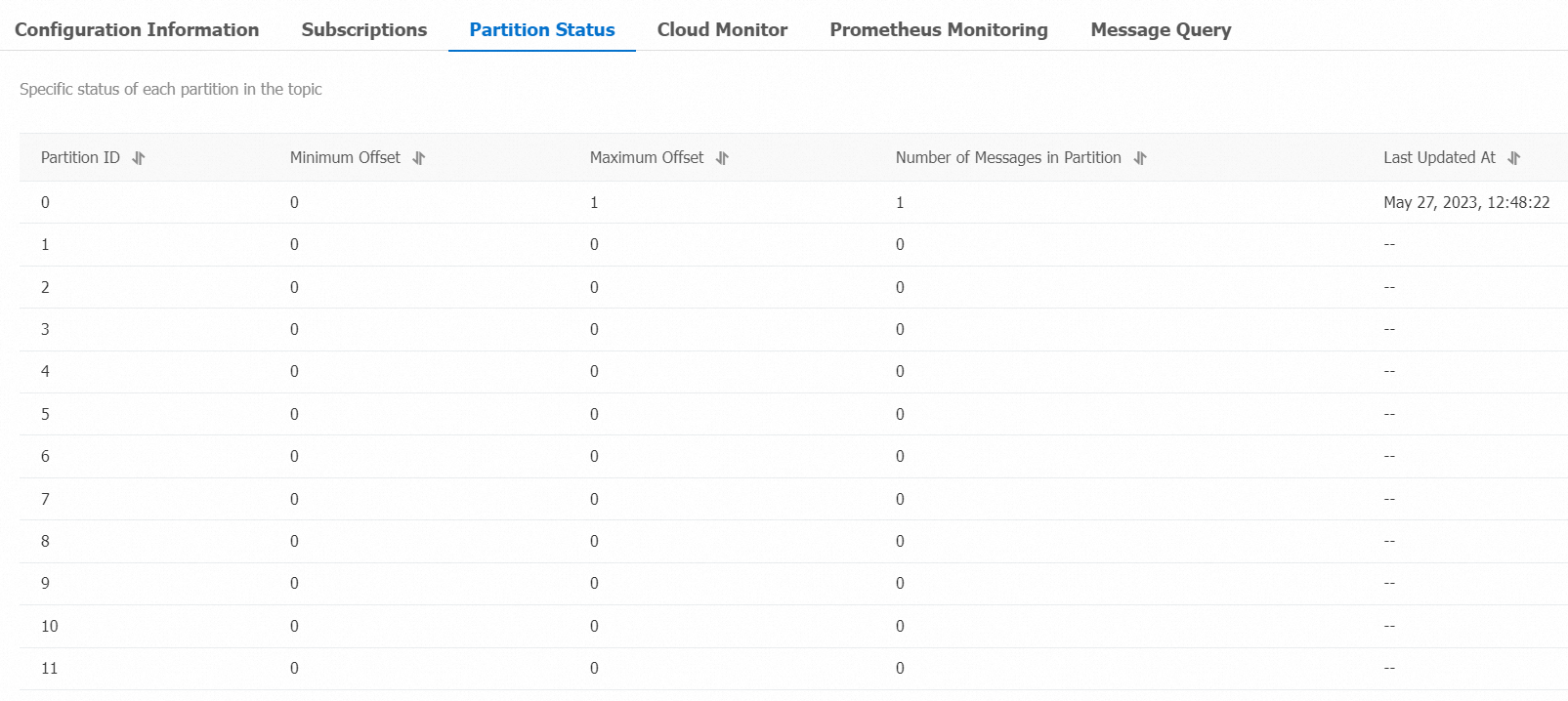
Verify that the message was sent by checking the topic partitions.
Log on to the ApsaraMQ for Kafka console.
In the Resource Distribution section of the Overview page, select the region where the ApsaraMQ for Kafka instance that you want to manage resides.
-
On the Instances page, click the name of the instance connected to Logstash.
In the left-side navigation pane, click Topics.
On the Topics page, click the name of the topic that you want to manage. On the Topic Details page, click the Partition Status tab.Name
Table 1. Parameters included in partition status
Parameter
Description
Partition ID
The partition ID.
Minimum Offset
The minimum offset in the partition.
Maximum Offset
The maximum offset in the partition.
Messages
The number of messages in the partition.
Last Updated At
The time when the last message in the partition is stored.
Step 5: Search for messages by offset
Search for a specific message by using its partition ID and offset.
Log on to the ApsaraMQ for Kafka console.
In the Resource Distribution section of the Overview page, select the region where the ApsaraMQ for Kafka instance that you want to manage resides.
On the Instances page, click the name of the instance that you want to manage.
In the left-side navigation pane, click Message Query.
On the Message Query page, select Search by offset from the Search Method drop-down list.
Select a topic from the Topic drop-down list and a partition from the Partition drop-down list, enter an offset value in the Offset field, and then click Search.
Messages whose offset values are greater than or equal to the specified offset value are displayed. For example, if you specify 5 as the values of the Partition parameter and the Offset parameter, the system queries messages whose offsets are equal to or greater than 5 from Partition 5.
Table 2. Parameters included in message query results
Parameter
Description
Partition
The partition from which the message is retrieved.
Offset
The offset of the message.
Key
The message key. The key is converted to a string.
Value
The message value, which is also known as message content. The message value is converted to a string.
Created At
The point in time when the message was sent. The value is the timestamp that the client recorded when the message was sent or the value of the timestamp field that you specified for the
ProducerRecordobject.NoteIf you specified a value for the timestamp field, the specified value is displayed.
If you did not specify a value for the timestamp field, the system time when the message was sent is displayed.
A value in the 1970/x/x x:x:x format indicates that the timestamp field is specified as 0 or an invalid value.
You cannot specify the timestamp field on clients of ApsaraMQ for Kafka version 0.9 or earlier.
Actions
Click Download Key to download the message key.
Click Download Value to download the message content.
ImportantUp to 1 KB of content for each retrieved message can be displayed in the ApsaraMQ for Kafka console. If a retrieved message exceeds 1 KB in size, the system automatically truncates the content. If you want to view the complete message content, download the message.
You can download up to 10 MB of the retrieved messages at a time. If the retrieved messages exceed 10 MB in size, only the first 10 MB of message content can be downloaded.
More information
For more information about parameters, see the Kafka output plugin documentation.