Background information
OceanBase Developer Center (ODC) provides the schema comparison feature that allows you to compare the schemas of database objects in the same type of data sources of the same project, and generate a change script.
This topic describes how to submit a schema comparison ticket in ODC to compare the schemas of two database objects.
Considerations
The following links are supported for schema comparison:
Links between MySQL tenants of OceanBase Database
Links between Oracle tenants of OceanBase Database
Links between MySQL databases
Only table objects can be compared in terms of columns, primary keys, constraints, indexes, partitions, and attributes.
In terms of column attributes, only the data types, character sets, collations, comments, and default values can be compared.
Only partitions but not subpartitions can be compared.
In terms of table attributes, only the character sets, collations, and comments can be compared.
CHECKconstraints cannot be compared for MySQL tenants of OceanBase Database.For a MySQL tenant of OceanBase Database of a version earlier than V1.4.79, you cannot compare partition attributes if you do not have the query permissions on the sys tenant.
If the size of the generated SQL change script exceeds 1 MB, the content of the script will not be directly displayed in SQL Preview. A message is displayed, prompting that the script file exceeds the size limit for display and that you can download the change script to view the full content.
Execution process

Initiate a schema comparison ticket.
Approve the task process.
Execute the schema comparison task and display the comparison results.
Create a database change task for schema synchronization.
Create a schema comparison task
Example: Compare the schemas of the employee tables in two OceanBase MySQL data sources of the odc_4.2.0 project.
Parameter | Example value |
Project | odc_4.2.0 |
Source data source | mysql4.2.4 |
Target data source | mysql424 |
Source database name | odc_test |
Target database name | testdb |
Source table name | employee |
On the Tickets tab, choose Schema Comparison > Create Schema Comparison.

In the Create Schema Comparison panel, configure the following parameters.
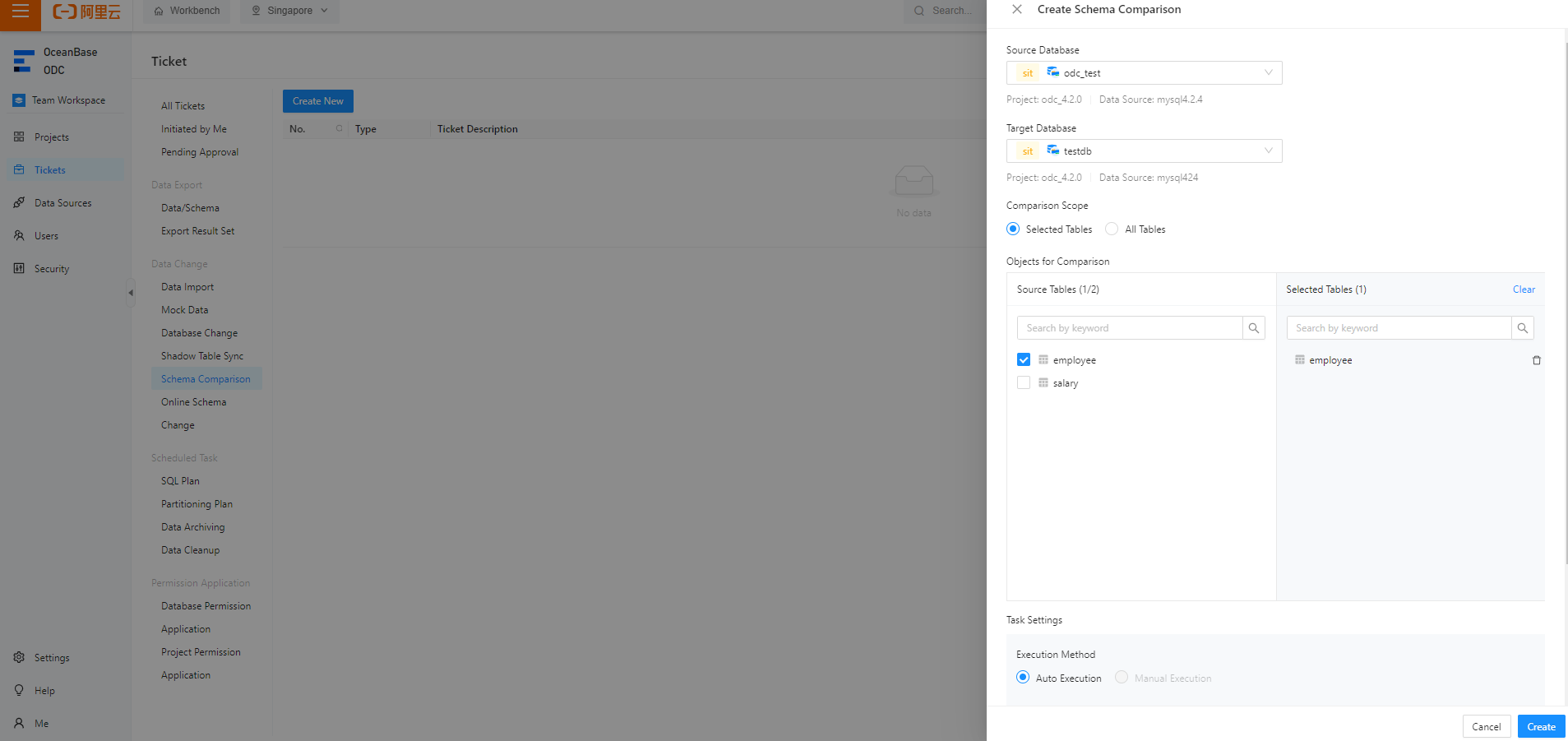
Parameter
Description
Source Database
Select the source database.
Target Database
Select the target database for comparison.
Comparison Scope
You can select Partial Tables or All Tables.
Partial Tables: In the Select Source Table pane of the Objects for Comparison section, select the objects for comparison.
All Tables: You can select this option to compare all table objects in the source database with those in the target database.
Task Settings
Select Automatic Execution After Approval in the Execution Mode section.
Description
You can enter a description of no more than 200 characters in Task Description. This field is optional.
Click Create.
On the Tickets tab, view the task information in the schema comparison task list.

As shown in the preceding figure, click View in the Actions column to view the schema comparison details.

Click Synchronize Schema to initiate a database change task.

View a schema comparison task
Task information
In the schema comparison task list on the Tickets tab, click View in the Actions column of the target schema comparison task.

In the Task Details panel, click the Task Information tab to view the basic task information and task settings.

On the Task Information tab, click Synchronize Schema, Initiate Again, or Download SQL in the lower-right corner to initiate a schema synchronization task, initiate the schema comparison task again, or download the SQL change script.
Task process
In the Task Details panel, click the Task Process tab to view the initiation status, execution status, and execution result of the task.

Task logs
In the Task Details panel, click the Task Logs tab and view all logs and alert logs of the task.
Tab | Description |
All Logs | Displays the complete information of all task logs, including INFO, ERROR, and WARN logs. You can click Search, Download, or Copy to search for, download, or copy all logs. |
Alert Logs | Displays the ERROR and WARN logs of the task. When a task fails, you can view the error message in the alert logs. You can click Search, Download, or Copy to search for, download, or copy alert logs. |
