Overview
OceanBase Developer Center (ODC) is an open source collaborative database development tool for enterprises. It is provided in two forms: client ODC and web ODC.
You can use ODC in the following ways:
Log on to the ApsaraDB for OceanBase console. In the left-side navigation pane, click Data Development to log on to web ODC.
Download client ODC and connect to an instance in ApsaraDB for OceanBase for data development and management.
This topic describes how to use web ODC. For more information about client ODC, see the ODC documentation.
User interface
Project collaboration windows
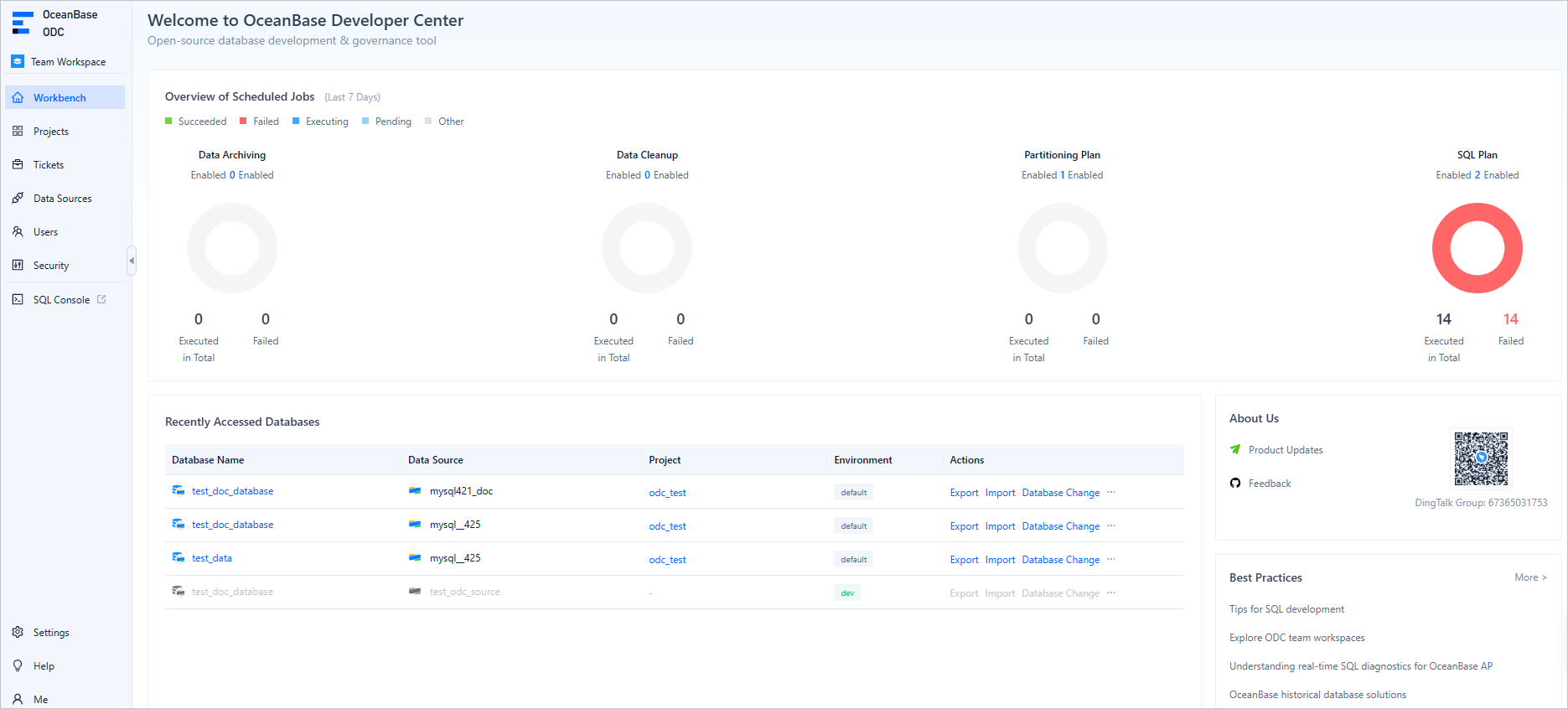
Log on to web ODC. The workbench page of the ODC console appears by default. This section describes the project collaboration windows in the ODC console.
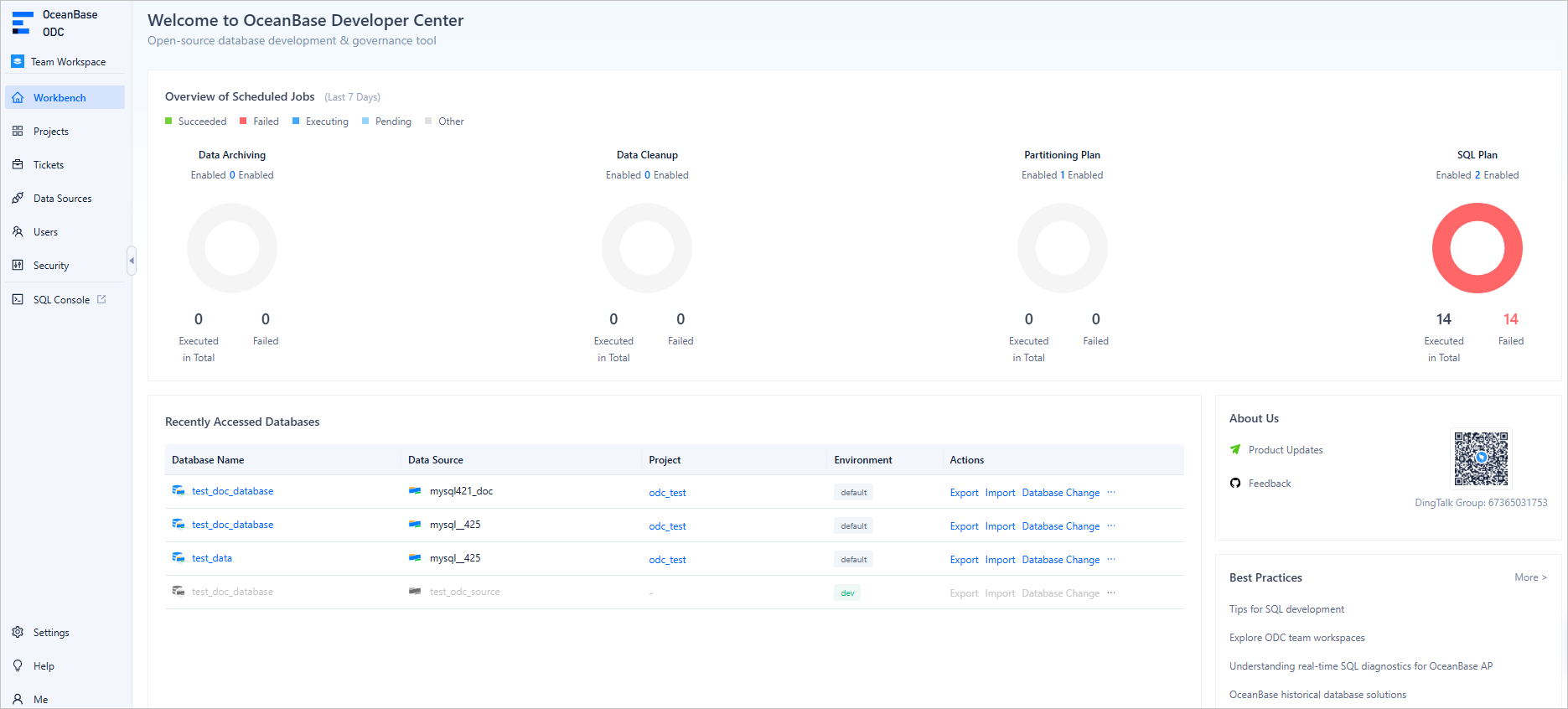
No. | Window | Description |
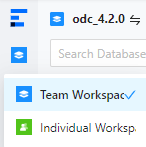
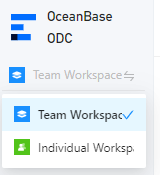
1 | Workspace | You can click the workspace menu to switch between your team and individual workspaces.
|
2 | Workbench | You can conveniently view and access the following resource information in this window as needed:
|
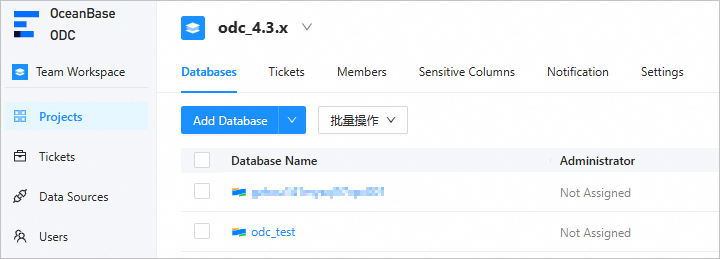
3 | Projects | With project administrator permissions, you can create projects and configure their members and databases. A project contains four types of resources: databases, tickets, members, and sensitive data. It serves as the smallest unit of collaboration. Tickets are the primary means of collaboration within a project, while sensitive data is the focus of data desensitization strategies.
|
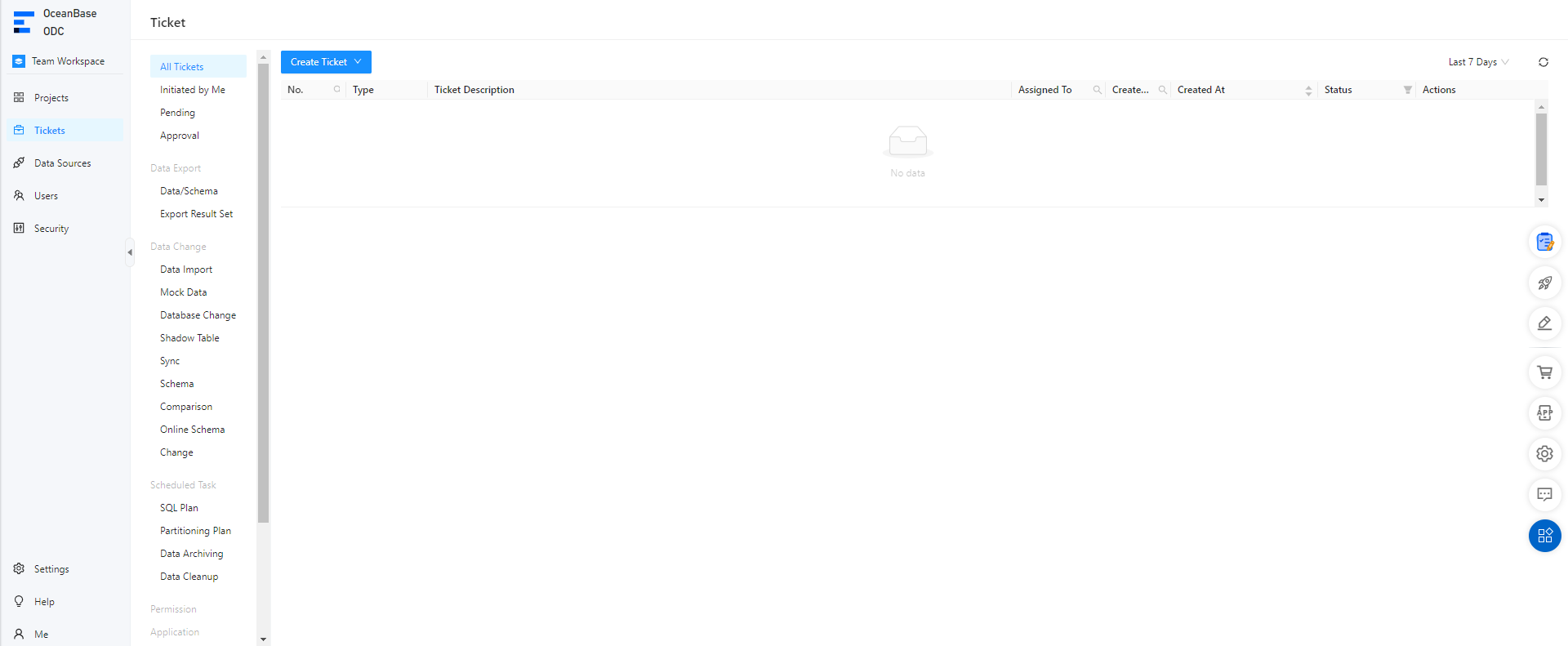
4 | Tickets | You can submit a ticket to perform operations such as importing, exporting, mocking, and archiving data, modifying a database, implementing lock-free schema changes, and managing SQL plans. You can also review the created tickets.
|
5 | Data Sources | ODC allows you to connect to OceanBase Database to edit and manage data sources, including database objects and resources.
|
6 | Users | With the ODC system administrator role, you can create and edit users and assign roles to grant them permissions for resource management and system operations. You can also configure automatic authorization rules to automatically grant specific roles or permissions to users that meet the specified conditions.
|
7 | Security | In this window, you can perform the following operations:
|
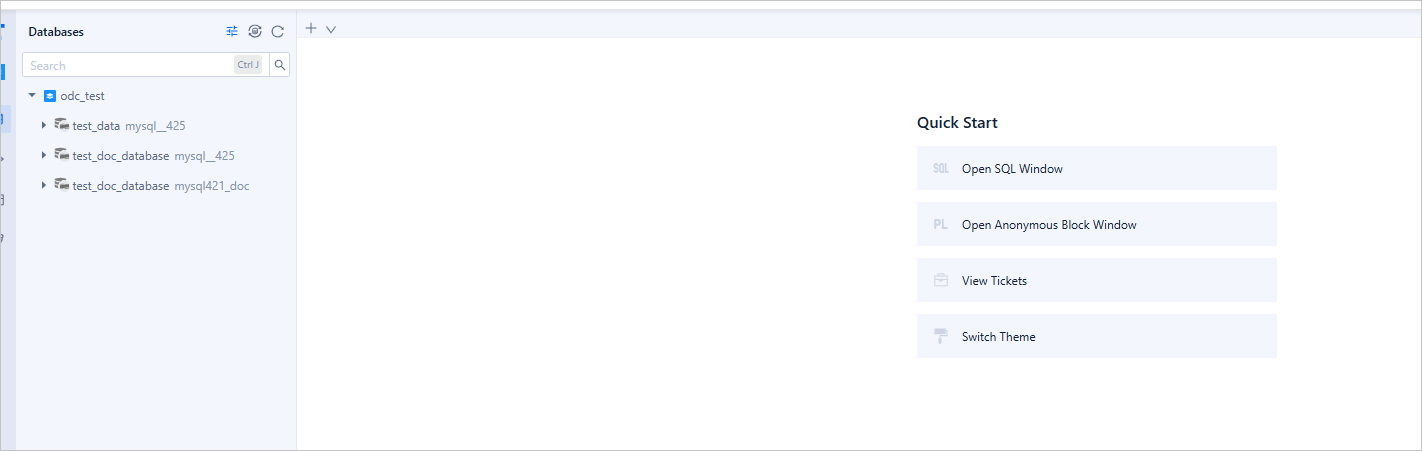
8 | SQL Console | You can quickly navigate to the SQL development window.
|
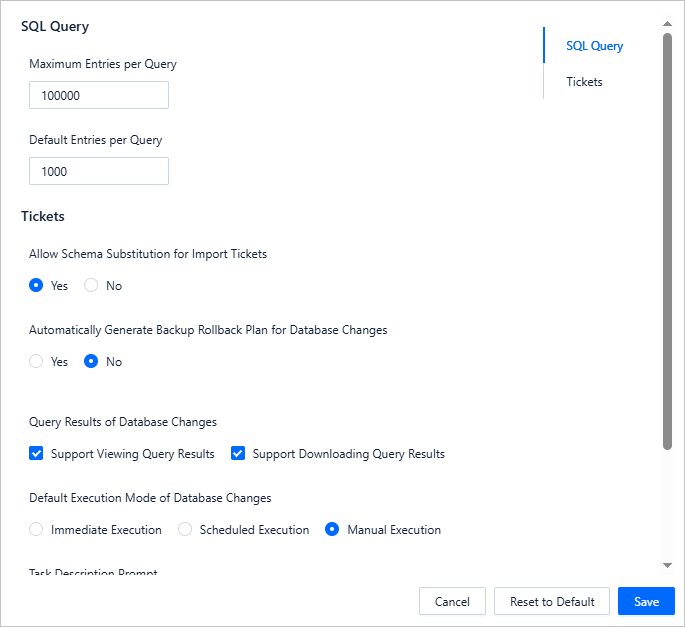
9 | Settings | On the homepage of ODC, click Settings in the lower-left corner to set the database, editor, appearance, and account.
|
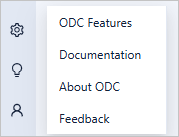
10 | Help | In the lower-left corner of the ODC homepage, you can click Help to view tutorial documents for common operations in ODC, new features in the current version, and frequently asked questions. Click the document you want to view on this tab. The introduction and link to the document are displayed in a dialog box. You can click the link to view the document.
|
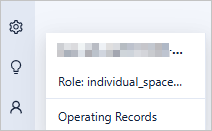
11 | Me | You can edit personal settings and view operation records in this window.
|



SQL development windows
Switch to Individual Workspace or log on to a database to access SQL development windows.

No. | Window | Description |
1 | Workspace | You can click the workspace menu to switch between your team and individual workspaces.
|
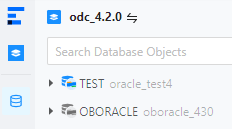
2 | Database | You can create and manage database objects in databases of the data source or project. You can view database objects by group.
|
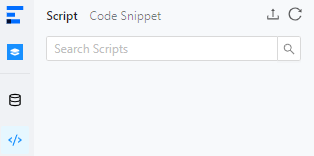
3 | Script | You can save edited scripts in the SQL Window and Anonymous Block Window and manage the saved scripts on the Script tab. You can also manage snippets on the Code Snippet tab.
|
4 | Ticket | You can submit a ticket to perform operations such as importing, exporting, mocking, and archiving data, modifying a database, implementing lock-free schema changes, and managing SQL plans. You can also review the created tickets. |
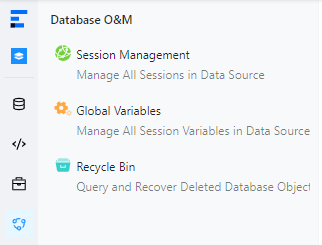
5 | O&M Management |
|
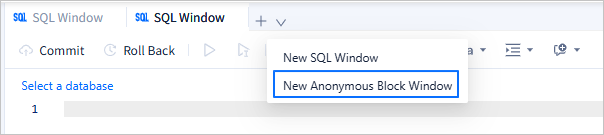
6 | SQL Window |
|
7 | Anonymous Block Window | You can compile, run, and debug PL objects and anonymous blocks.
|