OceanBase Developer Center (ODC) supports the management and maintenance of OceanBase databases. This topic describes how to add a new database connection to ODC and log on to the database.
Prerequisites
You have logged on to the ApsaraDB for OceanBase with a valid account and have obtained relevant database information.
Procedure
Log on to the ApsaraDB for OceanBase console.
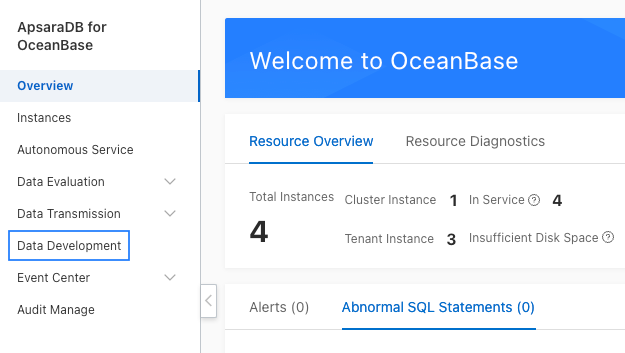
In the left-side navigation pane, click Data Development to go to the ODC homepage.
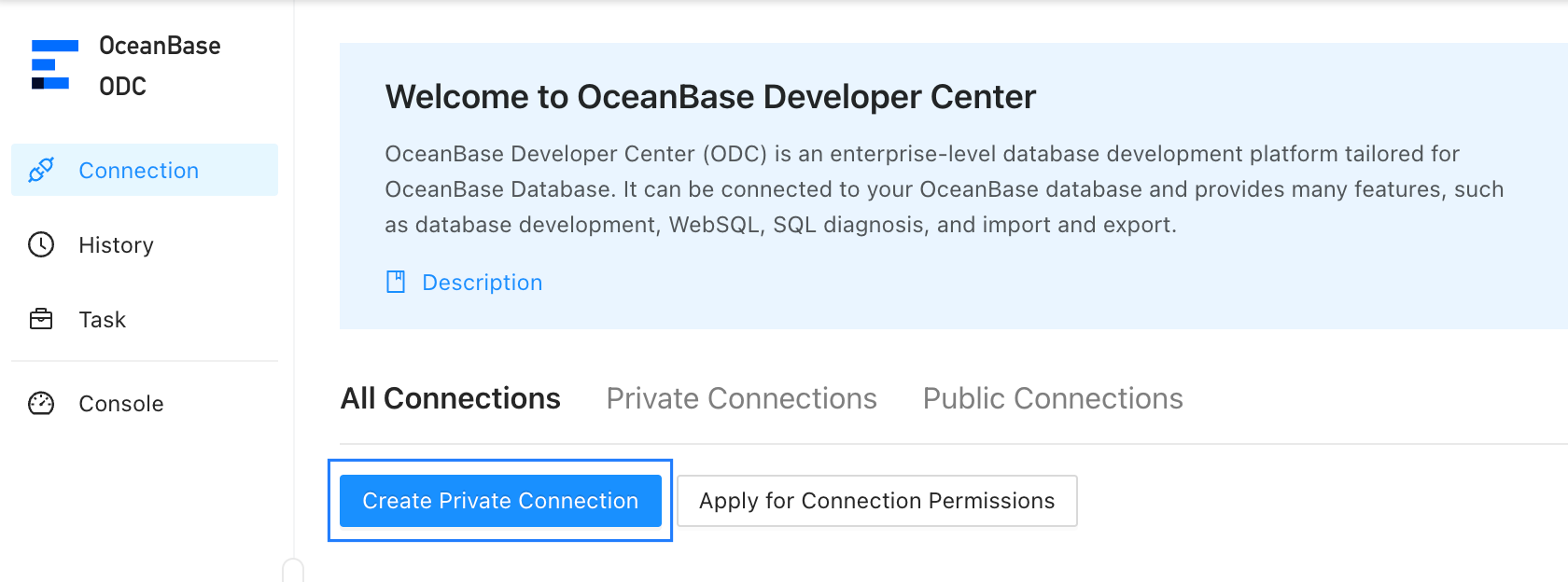
On the ODC homepage, choose All Connections > Create Private Connection.
In the pop-up window, enter the following information:
Connection Instance: the cluster or tenant instance to be connected. Select an instance from the drop-down list.
Database Username: the username of the tenant account. Select a username from the drop-down list.
Database Password: the password of the tenant account. Enter the password in the input box.
Save Password: This option is checked by default. If you deselect this option, you need to enter the password each time you use or test a connection.
Click Test Connection. The
 icon is displayed next to the account and password, indicating that the password and account are valid for logon to the destination database.
 After the test succeeds, click Save.
In the Enter a connection name pop-up window, enter the connection name, and click OK.
After the connection is created, you can click the connection on the All Connections tab page to access and use the corresponding database.