Manage versions
This topic describes how to manage API versions in the API Gateway console.
1. Modify an API
You can view and modify an API based on your business requirements.
Procedure:
1. Log on to the API Gateway console.
2. In the left-side navigation pane, choose Manage APIs > APIs.
3. Find the API that you want to manage and choose  > Manage in the Actions column. On the Definition page, you can view the information of the API. Click Edit in the upper-right corner to edit the API based on your business requirements.
The modification process of an API is similar to the creation process of an API. For more information, see Create an API.
After you modify the information of an API, you must publish the API to the Test, Pre, or Release environment before it can be called.
If you modify an API that is published, the modifications are not immediately applied. You must republish the modified API to synchronize the changes to the Release environment.
2. Compare API configurations
After an API is modified, you can compare the API configurations before and after the modification to check whether the modification scope is correct.
Procedure:
1. After you edit the API, click Save. In the message that appears, click Publish.
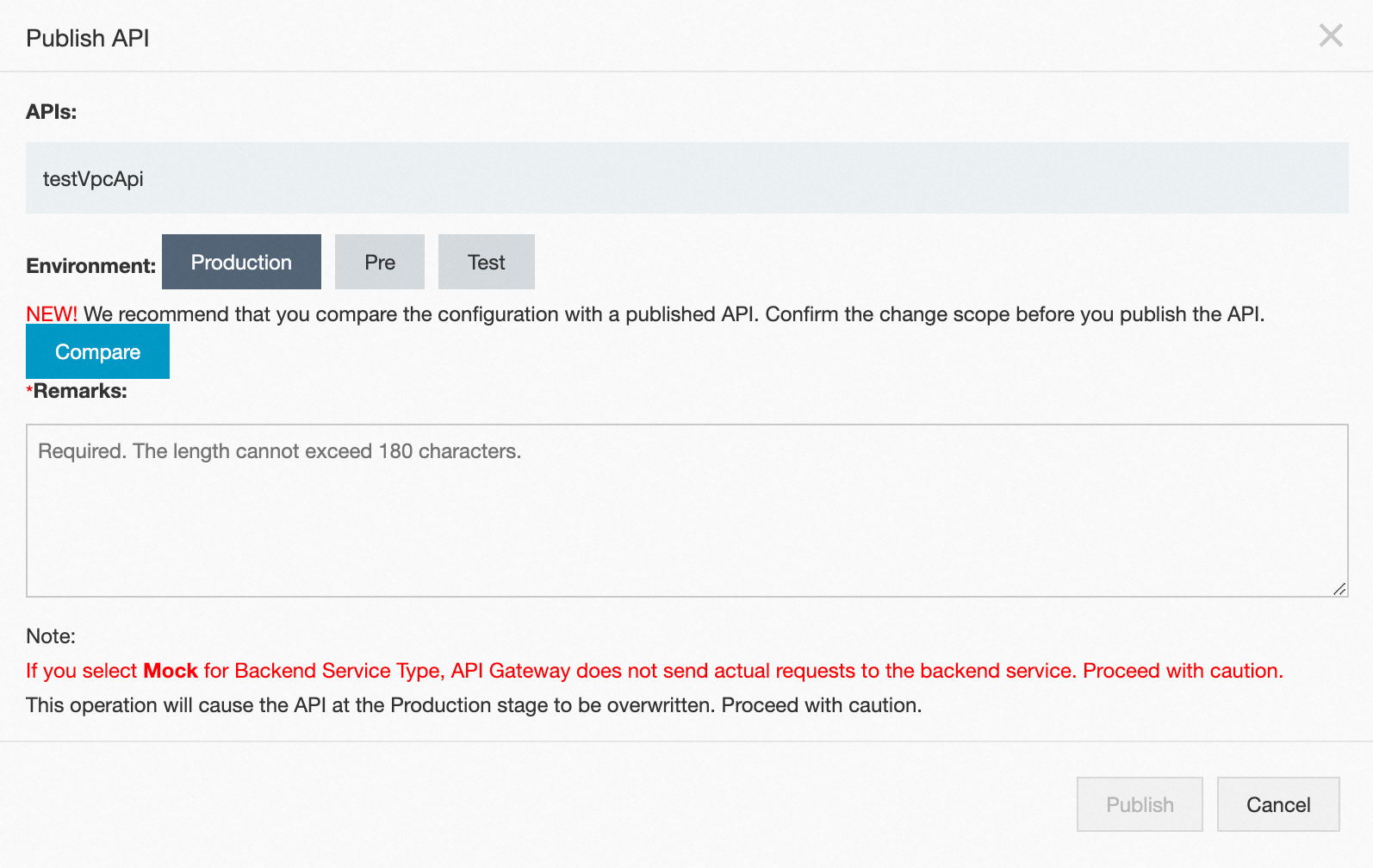
2. In the Publish API dialog box, configure the Environment parameter, click Compare to confirm the modification, and click Publish to publish the API to the selected environment.
3. Query release history and switch versions
API Gateway records each release of an API. The release history includes the release version, environment, date, and release remarks. You can view the release records on the Version History page.
3.1 Query the release history
Log on to the API Gateway console. In the left-side navigation pane, choose API Management > APIs. On the APIs page, click the API that you want to manage.
On the Definition page, click Version History in the left-side navigation tree. Find the version that you want to manage and click View in the Actions column to go to the API Definition Details dialog box.
3.2 Switch the API version
When you view the version history of an API, you can select a different version for the API. The selected version then replaces the current version in the specified environment.
Find the required version and click Switch to this Version in the Actions column.
In the API Version Switch dialog box, enter a description and click Switch.