Manage routing rules for your Cloud Native API Gateway instance, including viewing details, modifying rules, publishing, unpublishing, debugging, and deleting routes.
View route details
-
Navigate to the target route:
Global
-
Log on to the Cloud Native API Gateway console. In the navigation pane on the left, choose API. In the top navigation bar, select a region.
-
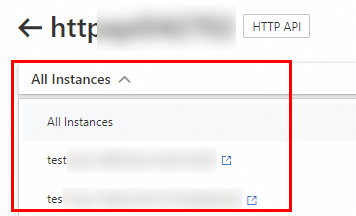
Click the target API. From the drop-down list, select the target instance, or select All Instances.
-
In the Routes tab, select the target route.
Instance
-
Log on to the Cloud Native API Gateway console. In the navigation pane on the left, choose Instance. In the top navigation bar, select a region.
-
On the Instance page, click the ID of the target gateway instance. In the navigation pane on the left, choose API and then click the target API.
-
In the Routes tab, select the target route.
-
-
View the Basic Information, Match Rule, and Backend Services details.
Modify routing rules
-
Navigate to the target route:
Global
-
Log on to the Cloud Native API Gateway console. In the navigation pane on the left, choose API. In the top navigation bar, select a region.
-
Click the target API. From the drop-down list, select the target instance, or select All Instances.
-
In the Routes tab, select the target route.
Instance
-
Log on to the Cloud Native API Gateway console. In the navigation pane on the left, choose Instance. In the top navigation bar, select a region.
-
On the Instance page, click the ID of the target gateway instance. In the navigation pane on the left, choose API and then click the target API.
-
In the Routes tab, select the target route.
-
-
Click
 next to the route name and choose Edit Route. Alternatively, click Routes in the upper-right corner of the Edit Route tab.
 -
On the Edit Route page, modify the parameters as required, and then click Save or Save and Publish.
Publish a routing rule
-
Navigate to the target route:
Global
-
Log on to the Cloud Native API Gateway console. In the navigation pane on the left, choose API. In the top navigation bar, select a region.
-
Click the target API. From the drop-down list, select the target instance, or select All Instances.
-
In the Routes tab, select the target route.
Instance
-
Log on to the Cloud Native API Gateway console. In the navigation pane on the left, choose Instance. In the top navigation bar, select a region.
-
On the Instance page, click the ID of the target gateway instance. In the navigation pane on the left, choose API-level and then click the target API.
-
In the Routes tab, select the target route.
-
-
Click
next to the route name and choose Publish Route. Alternatively, click Routes in the upper-right corner of the Publish Route tab. -
In the Publish dialog box, click OK. The status of the route changes to Routes in the Published tab.
Unpublish a routing rule
-
Batch operations are not supported for unpublishing routes or unbinding domain names. Unpublish each route or unbind each domain name individually.
-
Unpublishing a route makes it inaccessible on the specified instance. Proceed with caution.
To stop public network access before an instance maintenance window, unpublish all published routes on the instance. After maintenance is complete, click Publish Route to restore access.
-
Navigate to the target route:
Global
-
Log on to the Cloud Native API Gateway console. In the navigation pane on the left, choose API. In the top navigation bar, select a region.
-
Click the target API. From the drop-down list, select the target instance, or select All Instances.
-
In the Routes tab, select the target route.
Instance
-
Log on to the Cloud Native API Gateway console. In the navigation pane on the left, choose Instance. In the top navigation bar, select a region.
-
On the Instance page, click the ID of the target gateway instance. In the navigation pane on the left, choose API and then click the target API.
-
In the Routes tab, select the target route.
-
-
Click
next to the route name and choose Shutdown. Alternatively, in the upper-right corner of the Routes tab, click More and choose Shutdown. -
In the dialog box that appears, click Shutdown. The status of the route changes to Routes in the Unpublished tab.
Debug a route
Prerequisites
Procedure
-
Navigate to the target route:
Global
-
Log on to the Cloud Native API Gateway console. In the navigation pane on the left, choose API. In the top navigation bar, select a region.
-
Click the target API. From the drop-down list, select the target instance, or select All Instances.
-
In the Routes tab, select the target route.
Instance
-
Log on to the Cloud Native API Gateway console. In the navigation pane on the left, choose Instance. In the top navigation bar, select a region.
-
On the Instance page, click the ID of the target gateway instance. In the navigation pane on the left, choose API and then click the target API.
-
In the Routes tab, select the target route.
-
-
Click
next to the route name and choose Debug. Alternatively, click Routes in the upper-right corner of the Debug tab. -
In the Route Debugging panel, configure the parameters and click Send Request.
Run a performance test
Prerequisites
Procedure
-
Navigate to the target route:
Global
-
Log on to the Cloud Native API Gateway console. In the navigation pane on the left, choose API. In the top navigation bar, select a region.
-
Click the target API. From the drop-down list, select the target instance, or select All Instances.
-
In the Routes tab, select the target route.
Instance
-
Log on to the Cloud Native API Gateway console. In the navigation pane on the left, choose Instance. In the top navigation bar, select a region.
-
On the Instance page, click the ID of the target gateway instance. In the navigation pane on the left, choose API and then click the target API.
-
In the Routes tab, select the target route.
-
-
Click
next to the route name and choose Stress Test. Alternatively, in the upper-right corner of the Routes tab, click More and choose Stress Test. Quick start for Performance Testing Service (PTS).
Delete a routing rule
-
A route must be unpublished before you can delete it.
-
Deleted routes cannot be recovered. Proceed with caution.
-
Navigate to the target route:
Global
-
Log on to the Cloud Native API Gateway console. In the navigation pane on the left, choose API. In the top navigation bar, select a region.
-
Click the target API. From the drop-down list, select the target instance, or select All Instances.
-
In the Routes tab, select the target route.
Instance
-
Log on to the Cloud Native API Gateway console. In the navigation pane on the left, choose Instance. In the top navigation bar, select a region.
-
On the Instance page, click the ID of the target gateway instance. In the navigation pane on the left, choose API and then click the target API.
-
In the Routes tab, select the target route.
-
-
Click
 next to the route name and choose Delete. Alternatively, in the upper-right corner of the Routes tab, click More and choose Delete.
 -
In the dialog box that appears, click OK.