This topic describes the cause of and the solution to the issue that a GPU cannot be used in a GPU-accelerated container that is deployed in Alibaba Cloud Linux 3 after the container is started.
Problem description
A container is deployed in an Alibaba Cloud Linux 3 operating system whose systemd version is earlier than systemd-239-68.0.2.al8.1. After the systemctl daemon-reload command is run, the container fails to access a GPU.
When you run the
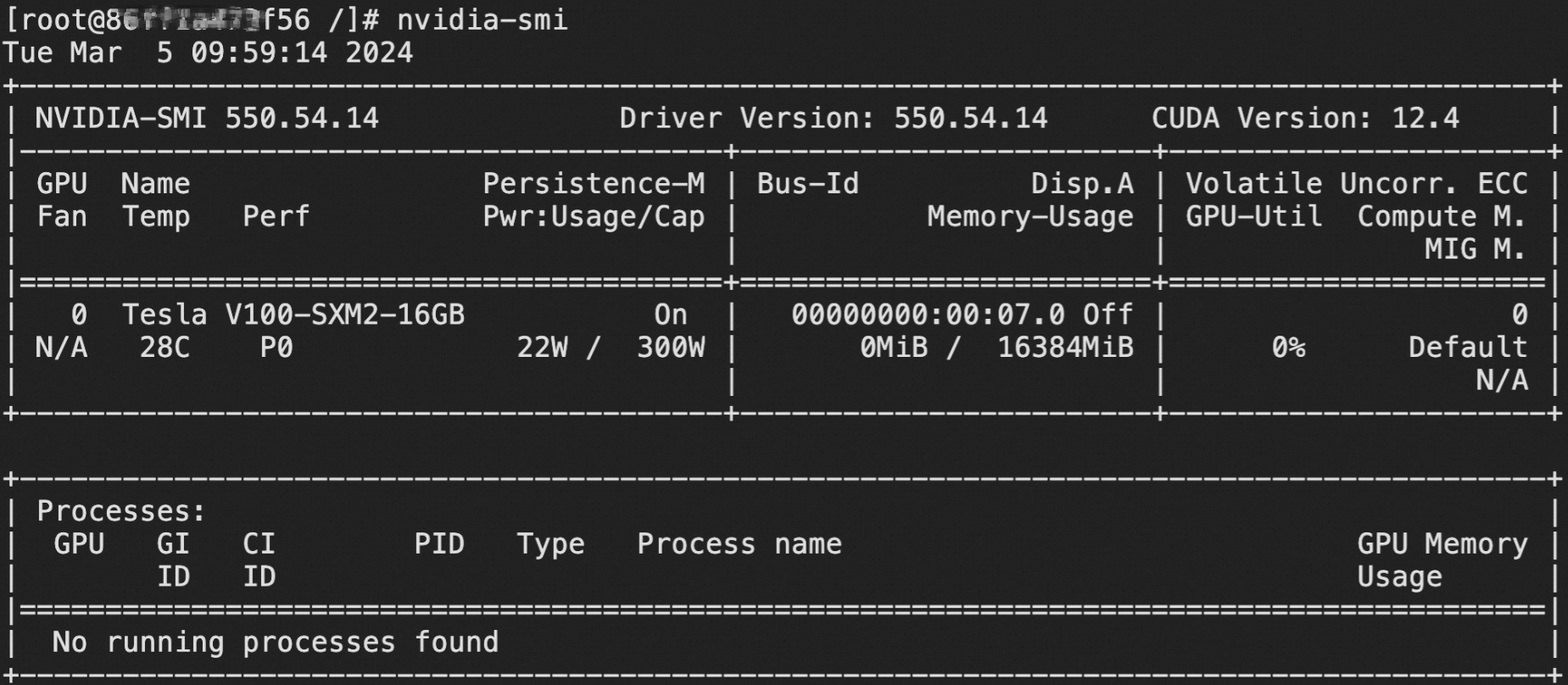
nvidia-smicommand in the container, no GPU information is contained in the command output.When you query the content of the
devices.listfile, the file content is changed. For example, the permissions on GPU 0 are changed to195:* m.
In the following figure, the left part indicates that the container can access a GPU, and the right part indicates that the container cannot access a GPU.

Cause
No symbolic link exists to link a device node in the /dev/char/ directory to an NVIDA GPU device node. The name of a device node in the /dev/char/ directory is in the format of /dev/char/<major number:minor number>. In this example, a device node named /dev/char/195:255 in the /dev/char/ directory and an NVIDIA GPU device node named /dev/nvidiactl are used. runc automatically associates the device node in the /dev/char/ directory with the NVIDIA GPU device node. When the container starts, runc configures the device control group (cgroup) for the container and GPU based on the association. Then, runc provides the cgroup configurations for systemd. However, the cgroup configurations do not exist.
After the systemctl daemon-reload command is run to reload systemd configurations, systemd serializes all service states that are managed by systemd, reads configuration files on disks, and then re-applies new states to services. During the preceding process, systemd re-applies all cgroup configurations based on the recorded states. However, systemd is unable to find or configure the device node named /dev/char/195:255 in the /dev/char/ directory due to the nonexistent symbolic link. As a result, systemd cannot configure the device cgroup for the /dev/char/195:255 device node, which causes the container to fail to access the GPU.

Solution
Alibaba Cloud provides the FullDelegationDeviceCGroup option in systemd-239-78.0.4. The FullDelegationDeviceCGroup option is automatically enabled, which prevents systemd from re-applying the device cgroup configurations even if Delegate is set to yes for services. To resolve the GPU access failure issue, upgrade systemd to the most recent version. Perform the following steps:
Upgrade
systemdon the Elastic Compute Service (ECS) instance to the most recent version.sudo yum upgrade systemdEnter
yto confirm the upgrade.Restart the ECS instance for the configuration to take effect.
WarningThe restart operation stops the instance for a short period of time and may interrupt the services that are running on the instance. This may result in data loss. Before you restart the instance, we recommend that you back up critical instance data. We also recommend that you restart the instance during off-peak hours.
sudo rebootCheck whether the
systemdversion issystemd-239-78.0.4or later.rpm -qa systemdRun the
nvidia-smicommand in the container to view the GPU information.nvidia-smiThe command output shown in the following figure indicates that the GPU can be accessed as expected.