Introduction
This topic describes how to quickly locate a specified experiment among multiple experiment groups and experiments that you created.
Experiment Overview
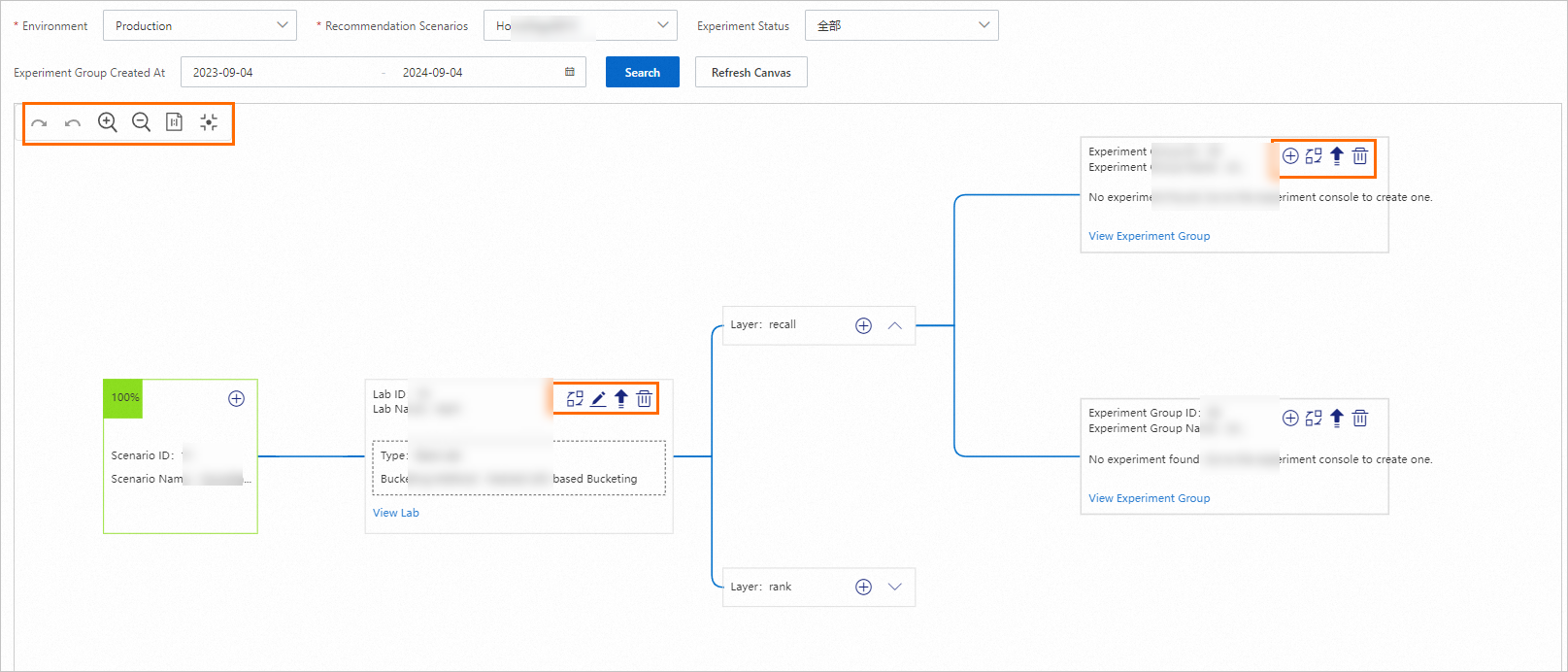
On the Experiment Overview page, you can view all the current experiments. The tree chart on the canvas clearly shows the relationships between experiments, experiment groups, and experiment layers.
You can also specify an environment and a recommendation scenario to filter related experiments. The canvas clearly shows the relationships between experiments, experiment groups, and experiment layers in the specified scenario.
You can use the icons in the upper-left corner of the canvas to perform operations such as scaling in or scaling out the canvas and switching the default size of the canvas.
You can clone, modify, publish, or delete a lab, an experiment group, or an experiment by clicking the corresponding icon in the upper-right corner of each card.
You can click View Lab, View Experiment Group, or View Experiment to view the desired details.
Experiment Console
You can view and configure experiment parameters on the Experiment Console page. You click View Experiment on the Experiment Overview page to access the Experiment Console page.
On the Experiment Console page, you can search for a specified experiment by keyword or experiment ID or by specific conditions.
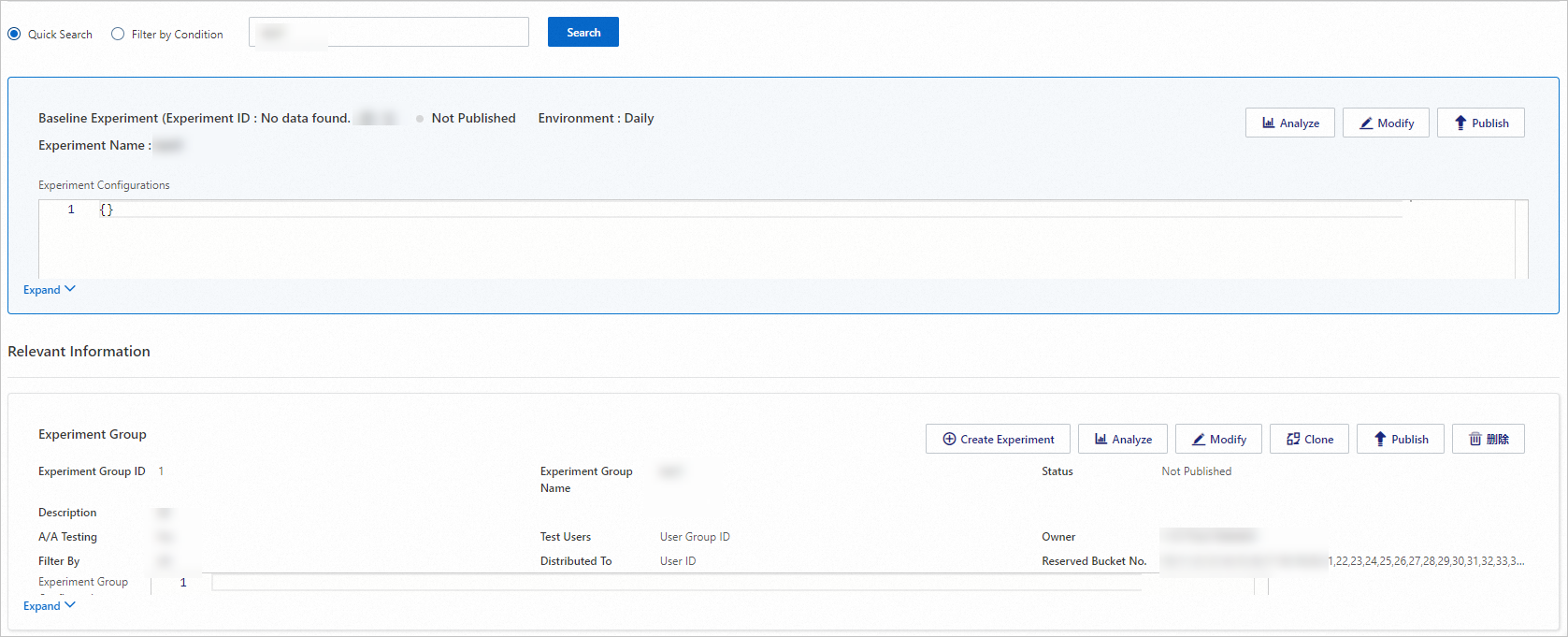
In the Relevant Information section of the page, you can view information about the experiment group to which the experiment belongs. The experiment group and its experiments process the traffic in the experiment group. The information displayed in the Relevant Information section can be used as a reference for the analysis of the experiment group or an experiment in the experiment group. You can click the Analyze button in the upper-right corner to go to the Performance Reports page, where you can view experiment reports.
User Group Management
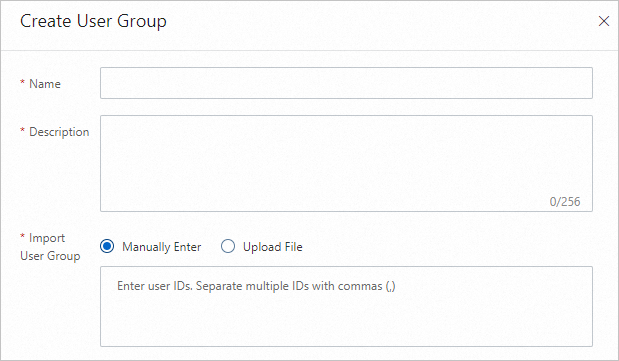
You can create multiple user groups for different experiments. This way, the traffic of these user groups can be routed to specified experiments, which helps achieve the testing objective.
You can manually enter user groups or import user groups from a file.
Manually Enter: Enter user IDs and separate them with commas (,).
Upload File: You can upload a CSV or XLSX file. The file can contain only one column, which is named user_id. The column name is case-sensitive.