This topic describes how to deploy the engine service to the PAI-EAS platform based on the PAI-Rec platform.
Prerequisites
Obtain the AccessKey ID and AccessKey Secret for your Alibaba Cloud account. To avoid security threats, we recommend that you use the AccessKey of a RAM account. For more information, see Obtain an AccessKey pair.
Create engine configuration list
Before starting the PAI-Rec engine, you must create and successfully publish the configuration list to the staging and production environments. The engine will initialize based on the settings in the configuration list. If you make adjustments to the configuration later, you can directly publish the updated configuration. The engine can read the new configuration in real-time and achieve hot reloading without restarting the service.
Log on to the PAI-Rec Management Console. In the left-side navigation pane, select System Configuration > Engine Configuration.
In the Staging environment, click Create Configuration List. The system provides default settings that can be directly created.
Click Clone to clone the configuration list from the staging environment to the production environment.
In the Production environment, click Details on the right side of the target configuration list to publish it.
Create service
Log on to the PAI-Rec Management Console. In the left-side navigation pane, select System Configuration > Service Management.
Click Create Service and configure the related parameters as follows.
Basic configurations
Parameter
Description
Service Name
The name of the service deployed on PAI-EAS.
Service Description
Service description information.
Region
The region where the service is deployed on PAI-EAS.
Image Name
If you do not need to customize development code, select Official Image. If you need to customize development code, select User Custom Image. You can refer to Quickly create projects to package the image.
Image Key
PAI-EAS pulls the image using the image key set here.
Recommendation Engine Configuration
The engine configuration name used by the engine service. You need to publish the engine configuration for the staging and production environments first.
EAS configurations
Configure EAS parameters.
Parameter
Description
EAS Resource Group
If there is no private resource group, the Public Resource Group is used by default.
EAS Configuration File
Includes Staging Environment Configuration and Production Environment Configuration. Through this configuration, staging services and production services are created on PAI-EAS respectively.
On the Staging Environment Configuration tab, click Copy Configuration, and then click Go To EAS Console.
Select the corresponding workspace, then click Enter EAS. On the Model Online Service (EAS) page, click Deploy Service.
Select JSON Standalone Deployment and paste the copied PAI-Rec staging environment configuration here.
NoteThe values corresponding to
AccessKeyandAccessSecretmust be replaced with your Alibaba Cloud account's AccessKey ID and AccessKey Secret. For security, be sure to use the AccessKey of an Alibaba Cloud sub-account.Click Deploy.
Wait until the service status changes to Running, indicating that the staging service has been successfully deployed. You can click the service name to view service logs and other information.
Deploy the production service in the same way as the staging service.
After the staging and production services are deployed, click Next.
The system will check whether the staging and production services are running properly. After a successful check, proceed to the next step.
Staging release/Production release
If you use the official image for deployment, you can skip this step and create it directly.
Test service
After deploying the service, you can test the service. For specific operations, see API testing.
EAS console testing
Log on to the PAI-EAS console. Click the service name. On the Online Debugging tab, test the service. The interface path needs to include
/api/rec/feed, and set parameters for the request body.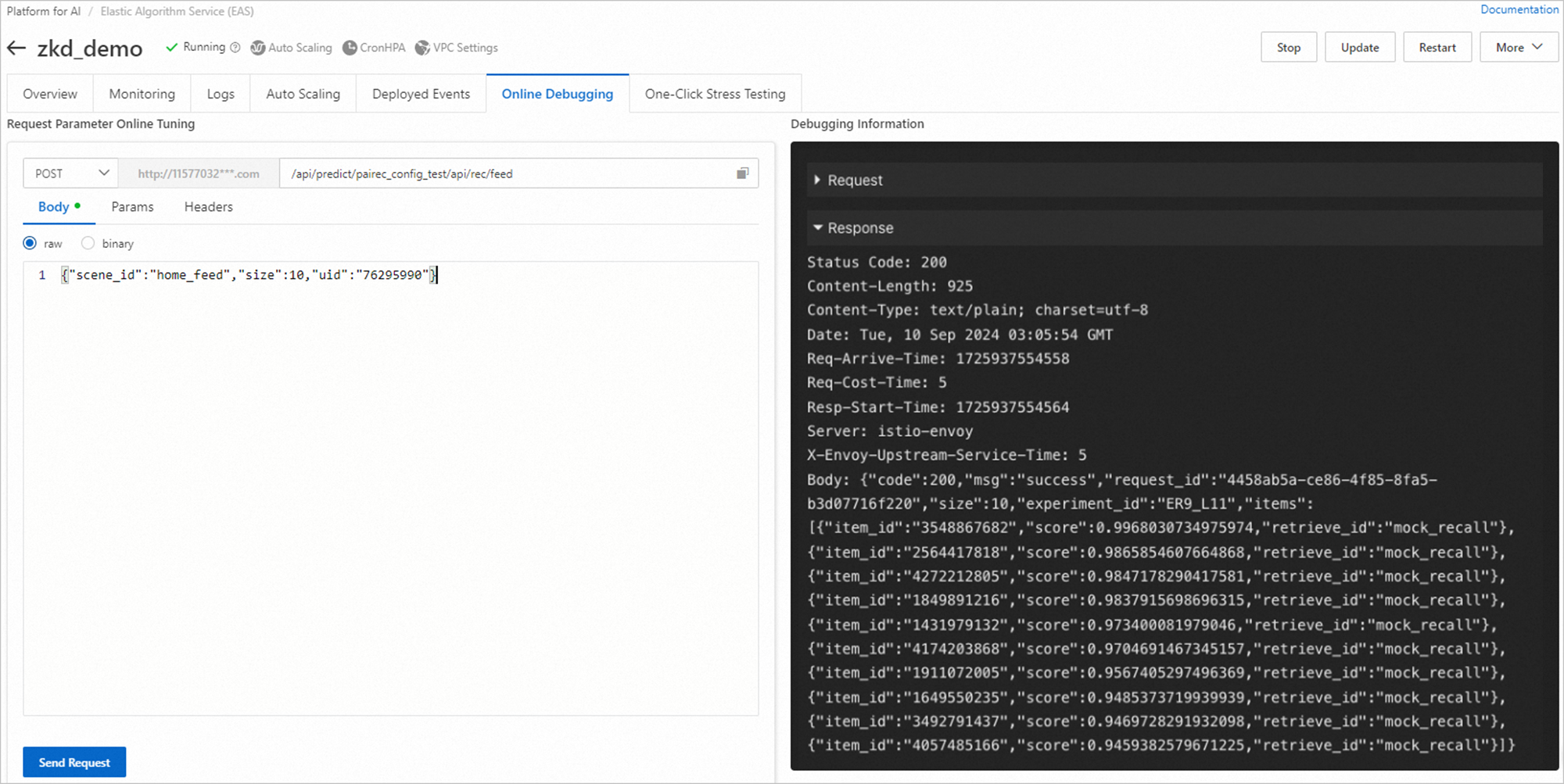
After the service request, you can view the log details based on the request_id returned by the interface.
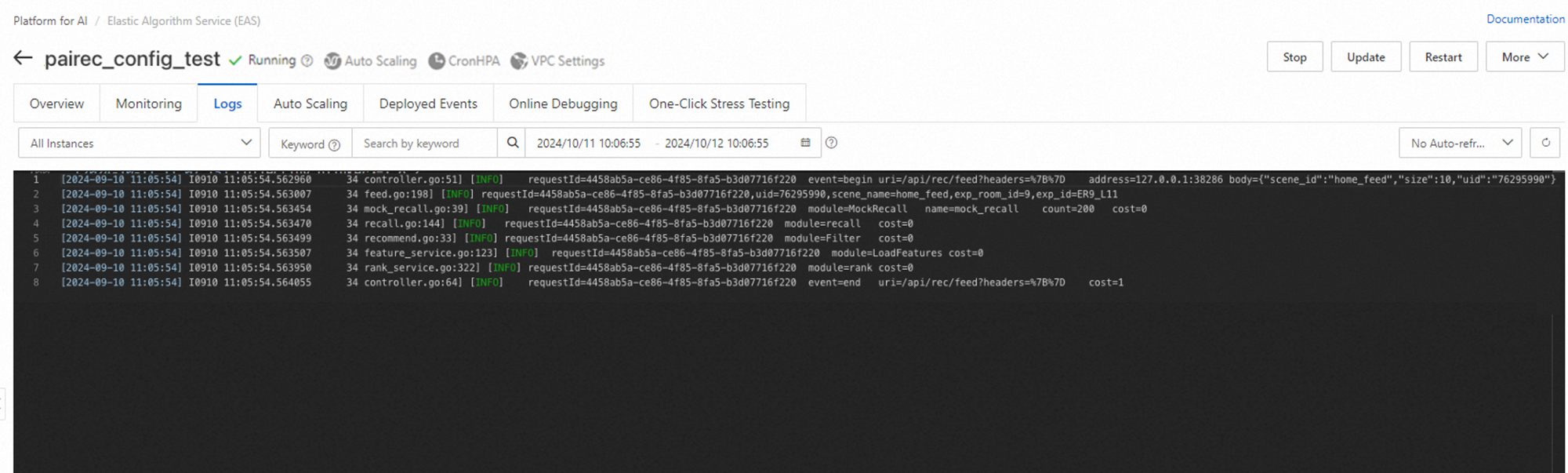
PAI-Rec console testing
Log on to the PAI-Rec Management Console. In the left-side navigation pane, choose Troubleshooting Tool > Recommendation Result Diagnostics to test based on the service, environment, and interface.
Engine configuration overview
From the above interface, it can be seen that the number of item returned is equal to the input parameter size, and the recall source name is mock_recall.
In RecallConfs, a simulated recall mock_recall is defined. In SceneConfs, the scenario home_feed references this recall.
For detailed engine configuration, see Engine configuration.
   "RecallConfs": [
        {
            "Name": "mock_recall",
            "RecallType": "MockRecall",
            "RecallCount": 200
        }
    ],
    "SceneConfs": {
        "home_feed": {
            "default": {
                "RecallNames": [
                    "mock_recall"
                ]
            }
        }
}When the service is officially published, RecallNames needs to delete mock_recall.
Engine configuration hot reloading
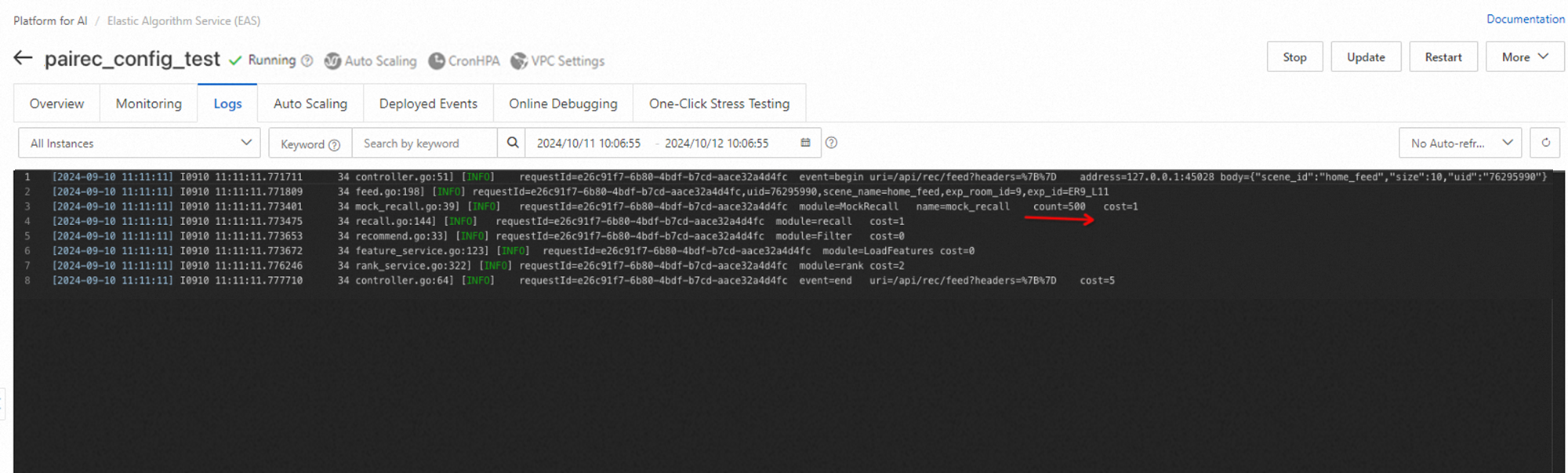
After the service is deployed, you can adjust the engine configuration according to actual needs. For example, change the recall count of mock_recall from 200 to 500.
Log on to the PAI-Rec Management Console. In the left-side navigation pane, select System Configuration > Engine Configuration.
On the Production tab, click View on the right side of the target engine.
Click Create Change List Content to create change content based on the published configuration. You can also edit and modify the unpublished configuration multiple times.
After editing, click Publish.
After successful publication, the PAI-Rec engine service will read the corresponding configuration and perform hot reloading without restarting the service.
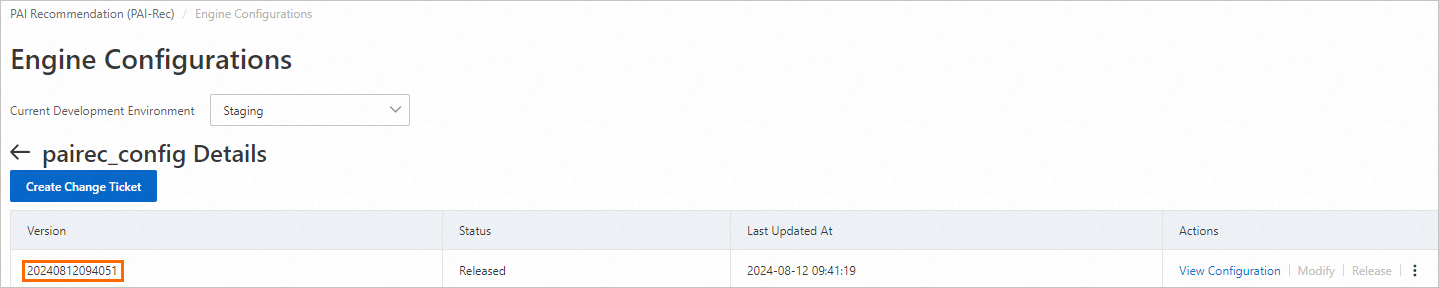
You can search for reload on the EAS service log page to see if it was successfully loaded.
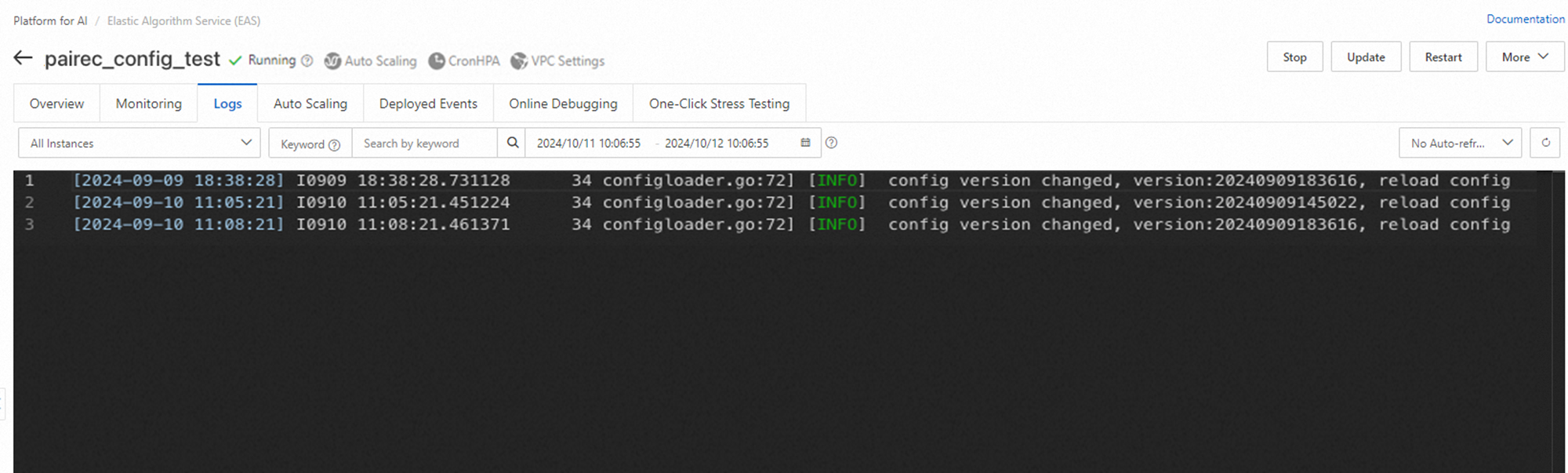
The loaded version will correspond to the published version.
Using the above method for testing, you can see that the recall count has changed.