Deploy a containerized serverless application on an ACK Serverless cluster using Knative Serving. This guide walks you through creating a Knative Service and verifying access over HTTP, using a Hello World app as the example.
Prerequisites
Before you begin, ensure that you have:
-
An ACK Serverless cluster. See Create an ACK Serverless cluster.
-
Knative deployed on the cluster. See Deploy Knative.
Step 1: Deploy a Knative Service
-
Log on to the ACK console. In the left-side navigation pane, click Clusters.
-
On the Clusters page, click the target cluster name. In the left-side navigation pane, choose Applications > Knative.
-
On the Services tab, click Create Service in the upper-right corner.
-
Set the following parameters, then click Create.
Parameter Description Namespace The namespace to which the Service belongs. Service Name A name for the Knative Service. Image Name The container image to run. Click Select Image to choose from a registry, or enter a private image registry address in domainname/namespace/imagename:tagformat. This example usesregistry.cn-hangzhou.aliyuncs.com/knative-sample/helloworld-go.Image Version The image version to deploy. Click Select Image Version to choose. This example uses 73fbdd56.Access Protocol The protocol for incoming traffic. Supported values: HTTP and gRPC. Container Port The container port to expose. Valid range: 1–65535. Internal Access Only If selected, the Service is accessible only within the cluster and cannot be reached over the Internet. Maximum Concurrent Requests The maximum number of concurrent requests per container. Default: 0(unlimited).Minimum Pods The minimum number of pods to keep running when no traffic is received. Set to 0to scale to zero.Maximum Pods The maximum number of pods allowed to run. Resource Limit The maximum CPU, memory, and GPU resources allocated to the Service. CPU is measured in cores; memory is measured in bytes or mebibytes. Lifecycle The container entrypoint command and arguments. If left blank, the image defaults are used. Setting only Parameter uses the image's default command with your arguments. Setting both Command and Parameter overrides the image defaults. Environment Variables Key-value pairs passed to the container as environment variables. Volume Storage volumes mounted to the container. Add Local Storage supports HostPath, ConfigMap, Secret, and EmptyDir. Add PVC mounts a persistent volume claim (PVC) backed by Cloud Storage.
Step 2: Access the Knative Service
-
On the Services tab, click the Service name. In the Basic Information section, note the gateway IP address and the domain name assigned to the Service.
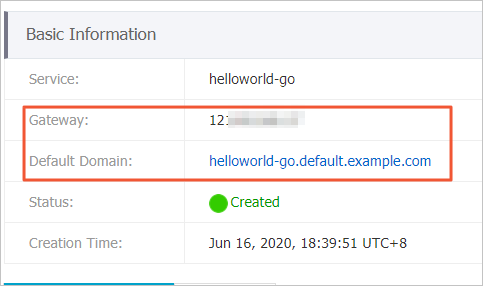
-
Add an entry to your local hosts file to map the domain name to the gateway IP address:
121.xx.xxx.xx helloworld-go.default.example.comReplace
121.xx.xxx.xxwith the actual gateway IP address andhelloworld-go.default.example.comwith your Service's domain name. -
After modifying the hosts file, use the domain name to access the Knative Service.
