Storing registry credentials in Kubernetes Secrets introduces rotation overhead and a risk of credential leaks. Elastic Container Instance (ECI) supports RAM role-based identity for image pulling, so pods and image caches can authenticate to Alibaba Cloud Container Registry (ACR) without any Kubernetes Secret.
ACR provides Personal Edition and Enterprise Edition instances. Container Registry Enterprise Edition is an enterprise-grade platform that manages the lifecycle of cloud native application artifacts, including container images, Helm charts, and Open Container Initiative (OCI) artifacts. It is designed for large-scale deployment scenarios.
Only images stored in ACR instances support secret-free pulling. Images hosted outside ACR (for example, Docker Hub images) cannot use this feature.
Limitations
Annotations for secret-free pulling take effect only when you create an ECI-based pod or image cache. Adding or modifying annotations on an existing pod has no effect.
Add annotations to the correct location in your manifest. For a Deployment, add them under
spec.template.metadata.annotations, not under the top-levelmetadata.annotations.ACR Enterprise Edition instances that use a custom domain name are not enabled for secret-free pulling by default. You must explicitly specify the instance ID using the
k8s.aliyun.com/acr-instance-idsannotation.
Prerequisites
Before you begin, ensure that you have:
An ACR instance with image repositories and images configured
For ACR Personal Edition, see Use a Container Registry Personal Edition instance to push and pull images
For ACR Enterprise Edition, see Use a Container Registry Enterprise Edition instance to push and pull images
(ACR Enterprise Edition only) Access control configured for the instance. By default, a new Enterprise Edition instance is disconnected from all networks. Enable access before proceeding:
Internet access: See Enable Internet access. After enabling, you can access images across regions using the instance's public endpoint.
VPC access: Enable the service-linked role
AliyunServiceRoleForContainerRegistryAccessCustomerPrivateZone. See Configure a VPC ACL.
Choose a configuration method
The method depends on whether the ECI resource and the ACR instance belong to the same Alibaba Cloud account, and which edition of ACR you use.
Scenario | Default behavior | Annotations required |
Same account — Personal Edition or Enterprise Edition with a default domain name | Secret-free pulling is enabled by default | None required. Optionally use |
Same account — Enterprise Edition with a custom domain name | Not enabled by default |
|
Different accounts — any edition | Not enabled by default |
|
Restrict which instances support secret-free pulling (same account)
By default, ECI uses the service-linked role AliyunServiceRoleForECI to pull images. This role grants access to all Personal Edition instances and all Enterprise Edition instances with default domain names in the same account. To restrict pulling to specific instances, create a custom RAM role and reference it in your manifest.
Step 1: Create a RAM role and attach a custom policy
Create a RAM role for a trusted Alibaba Cloud service. See Create a RAM role for a trusted Alibaba Cloud service. Use the following settings:
Parameter
Value
Trusted entity
Alibaba Cloud Service
Role type
Normal Service Role
RAM role name
acr-test(example)Trusted service
ECI
Create a custom policy that restricts pulling to a specific ACR instance. See Create a custom policy. The following example allows
cr:Get*andcr:List*on all resources, andcr:Pull*only on the specified instance:{ "Version": "1", "Statement": [ { "Effect": "Allow", "Action": [ "cr:Get*", "cr:List*" ], "Resource": "*" }, { "Effect": "Allow", "Action": [ "cr:Pull*" ], "Resource": [ "acs:cr:cn-hangzhou:1609982529******:instance/cri-nwj395hgf6f3****" ] } ] }For policy syntax details, see Policy elements.
Attach the custom policy to the RAM role. See Grant permissions to a RAM role.
Open the
acr-testrole details page, verify the attached permissions, and copy the Alibaba Cloud Resource Name (ARN) of the role.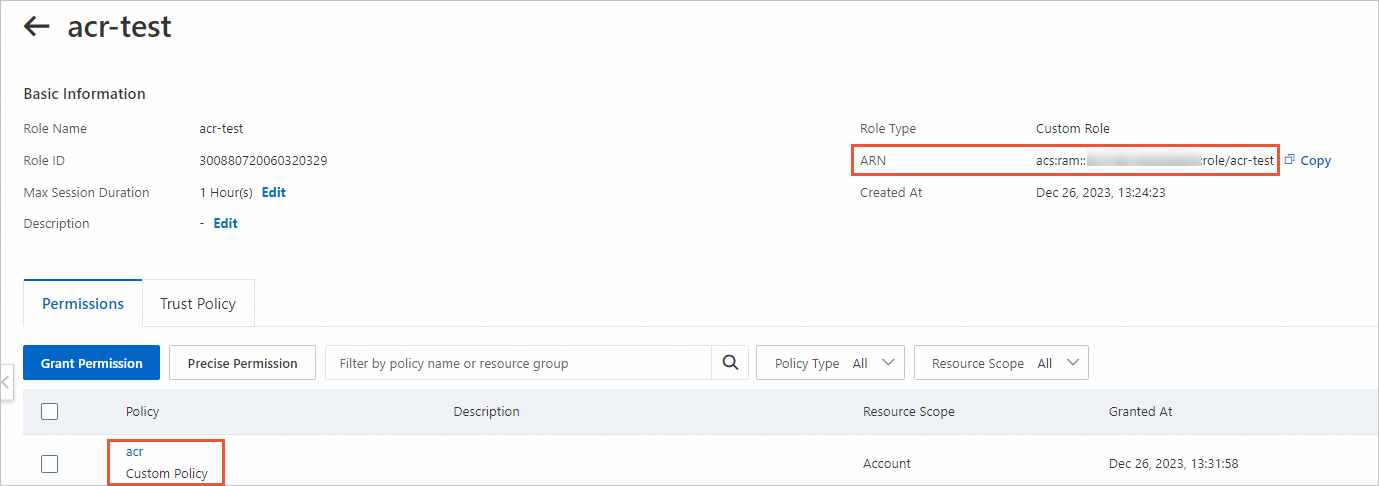
Step 2: Reference the RAM role in your manifest
Add the k8s.aliyun.com/acr-service-arns annotation to specify the RAM role when creating an ECI pod or image cache.
Example: Deployment
apiVersion: apps/v1
kind: Deployment
metadata:
  name: test
  labels:
    app: test
spec:
  replicas: 2
  selector:
    matchLabels:
      app: nginx
  template:
    metadata:
      name: nginx-test
      labels:
        app: nginx
        alibabacloud.com/eci: "true"
      annotations:
        k8s.aliyun.com/acr-service-arns: "acs:ram::1609982529******:role/acr-test" # ARN of the RAM role
    spec:
      containers:
      - name: nginx
        image: test****-registry.cn-hangzhou.cr.aliyuncs.com/eci_test/nginx:1.0   # Image in the instance the role is allowed to pull from
        ports:
        - containerPort: 80
Specify an Enterprise Edition instance with a custom domain name (same account)
If you use an ACR Enterprise Edition instance with a custom domain name, add the k8s.aliyun.com/acr-instance-ids annotation to specify the instance. The annotation accepts one or more instance IDs.
Enterprise Edition instances can be used across regions. To reference an instance in a different region from your pod, prefix the region ID to the instance ID. Example: cn-beijing:cri-j36zhodptmyq****.Example: Deployment
apiVersion: apps/v1
kind: Deployment
metadata:
  name: test
  labels:
    app: test
spec:
  replicas: 2
  selector:
    matchLabels:
      app: nginx
  template:
    metadata:
      name: nginx-test
      labels:
        app: nginx
        alibabacloud.com/eci: "true"
      annotations:
        k8s.aliyun.com/acr-instance-ids: "cri-j36zhodptmyq****"   # ACR Enterprise Edition instance ID
    spec:
      containers:
      - name: nginx
        image: test****-registry.example.com/eci_test/nginx:1.0   # Image in the Enterprise Edition instance with a custom domain name
        ports:
        - containerPort: 80
Example: ImageCache
apiVersion: eci.alibabacloud.com/v1
kind: ImageCache
metadata:
  name: imagecache-sample
  annotations:
    k8s.aliyun.com/acr-instance-ids: "cri-j36zhodptmyq****"   # ACR Enterprise Edition instance ID
spec:
  images:
  - test****-registry.example.com/eci_test/nginx:1.0
  imagePullSecrets:
  - default:secret1
  - default:secret2
  - kube-system:secret3
  imageCacheSize: 25
  retentionDays: 7
Pull images across accounts
If the ACR instance and the ECI resource belong to different Alibaba Cloud accounts, configure RAM roles in both accounts to establish a trust chain.
The setup involves two accounts:
Account A: the account where the ECI resource (pod or image cache) is created.
Account B: the account where the ACR instance is hosted.
Step 1: Create RAM roles in both accounts
In Account A (ECI account):
Create a RAM role for a trusted Alibaba Cloud service. See Create a RAM role for a trusted Alibaba Cloud service. Use the following settings:
Parameter
Value
Trusted entity
Alibaba Cloud Service
Role type
Normal Service Role
RAM role name
role-assume(example)Trusted service
ECI
Grant the
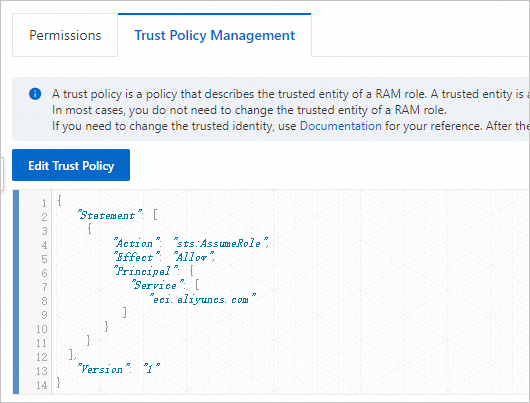
role-assumerole permission to call the AssumeRole API of Security Token Service (STS). Set the policy type to system policy and the policy name to AliyunSTSAssumeRoleAccess. See Grant permissions to a RAM role.Open the
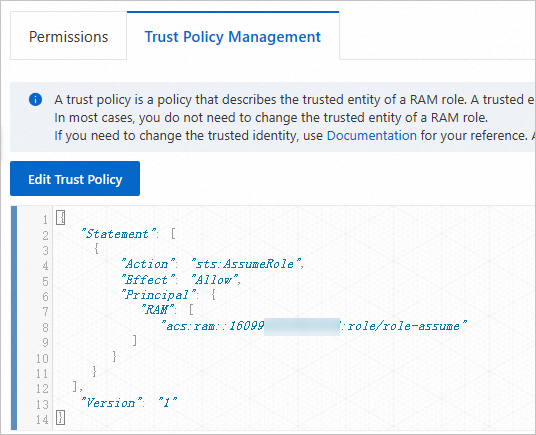
role-assumerole details page. Verify the permissions and trust policy, then copy the ARN.Permissions and ARN:
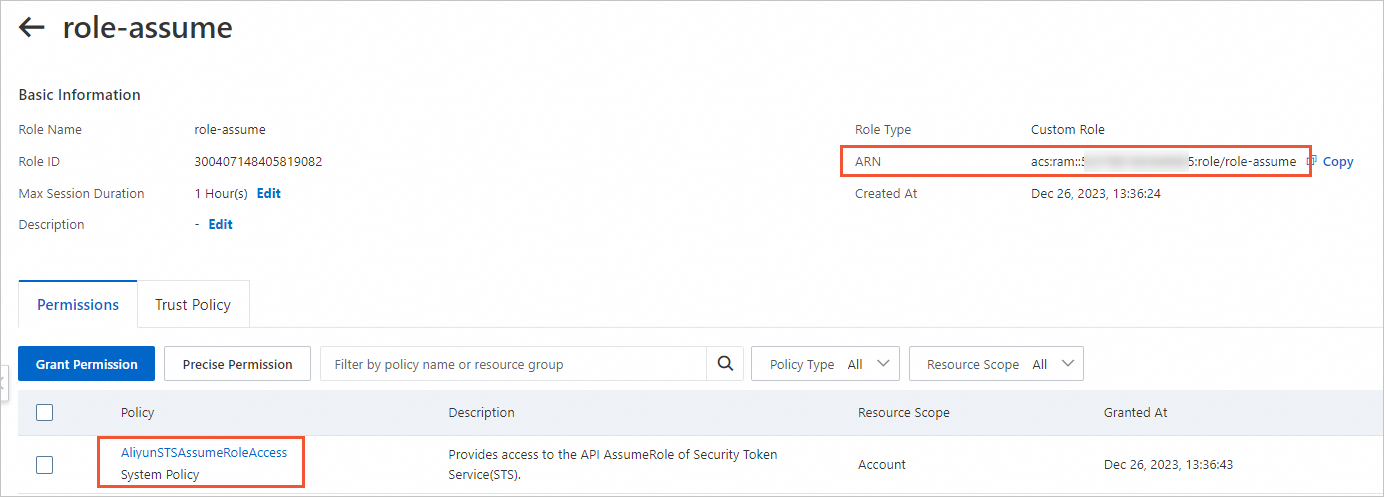
Trust policy:
In Account B (ACR account):
Create a RAM role for a trusted Alibaba Cloud account. See Create a RAM role for a trusted Alibaba Cloud account. Use the following settings:
Parameter
Value
Trusted entity
Alibaba Cloud Account
RAM role name
role-acr(example)Trusted account
Other Alibaba Cloud Account — enter Account A's account ID
Grant the
role-acrrole permission to pull images from ACR. Set the policy type to system policy and the policy name to AliyunContainerRegistryFullAccess. See Grant permissions to a RAM role.Edit the trust policy of
role-acrto restrict assumption torole-assumeonly. By default, all RAM users and RAM roles in Account A can assumerole-acr. To limit this, set theRAMfield in thePrincipalelement to the ARN ofrole-assume:"Principal": { "RAM": [ "acs:ram::1609982529******:role/role-assume" ] }Verify the permissions and trust policy, then copy the ARN of
role-acr.Permissions and ARN:
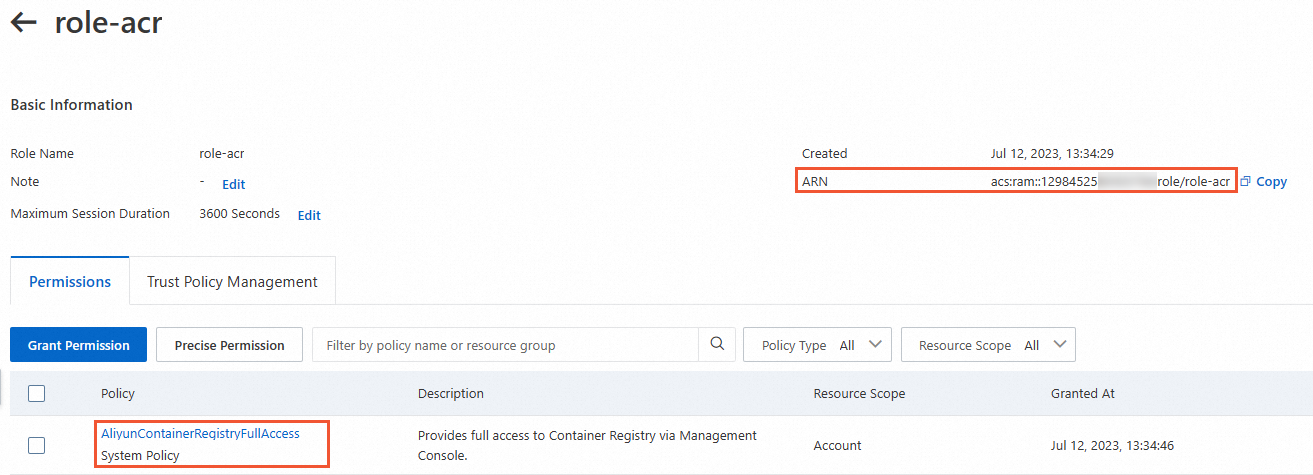
Trust policy:
Step 2: Reference both RAM roles in your manifest
Add the k8s.aliyun.com/acr-service-arns and k8s.aliyun.com/acr-user-arns annotations to specify the RAM roles from both accounts. If the ACR instance uses a custom domain name, also add k8s.aliyun.com/acr-instance-ids.
Enterprise Edition instances can be used across regions. To reference an instance in a different region from your pod, prefix the region ID to the instance ID. Example: cn-beijing:cri-j36zhodptmyq****.Example: Deployment
apiVersion: apps/v1
kind: Deployment
metadata:
  name: test
  labels:
    app: test
spec:
  replicas: 1
  selector:
    matchLabels:
      app: nginx
  template:
    metadata:
      name: nginx-test
      labels:
        app: nginx
        alibabacloud.com/eci: "true"
      annotations:
        k8s.aliyun.com/acr-instance-ids: "cri-j36zhodptmyq****"                        # ACR instance ID
        k8s.aliyun.com/acr-service-arns: "acs:ram::1609982529******:role/role-assume"   # ARN of role-assume in Account A
        k8s.aliyun.com/acr-user-arns: "acs:ram::1298452580******:role/role-acr"         # ARN of role-acr in Account B
    spec:
      containers:
      - name: nginx
        image: test****-registry.example.com/eci_test/nginx:1.0   # Image in the Enterprise Edition instance with a custom domain name
        ports:
        - containerPort: 80
Example: ImageCache
apiVersion: eci.alibabacloud.com/v1
kind: ImageCache
metadata:
  name: imagecache-sample
  annotations:
    k8s.aliyun.com/acr-instance-ids: "cri-j36zhodptmyq****"
    k8s.aliyun.com/acr-service-arns: "acs:ram::1609982529******:role/role-assume"
    k8s.aliyun.com/acr-user-arns: "acs:ram::1298452580******:role/role-acr"
spec:
  images:
  - test****-registry.example.com/eci_test/nginx:1.0   # Image in the Enterprise Edition instance with a custom domain name
  imagePullSecrets:
  - default:secret1
  - default:secret2
  - kube-system:secret3
  imageCacheSize: 25
  retentionDays: 7