ACK One integrates ArgoCD GitOps capabilities with the progressive release component Kruise Rollout to enable fully automated canary releases through Git commits. This topic describes how to use ACK One GitOps and the Kruise Rollout component to quickly implement canary releases for applications.
Prerequisites
The Fleet management feature is enabled.
You have created an ACK cluster and associated it with an ACK One fleet instance. For more information, see Create an ACK managed cluster and Add an associated cluster.
To use the A/B testing or canary release features, the cluster version must be 1.19 or later.
To use the phased release feature, the cluster version must be 1.16 or later.
The kubeconfig file of the Fleet instance is obtained in the Distributed Cloud Container Platform for Kubernetes (ACK One) console and a kubectl client is connected to the Fleet instance.
You have installed kubectl-kruise. For more information about the installation path, see kubectl-kruise.
Introduction to Kruise Rollout
Kruise Rollout is an open source progressive delivery framework from the OpenKruise community. Kruise Rollout supports phased releases, blue-green deployments, and A/B tests that are coordinated with traffic and instance scaling. Based on Prometheus metrics, Kruise Rollout can also automate the release process by batching and pausing deployments. It provides seamless bypass integration and is compatible with various existing workloads, such as Deployment, CloneSet, and StatefulSet. For more information, see Kruise Rollout.
Kruise Rollout is a bypass component. You need to only create a Rollout in your cluster to automate application releases and updates. Kruise Rollout supports seamless integration with Helm and PaaS platforms at low costs. The following figure shows how canary releases are performed by using Kruise Rollout.

Usage notes
If you select a GitHub repository, we recommend that you do not use a region in the Chinese mainland. To use a repository in a region in the Chinese mainland, you can select a suitable Git service provider.
In this topic, the fleet instance and the associated ACK cluster are in the China (Hong Kong) region.
Step 1: Deploy the Kruise Rollout component in an ACK cluster
Install the Kruise Rollout component.
Log on to the ACK console. In the left navigation pane, click Clusters.
On the Clusters page, find the one you want to manage and click its name. In the left navigation pane, click Add-ons.
On the Add-ons page, click the Manage Applications tab, and then click Install on the ack-kruise card.
In the dialog box that appears, confirm the information and click OK.
Step 2: Use ACK One GitOps to deploy an application
You can use GitOps to deploy applications in the following two ways.
Deploy applications using the ArgoCD CLI. The following sections use this method as an example.
Deploy applications using the GitOps console. For more information, see Quick Start for GitOps.
Run the following command to add a Git repository.
argocd repo add https://github.com/openkruise/samples.git --name gitops-demoExpected output:
Repository 'https://github.com/openkruise/samples.git' addedRun the following command to view the list of added Git repositories.
argocd repo listExpected output:
TYPE NAME REPO INSECURE OCI LFS CREDS STATUS MESSAGE PROJECT
git gitops-demo https://github.com/openkruise/samples.git false false false false Successful
Run the following command to view the list of clusters.
argocd cluster listExpected output:
SERVER NAME VERSION STATUS MESSAGE PROJECT
https://192.168.XX.XX:6443 c76073b011afb4de2a8****-ack-gitops-demo-192-10-110-0-0-16 1.26+ Successful
https://kubernetes.default.svc in-cluster Unknown Cluster has no applications and is not being monitored.
Run the following command to create an application. In this example,
revisionis the tag of the stable version.argocd app create rollouts-demo --repo https://github.com/openkruise/samples.git --project default --sync-policy none --revision gitops-demo-version-stable --path gitops-demo --dest-namespace default --dest-server https://192.168.XX.XX:6443Run the following command to view the list of applications.
argocd app listExpected output:
NAME CLUSTER NAMESPACE PROJECT STATUS HEALTH SYNCPOLICY CONDITIONS REPO PATH TARGET

rollouts-demo https://192.168.XX.XX:6443 default default OutOfSync Healthy <none> <none> https://github.com/openkruise/samples.git gitops-demo 616b4b6
Run the following command to sync the application.
argocd app sync rollouts-demoExpected output:
Name: argocd/rollouts-demo
Project: default
Server: https://192.168.XX.XX:6443
Namespace: default
URL: https://127.0.0.1:61231/applications/rollouts-demo
Repo: https://github.com/openkruise/samples.git
Target: 616b4b6
Path: gitops-demo
SyncWindow: Sync Allowed
Sync Policy: <none>
Sync Status: Synced to 616b4b6
Health Status: Progressing

Operation: Sync
Sync Revision: 616b4b6e010ba4d71a92c0e7d050162956b169b7
Phase: Succeeded
Start: 2023-08-07 16:02:12 +0800 CST
Finished: 2023-08-07 16:02:13 +0800 CST
Duration: 1s
Message: successfully synced (all tasks run)

GROUP KIND NAMESPACE NAME STATUS HEALTH HOOK MESSAGE
 Service default echo-server Synced Healthy service/echo-server created
apps Deployment default echo-server Synced Progressing deployment.apps/echo-server created
networking.k8s.io Ingress default ingress-demo Synced Progressing ingress.networking.k8s.io/ingress-demo created
rollouts.kruise.io Rollout default rollouts-demo Synced rollout.rollouts.kruise.io/rollouts-demo created
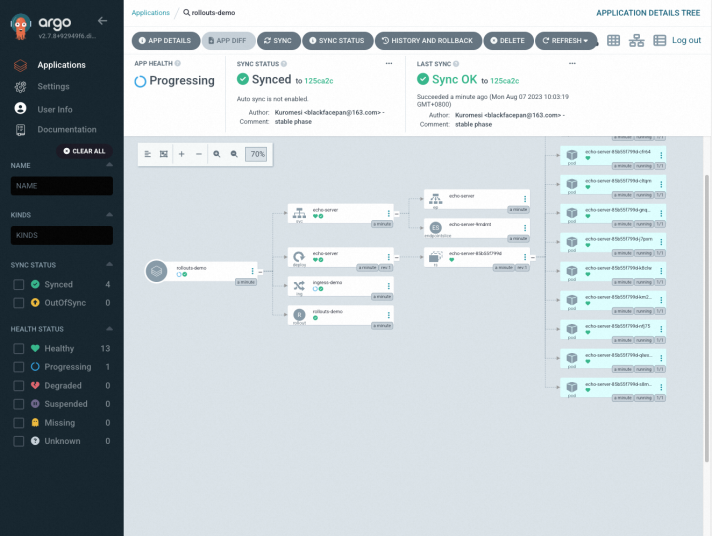
In the ArgoCD UI, click the rollouts-demo application on the Applications page. The application details appear, as shown in the following figure.
Run the following command to view the rollout status.
kubectl get rollout --kubeconfig <Path to the kubeconfig file of the sub-cluster>ImportantYou must query the rollout status in the member cluster. When you run the
kubectl get rolloutcommand, you must specify the path of the kubeconfig file for the member cluster.Alternatively, you can set the KUBECONFIG environment variable or use other methods to switch to the kubeconfig of the member cluster.
Expected output:
NAME STATUS CANARY_STEP CANARY_STATE MESSAGE AGE
rollouts-demo Healthy 4 Completed workload deployment is completed 3m22s
Step 3: Start the canary release
The rollout.yaml file in the Git repository is the Rollout configuration file. The release process is divided into four steps:
Update 20% of the pods from the old version to the new version and forward 20% of the traffic to the new version. You must manually confirm to continue the release.
Update 40% of the pods from the old version to the new version and forward 40% of the traffic to the new version. The release automatically continues after a 60-second pause.
Update 60% of the pods from the old version to the new version and forward 60% of the traffic to the new version. The release automatically continues after a 60-second pause.
Update 80% of the pods from the old version to the new version and forward 80% of the traffic to the new version. The release automatically continues after a 60-second pause.
apiVersion: rollouts.kruise.io/v1alpha1
kind: Rollout
metadata:
  name: rollouts-demo
  annotations:
    rollouts.kruise.io/rolling-style: partition
spec:
  objectRef:
    workloadRef:
      apiVersion: apps/v1
      kind: Deployment
      name: echo-server
  strategy:
    canary:
      steps:
      - replicas: 20%
        weight: 20 # This release step does not set a pause time. You must manually confirm to continue the release.
      - replicas: 40%
        weight: 40
        pause:
          duration: 60
      - replicas: 60%
        weight: 60
        pause:
          duration: 60
      - replicas: 80%
        weight: 80
        pause:
          duration: 60
      trafficRoutings:
      - service: echo-server
        ingress:
          classType: nginx
          name: ingress-demo
Run the following command to sync the application to the new version, where
revisionis the tag of the new version.argocd app sync rollouts-demo --revision gitops-demo-version-canaryExpected output:
Name: argocd/rollouts-demo
Project: default
Server: https://192.168.XX.XX:6443
Namespace: default
URL: https://127.0.0.1:62461/applications/rollouts-demo
Repo: https://github.com/openkruise/samples.git
Target: 616b4b6
Path: gitops-demo
SyncWindow: Sync Allowed
Sync Policy: <none>
Sync Status: OutOfSync from 616b4b6
Health Status: Progressing

Operation: Sync
Sync Revision: 3d14cc011bb090dd2243f70a3741e9b8f5332cb9
Phase: Succeeded
Start: 2023-08-07 16:20:07 +0800 CST
Finished: 2023-08-07 16:20:07 +0800 CST
Duration: 0s
Message: successfully synced (all tasks run)

GROUP KIND NAMESPACE NAME STATUS HEALTH HOOK MESSAGE
 Service default echo-server Synced Healthy service/echo-server unchanged
apps Deployment default echo-server OutOfSync Suspended deployment.apps/echo-server configured
networking.k8s.io Ingress default ingress-demo Synced Progressing ingress.networking.k8s.io/ingress-demo unchanged
rollouts.kruise.io Rollout default rollouts-demo Synced rollout.rollouts.kruise.io/rollouts-demo configured
Wait for this step to complete. Then, run the following command to view the rollout status.
kubectl get rollout --kubeconfig <Path to the kubeconfig file of the sub-cluster>ImportantYou must query the rollout status in the member cluster. When you run the
kubectl get rolloutcommand, you must specify the path of the kubeconfig file for the member cluster.Alternatively, you can set the KUBECONFIG environment variable or use other methods to switch to the kubeconfig of the member cluster.
The output indicates that you must manually continue to the next release step:
NAME STATUS CANARY_STEP CANARY_STATE MESSAGE AGE
rollouts-demo Progressing 1 StepPaused Rollout is in step(1/4), and you need manually confirm to enter the next step 7m57s
Run the following command to resume the canary release.
kubectl-kruise rollout approve rollout/rollouts-demo --kubeconfig <Path to the kubeconfig file of the sub-cluster>ImportantYou must run the
kubectl-kruisecommand in the member cluster to resume the release. In the command, you must specify the path of the kubeconfig file for the member cluster.Alternatively, you can set the KUBECONFIG environment variable or use other methods to switch to the kubeconfig of the member cluster.
Expected output:
rollout.rollouts.kruise.io/rollouts-demo approvedWait for this step to complete. Then, run the following command to view the rollout status.
kubectl get rollout --kubeconfig <Path to the kubeconfig file of the sub-cluster>ImportantYou must query the rollout status in the member cluster. When you run the
kubectl get rolloutcommand, you must specify the path of the kubeconfig file for the member cluster.Alternatively, you can set the KUBECONFIG environment variable or use other methods to switch to the kubeconfig of the member cluster.
The output indicates that the next release step will start in 60 seconds.
NAME STATUS CANARY_STEP CANARY_STATE MESSAGE AGE
rollouts-demo Progressing 2 StepPaused Rollout is in step(2/4), and wait duration(60 seconds) to enter the next step 9m56s
After this step, Kruise Rollout starts the next release step every 60 seconds until the release is complete.
Wait for the release to complete. Then, run the following command to view the rollout status.
kubectl get rollout --kubeconfig <Path to the kubeconfig file of the sub-cluster>ImportantYou must query the rollout status in the member cluster. When you run the
kubectl get rolloutcommand, you must specify the path of the kubeconfig file for the member cluster.Alternatively, you can set the KUBECONFIG environment variable or use other methods to switch to the kubeconfig of the member cluster.
The output indicates that the release is complete.
NAME            STATUS    CANARY_STEP   CANARY_STATE   MESSAGE                                  AGE
rollouts-demo   Healthy   4             Completed      Rollout progressing has been completed   15m
(Optional) Step 4: Roll back the canary release
During the canary release, if you find that the application is abnormal, you can roll back the application by synchronizing its revision to the commit of the old version.
Run the following command to synchronize the application to the old version, where revision is the tag of the old version.
argocd app sync rollouts-demo --revision gitops-demo-version-stableExpected output:
Project: default
Server: https://192.168.XX.XX:6443
Namespace: default
URL: https://127.0.0.1:49922/applications/rollouts-demo
Repo: https://github.com/Kuromesi/samples.git
Target: 616b4b6
Path: gitops-demo
SyncWindow: Sync Allowed
Sync Policy: <none>
Sync Status: Synced to 616b4b6
Health Status: Progressing

Operation: Sync
Sync Revision: 616b4b6e010ba4d71a92c0e7d050162956b169b7
Phase: Succeeded
Start: 2023-08-07 16:52:53 +0800 CST
Finished: 2023-08-07 16:52:54 +0800 CST
Duration: 1s
Message: successfully synced (all tasks run)

GROUP KIND NAMESPACE NAME STATUS HEALTH HOOK MESSAGE
 Service default echo-server Synced Healthy service/echo-server unchanged
apps Deployment default echo-server Synced Suspended deployment.apps/echo-server configured
networking.k8s.io Ingress default ingress-demo Synced Progressing ingress.networking.k8s.io/ingress-demo unchanged
rollouts.kruise.io Rollout default rollouts-demo Synced rollout.rollouts.kruise.io/rollouts-demo unchanged