Use ECS g8i worker nodes in an ACK cluster with IPEX for cost-effective text-to-image inference, optionally migrating to a TDX confidential VM node pool for data confidentiality.
This topic uses the stabilityai/sdxl-turbo model as an example.
-
Alibaba Cloud does not guarantee the legitimacy, security, or accuracy of the third-party models "Stable Diffusion" and "stabilityai/sdxl-turbo". Alibaba Cloud is not responsible for any loss or damage arising from using these models.
-
Abide by the user agreements, usage specifications, and relevant laws and regulations of the third-party models. Your use of these models is at your sole risk.
-
The sample service is for learning, testing, and proof of concept (POC) only. Statistics are for reference only. Actual results may vary by environment.
When to use CPU inference
g8i + IPEX + Advanced Matrix Extensions (AMX) is a practical alternative to GPU inference when:
-
Cost is a priority: Switching from
ecs.gn7i-c8g1.2xlarge(GPU) toecs.g8i.4xlargereduces instance cost by more than 53%. -
Throughput requirements are moderate: With step=4, batch=16,
ecs.g8i.8xlargegenerates 1.2 images/s — above the 1 image/s threshold for many production workloads. -
Data confidentiality is required: Migrate to a TDX confidential VM node pool without code changes.
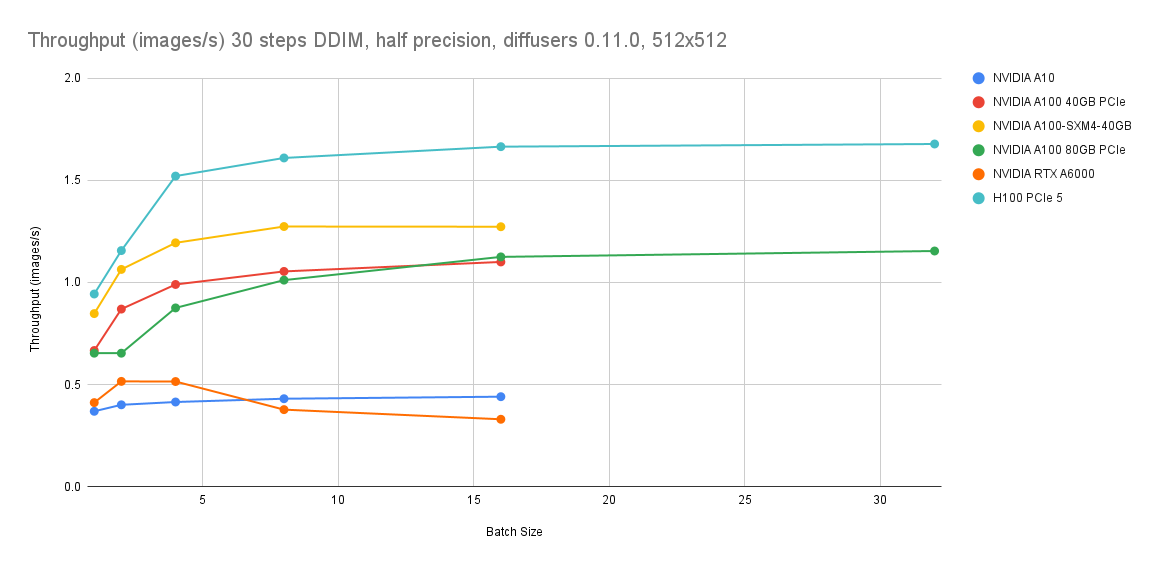
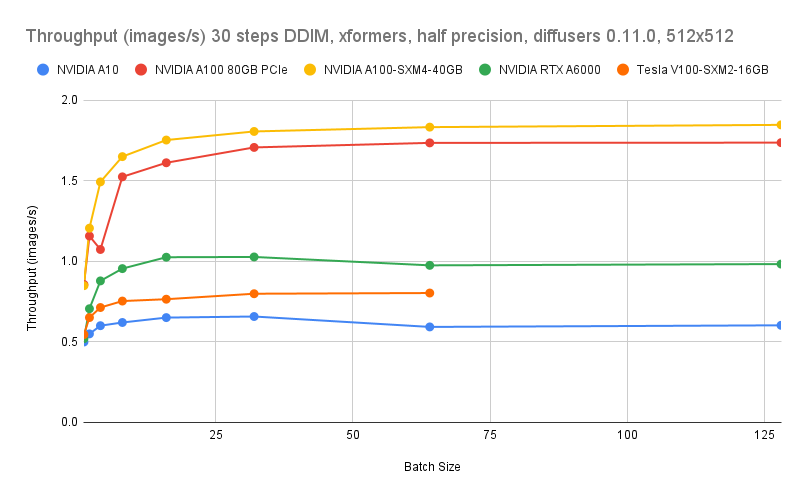
If your latency SLO requires GPU-class throughput (0.4 images/s at step=30, batch=16), keep GPU instances. If 1.2 images/s at step=4 is acceptable, g8i is cost-effective.
Background
The g8i instance family
The g8i general-purpose ECS instance family is powered by Cloud Infrastructure Processing Units (CIPUs) and Apsara Stack. It uses 5th Gen Intel® Xeon® Scalable processors (code-named Emerald Rapids) with AMX for AI acceleration. All g8i instances support Intel® TDX, enabling Trusted Execution Environment (TEE) workloads with minimal performance overhead and without code changes.
Intel® TDX
Intel® TDX is a hardware-based TEE technology that isolates and encrypts ECS instances, protecting CPU registers, memory, and interrupt injections at runtime. It helps prevent unauthorized access to processes and sensitive data without code changes.
IPEX
Intel® Extension for PyTorch (IPEX) is an open source PyTorch extension that accelerates AI on Intel processors, continuously optimized for the latest Intel hardware and software.
See IPEX.
Prerequisites
Before you begin, make sure you have:
-
An ACK Pro cluster in the China (Beijing) region. See Create an ACK managed cluster.
-
A node pool with ECS g8i instances that meets these requirements:
-
Instance type: At least 16 vCPUs. Recommended:
ecs.g8i.4xlarge,ecs.g8i.8xlarge, orecs.g8i.12xlarge. -
Disk space: At least 200 GiB per node (system disk or data disk).
-
Region and zone: A region and zone where g8i instances are available. Check Instance types available for each region.
-
-
kubectl is connected to the ACK cluster. See Connect to an ACK cluster by using kubectl.
Step 1: Prepare the model
The deployment uses the stabilityai/sdxl-turbo model. Choose an option based on where your model is stored.
Option 1: Use the official model (recommended)
The Helm chart image (v0.1.5) bundles the official stabilityai/sdxl-turbo model. Create values.yaml with the following content. Adjust CPU and memory for your instance type.
resources:
  limits:
    cpu: "16"
    memory: 32Gi
  requests:
    cpu: "14"
    memory: 24Gi
Option 2: Use a custom model from OSS
If you store a custom stabilityai/sdxl-turbo model in Object Storage Service (OSS), mount it with a PersistentVolume (PV) and PersistentVolumeClaim (PVC).
Create a Resource Access Management (RAM) user with OSS read permissions and get its AccessKey pair.
-
Create
models-oss-secret.yamlwith the following content.apiVersion: v1 kind: Secret metadata: name: models-oss-secret namespace: default stringData: akId: <your-access-key-id> # AccessKey ID of the RAM user akSecret: <your-access-key-secret> # AccessKey secret of the RAM user -
Apply the Secret.
kubectl create -f models-oss-secret.yamlExpected output:
secret/models-oss-secret created -
Create
models-oss-pv.yamlwith the following content. Replace placeholders with your OSS bucket details.apiVersion: v1 kind: PersistentVolume metadata: name: models-oss-pv labels: alicloud-pvname: models-oss-pv spec: capacity: storage: 50Gi accessModes: - ReadOnlyMany persistentVolumeReclaimPolicy: Retain csi: driver: ossplugin.csi.alibabacloud.com volumeHandle: models-oss-pv nodePublishSecretRef: name: models-oss-secret namespace: default volumeAttributes: bucket: "<your-bucket-name>" # OSS bucket to mount url: "<your-oss-endpoint>" # Use an internal endpoint, e.g., oss-cn-beijing-internal.aliyuncs.com otherOpts: "-o umask=022 -o max_stat_cache_size=0 -o allow_other" path: "/models" # Must contain the stabilityai/sdxl-turbo subdirectorySee Method 1: Use a Secret for OSS parameters.
-
Create the PV.
kubectl create -f models-oss-pv.yamlExpected output:
persistentvolume/models-oss-pv created -
Create
models-oss-pvc.yamlwith the following content.apiVersion: v1 kind: PersistentVolumeClaim metadata: name: models-oss-pvc spec: accessModes: - ReadOnlyMany resources: requests: storage: 50Gi selector: matchLabels: alicloud-pvname: models-oss-pv -
Apply the PVC.
kubectl create -f models-oss-pvc.yamlExpected output:
persistentvolumeclaim/models-oss-pvc created -
Create
values.yamlwith custom model volume enabled. Adjust resources for your instance type.resources: limits: cpu: "16" memory: 32Gi requests: cpu: "14" memory: 24Gi # Set to true to mount the custom model from OSS instead of the bundled image model. useCustomModels: true volumes: models: name: data-volume persistentVolumeClaim: claimName: models-oss-pvc
Full values.yaml reference
The Helm chart supports additional options beyond resources and model source. Default values:
# Number of pod replicas.
replicaCount: 1

# Container image configuration.
image:
  repository: registry-vpc.cn-beijing.aliyuncs.com/eric-dev/stable-diffusion-ipex
  pullPolicy: IfNotPresent
  tag: "v0.1.5"              # Bundles the official stabilityai/sdxl-turbo model
  tagOnlyApi: "v0.1.5-lite"  # API-only image; requires mounting the model manually (see useCustomModels)

# Credentials for pulling a private container image.
imagePullSecrets: []

# Output path for generated images inside the container.
outputDirPath: /tmp/sd

# Set to true to use a custom model mounted via the volumes.models PVC.
# When false, the image.tag image (which includes the model) is used.
useCustomModels: false

volumes:
  # Volume for the image output path.
  output:
    name: output-volume
    emptyDir: {}
  # Volume for the custom model. Only active when useCustomModels: true.
  # Place the model in the stabilityai/sdxl-turbo subdirectory of the mount path.
  models:
    name: data-volume
    persistentVolumeClaim:
      claimName: models-oss-pvc
  # Alternatively, use a host path:
  # models:
  #   hostPath:
  #     path: /data/models
  #     type: DirectoryOrCreate

# Service configuration.
service:
  type: ClusterIP
  port: 5000

# Container resource limits and requests.
resources:
  limits:
    cpu: "16"
    memory: 32Gi
  requests:
    cpu: "14"
    memory: 24Gi

# Workload update strategy.
strategy:
  type: RollingUpdate

# Scheduling configuration.
nodeSelector: {}
tolerations: []
affinity: {}

# Container security settings.
securityContext:
  capabilities:
    drop:
    - ALL
  runAsNonRoot: true
  runAsUser: 1000

# Horizontal Pod Autoscaler (HPA) configuration.
# https://kubernetes.io/docs/tasks/run-application/horizontal-pod-autoscale/
autoscaling:
  enabled: false
  minReplicas: 1
  maxReplicas: 3
  targetCPUUtilizationPercentage: 80
  targetMemoryUtilizationPercentage: 90
Step 2: Deploy the service
-
Deploy the IPEX-accelerated Stable Diffusion XL Turbo service with Helm.
helm install stable-diffusion-ipex \
  https://aliacs-app-catalog.oss-cn-hangzhou.aliyuncs.com/pre/charts-incubator/stable-diffusion-ipex-0.1.7.tgz \
  -f values.yaml
Expected output:
NAME: stable-diffusion-ipex LAST DEPLOYED: Mon Jan 22 20:42:35 2024 NAMESPACE: default STATUS: deployed REVISION: 1 TEST SUITE: None -
Wait about 10 minutes for the model to load, then verify the pod is running.
kubectl get pod | grep stable-diffusion-ipexExpected output:
stable-diffusion-ipex-65d98cc78-vmj49 1/1 Running 0 1m44s
Once running, the service exposes a text-to-image API at port 5000. See API reference for parameters.
Step 3: Test the service
-
Forward the service port to your local machine.
kubectl port-forward svc/stable-diffusion-ipex 5000:5000Expected output:
Forwarding from 127.0.0.1:5000 -> 5000 Forwarding from [::1]:5000 -> 5000 -
Send a generation request. Supported sizes:
512x512and1024x1024. 512x512 imagecurl -X POST http://127.0.0.1:5000/api/text2image \ -d '{"prompt": "A panda listening to music with headphones. highly detailed, 8k.", "number": 1}'Expected output:
{
  "averageImageGenerationTimeSeconds": 2.0333826541900635,
  "generationTimeSeconds": 2.0333826541900635,
  "id": "9ae43577-170b-45c9-ab80-69c783b41a70",
  "meta": {
    "input": {
      "batch": 1,
      "model": "stabilityai/sdxl-turbo",
      "number": 1,
      "prompt": "A panda listening to music with headphones. highly detailed, 8k.",
      "size": "512x512",
      "step": 4
    }
  },
  "output": [
    {
      "latencySeconds": 2.0333826541900635,
      "url": "http://127.0.0.1:5000/images/9ae43577-170b-45c9-ab80-69c783b41a70/0_0.png"
    }
  ],
  "status": "success"
}
1024x1024 image
curl -X POST http://127.0.0.1:5000/api/text2image \
  -d '{"prompt": "A panda listening to music with headphones. highly detailed, 8k.", "number": 1, "size": "1024x1024"}'
Expected output:
{
  "averageImageGenerationTimeSeconds": 8.635204315185547,
  "generationTimeSeconds": 8.635204315185547,
  "id": "ac341ced-430d-4952-b9f9-efa57b4eeb60",
  "meta": {
    "input": {
      "batch": 1,
      "model": "stabilityai/sdxl-turbo",
      "number": 1,
      "prompt": "A panda listening to music with headphones. highly detailed, 8k.",
      "size": "1024x1024",
      "step": 4
    }
  },
  "output": [
    {
      "latencySeconds": 8.635204315185547,
      "url": "http://127.0.0.1:5000/images/ac341ced-430d-4952-b9f9-efa57b4eeb60/0_0.png"
    }
  ],
  "status": "success"
}
Open the
urlin a browser to view the generated image.
Performance benchmarks
Average generation times on g8i instance types (batch: 1, step: 4). Results are for reference only.
| Instance type | Pod request/limit (vCPU) | Avg. duration — 512x512 | Avg. duration — 1024x1024 |
|---|---|---|---|
| ecs.g8i.4xlarge (16 vCPUs, 64 GiB) | 14/16 | 2.2s | 8.8s |
| ecs.g8i.8xlarge (32 vCPUs, 128 GiB) | 24/32 | 1.3s | 4.7s |
| ecs.g8i.12xlarge (48 vCPUs, 192 GiB) | 32/32 | 1.1s | 3.9s |
Recommendation: ecs.g8i.8xlarge offers the best cost-to-throughput balance. At step=4, batch=16, it generates 1.2 images/s without compromising image quality.
(Optional) Step 4: Migrate to a TDX confidential VM node pool
Migrate the deployed service to a TDX confidential VM node pool for hardware-based memory isolation and encryption. No code changes required.
Prerequisites
A TDX confidential VM node pool exists in the ACK cluster with the following configuration:
-
Instance type: At least 16 vCPUs. Recommended:
ecs.g8i.4xlarge. -
Disk space: At least 200 GiB per node.
-
Node label:
nodepool-label=tdx-vm-pool.
Migrate the service
-
Create
tdx_values.yamlwith the following node selector. Replacetdx-vm-poolif you used a different label value.nodeSelector: nodepool-label: tdx-vm-pool -
Upgrade the Helm release to reschedule the pod onto the TDX node pool.
helm upgrade stable-diffusion-ipex \
  https://aliacs-app-catalog.oss-cn-hangzhou.aliyuncs.com/pre/charts-incubator/stable-diffusion-ipex-0.1.7.tgz \
  -f tdx_values.yaml
Expected output:
Release "stable-diffusion-ipex" has been upgraded. Happy Helming! NAME: stable-diffusion-ipex LAST DEPLOYED: Wed Jan 24 16:38:04 2024 NAMESPACE: default STATUS: deployed REVISION: 2 TEST SUITE: None -
Wait about 10 minutes, then verify the pod is running on the TDX node pool.
kubectl get pod | grep stable-diffusion-ipexExpected output:
stable-diffusion-ipex-7f8c4f88f5-r478t 1/1 Running 0 1m44s -
Repeat Step 3: Test the service to verify the model works in the TDX node pool.
API reference
After deployment, the service exposes a REST API at port 5000.
Request syntax
POST /api/text2imageRequest parameters
Sample request
Response parameters
Sample response
Performance comparison
The g8i node pool uses AMX and IPEX to accelerate CPU inference. Benchmarks use ecs.g8i.8xlarge (32 vCPUs, 128 GiB) with lambda-diffusers benchmark tools. Results are for reference only.
CPU acceleration benchmarks
| Instance type | Model | Step | Command |
|---|---|---|---|
| ecs.g8i.8xlarge (32 vCPUs, 128 GiB) | sdxl-turbo | 4 | python sd_pipe_sdxl_turbo.py --bf16 --batch 1 --height 512 --width 512 --repeat 5 --step 4 --prompt "A panda listening to music with headphones. highly detailed, 8k" |
| ecs.g8i.8xlarge (32 vCPUs, 128 GiB) | stable-diffusion-2-1-base | 30 | python sd_pipe_infer.py --model /data/models/stable-diffusion-2-1-base --bf16 --batch 1 --height 512 --width 512 --repeat 5 --step 30 --prompt "A panda listening to music with headphones. highly detailed, 8k" |
Performance results (images/s):
| Configuration | Throughput |
|---|---|
| ecs.g8i.8xlarge, step=4, batch=16 (sdxl-turbo) | 1.2 images/s |
| ecs.g8i.8xlarge, step=30, batch=16 (sd-2-1-base) | 0.14 images/s |
GPU acceleration benchmarks
GPU benchmarks are from Lambda Diffusers Benchmarking inference. Actual results may vary.
Cost comparison
These estimates compare g8i CPU instances against ecs.gn7i-c8g1.2xlarge (GPU). For current prices, see the Pricing tab on the Elastic Compute Service page.
| Instance type | Cost vs. ecs.gn7i-c8g1.2xlarge | Throughput at step=4, batch=16 |
|---|---|---|
| ecs.g8i.8xlarge | 9% lower | 1.2 images/s |
| ecs.g8i.4xlarge | >53% lower | 0.5 images/s |
Use ecs.g8i.8xlarge when you need both cost savings and throughput above 1 image/s. Use ecs.g8i.4xlarge when cost reduction, TEE-based data confidentiality, or large-scale CPU resource supply is the priority and 0.5 images/s meets your requirements.ecs.g8i.4xlarge when cost reduction is the primary goal and 0.5 images/s meets your requirements.