ACK integrates with Managed Service for Prometheus to provide a visual monitoring dashboard. After you enable dynamic resource overcommitment in your cluster, you can use the colocation monitoring feature provided by ACK to view metrics for colocated resources, such as the total amount and allocation ratio of CPU and memory.
Prerequisites
-
Make sure that the ack-koordinator component is version v1.1.1-ack.1 or later. For more information, see ack-koordinator (ack-slo-manager).
-
Dynamic resource overcommitment is enabled. For more information, see Enable dynamic resource overcommitment.
Access the dashboard
-
Log on to the ACK console. In the left navigation pane, click Clusters.
-
On the Clusters page, click the name of your cluster. In the left navigation pane, click .
-
On the Prometheus Monitoring page, click .
Dashboard overview
The colocation monitoring dashboard provides the following features:
-
Resource benefits: Provides a dashboard to view and analyze the benefits of colocation.
-
Resource observability: Monitor key metrics and query the capacity of colocated resources at the cluster, node pool, node, and Pod levels.
The following example of the colocation monitoring dashboard may differ from the actual UI, which is updated regularly.
Cluster colocation benefits overview
This section shows the resource benefits and usage trends of colocation.
Total and allocated colocated resources
|
Concept |
Description |
|
Non-colocated resource |
All allocatable physical resources on an ACK node are non-colocated resources. The total amount of non-colocated resources depends on the node's instance type and is not affected by colocation. |
|
Colocated resource |
Dynamic resource overcommitment reclaims idle physical resources in a cluster and converts them into colocated resources. The total amount of colocated resources is dynamic and changes based on the amount of idle physical resources on the node. These additional schedulable resources are a key metric for measuring the benefits of colocation. |
|
Total colocated resources |
This metric is measured for CPU and memory. It shows the total amount of CPU and memory resources that are currently available for colocation scheduling in the cluster. For example, the cluster has 118 CPU cores and 487 GiB of memory available for colocation. A larger total amount of colocated resources indicates that more idle physical resources are available for colocation, and the potential benefits of scheduling more applications through colocation are greater. |
|
Allocated colocated resources |
This metric is measured for CPU and memory. It shows the amount of CPU and memory resources that have been allocated for colocation in the cluster. For example, 2 CPU cores and 1 GiB of memory have been allocated for colocation. A larger amount of allocated colocated resources indicates that more workloads are using colocated resources, and the benefits of scheduling more applications through colocation are greater. |
|
Colocated resource allocation ratio |
This metric is measured for CPU and memory. It shows the CPU and memory allocation ratios for colocation in the cluster ( A higher allocation ratio indicates that a higher proportion of colocated resources are being allocated, resulting in greater benefits from colocation. |
Usage trend of colocated resources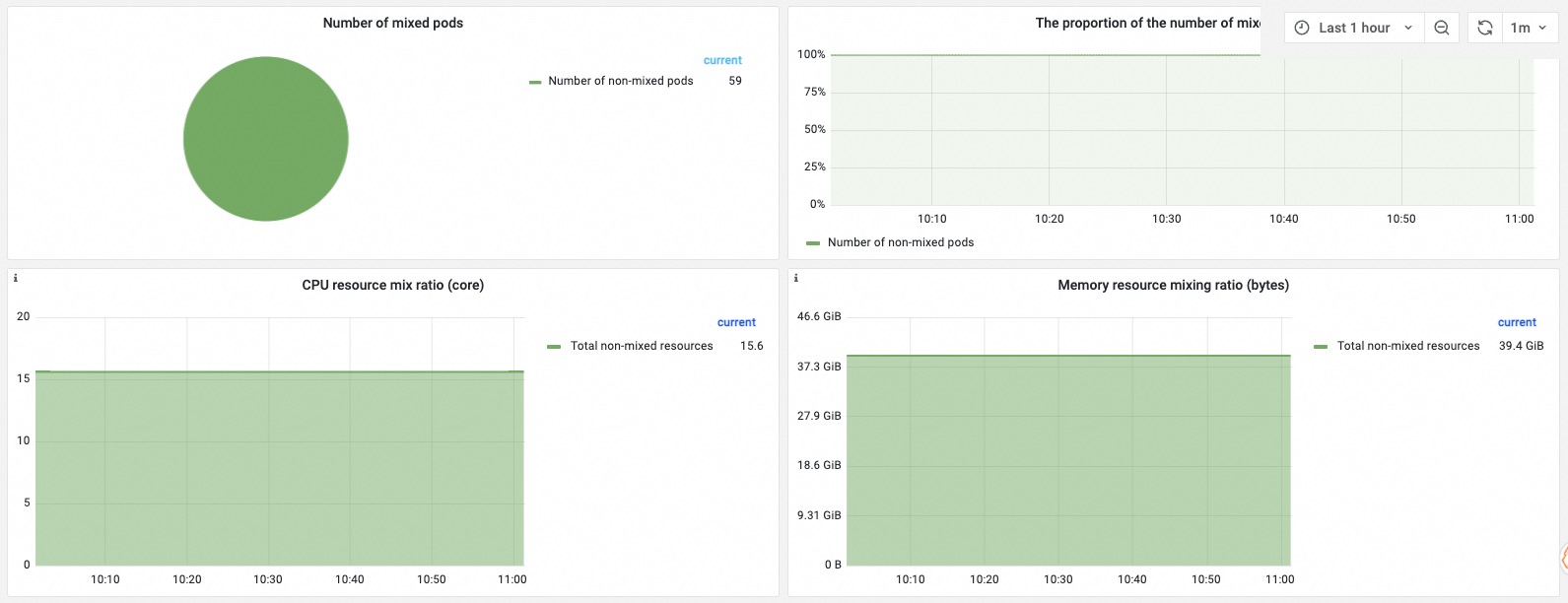
|
Concept |
Description |
|
Number of colocated Pods |
The number of Pods scheduled using non-colocated resources and the number of Pods scheduled using colocated resources. The chart shows the relative proportion of each. |
|
Resource colocation ratio |
This metric is measured for CPU and memory. It shows the amount of resources available for non-colocation scheduling versus colocation scheduling. A higher ratio indicates a greater capacity for scheduling additional workloads via colocation. |
Colocated resource details
The Cluster resource view, Node resource view, and Pod resource view sections show resource usage and requests at the cluster, node, and Pod levels.
Cluster resource view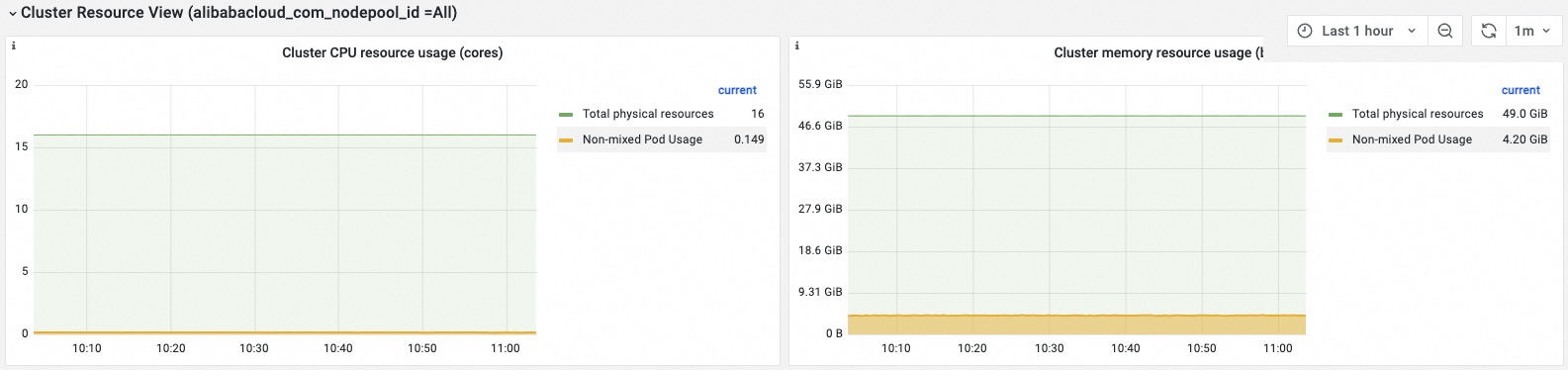
|
Concept |
Description |
|
Cluster resource usage |
This metric is measured for CPU and memory. Each dimension shows the total physical resources of the cluster, the resource usage of non-colocated Pods, the resource usage of colocated Pods, and the resource usage of basic system components. This metric helps you measure the usage of different resource types in the cluster. If the sum of the three usage metrics is far less than the total physical resources, it indicates low average utilization and a large amount of idle physical resources. |
|
Cluster colocated resource requests |
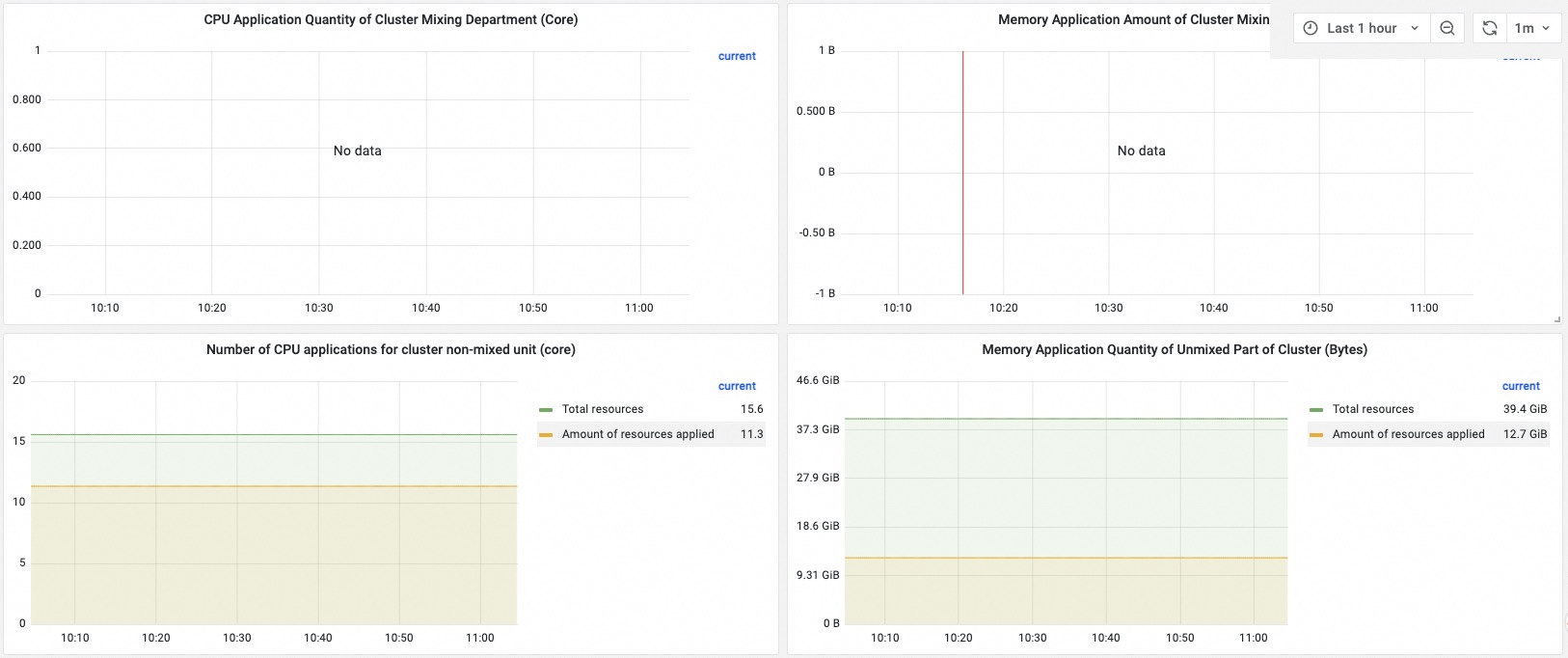
This metric is measured for CPU and memory. Each dimension shows the total schedulable colocated resources and the currently requested amount. The closer the requested amount is to the total, the more fully the colocated resources are allocated. |
|
Cluster non-colocated resource requests |
This metric is measured for CPU and memory. Each dimension shows the total schedulable non-colocated resources and the currently requested amount. The closer the requested amount is to the total, the more fully the non-colocated resources are allocated. |
Node resource view
At the top of the page, configure node_label and node_label_value to view data from different nodes.
The filter bar also includes node, pod_namespace, and pod_name filters to refine the node resource view by node, namespace, or Pod name.
The following table describes some of the filters.
|
Filter |
Description |
|
node_label_value |
The default value is All, which means the Cluster resource benefits overview and Cluster resource view sections show statistics for all nodes in the cluster. You can select a target node pool to view the resource details for that specific node pool. |
|
node_label |
Selects nodes based on different node labels. For more information, see the Note at the top of the page. |
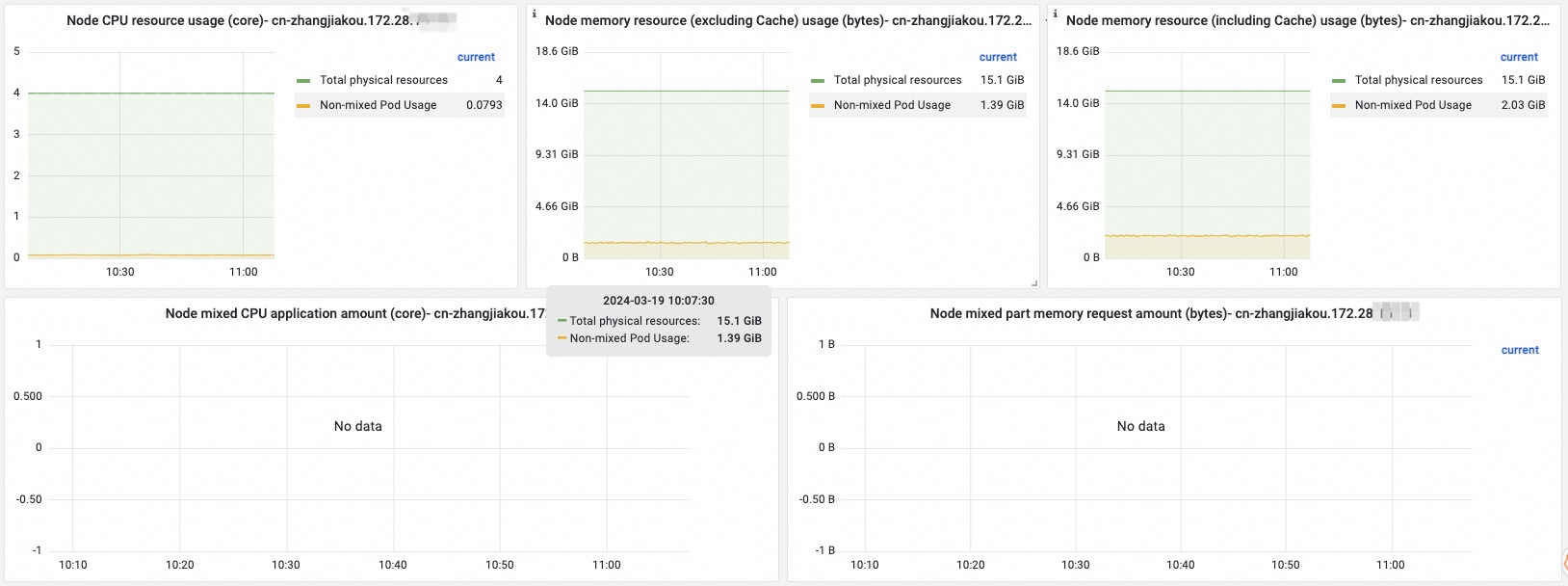
|
Concept |
Description |
|
Node resource colocation ratio |
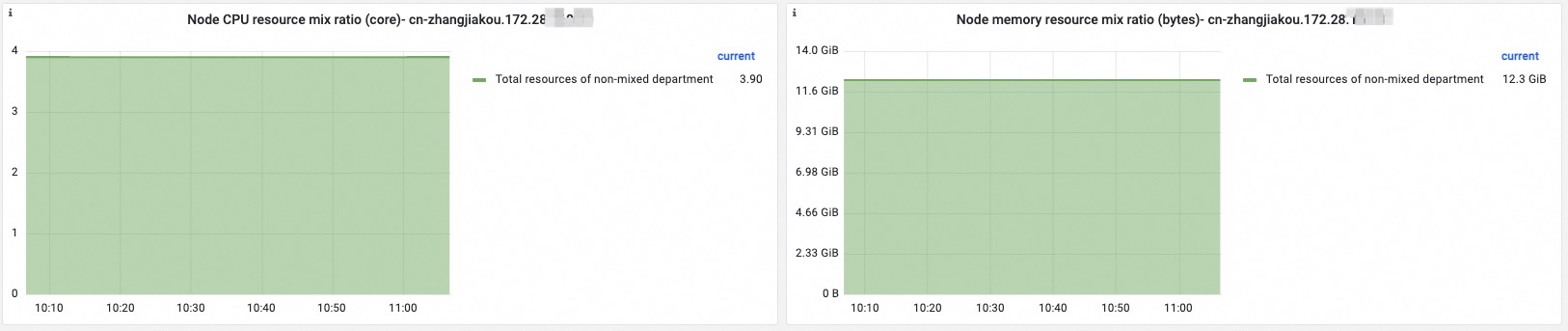
This metric is measured for CPU and memory. Each dimension shows the total amount of non-colocated and colocated resources on the node. The two are stacked to show their relative proportion of the node's resources. |
|
Node resource usage |
This metric is measured for CPU and memory. Memory is further divided into two sub-dimensions: with cache and without cache. Each dimension shows the total physical resources on the node, the resource usage of non-colocated Pods, the resource usage of colocated Pods, and the resource usage of basic system components. This metric helps you measure the usage of different resource types on the node. If the sum of the three usage metrics is far less than the total physical resources, it indicates low average utilization and a large amount of idle physical resources on the node. |
|
Node colocated resource requests |
This metric is measured for CPU and memory. Each dimension shows the total and requested colocated resources on the node. The closer the requested amount is to the total, the more fully the colocated resources are allocated. |
|
Colocated resource requests per Pod |
This metric is measured for CPU and memory. It shows the resource requests of all colocated Pods on the node. |
|
Colocated resource utilization per Pod |
This metric is measured for CPU and memory. It shows the resource utilization of all colocated Pods on the node. |
Pod resource view
At the top of the Kubernetes Reclaimed Resource tab, configure pod_namespace and pod_name to view resource details for different Pods.



|
Concept |
Description |
|
Pod colocated resource amount |
This metric is measured for CPU and memory. Each dimension shows the usage limit, requested amount, and actual usage of colocated resources for the Pod. |
|
Pod colocated resource utilization |
This metric is measured for CPU and memory. Each dimension shows the utilization rate of colocated resources by the Pod. |
|
Colocated resource amount per container |
This metric is measured for CPU and memory. Each dimension shows the usage limit, requested amount, and actual usage of colocated resources for each container within the Pod. |
FAQ
Why is there no data in the Cluster Co-location Benefits section on the Kubernetes Reclaimed Resource tab?
-
Check whether the ack-koordinator component is installed.
-
Log on to the ACK console. In the left navigation pane, click Clusters.
-
On the Clusters page, click the name of your cluster. In the left navigation pane, click Components and Add-ons .
-
Search for the ack-koordinator component and check whether it is installed.
For component versions earlier than v0.7 deployed from Marketplace, see Migrate ack-koordinator from Marketplace to add-ons to complete the migration.
-
If not installed: Install the component as prompted on the page.
-
If installed: Proceed to the next step.
-
-
-
Check whether the colocation monitoring dashboard displays relevant data.
If no data is displayed, perform the following steps:
Log on to the ARMS console.
-
In the left navigation pane, choose .
-
In the upper-left corner of the page, select the target region. Click the name of the Prometheus instance. In the left-side navigation pane, click Metric Management.
-
In the Metrics Explore section, search for and select kube_node_labels, and then follow the on-screen instructions to view the metric details.