An outdated virtio driver can reduce disk IOPS, increase network latency, or cause device recognition failures. Update the driver to keep your ECS instance stable.
Use cases
-
Alibaba Cloud periodically updates virtio drivers. Older versions may have known vulnerabilities. Update the driver to avoid potential risks and improve performance.
-
Upgrading a Windows instance from an earlier version, such as Windows Server 2016, to a later version, such as Windows Server 2022, may cause driver incompatibility. Update the virtio driver to prevent device recognition failures.
-
Certain operations require a minimum driver version. For example, online disk expansion requires a version later than
58011(instances created before March 30, 2019 may not meet this). Querying a disk serial number requires a version later than58017(instances created before May 1, 2020 may not meet this). Update the driver if your version is below the requirement.
Limitations
The virtio driver update applies only to Windows Server 2008 and later.
Procedure
-
Prepare the instance.
-
Create a snapshot to back up data.
A snapshot allows you to roll back the instance if the driver update causes issues.
-
Disable third-party antivirus software.
Temporarily disable third-party antivirus software on the instance. Built-in OS antivirus does not need to be disabled. Re-enable the software after the update.
-
-
Update the virtio driver.
Choose one of the following methods based on your scenario.
Use a script (with Internet access)
Use this method if your Windows instance has Internet access.
-
Connect to the Windows instance.
-
In Windows PowerShell, download the script:
Invoke-WebRequest -Uri "https://windows-driver-cn-beijing.oss-cn-beijing.aliyuncs.com/virtio/InstallVirtIo.ps1" -OutFile "C:\Users\Administrator\Downloads\InstallVirtIo.ps1" -
Run the script.
powershell -ExecutionPolicy Bypass -File "C:\Users\Administrator\Downloads\InstallVirtIo.ps1" -
Restart the Windows instance for the driver update to take effect.
See Restart an instance.
Use an installation package to update (without Internet access)
-
On your local host, download the virtio driver installation package for your operating system.
For download URLs, see Install the Alibaba Cloud virtio driver.
-
Upload the installation package to the Windows instance.
See Transfer files to a Windows instance using Remote Desktop or Windows App.
-
Install the new virtio driver on the Windows instance.
GUI installation
This example uses Alibaba Cloud virtio driver 58101.
ImportantDuring GUI installation, the network adapter driver is updated, causing a network interruption of about 10 seconds. Perform a risk assessment and prepare in advance.
-
In the upload directory, double-click
AliyunVirtio_58101_WIN2016_x64.exe. -
Follow the on-screen instructions to complete the installation.

-
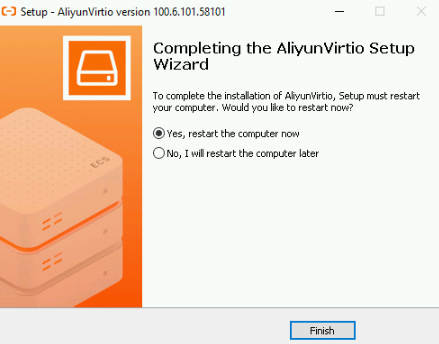
When the completion page appears, restart the system for the changes to take effect.
 Note
NoteIf the message
For Windows 7/Windows Server 2008 R2 systems, you must install the SHA-2 patch!appears during the installation on a Windows 7 or Windows Server 2008 R2 system, the SHA-2 signing patch is missing. To prevent startup exceptions after the image is imported, we recommend that you install the signing patch beforehand.
Command-line installation
-
In Windows PowerShell, switch to the upload directory, such as
C:\test:cd C:\test -
Install the virtio driver:
./AliyunVirtio_58101_WIN2016_x64.exe /SILENT /FORCE /NORESTARTNote-
/SILENT: Specifies silent mode. -
/FORCE: Forces an overwrite installation if a virtio driver is already installed. -
/NORESTART: Prevents the system from restarting automatically.
-
-
Use Cloud Assistant to batch update on multiple instances
If your ECS instances can access the Internet or VPCs, use Cloud Assistant to batch update their virtio drivers.
NoteCloud Assistant downloads the installation package over the VPC internal network first. If the internal network is unavailable, it falls back to the Internet.
Log in to the ECS console.
In the left-side navigation pane, choose .
-
In the top navigation bar, select a region.
Select the region where your ECS instances reside.
-
Use Cloud Assistant to batch update the drivers.
You can use a public Cloud Assistant command or manually specify the command content. Both methods are described below.
-
(Recommended) Use a public command to batch update drivers
-
On the ECS Cloud Assistant page, click the Common Commands tab. Then, search for and execute
ACS-ECS-InstallVirtioDriver-windows.ps1. -
In the Run Command panel, in the Select Instances section, select the IDs of the instances for which you want to update the drivers.
-
-
Manually specify the command content to perform a batch update
-
On the ECS Cloud Assistant page, click Create/Run Command.
-
In the Create Command panel, complete the following configurations.
-
In the Command Information section, configure the following parameters. Keep the defaults for other parameters. See Create and run a command.
Parameter
Description
Command Source
Select Enter Command Content.
Command Type
Select PowerShell.
Command Content
Use one of the following methods:
-
Update the virtio driver using the InstallVirtIo.ps1 script.
Download the InstallVirtIo.ps1 script to your local host and copy its full content to the command content field in the Cloud Assistant console.
-
Update the virtio driver using the Cloud Assistant plugin.
Copy the following command to the command content field:
acs-plugin-manager.exe --exec --plugin=UpdateVirtIo
Execution Plan
Select Immediate execution.
-
-
In the Select Instances section, select the IDs of the instances for which you want to update the drivers, and then click Run.
-
-
-
-
Restart all updated instances for the driver changes to take effect.
See Restart an instance.
-
-
Verify the driver version in Device Manager.
NoteNewer instance types, such as ecs.g8a, use NVMe-based disks with an NVMe storage controller. Other instance types use VirtIO SCSI controllers. On NVMe instances, the storage driver (viostor) version may not update. Check the network adapter driver version instead.
-
If the storage controller shows Red Hat VirtlO SCSI controller, it is a virtio block device. Check the Driver Version under Storage controller.

-
If the storage controller name contains NVMe, such as Aibaba NVMe Elastic Block Storage Adapter, it is an NVMe device. Check the Driver Version under Network adapters.

-
FAQ
-
-
Solution: Download the latest Windows driver package and replace the problematic network adapter driver:
-
Connect to the Windows instance.
-
Download the latest Windows driver package.
NoteIf you cannot download the package directly to the instance, download it to your local host and then upload it via Remote Desktop or FTP.
The downloaded package is named new_virtio.zip.
-
Decompress the driver package and open the new_virtio folder.
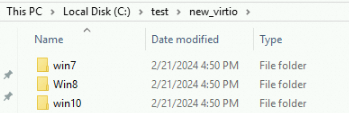
Each folder contains drivers for a specific OS version. Select the folder for your version:
-
win10: This subfolder contains an amd64 subfolder that stores driver installation files for Windows Server 2016, Windows Server 2019, and Windows 10.
-
Win8: This subfolder contains an amd64 subfolder that stores driver installation files for Windows Server 2012 R2 and Windows 8.1.
-
win7: This subfolder contains an amd64 subfolder that stores driver installation files for Windows Server 2008 R2 and Windows 7.
-
-
Uninstall the existing network adapter driver.
This example uses a 64-bit Windows Server 2019 instance. Steps for other versions are similar.
-
Open Windows Control Panel. In the Search Control Panel box, search for and open
Device Manager.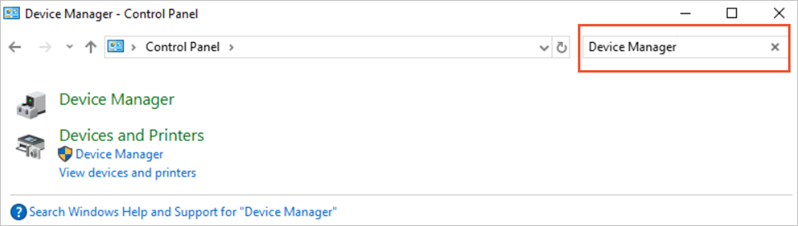
-
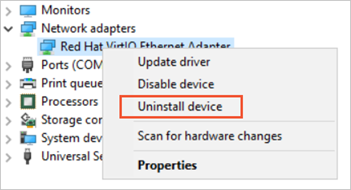
Under Network adapters, right-click Red Hat VirtIO Ethernet Adapter and select Uninstall device.
-
In the Uninstall device dialog box, select the Delete the driver software for this device check box, and then click Detach.
-
-
Install the latest network adapter driver.
-
Open the driver folder in PowerShell.
For example, for 64-bit Windows Server 2019 with the driver saved in C:\test:
cd C:\test\new_virtio\win10\amd64 -
Install the network adapter driver:
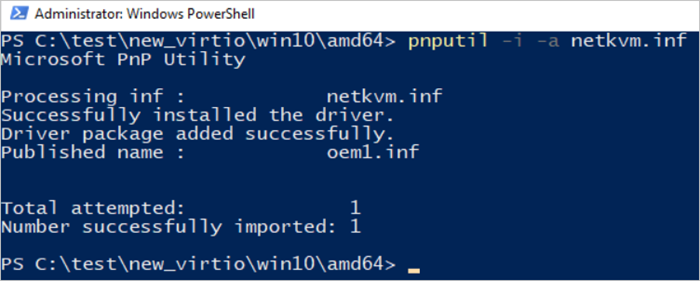
pnputil -i -a netkvm.infThe following figure shows a successful installation.
-
-
Return to Device Manager, right-click the hostname, and select Scan for hardware changes.
For example, if the hostname is
test: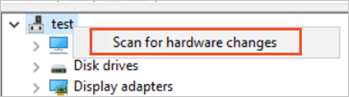
After the scan, the new Network adapters entry appears in Device Manager.
-
View the new network adapter driver information.
-
Under Network Adapters, right-click Red Hat VirtIO Ethernet Adapter and select Properties.
-
In the Red Hat VirtIO Ethernet Adapter Properties dialog box, click the Driver tab to view the driver details.

-
-
Restart the instance for the new driver to take effect.
See Restart an instance.
-