If you frequently run the same query and analysis statements, you can save them as a saved search. This feature lets you quickly rerun these statements.
Prerequisites
An index is created. For more information, see Create an index.
Create a saved search
Log on to the Simple Log Service console.
In the Projects section, click the one you want.

On the tab, click the logstore you want.
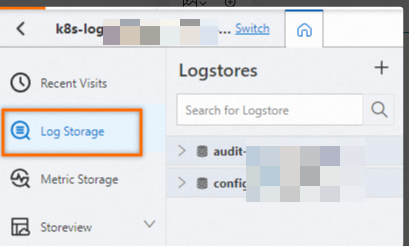
Enter a query statement in the search box and click Last 15 Minutes to specify a query time range.
For more information, see Step 1: Create indexes.
In the upper-right corner of the page, click the
 icon.
icon.
In the Saved Search Details pane, set the Saved Search Name.
Click OK.
After creating a saved search, you can use it on the logstore's Search & Analysis page. Click the
 icon that appears before the search box, then click the name of your saved search.
Modify a saved search
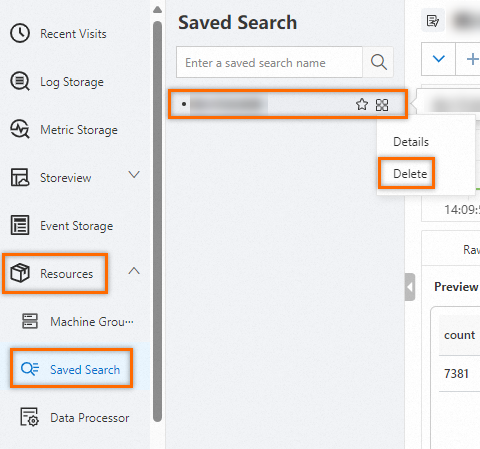
In the navigation pane on the left, choose .
In the Saved Search list, click the target saved search.
Enter a new query and analysis statement, then click the
 icon.
icon.In the upper-right corner of the page, click the
icon.In the Saved Search Details pane, modify the information, then click OK.
Get a saved search ID
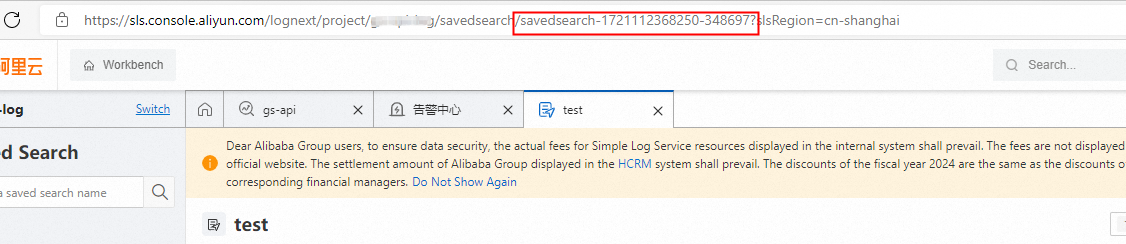
After you create a saved search, you can use its saved search ID to embed the saved search page into a custom web page. For more information, see Configure console embedding parameters.
In the navigation pane on the left, choose .
In the Saved Search list, click the target saved search.
Get the saved search ID in the URL in your browser's address bar.
Delete a saved search
In the navigation pane on the left, choose . In the Saved Search list, hover over the saved search that you want to delete, click the  icon, then click Delete.