Save frequently used query and analysis statements as a saved search to quickly rerun them later.
Prerequisites
An index is created. For more information, see Create indexes.
Create a saved search
Log on to the Simple Log Service console.
In the Projects section, click the one you want.

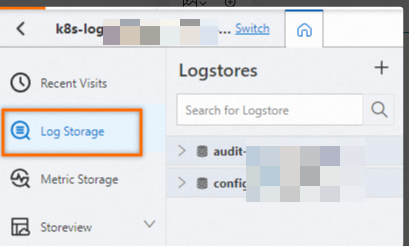
On the tab, click the logstore you want.
Enter a query statement in the search box and click Last 15 Minutes to specify a query time range.
For more information, see Step 1: Configure indexes.
-
In the upper-right corner of the page, click the
 icon.
icon.This is the Add to Saved Search (star) icon, located in the toolbar in the upper-right corner of the Search & Analysis page.
-
In the Saved Query Details pane, set the Saved Query Name.
-
Click OK.
After creating a saved search, you can run it from the Search & Analysis page for the Logstore. Click the
 icon before the input box, and then click the name of the target saved search.
Modify a saved search
-
In the navigation pane on the left, choose .
-
In the Saved Search list, click the target saved search.
-
Enter a new query and analysis statement, then click the
 icon.
icon. -
In the upper-right corner of the page, click the
icon. -
In the Saved Query Details pane, modify the saved search information, and then click OK.
Get a saved search ID
Use a saved search ID to embed the saved search page into a custom web page. For more information, see Configure console embedding parameters.
-
In the navigation pane on the left, choose .
-
In the Saved Search list, click the target saved search.
-
Get the saved search ID in the URL in your browser's address bar.
The URL in the address bar of the Log Service console is in the format
https://sls.console.alibabacloud.com/lognext/project/{ProjectName}/savedsearch/{savedSearchID}?slsRegion={region}. The field between/savedsearch/and?slsRegion=is the saved search ID.
Pass variables with URL parameters
When embedding the Log Service console in an iframe or linking to a saved search from an external system, append URL parameters to dynamically replace variable placeholders in the query statement.
Prerequisites
-
You have a saved search whose query statement contains a variable placeholder, such as
${variable_name}. -
The token feature (tokenQuery mode) must be enabled for the saved search.
To define a variable, use the ${variable_name} format in your query statement for the value you want to dynamically replace. Example: * | WHERE status = ${testParam}.
The standard URL for a saved search page is as follows:
/lognext/project/{ProjectName}/savedsearch/{savedSearchName}Append query parameters to this URL to pass variable values or add filter conditions. The following table describes the available parameters.
URL-encode any query parameters that contain special characters.
|
Parameter |
Type |
Required |
Description |
|
|
JSON array string |
No |
Passes variable values directly to replace the |
|
|
JSON array string |
No |
Inherits variable values from an upstream source, such as a dashboard drill-down. The format is the same as that of the |
|
|
String |
No |
Adds a filter condition to the beginning of the query statement by using the AND operator. |
token parameter
The token parameter is a JSON array where each element is an object in the format {"key": "variable_name", "value": "replacement_value"}.
[{"key": "variable_name1", "value": "value1"}, {"key": "variable_name2", "value": "value2"}]Example: Assume the query statement for the saved search my-search is * | WHERE status = ${testParam}. After you pass parameters by using the following URL, the query statement is replaced with * | WHERE status = '200':
/lognext/project/my-project/savedsearch/my-search?token=[{"key":"testParam","value":"200"}]tokenInherit parameter
tokenInherit has the same format as token. It is typically passed automatically during a dashboard drill-down to allow a saved search to inherit variable values from the dashboard. When both token and tokenInherit are present, token takes priority. For variables with the same key, the value from token is used.
filters parameter
The filters parameter prepends a filter condition to the query statement with an AND operator. Example:
/lognext/project/my-project/savedsearch/my-search?filters=level%3D"ERROR"The resulting query statement is:
(level="ERROR") AND <Original query statement>Parameter priority and application order
When multiple parameters are present, Log Service constructs the final query statement in the following order:
-
The system starts with the original statement of the saved search.
-
If the
tokenortokenInheritparameter exists, Log Service replaces the${variable_name}placeholders in the statement. -
If the
filtersparameter exists, Log Service prepends the filter condition to the statement by using an AND operator.
Complete example
The Project name is my-project, the Saved Search Name is error-query, and the query statement is * | WHERE status = ${statusCode} AND host = ${hostName}. You must pass the parameters statusCode=500 and hostName=web-server-01 and add the filter condition level="ERROR". The URL is constructed as follows:
/lognext/project/my-project/savedsearch/error-query?token=[{"key":"statusCode","value":"500"},{"key":"hostName","value":"web-server-01"}]&filters=level%3D"ERROR"The resulting query statement is:
(level="ERROR") AND * | WHERE status = '500' AND host = 'web-server-01'Using parameters in an iframe
If you embed the saved search page in a custom web page by using an iframe, you can dynamically concatenate parameters when you construct the src URL of the iframe:
<iframe
src="/lognext/project/my-project/savedsearch/error-query?token=[{"key":"statusCode","value":"500"}]"
width="100%"
height="800px"
frameborder="0"
/>Alternatively, you can dynamically construct the URL in JavaScript:
const params = encodeURIComponent(JSON.stringify([
  { key: 'statusCode', value: '500' },
  { key: 'hostName', value: 'web-server-01' }
]))
const iframeSrc = `/lognext/project/my-project/savedsearch/error-query?token=${params}`
document.getElementById('sls-iframe').src = iframeSrc
Usage notes
-
The value of the
tokenparameter is a JSON array and must be URL-encoded (encodeURIComponent) in a URL. -
The variable name (key) must exactly match the token variable name defined in the saved search statement. The name is case-sensitive.
-
If the Token feature is not enabled for a saved search (the
tokenQueryparameter is empty), thetokenandtokenInheritparameters will not take effect, and the query statement will not be replaced. -
filtersworks regardless of whether the Token feature is enabled for saved searches.
Delete a saved search
In the navigation pane on the left, choose . In the list of saved searches, hover over the target saved search, click the  icon, and then click Delete.