All Products
Search
Document Center

ApsaraDB RDS:Configure an IP whitelist

Last Updated:Jun 03, 2026

After you create an ApsaraDB RDS for PostgreSQL instance, you must configure an IP address whitelist or security group before any client can connect to it.

Use cases

An IP address whitelist controls which IP addresses can access your RDS for PostgreSQL instance. Maintain the whitelist regularly to keep access secure.

Common scenarios:

  • Scenario 1: After you create an RDS instance, add the IP addresses of external clients to the IP address whitelist to grant them access.

  • Scenario 2: If a database connection fails, check the IP address whitelist configuration.

The following table shows the whitelist configuration for each connection scenario.

Connection scenario

Network type

Whitelist configuration

An ECS instance connects to an RDS for PostgreSQL instance

The instances are in the same Virtual Private Cloud (VPC). (Recommended)

Add the private IP address of the ECS instance.

The instances are in different VPCs

Instances in different VPCs cannot communicate directly. Use one of the following solutions:

  1. Switch the VPC of the RDS instance to the VPC where the ECS instance resides.

    Note

    The ECS and RDS instances must be in the same region to share a VPC. If they are in different regions, use Data Transmission Service (DTS) to migrate the RDS instance to the ECS instance's region. Migrate data between ApsaraDB RDS for PostgreSQL instances.

  2. Connect the VPCs using a service like VPC Peering, and then add the private IP address of the ECS instance to the whitelist.

A container in an ACK cluster connects to an RDS for PostgreSQL instance

The cluster and the instance are in the same VPC. (Recommended)

  • If the ACK cluster uses the Flannel container network plugin, add the IP address of the application's node.

  • If the ACK cluster uses the Terway container network plugin, add the IP address of the application's pod.

You can find the pod and node IP addresses on the pod page of the target ACK cluster.

The cluster and the instance are in different VPCs

Instances in different VPCs cannot communicate directly. Use one of the following solutions:

  1. Switch the VPC of the RDS instance to the VPC in which the ACK cluster resides.

    Note

    The ACK cluster and the RDS instance must be in the same region to share a VPC. If they are in different regions, use DTS to migrate the RDS instance to the ACK cluster's region. Migrate data between ApsaraDB RDS for PostgreSQL instances.

  2. Connect the VPCs using a service like VPC Peering, and then add the following IP address from the ACK cluster to the IP address whitelist:

    • For Flannel networks, add the application node's IP address.

    • For Terway networks, add the application pod's IP address.

A self-managed host outside the cloud connects to an RDS for PostgreSQL instance

N/A

Add the public IP address of the host to the IP address whitelist.

  • The application on the host must use the RDS instance's public endpoint.

  • You can run the curl ipinfo.io/ip command to find the public IP address of the host.

    Note

    If the self-managed host does not have a static public IP address or its IP address changes frequently, see FAQ for solutions.

Usage notes

  • An instance can have up to 50 IP address whitelist groups.

  • Configuring an IP address whitelist does not affect the normal operation of your RDS instance.

  • Whitelist groups organize IP addresses only. All IP addresses across all groups have equal access to the instance.

  • The default whitelist group cannot be deleted. You can only clear its entries.

  • Do not modify or delete system-generated groups, such as the ali_dms_group for Data Management (DMS) or the hdm_security_ips for Database Autonomy Service (DAS). Doing so may cause service interruptions.

    Important

    To prevent accidental modifications or deletions, the hdm_security_ips whitelist group is hidden for instances that are created after December 2020.

  • By default, an IP address whitelist contains only 127.0.0.1. This means no IP address other than 127.0.0.1 can access the RDS instance.

Configure a standard IP whitelist

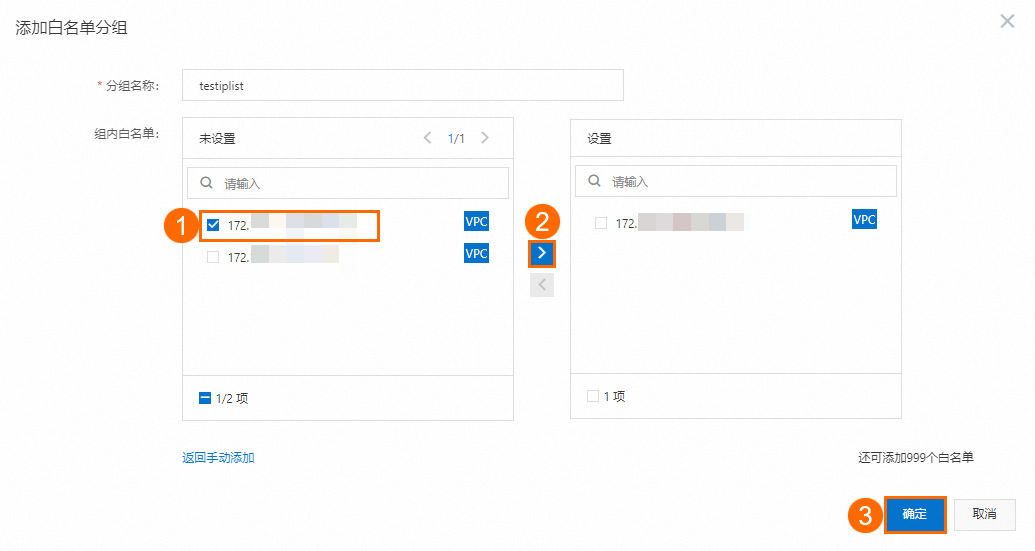
  1. Go to the ApsaraDB RDS console, select the region of your RDS instance, and then click the instance ID.

  2. In the left-side navigation pane, click Whitelist and Security Group.

  3. Click Add Whitelist Group and enter a Group Name, or click Modify next to an existing group.

  4. Enter the IP addresses or CIDR blocks to add, and then click OK.

    Important
    • Separate multiple entries with commas (,) without spaces. Example: 192.168.0.1,172.16.213.9.

    • A single instance supports up to 1,000 entries. Consolidate individual IP addresses into CIDR blocks (for example, 10.10.10.0/24) to reduce the entry count.

  5. (Optional) If your primary instance has read-only instances, use the Sync Whitelist to Read-only Instances option to copy the primary instance's whitelist to one or more read-only instances.

  6. (Optional) Click Load ECS Intranet IP to populate a list of your ECS instances, and then select an instance to add its private IP address to the whitelist.

    image.png

Configure an IP whitelist in enhanced mode

Note

Enhanced whitelist mode is not supported for cloud disk instances. The high-performance local disk storage type is no longer available for purchase.

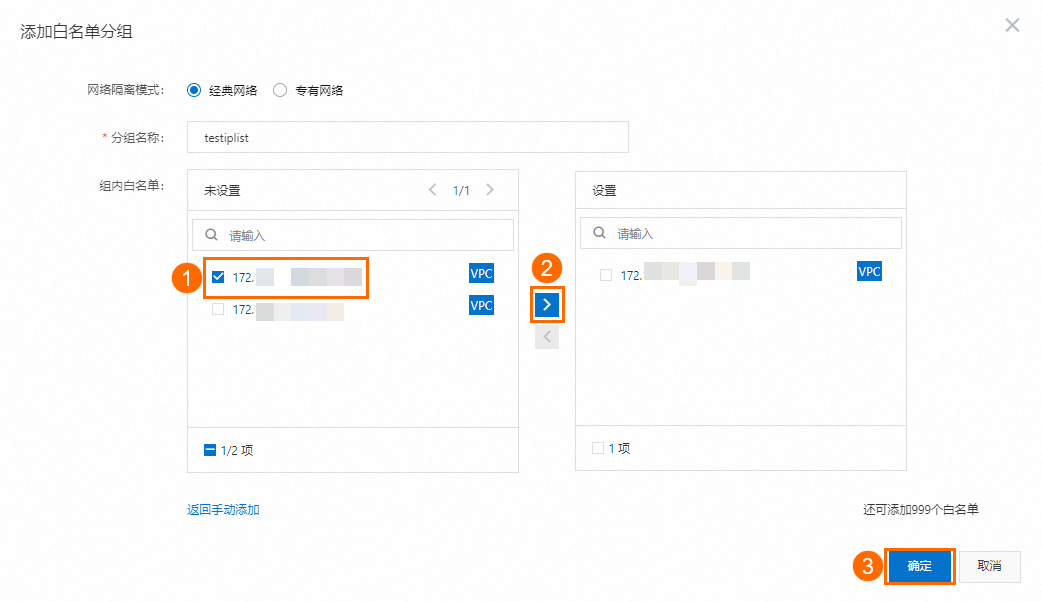
Enhanced whitelist mode separates classic network and VPC access. Each whitelist group requires a network isolation mode — IP addresses in one mode cannot access the instance through the other.

If your high-performance local disk instance already uses enhanced whitelist mode, follow the steps below. To switch to enhanced whitelist mode, see Switch to enhanced whitelist mode.

  1. Go to the ApsaraDB RDS console, select the region of your RDS instance, and then click the instance ID.

  2. In the left-side navigation pane, click Whitelist and Security Group.

  3. Click Add Whitelist Group and select a Network Isolation Mode.

  4. Enter a Group Name.

  5. In the IP Addresses in Whitelist text box, enter the IP addresses or CIDR blocks to add, and then click OK.

    Important
    • Separate multiple entries with commas (,) without spaces. Example: 192.168.0.1,172.16.213.9.

    • A single instance supports up to 1,000 entries. Consolidate individual IP addresses into CIDR blocks (for example, 10.10.10.0/24) to reduce the entry count.

  1. (Optional) If your primary instance has read-only instances, use the Sync Whitelist to Read-only Instances option to copy the primary instance's whitelist to one or more read-only instances.

  2. (Optional) Click Load ECS Intranet IP to populate a list of your ECS instances, and then select an instance to add its private IP address to the whitelist.

    Note

    In enhanced whitelist mode, make sure to select the correct network isolation mode.

    image.png

Next steps

Create a database and an account

FAQ

Why do I receive the InvalidSecurityIPListLength.Malformed error when I add IP addresses to a whitelist in the ApsaraDB RDS console?

Problem description

When you add IP addresses to a whitelist in the ApsaraDB RDS console, you may receive the following error:

Error code: InvalidSecurityIPListLength.Malformed
Error message (Chinese): The security IP address is not in the available range or occupied.
Error message (English): The security IP address is not in the available range or occupied.

Solution

  • Cause 1: The number of entries (IP addresses or CIDR blocks) in a whitelist group exceeds the 1,000-entry limit.

    Solution: Ensure each whitelist group contains no more than 1,000 entries. We recommend that you consolidate individual IP addresses into CIDR blocks, such as 192.168.1.0/24, to reduce the entry count.

  • Cause 2: The whitelist contains invalid IP addresses.

    Solution: Ensure all entries are valid IP addresses or CIDR blocks. We recommend that you use the standard CIDR format, such as 10.23.12.0/24. The valid mask range is /1 to /32. If you want to add multiple IP addresses, separate them with commas (,).

  • Cause 3: The IP address whitelist conflicts with an existing entry. For example, in ApsaraDB RDS for MySQL, 192.168.1.8 conflicts with 192.168.1.1/8.

    Solution: Plan your whitelists to avoid overlapping or conflicting entries.

Note

Do not delete the default group default, which contains 127.0.0.1, or modify system groups such as ali_dms_group or hdm_security_ips, to avoid affecting system functionality or connection security.

API reference