Workflow instances store the most recent execution records of a workflow. The Developer Edition stores the last 30 records for each workflow, and the Professional Edition stores the last 300 records for each workflow.
Workflow
Workflow status
Running: At least one task is running.
Failed: All tasks are complete, and at least one has failed.
Success: All tasks are complete, and all tasks have succeeded or been skipped.
Suspended: The workflow is running but has been manually suspended.
O&M operations
Log on to the MSE XXL-JOB console, and select a region in the top navigation bar.
In the left navigation bar, select .
Click the target instance. In the navigation pane on the left, choose .
In the Operation column, you can perform the following operations:
To rerun all failed tasks in the workflow, click Log.
To mark all failed tasks as successful, click Mark Success.
To stop the running tasks in the workflow, click Stop.
To suspend nodes in the workflow that have not started, click Suspend.
To resume suspended tasks and set their status to Waiting, click Resume.
To view the execution details of each node in the workflow, click Details to open the DAG view.
DAG view
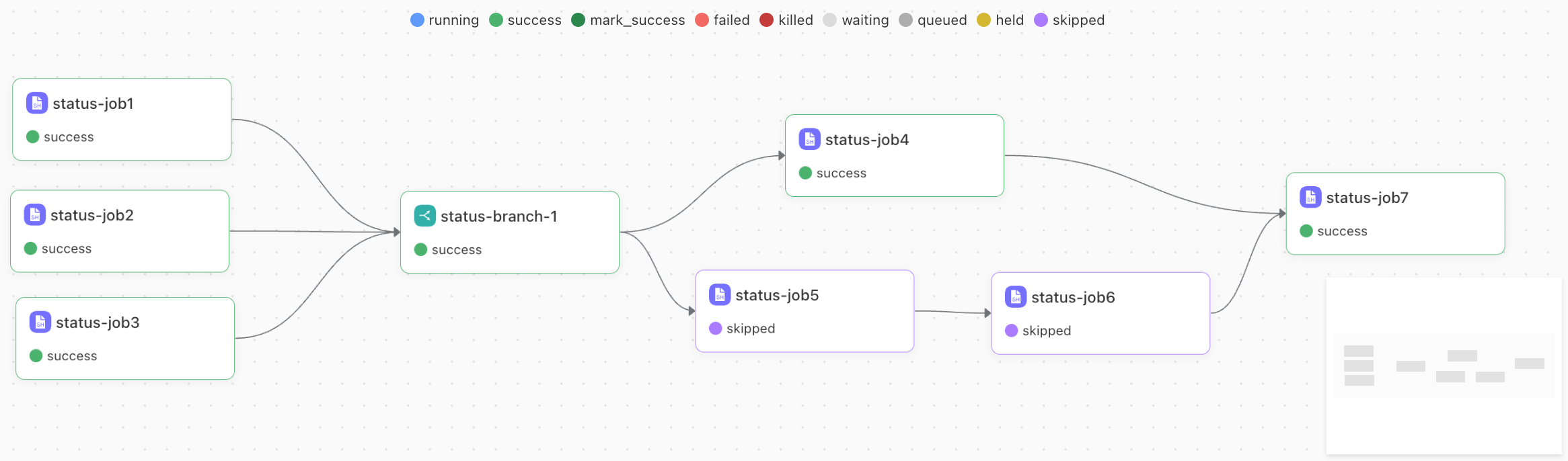
For each workflow instance, click Details to open the Directed Acyclic Graph (DAG) view. This view shows the execution topology of the current workflow.
Task status
Waiting (waiting): An upstream dependency is not met, or the start time has not been reached.
Queued (queued): When its dependencies are met, the task enters a queue and waits for the resource scheduler to assign it to an executor.
Running (running): The task is assigned to an executor and is running.
Success (success): The task executed successfully.
Failed (failed): The task execution failed.
Marked as Success (mark_success): A failed task was manually marked as successful.
Killed (killed): A running task was manually stopped.
Held (Held): A waiting task was manually suspended. The workflow pauses when it reaches a node in the Held state.
Skipped (skipped):
A task that has not started is manually marked as skipped, and the node is then ignored.
For a logical branch node, downstream nodes that are not executed are automatically marked as skipped.
If a task has a calendar schedule and the conditions are not met for the current day, the task is automatically marked as skipped.
If a task is disabled, the workflow automatically skips the node.
Task O&M operations
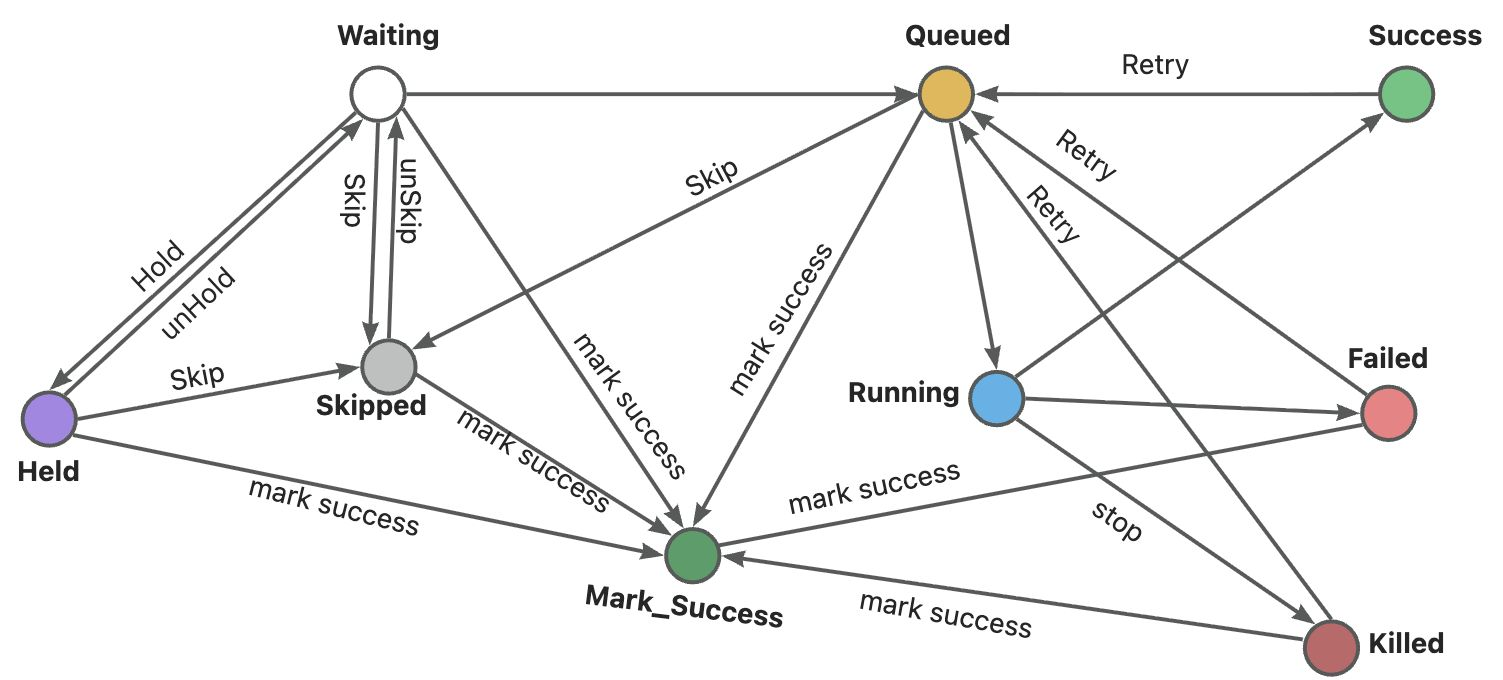
In the DAG view, you can right-click a node to perform maintenance operations and manually adjust its status, as shown in the following figure.
View node information
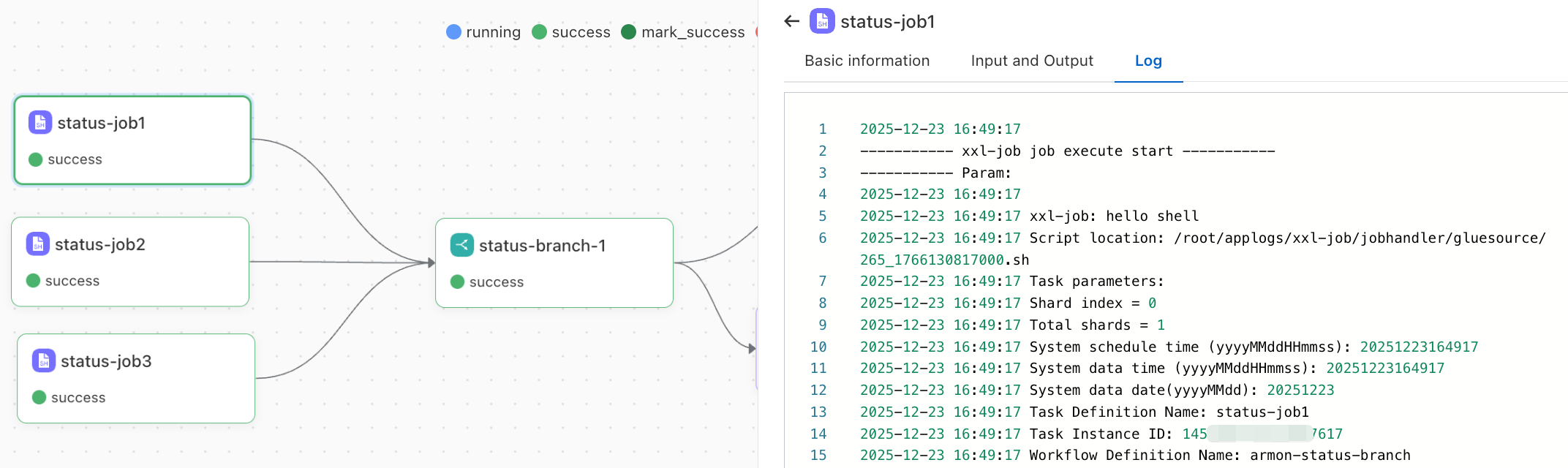
In the DAG view, double-click a node to view its basic information, inputs, outputs, and operational logs.