All Products
Search
Document Center

ApsaraDB RDS:Set up GitHub authentication for RDS Supabase

Last Updated:Mar 28, 2026

RDS Supabase supports OAuth 2.0 authentication through major identity providers (IdPs), including GitHub, Google, WeChat, and Alipay. This guide walks you through the full setup: registering a GitHub OAuth App, configuring credentials in your RDS Supabase instance, opening network access, and verifying the end-to-end logon flow.

For a complete list of supported providers and their configuration parameters, see Alibaba Cloud RDS Supabase Authentication.

Prerequisites

Before you begin, ensure that you have:

  • An active RDS Supabase instance

  • A GitHub account

How it works

The setup consists of four stages:

  1. Register a GitHub OAuth App to get a Client ID and Client Secret.

  2. Enter the credentials in your RDS Supabase instance and enable GitHub logon.

  3. Open network access so your instance can reach GitHub's OAuth servers.

  4. Verify the full logon flow.

Tip: Keep two browser tabs open throughout — one for GitHub developer settings and one for the RDS console. You'll copy values between them.

Step 1: Create a GitHub OAuth App

First, create an OAuth application on GitHub to obtain the Client ID and Client Secret for API authentication.

  1. In GitHub, go to developer settings.

  2. In the left navigation pane, click OAuth Apps, then click New OAuth App.

  3. Fill in the registration form:

    Do not include a port number in the Supabase public endpoint.
    FieldValue
    Application nameA name for your application
    Homepage URLThe homepage URL of your application
    Authorization callback URLThe public endpoint of your RDS Supabase instance with the path /auth/v1/callback appended. The format is https://<Supabase public endpoint>/auth/v1/callback.
  4. Click Register application.

  5. On the application details page, record the Client ID.

  6. Click Generate a new client secret and save the secret immediately.

    Important

    The Client Secret is shown in full only once. Save it securely before leaving this page.
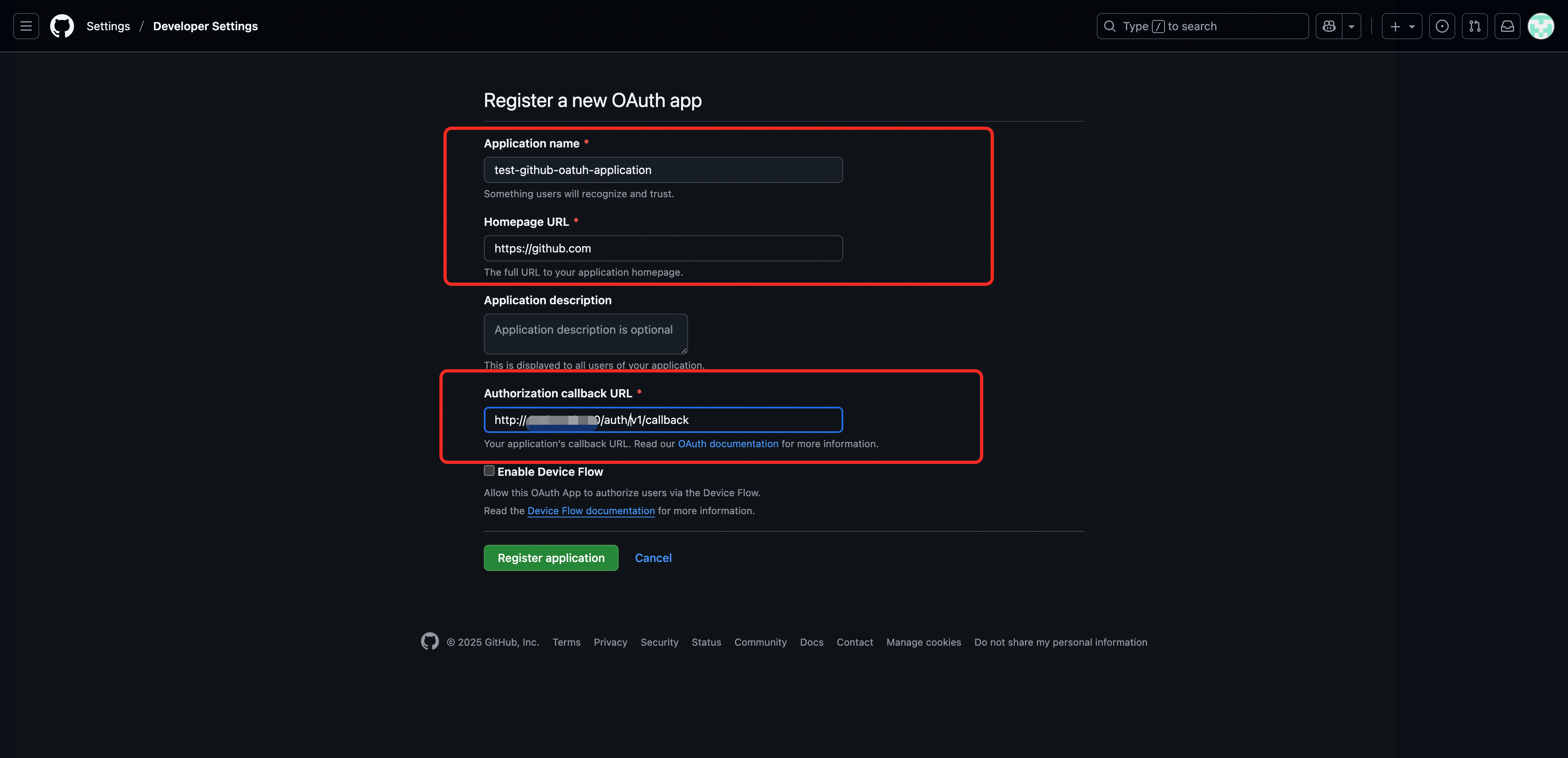
GitHub OAuth App client ID and secret

Step 2: Configure GitHub authentication in RDS Supabase

After you obtain the credentials for the GitHub OAuth App, configure the required parameters in your RDS Supabase instance to enable this authentication method.

  1. Go to the RDS console. In the left navigation pane, click AI Application Development.

  2. Select a region, then click the Project ID of your instance.

  3. In the left navigation pane, click Auth Configuration.

  4. Click Identity Providers > GitHub and configure the following parameters:

    ParameterValue
    Enable GitHub LogonTurn on this switch
    Client ID of the GitHub OAuth AppThe Client ID from Step 1
    Client Secret of the GitHub OAuth AppThe Client Secret from Step 1
    Authorization callback URLThe same Authorization callback URL that you configured in Step 1
  5. Click Confirm. The instance restarts automatically to apply the settings. Wait for the restart to complete.
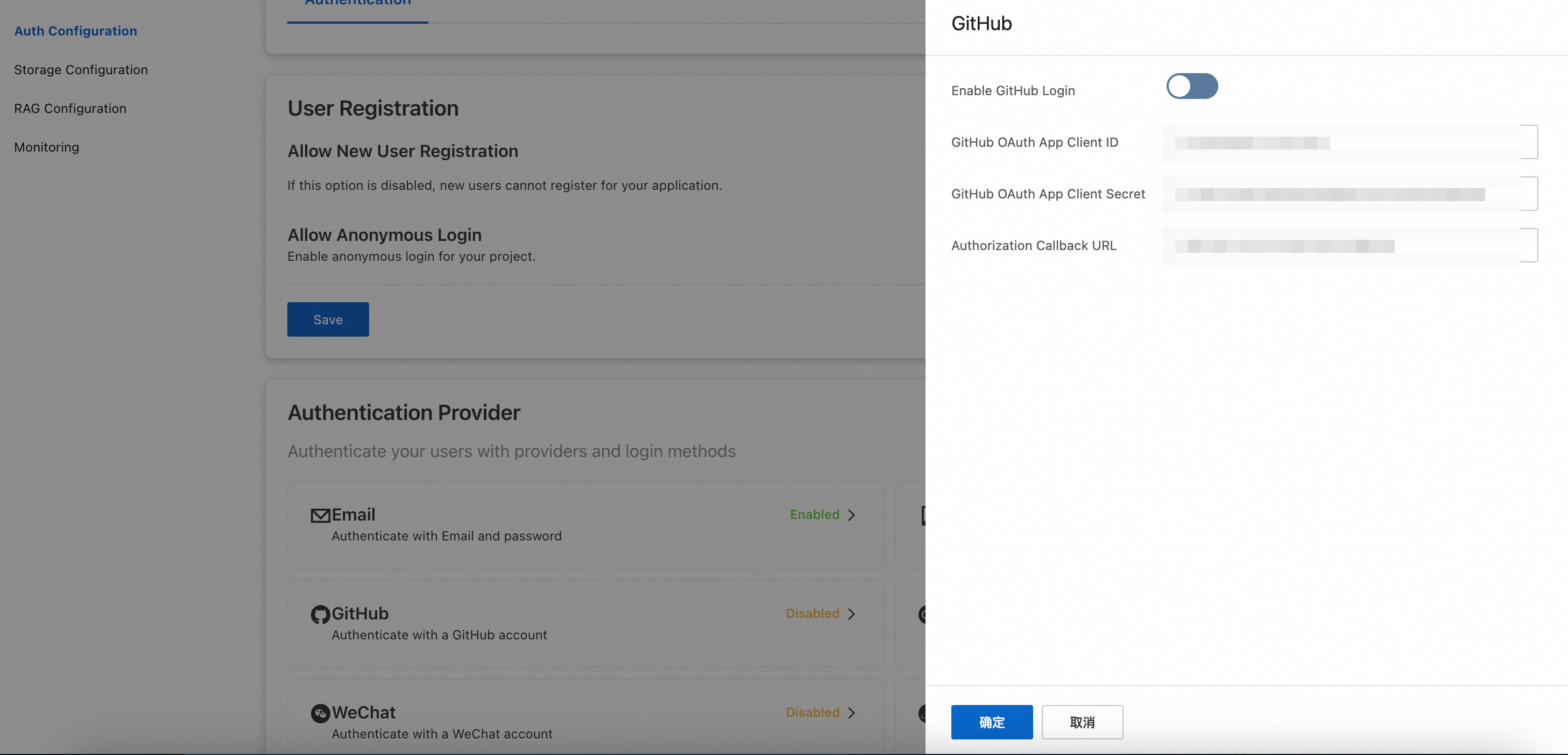
RDS Supabase auth configuration page

Step 3: Configure network access

Two network settings are required for the OAuth flow to work: your client's IP address must be whitelisted, and the instance must be able to send outbound requests to GitHub.

Add your client IP to the whitelist

  1. Go to the RDS console. In the left navigation pane, click AI Application Development.

  2. Select a region. In the RDS Supabase list, click the Project ID of your instance.

  3. On the Basic Information page, scroll to the Whitelist Information section.

  4. Click Add Whitelist Group and add the public IP address of your client.

Allow outbound public network access

  1. On the Basic Information page, scroll to the Network Information section.

  2. Turn on the Allow Instance to Access Public Network switch.
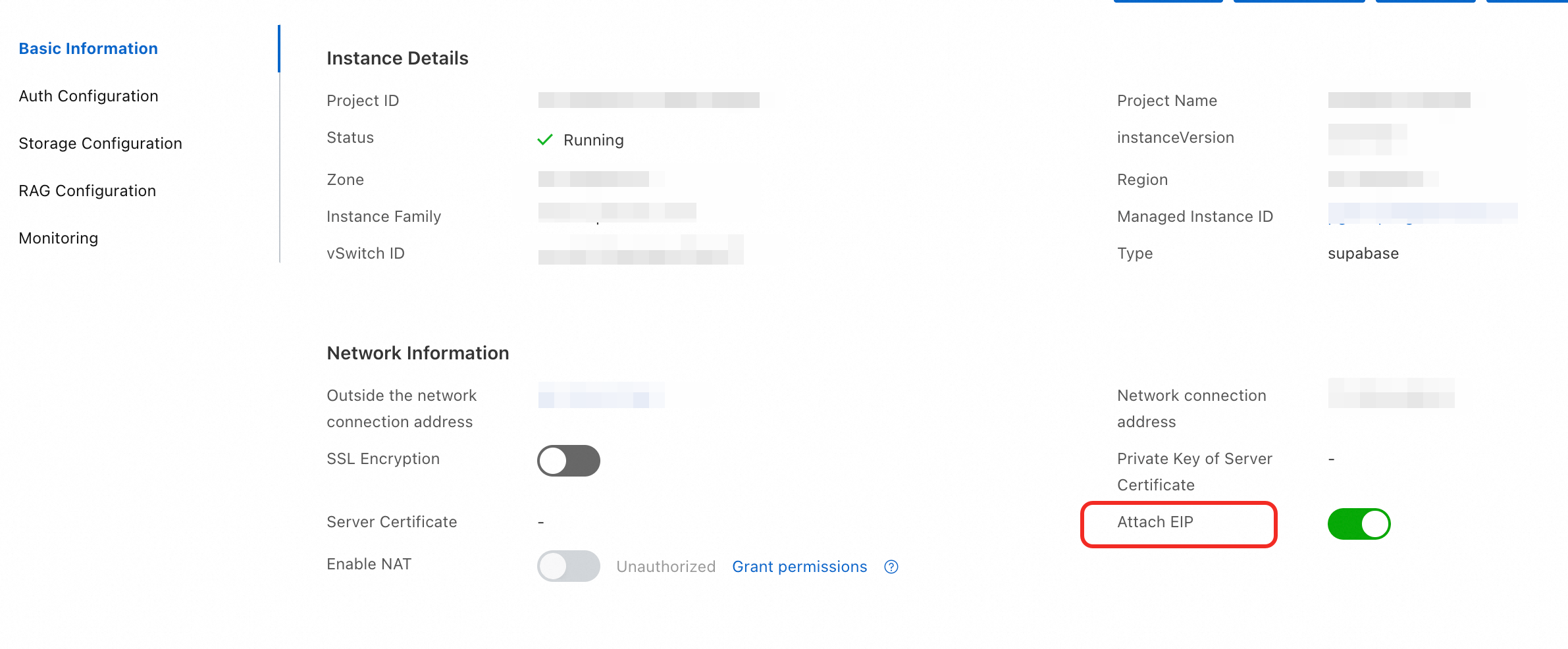
Allow instance to access public network switch
If your application is deployed in a region outside China, use an RDS Supabase instance in a region outside China to ensure stable performance for the OAuth flow.

Step 4: Verify the GitHub authentication flow

The core client-side call that triggers GitHub OAuth is:

const { data, error } = await supabase.auth.signInWithOAuth({
  provider: 'github',
  options: {
    redirectTo: window.location.origin
  }
});

The full working example below builds a minimal Vite frontend project to confirm the end-to-end logon flow.

Initialize the project

Create a project folder with the following files:

  • index.html — frontend page

  • main.js — authentication logic

  • supabase-config.js — RDS Supabase connection configuration

  • package.json — dependencies

Write the code

index.html

<!DOCTYPE html>
<html lang="en">
<head>
  <meta charset="UTF-8">
  <meta name="viewport" content="width=device-width, initial-scale=1.0">
  <title>Supabase GitHub Authentication Test</title>
  <style>
    body {
      font-family: Arial, sans-serif;
      max-width: 800px;
      margin: 0 auto;
      padding: 20px;
      background-color: #f5f5f5;
    }
    .container {
      background-color: white;
      padding: 30px;
      border-radius: 10px;
      box-shadow: 0 2px 10px rgba(0,0,0,0.1);
    }
    .hidden {
      display: none;
    }
    button {
      background-color: #333;
      color: white;
      border: none;
      padding: 12px 24px;
      border-radius: 5px;
      cursor: pointer;
      font-size: 16px;
      margin: 10px 0;
    }
    button:hover {
      background-color: #555;
    }
    button.github {
      background-color: #24292e;
    }
    button.github:hover {
      background-color: #333;
    }
    button.logout {
      background-color: #dc3545;
    }
    button.logout:hover {
      background-color: #c82333;
    }
    .user-info {
      background-color: #f8f9fa;
      padding: 20px;
      border-radius: 5px;
      margin: 20px 0;
      border-left: 4px solid #007bff;
    }
    .error {
      color: #dc3545;
      background-color: #f8d7da;
      padding: 10px;
      border-radius: 5px;
      margin: 10px 0;
    }
    .success {
      color: #155724;
      background-color: #d4edda;
      padding: 10px;
      border-radius: 5px;
      margin: 10px 0;
    }
  </style>
</head>
<body>
  <div class="container">
    <h1>Supabase GitHub Authentication Test</h1>

    <!-- Displayed before logon -->
    <div id="login-section">
      <h2>Log On</h2>
      <p>Click the button below to log on with your GitHub account</p>
      <button id="github-login" class="github">Log on with GitHub</button>
      <div id="login-error" class="error hidden"></div>
    </div>

    <!-- Displayed after logon -->
    <div id="user-section" class="hidden">
      <h2>User Information</h2>
      <div class="user-info">
        <p> </p>
        <p> </p>
        <p> </p>
        <p></p>
        <img id="user-avatar" src="" alt="Profile picture" style="width: 100px; height: 100px; border-radius: 50%;">
      </div>
      <button id="logout" class="logout">Log Out</button>
      <div id="logout-error" class="error hidden"></div>
    </div>

    <!-- Status information -->
    <div id="status" class="success hidden"></div>
  </div>
  <script type="module" src="/main.js"></script>
</body>
</html>

main.js

// Import the Supabase configuration
import { SUPABASE_CONFIG } from './supabase-config.js';
// Initialize the Supabase client
import { createClient } from '@supabase/supabase-js';
const supabase = createClient(SUPABASE_CONFIG.url, SUPABASE_CONFIG.anonKey);
// DOM elements
const loginSection = document.getElementById('login-section');
const userSection = document.getElementById('user-section');
const githubLoginBtn = document.getElementById('github-login');
const logoutBtn = document.getElementById('logout');
const loginError = document.getElementById('login-error');
const logoutError = document.getElementById('logout-error');
const statusDiv = document.getElementById('status');
// Check the user's logon status
async function checkUser() {
  const { data: { user } } = await supabase.auth.getUser();
  if (user) {
    showUser(user);
  } else {
    showLogin();
  }
}
// Display the logon interface
function showLogin() {
  loginSection.classList.remove('hidden');
  userSection.classList.add('hidden');
}
// Display user information
function showUser(user) {
  document.getElementById('user-id').textContent = user.id;
  document.getElementById('user-name').textContent = user.user_metadata?.name || user.email;
  document.getElementById('user-email').textContent = user.email;
  const avatarUrl = user.user_metadata?.avatar_url || '';
  document.getElementById('user-avatar').src = avatarUrl;
  document.getElementById('user-avatar').style.display = avatarUrl ? 'block' : 'none';

  loginSection.classList.add('hidden');
  userSection.classList.remove('hidden');
}
// Log on with GitHub
async function loginWithGitHub() {
  loginError.classList.add('hidden');
  try {
    const { data, error } = await supabase.auth.signInWithOAuth({
      provider: 'github',
      options: {
        redirectTo: window.location.origin
      }
    });

    if (error) throw error;
  } catch (error) {
    console.error('Logon failed:', error);
    loginError.textContent = 'Logon failed: ' + error.message;
    loginError.classList.remove('hidden');
  }
}
// Log out
async function logout() {
  logoutError.classList.add('hidden');
  try {
    const { error } = await supabase.auth.signOut();
    if (error) throw error;
    showLogin();
    statusDiv.textContent = 'Successfully logged out';
    statusDiv.classList.remove('hidden');
    setTimeout(() => statusDiv.classList.add('hidden'), 3000);
  } catch (error) {
    console.error('Log out failed:', error);
    logoutError.textContent = 'Log out failed: ' + error.message;
    logoutError.classList.remove('hidden');
  }
}
// Event listeners
githubLoginBtn.addEventListener('click', loginWithGitHub);
logoutBtn.addEventListener('click', logout);
// Listen for authentication state changes
supabase.auth.onAuthStateChange((event, session) => {
  console.log('Authentication state changed:', event);
  if (event === 'SIGNED_IN') {
    showUser(session.user);
    statusDiv.textContent = 'Logon successful!';
    statusDiv.classList.remove('hidden');
    setTimeout(() => statusDiv.classList.add('hidden'), 3000);
  } else if (event === 'SIGNED_OUT') {
    showLogin();
    statusDiv.textContent = 'Logged out';
    statusDiv.classList.remove('hidden');
    setTimeout(() => statusDiv.classList.add('hidden'), 3000);
  }
});
// Check the user status when the page loads
checkUser();

package.json

{
  "name": "supabase-github-auth-test",
  "version": "1.0.0",
  "description": "Test Supabase GitHub authentication",
  "main": "index.js",
  "scripts": {
    "dev": "vite",
    "build": "vite build",
    "preview": "vite preview"
  },
  "keywords": ["supabase", "github", "authentication"],
  "author": "",
  "license": "ISC",
  "dependencies": {
    "@supabase/supabase-js": "^2.38.4"
  },
  "devDependencies": {
    "vite": "^4.5.0"
  }
}

supabase-config.js

// Supabase configuration file
// Replace the placeholders with your actual RDS Supabase project information
export const SUPABASE_CONFIG = {
  // Your Supabase project URL
  url: 'YOUR_SUPABASE_URL',

  // Your Supabase anonymous key (anon key)
  anonKey: 'YOUR_SUPABASE_ANON_KEY'
};

Configure the connection

Replace the placeholder values in supabase-config.js with your actual credentials. See the RDS Supabase SDK user guide to get the SUPABASE_URL and Anon Key for your instance.

Run and test

  1. In the project root directory, run the following commands to install dependencies and start the dev server:

    npm install
    npm run dev
  2. Open a browser and go to http://localhost:5173.

  3. Click Log on with GitHub. The page redirects to the GitHub authorization page.
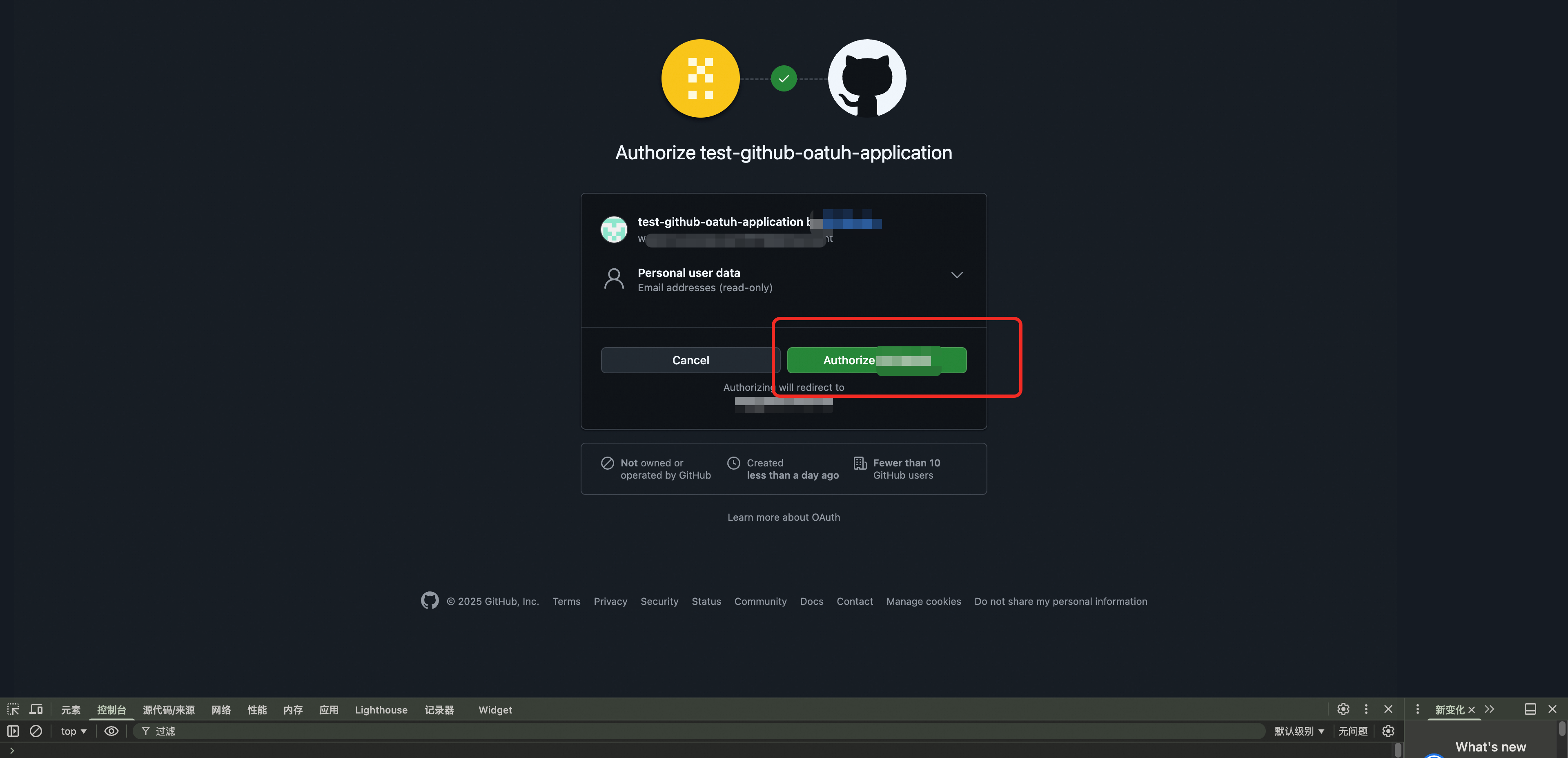
    GitHub authorization redirect page

  4. After authorization, the page redirects back and displays the user's ID, username, and email from GitHub — confirming the authentication flow works.

Verify backend data

Confirm that the authenticated user's data has been synchronized to RDS Supabase:

  1. In the RDS console, go to AI Application Development > your instance.

  2. Click Network Information > Public Endpoint to open the Supabase logon page.

    If your client is an ECS instance in the same VPC as the RDS Supabase instance, use the Internal Endpoint instead.
  3. In the left navigation pane, click Authentication > Users. The new user who just logged on with GitHub should appear in the list, confirming that user data is synchronized to RDS Supabase.
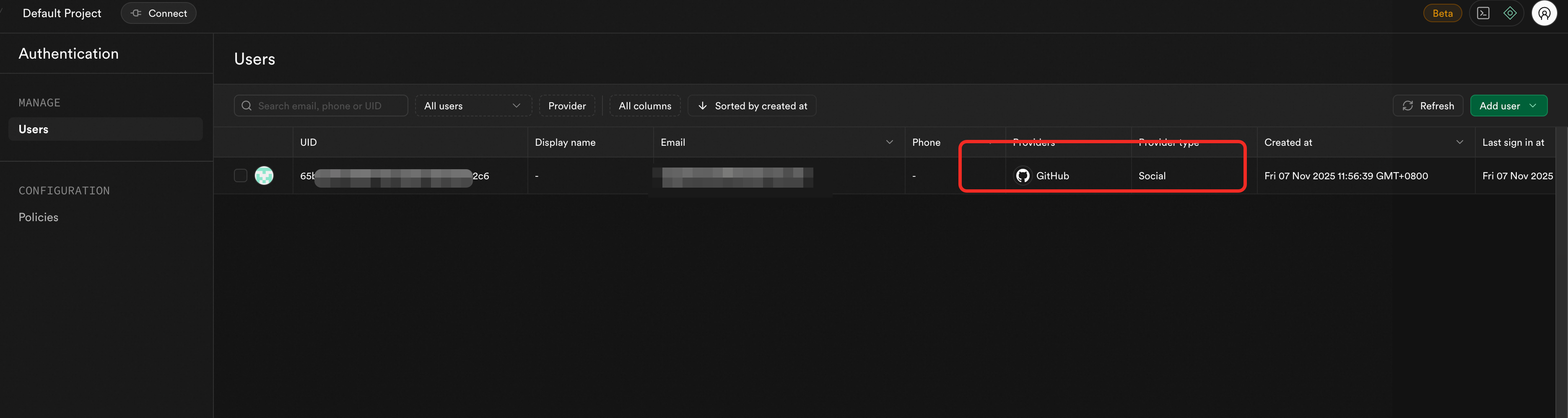
    Supabase authentication users page

What's next