Create a Lark Base data source to enable Dataphin to read business data from or write data to Lark Base. This topic describes how to create a Lark Base data source.
Prerequisites
Create a custom Lark application and obtain its authorization information. For more information, see Obtain application authorization information.
Obtain the share link of the Lark Base that you want to connect to Dataphin. For more information, see Obtain a Base link.
Limits
Lark Base tables support various field types. For the mapping between Lark Base fields and Dataphin field types, see Lark Base parsing rules.
Due to Lark restrictions, the cumulative number of API calls for the Lark Basic Free Edition is limited to 10,000 per month, starting October 31, 2024. If this limit does not meet your needs, upgrade to another Lark edition to increase the call quota. For more information, see Lark’s Custom App API Call Limit Adjustment Description.
Permissions
Only super administrators, data source administrators, domain architects, project administrators, and custom global roles with the Create Data Source permission can create data sources.
Procedure
On the Dataphin home page, in the top menu bar, select Management Hub > Datasource Management.
On the Datasource page, click +Create Data Source.
On the Create Data Source page, select Lark Base.
If you recently used Lark Base, you can also select it from the Recently Used area. Alternatively, enter keywords for Lark Base in the search box to locate it quickly.
On the Create Lark Base Data Source page, configure the data source connection parameters.
Configure basic data source information.
Parameter
Description
Datasource Name
Enter the data source name. Follow these naming conventions:
It can contain only Chinese characters, uppercase and lowercase English letters, digits, underscores (_), or hyphens (-).
The length cannot exceed 64 characters.
Datasource Code
After configuring the data source code, you can directly access Dataphin data source tables in Flink SQL tasks or using the Dataphin JDBC client. Use the format
data_source_code.table_nameordata_source_code.schema.table_namefor quick consumption. To automatically switch data sources based on the task execution environment, access them using the variable format${data_source_code}.tableor${data_source_code}.schema.table. For more information, see Dataphin Data Source Table Development Methods.ImportantThe data source code cannot be modified after it is configured.
You can preview data on the object details page in the asset directory and asset checklist only after the data source code is configured.
In Flink SQL, only MySQL, Hologres, MaxCompute, Oracle, StarRocks, Hive, SelectDB, and GaussDB data warehouse service (DWS) data sources are currently supported.
Data Source Description
A brief description of the Lark Base data source. Do not exceed 128 characters.
Data Source Configuration
Based on whether the business data source distinguishes between production and development data sources:
If the business data source distinguishes between production and development data sources, select Production + Development Data Source.
If the business data source does not distinguish between production and development data sources, select Production Data Source.
Tag
You can categorize data sources using tags. For instructions on how to create tags, see Manage Data Source Tags.
Configure connection parameters between the data source and Dataphin.
If you select Production + Development Data Source for data source configuration, configure the connection information for both environments. If your data source configuration is Production Data Source, configure only the connection information for the production environment.
NoteTo isolate development from production and reduce the impact of development activities on production data, production and development data sources should typically be separate. However, Dataphin also supports configuring them as the same data source, meaning they share identical parameter values.
Parameter
Description
Lark Base URL
The Lark Base address, such as
https://base.feishu.cn/base/appxxxx. For detailed steps, see Obtain a Base link.APP ID、APP Secret
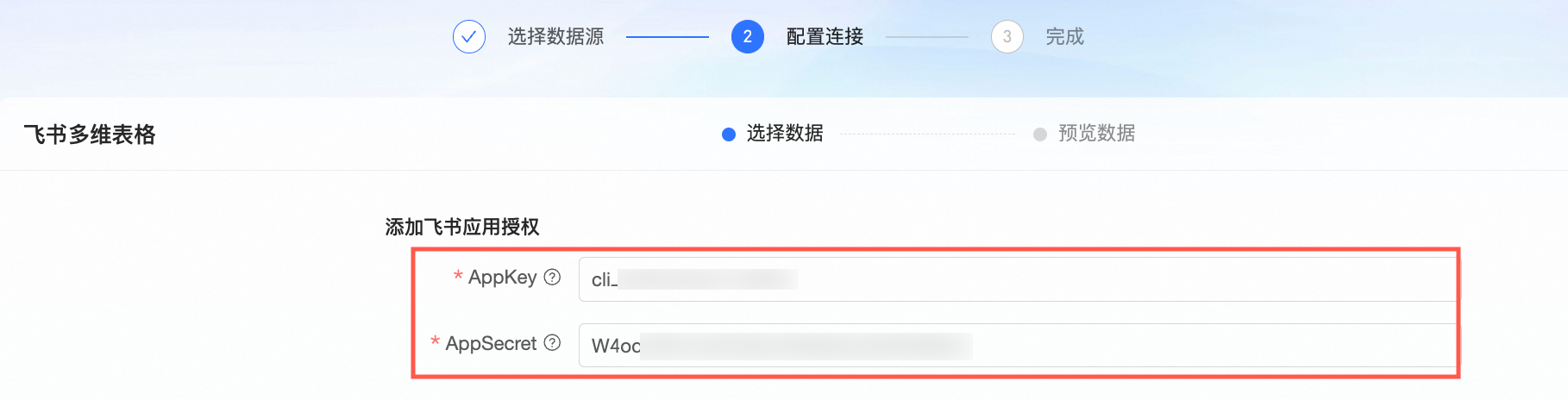
Enter the unique key and secret for the Enterprise Edition internal application. For detailed steps, see Obtain application authorization information.
Select the Default Resource Group. This resource group runs tasks related to the current data source, including database SQL execution, offline full-database migration, and data preview.
Perform a Test Connection or click OK to save and complete the creation of the Lark Base data source.
Click Test Connection to verify whether the data source can connect to Dataphin. If you click OK directly, the system automatically tests connectivity for all selected clusters. Even if all selected clusters fail the test, the data source is still created.
Test Connection tests the connection for the Default Cluster or Registered Scheduling Clusters that have been registered in Dataphin and are in normal use. The Default Cluster is selected by default and cannot be deselected. If there are no resource groups under a Registered Scheduling Cluster, connection testing is not supported. You need to create a resource group first before testing the connection.
The selected clusters are only used to test network connectivity with the current data source and are not used for running related tasks later.
The test connection usually takes less than 2 minutes. If it times out, you can click the
 icon to view the specific reason and retry.
Regardless of whether the test result is Connection Failed, Connection Successful, or Succeeded With Warning, the system will record the generation time of the final result.
NoteOnly the test results for the Default Cluster include three connection statuses: Succeeded With Warning, Connection Successful, and Connection Failed. The test results for Registered Scheduling Clusters in Dataphin only include two connection statuses: Connection Successful and Connection Failed.
When the test result is Connection Failed, you can click the
icon to view the specific failure reason.When the test result is Succeeded With Warning, it means that the application cluster connection is successful but the scheduling cluster connection failed. The current data source cannot be used for data development and integration. You can click the
icon to view the log information.
Appendix
Obtain Application Authorization Information
Create a custom enterprise application in the Lark Open Platform and obtain its authorization information. You use this information to authenticate the data source in Dataphin. Follow these steps.
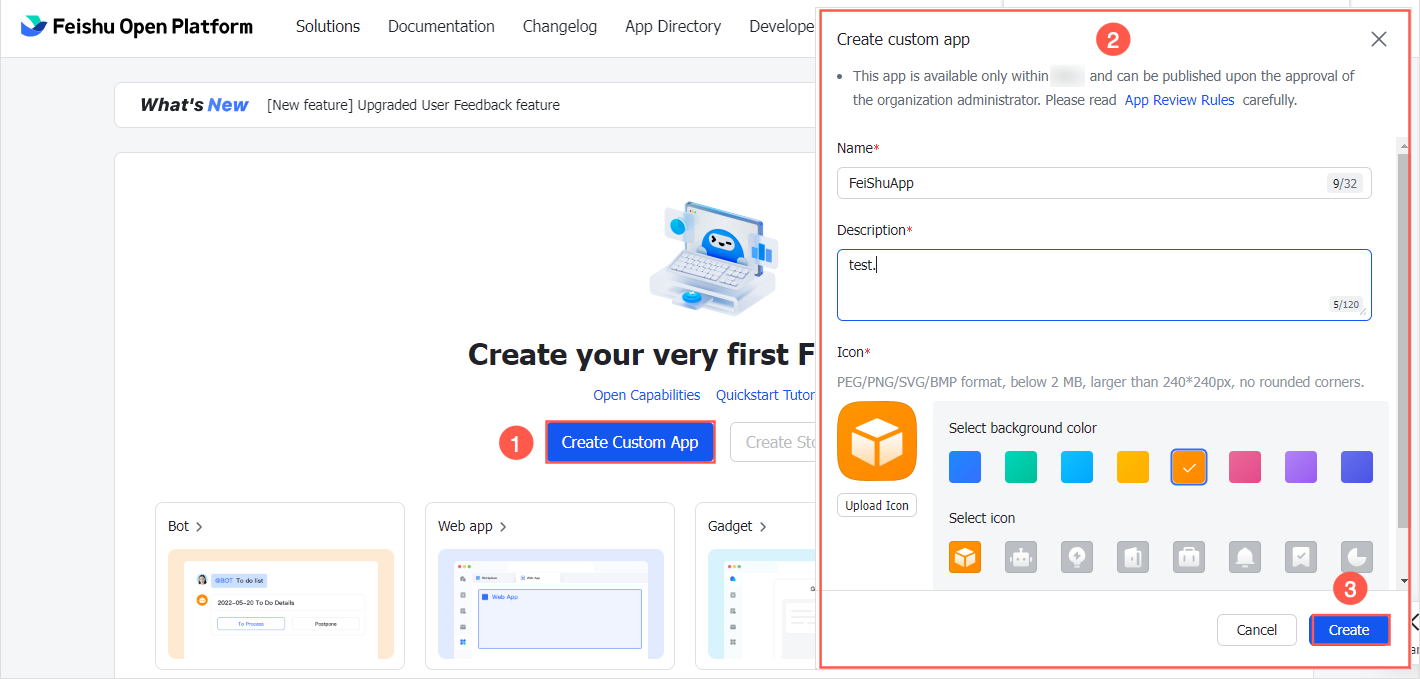
Log on to the Lark Open Platform. Click Create Custom Enterprise Application. In the Create Custom Enterprise Application dialog box, maintain the application information. After completion, click Create.
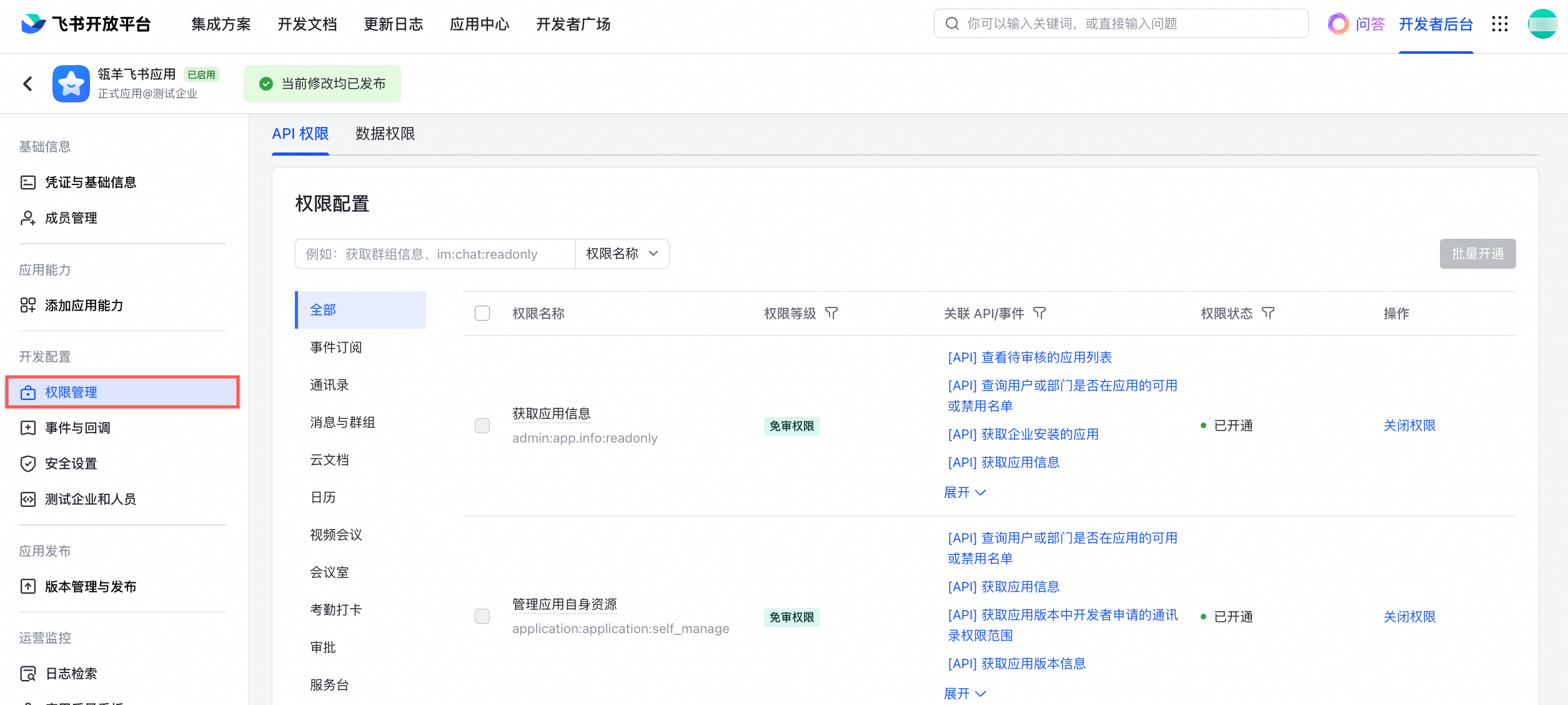
Dataphin reads Lark Base data through API operations. Therefore, apply for Lark API operation permissions for the current application. In the application’s developer backend, click Permission Management in the left navigation pane. On the API Permissions tab, configure the required permissions for the current application.
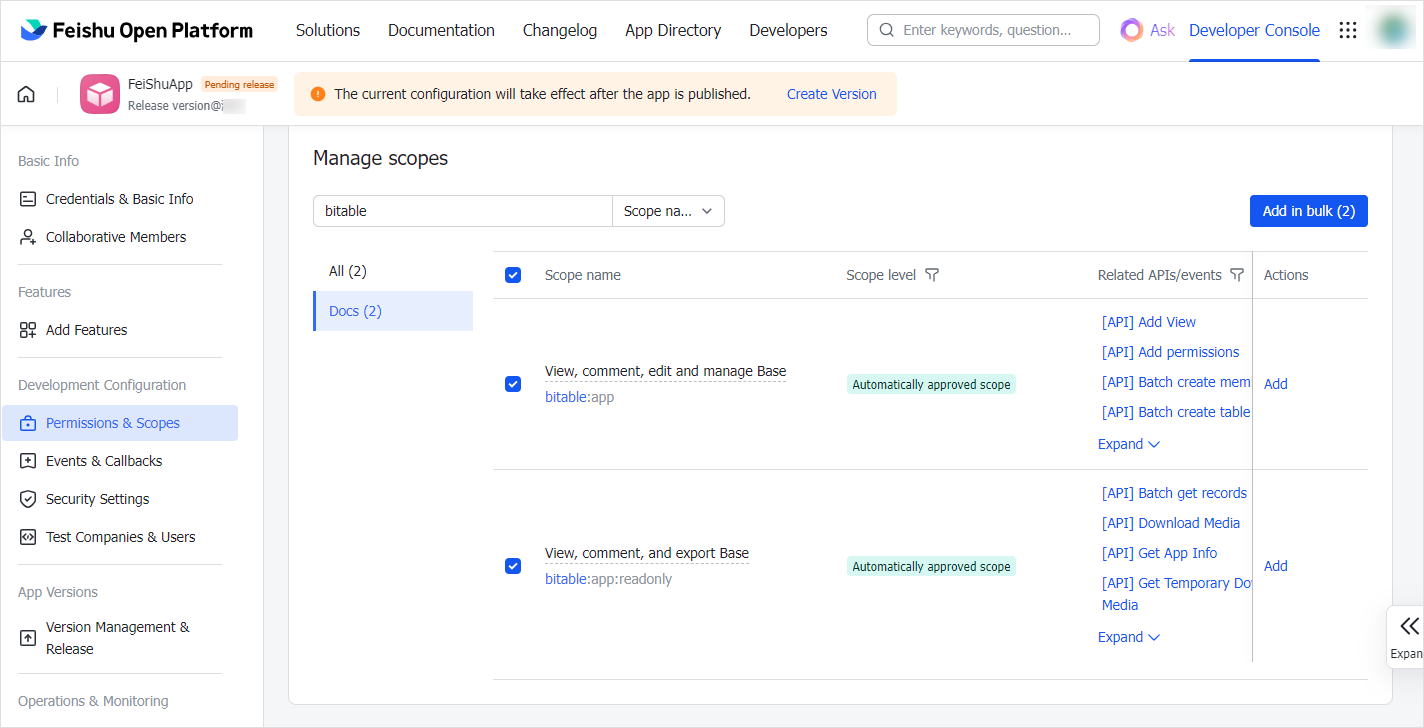
Select the following API permissions and click Batch Enable.
View, comment on, edit, and manage all files in the cloud space.
You can view, comment, edit, and manage multidimensional tables.
You can view, comment on, and export multidimensional tables.
Obtain application information.
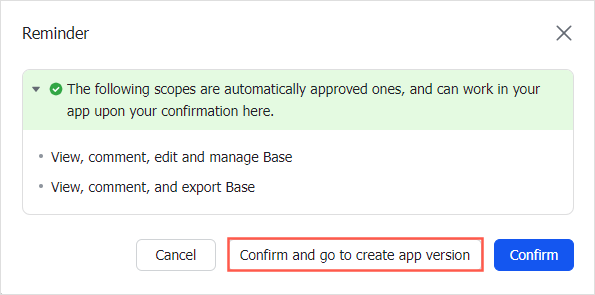
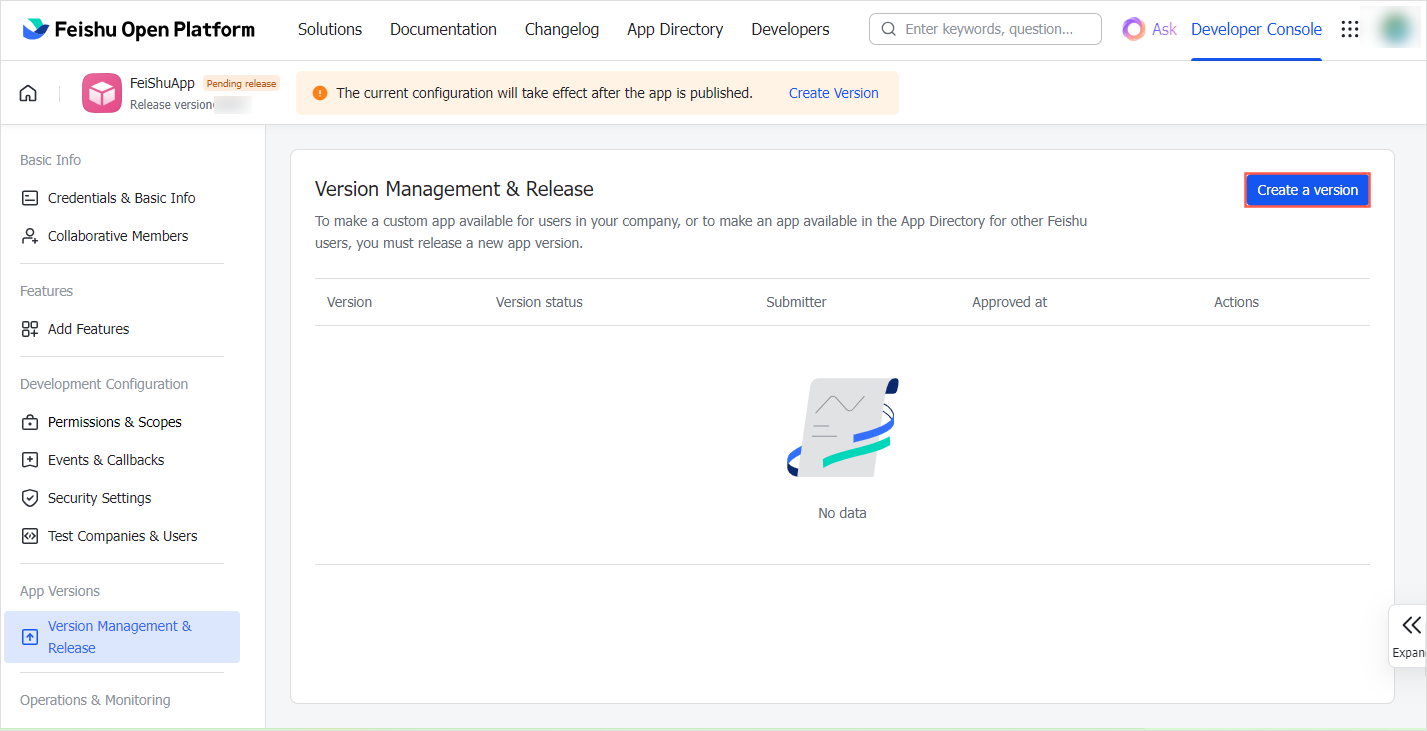
Click Confirm and Go to Create Application Version in the Prompt dialog box. Navigate to the Version Management and Release page. Click Create Version.
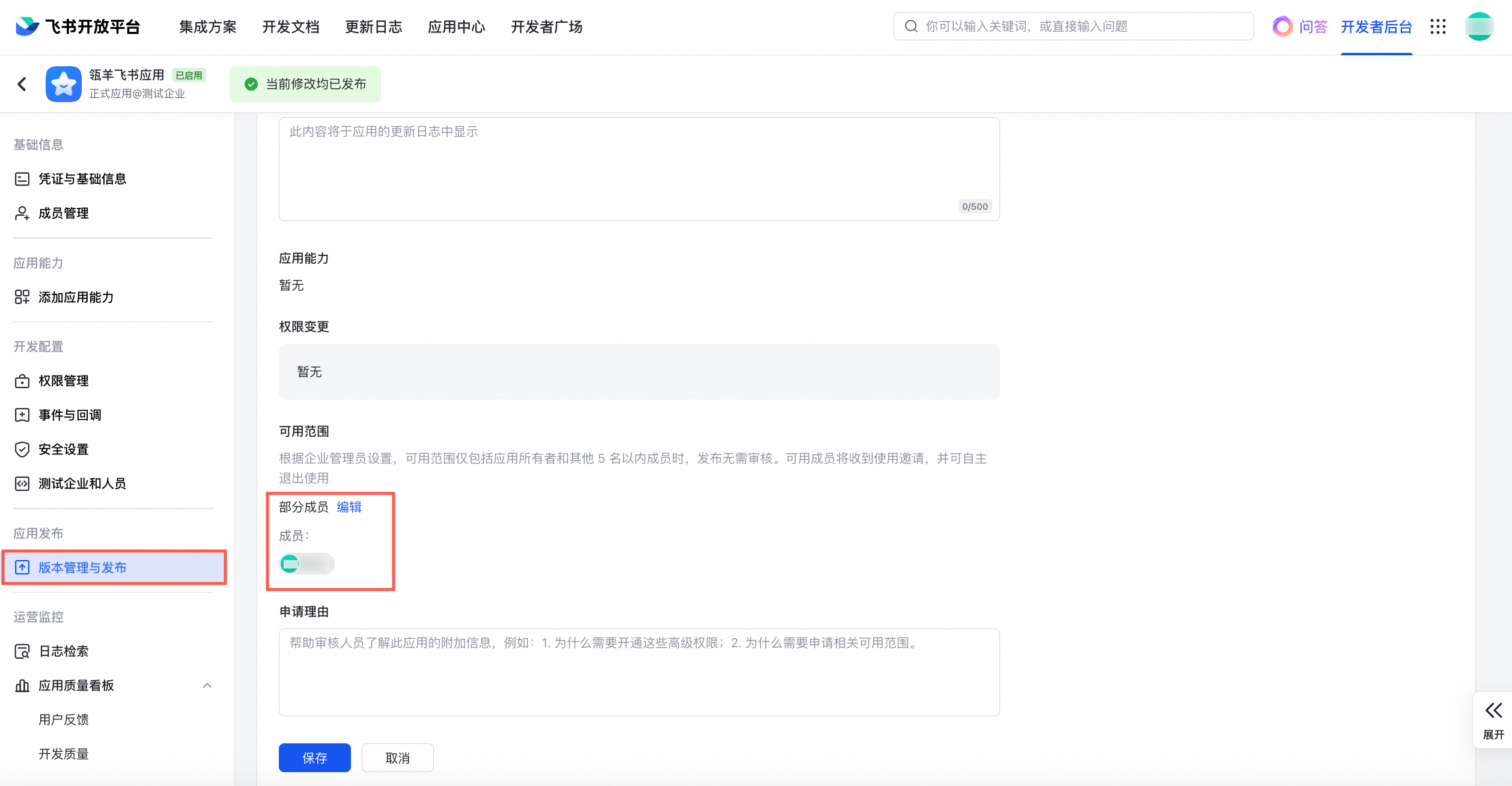
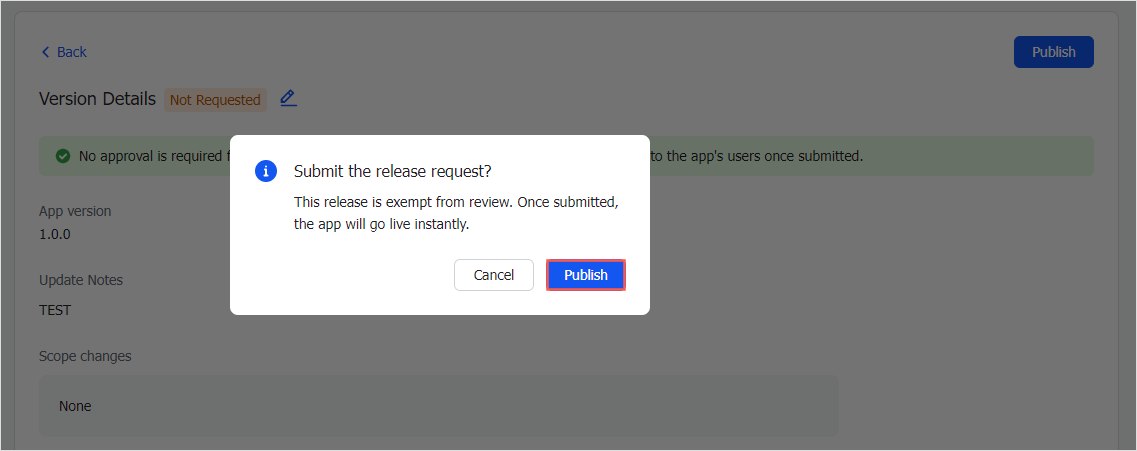
Maintain version details. After completion, click Save > Apply for Online Release to complete the release of the current application.
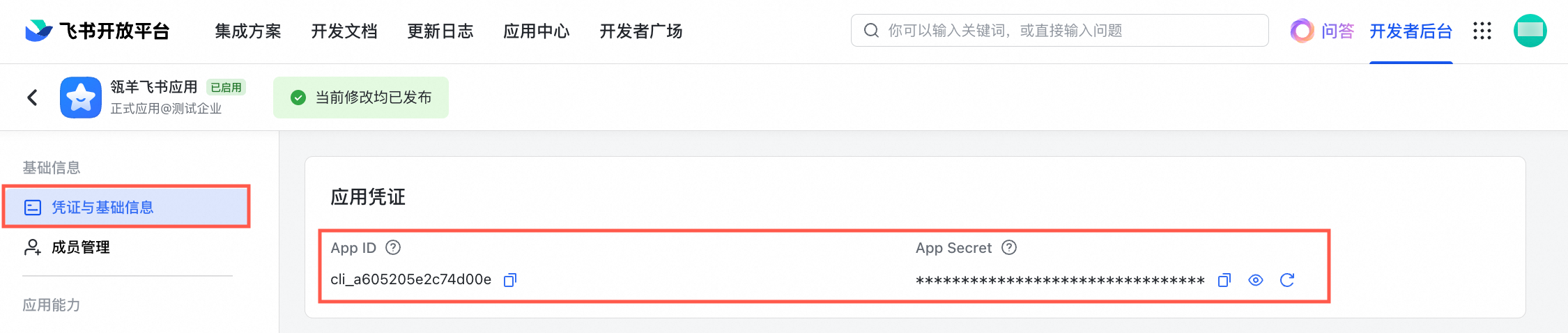
In the application’s developer backend, click Credentials and Basic Information. On the Application Credentials page, copy and save the App ID and App Secret of the current application.
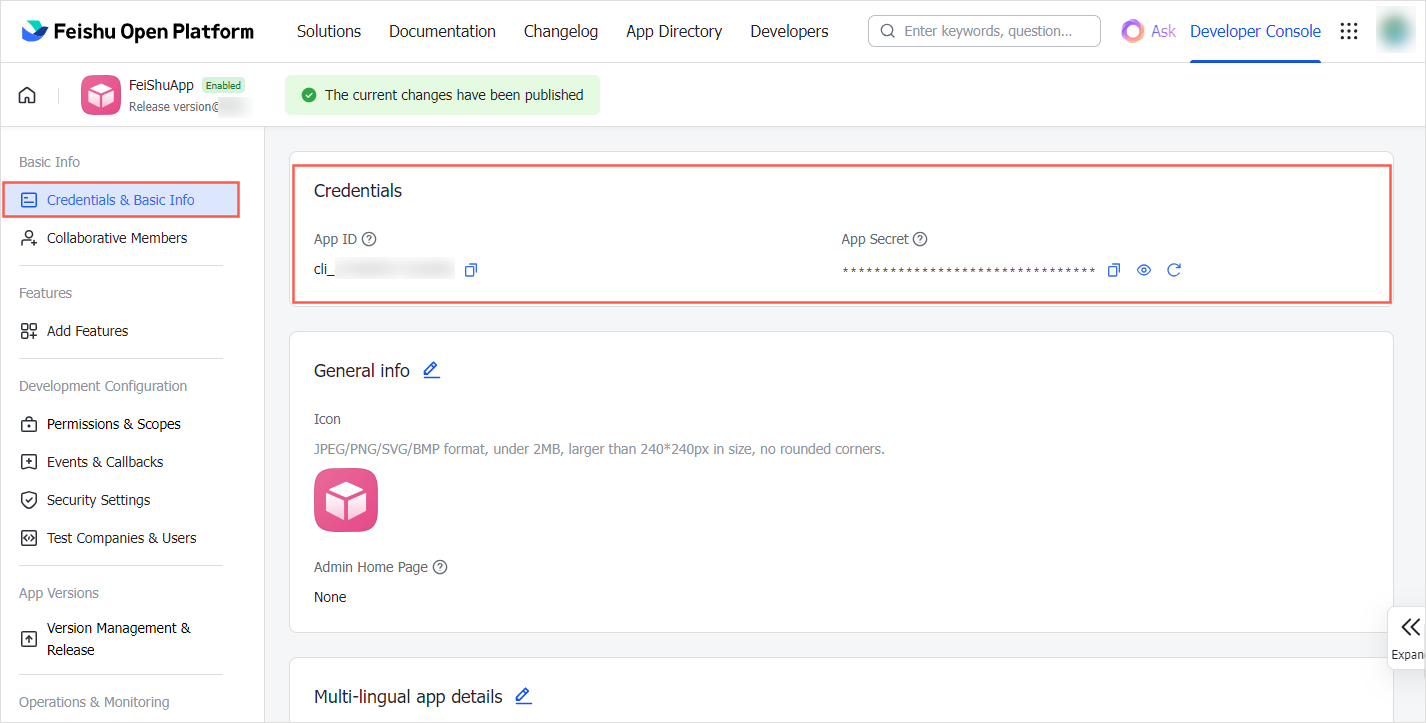
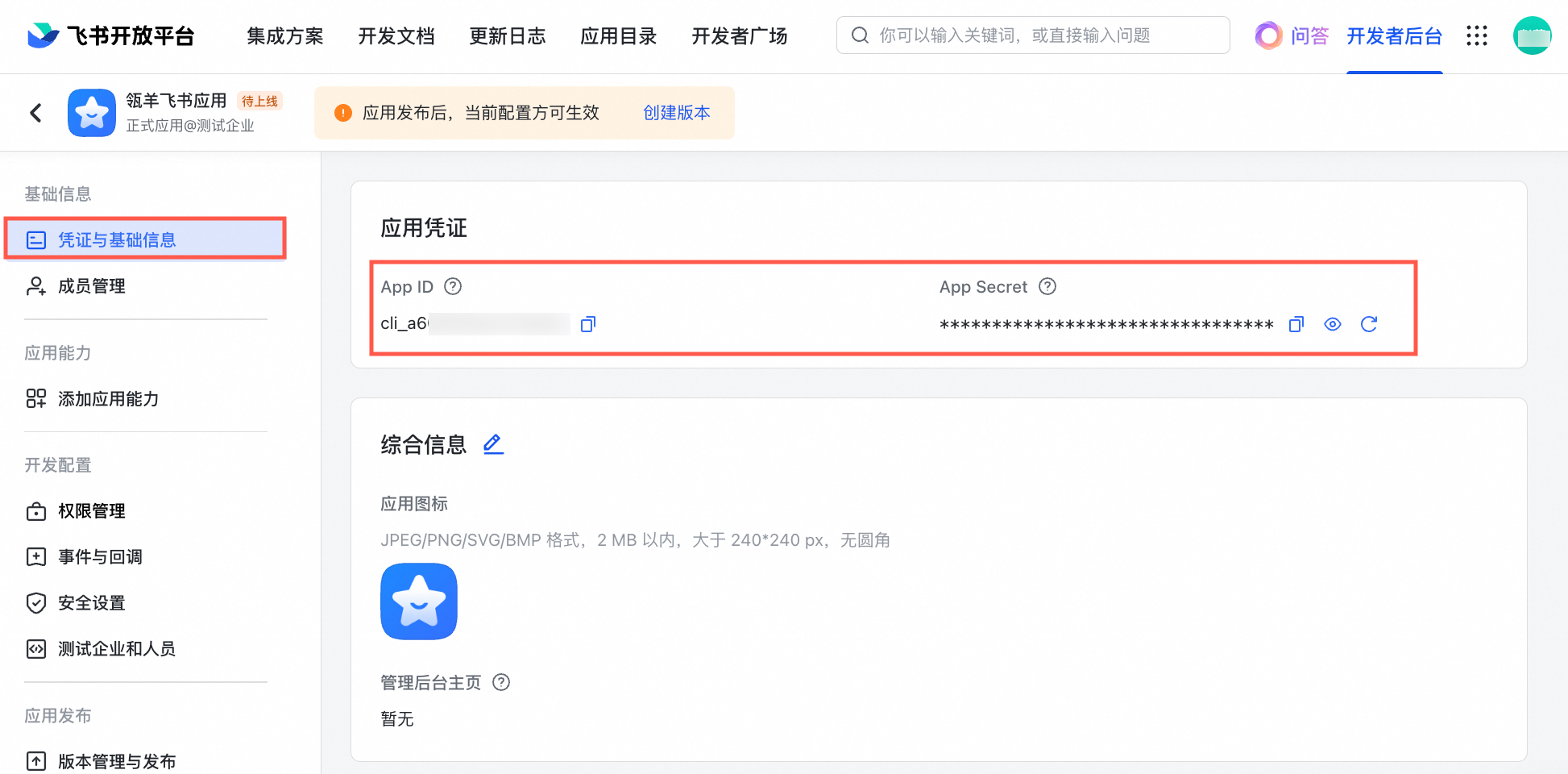
Obtain a Base Link
Log on to Lark Docs. Locate the target Base to connect to Dataphin, then copy and save its share link. Follow these steps.
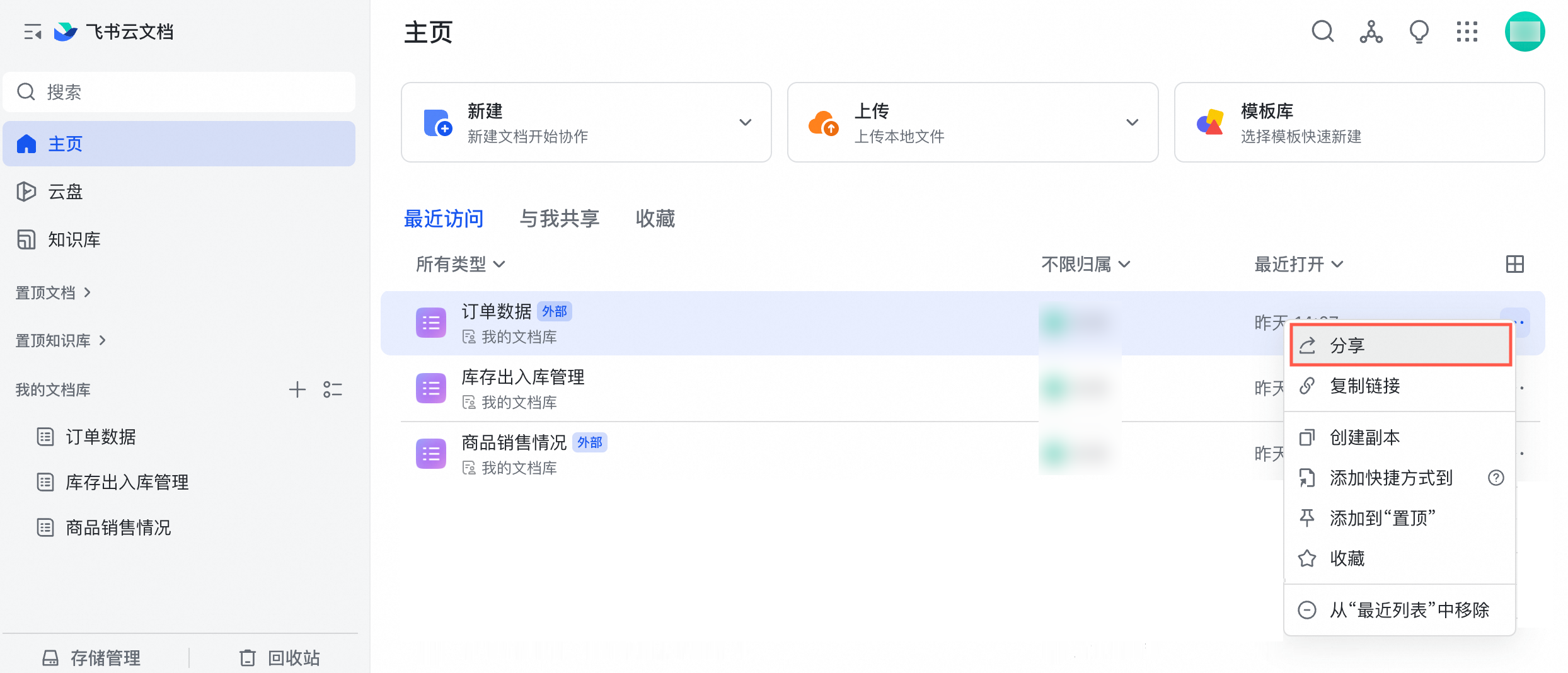
In the Lark Docs document list, locate the target Base to connect to Dataphin. In the Actions column, click Share from the drop-down list.
 Note
NoteThe following limits apply to Lark Base tables connected to Dataphin. Confirm that your table meets these requirements.
A single table page cannot exceed 100 columns or 10,000 rows.
Importing tables that contain attachment, association, or lookup reference field types is not supported. For field types that support import to Dataphin, see the field mapping details table in Lark Base parsing rules.
Formulas inherited from tables are not supported. Only values are retained after import.
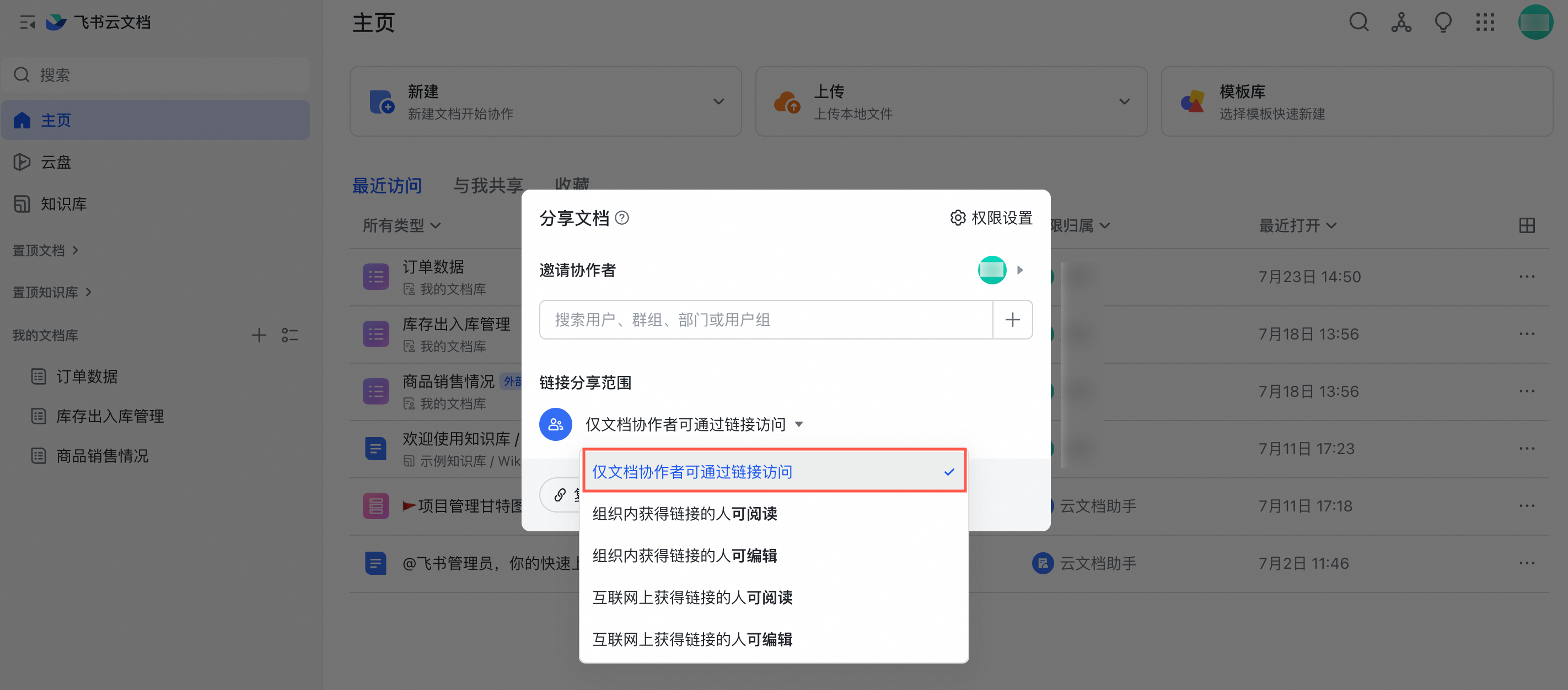
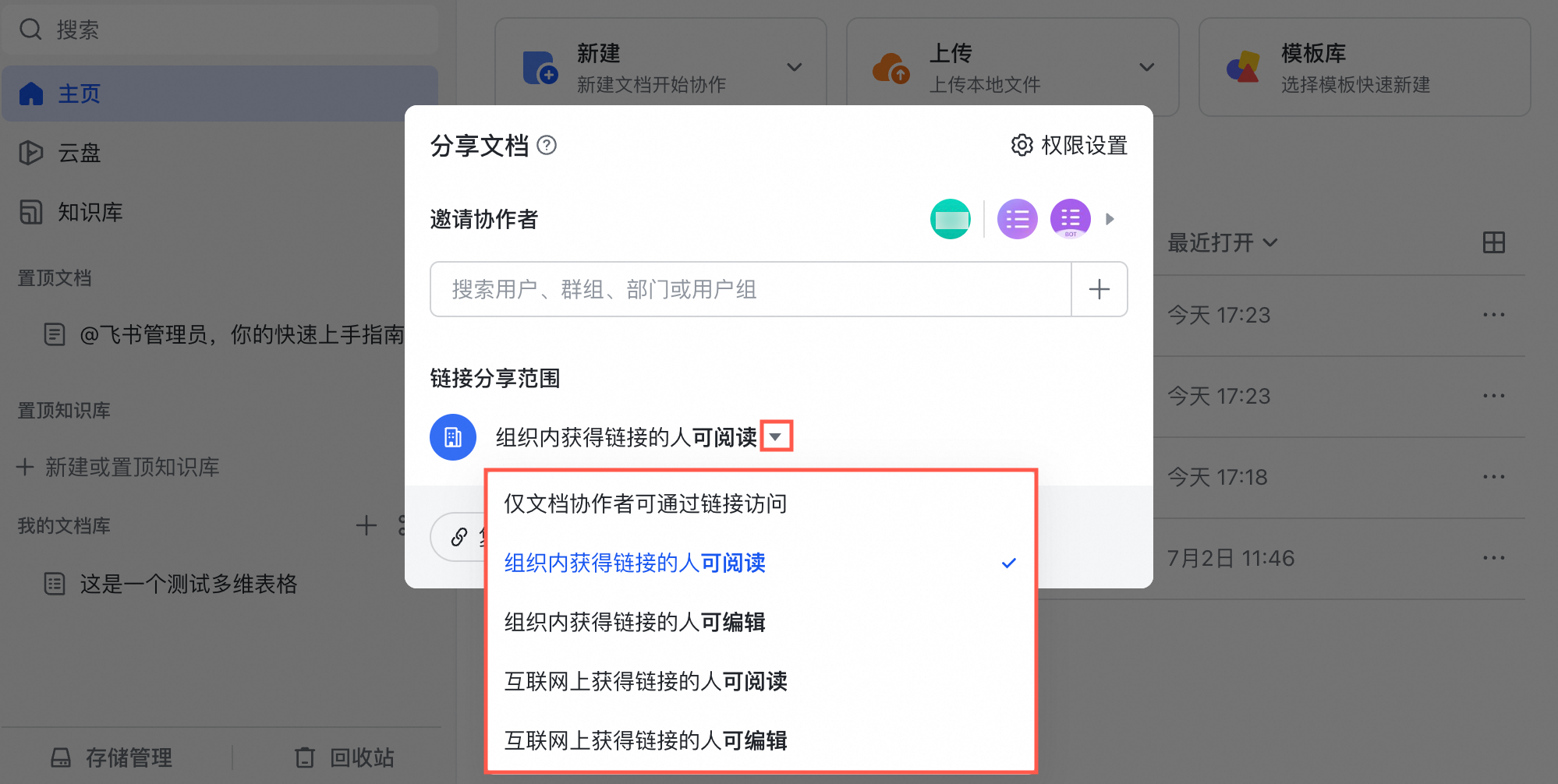
In the Share Document dialog box, set the Link Sharing Scope.
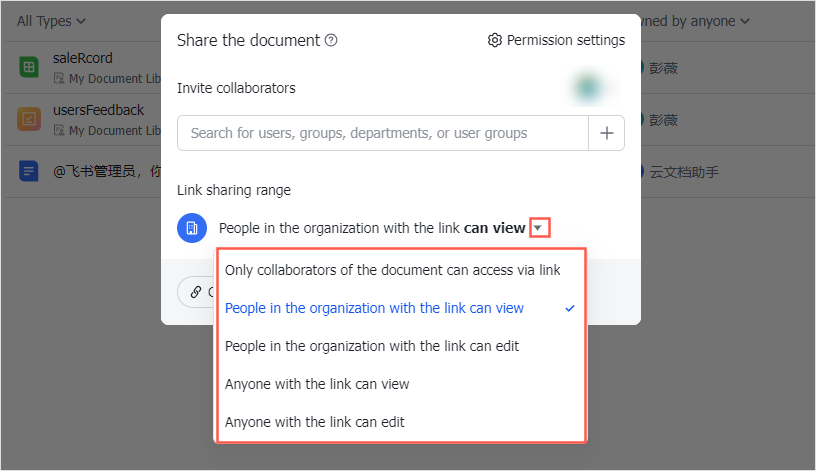
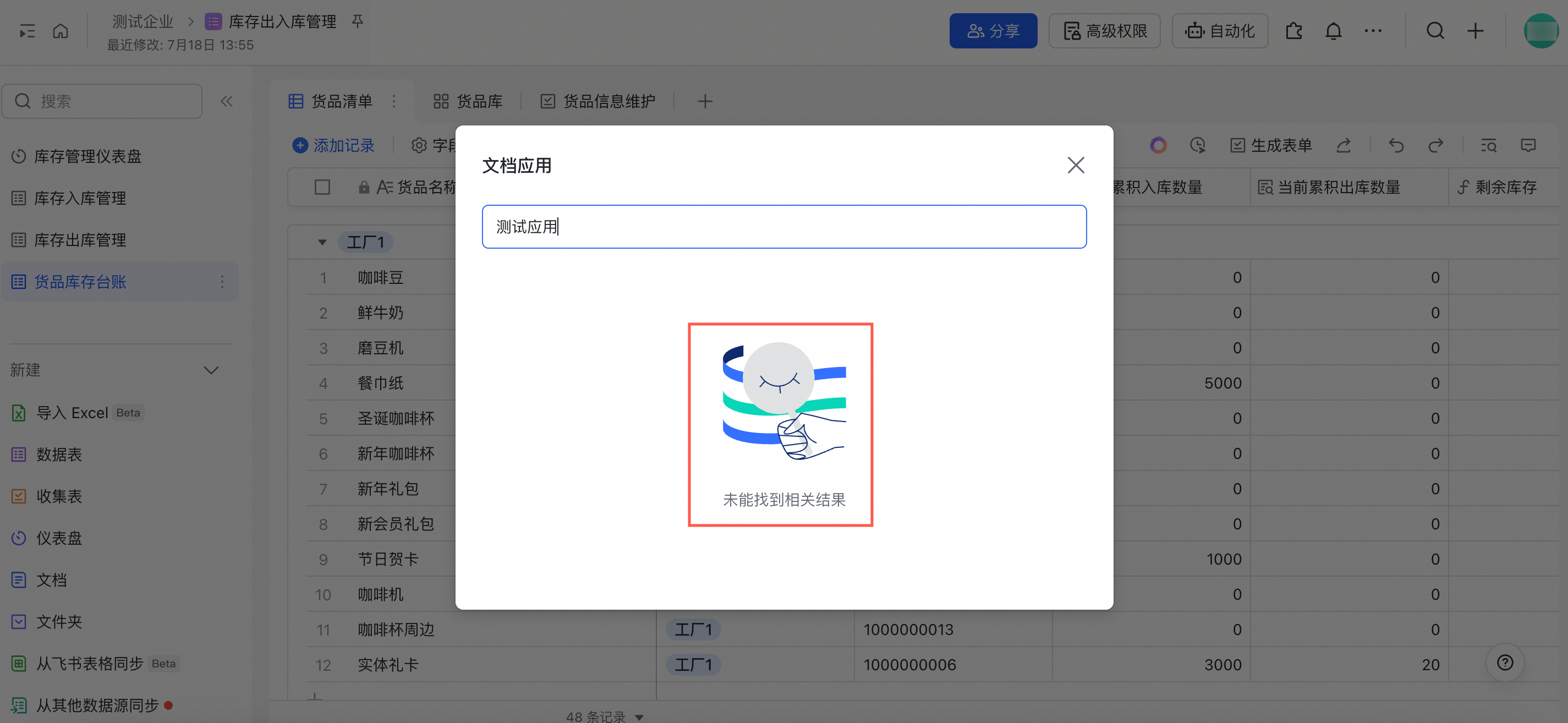
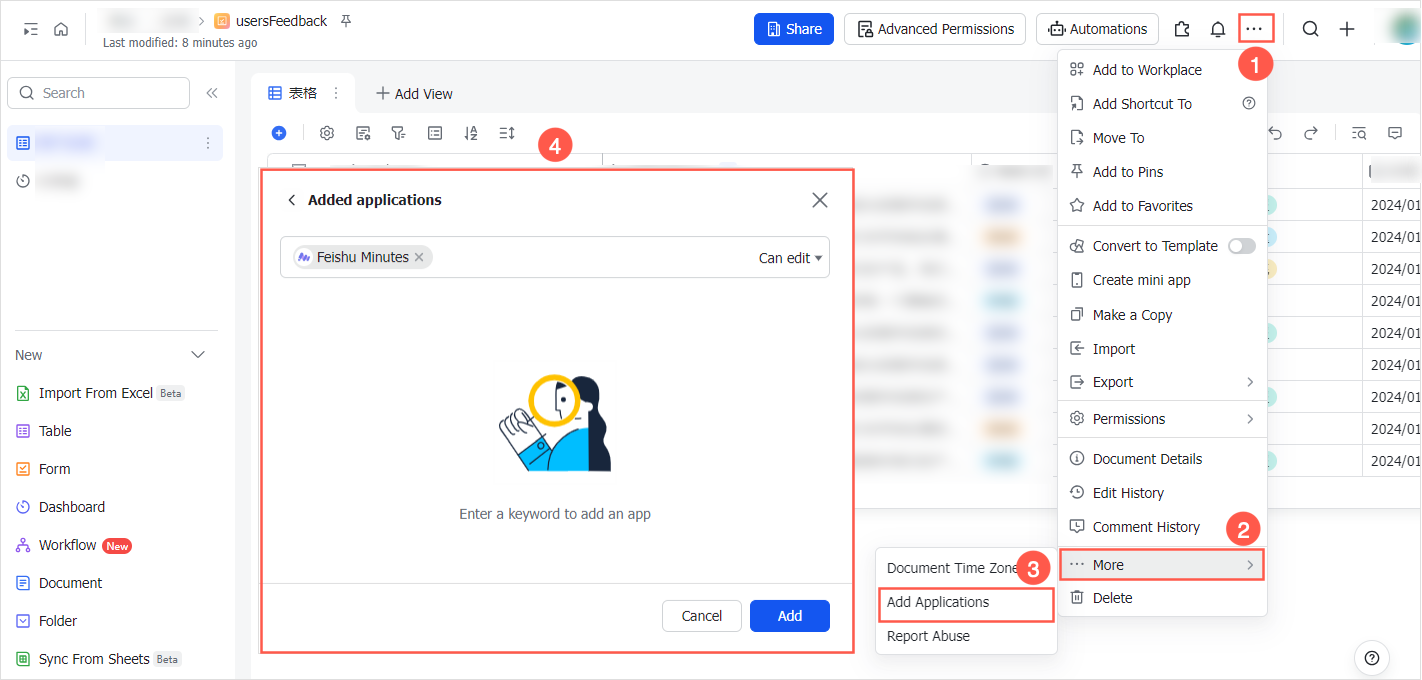
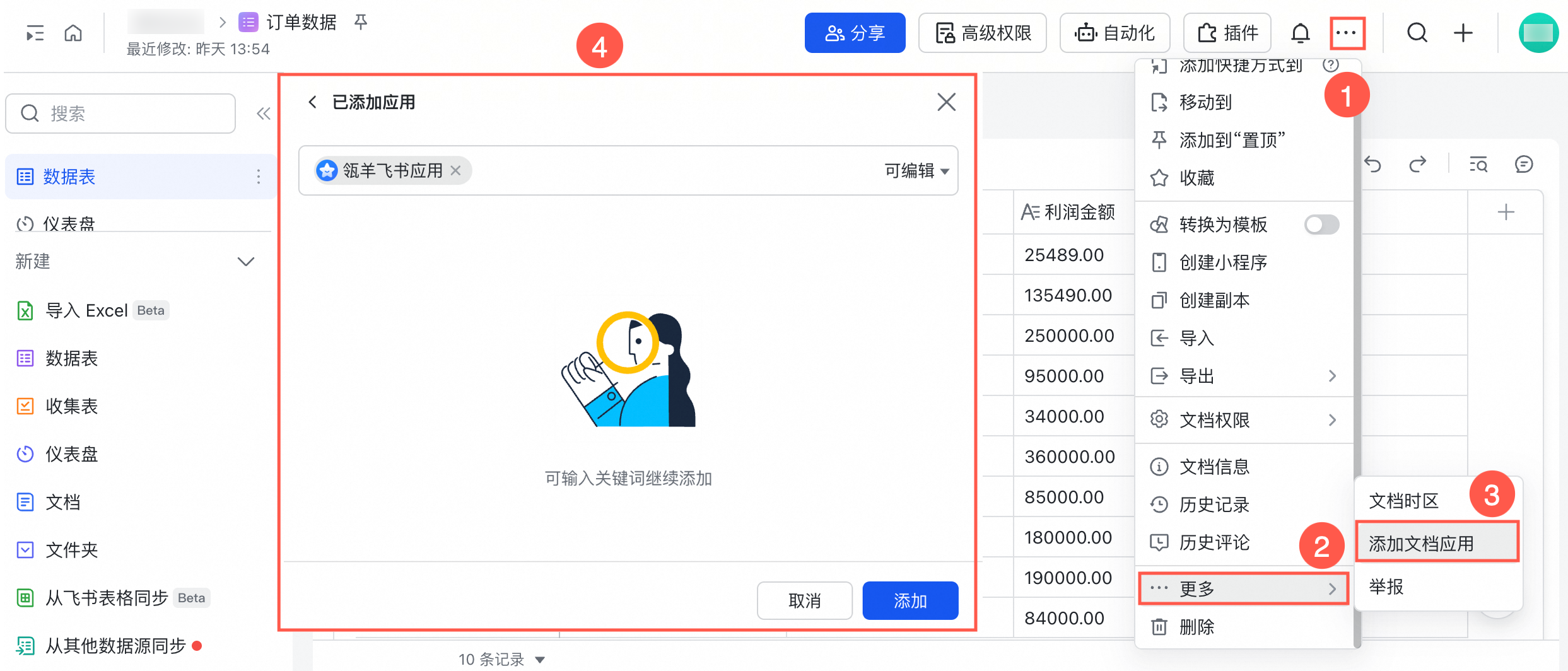
If the link sharing scope is set to Only document collaborators can access via link, add the current custom application to the table’s document applications.
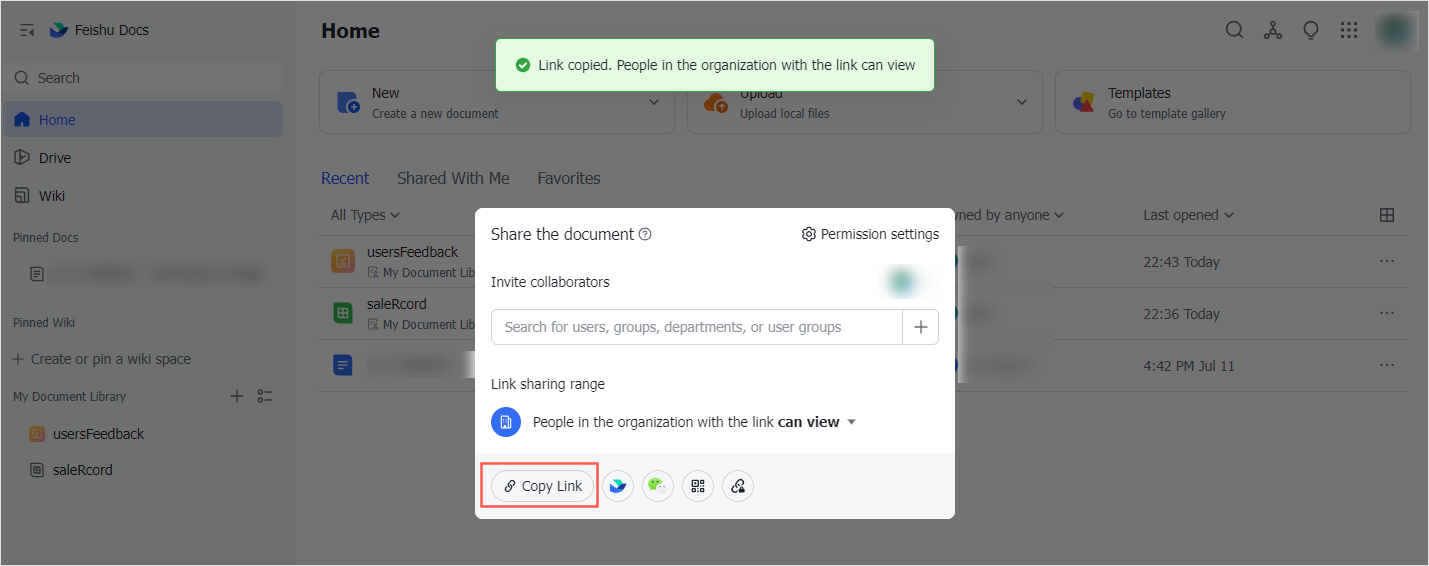
Click the Copy Link button to copy and save the share link of the current table.
Lark Base Parsing Rules
Lark Table Data Type Category | Lark Table Data Type | Mapping Type |
General | Text | String |
Single Select | String | |
Multi-Select | String | |
Personnel | String | |
Audience Group | Not supported | |
Date | Date | |
Attachment | Not supported | |
Number | Long | |
Check Box | Boolean | |
Hyperlink | String | |
Formula | String | |
Lookup Reference | Not supported | |
Business | Flow | Not supported |
Button | Not supported | |
Auto-Number | Long | |
Phone Number | String | |
String | ||
Geolocation | String | |
Bar Code | String | |
Progress | Double | |
Currency | Double | |
Rating | Long | |
Advanced | Bidirectional Association | Not supported |
Unidirectional Association | Not supported | |
Creator | String | |
Modifier | String | |
Creation Time | Date | |
Last Update Time | Date | |
Extendable Fields for Personnel | Department | String |
Direct Supervisor | String | |
Employee ID | String | |
Position | String | |
Personnel Type | String | |
Work Mailbox | String |
FAQ
If a connection failure occurs when connecting to Lark Base, check for the following issues:
Error Cause | Solution |
During Add Lark Application Authorization, the AppKey and AppSecret information is incorrect. | Log on to the Lark developer backend to re-obtain the correct AppKey and AppSecret for the authorized application. |
The required API permissions are not enabled for the custom Lark application on the Permission Management page of the Lark developer backend. | Enable the following API permissions:
|
If the link sharing scope of Lark Base is Only document collaborators can access via link, the corresponding custom enterprise application is not added as a document application. | On the Lark Base document editing page, add the corresponding custom enterprise application as a document application. The procedure is shown in the following figure. |
If the link sharing scope of Lark Base is Only document collaborators can access via link, you cannot select the corresponding custom application as a document application on the document editing page, which causes the document application to fail to be added. | The current account can add the corresponding custom enterprise application to the document only if the current account is included in the Available Scope specified in the version details when the application version is created. |
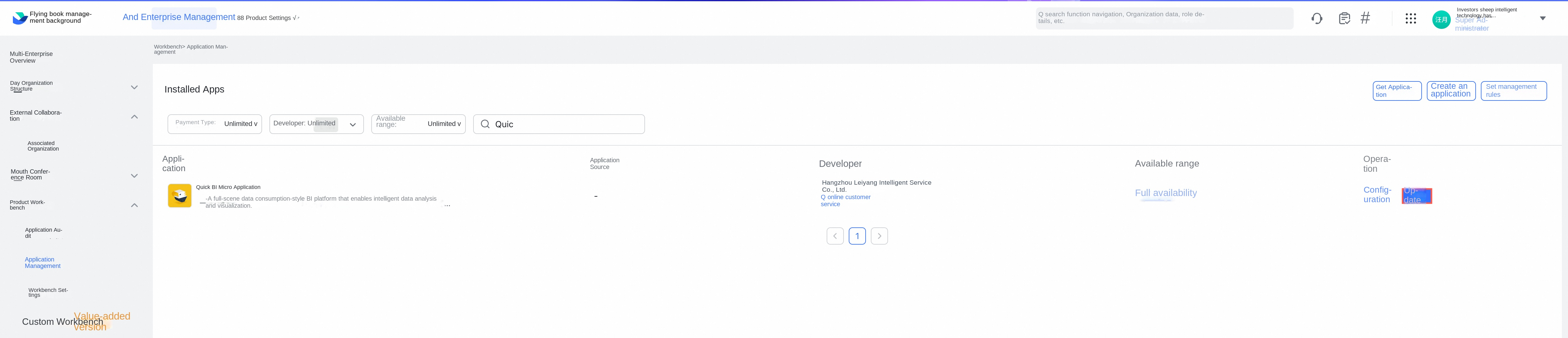
If you use the application information connected by default by the system, the third-party application might not be updated to the latest version. | Go to the Lark management backend to update the application version. |