Dify (Define + Modify) is an open-source large language model (LLM) application development platform for building retrieval-augmented generation (RAG) and agent applications. PolarSearch integrates with Dify as a vector database backend, letting you store and query vector embeddings at scale without managing separate infrastructure.
This tutorial walks you through the full integration: provisioning a PolarSearch cluster, deploying Dify with PolarSearch as its vector database, and creating a knowledge base with verified vector index data.
Prerequisites
PolarSearch is in invitational preview. To get access, join DingTalk group 28655007499.
Before you begin, ensure that you have:
-
A PolarDB for MySQL cluster that meets these requirements:
-
Edition: Enterprise Edition
-
Database engine: MySQL 8.0.1 or MySQL 8.0.2 (minor version is not limited)
-
Cluster type: Cluster Edition
-
Serverless clusters are not supported. For details, see Serverless.
-
Global Database Network (GDN) clusters are not supported. For details, see Global Database Network (GDN).
-
-
Docker and Docker Compose installed on your deployment host
-
An API key for an embedding model (see Get an embedding model API key)
How it works
-
PolarSearch stores vector embeddings generated from your documents.
-
Dify (self-hosted community edition) handles document ingestion, chunking, and RAG workflows, using PolarSearch as its vector database.
-
When a query arrives, Dify converts it to a vector using your embedding model, then retrieves semantically similar chunks from PolarSearch.
PolarSearch is built on OpenSearch, so Dify connects to it using the OpenSearch integration.
Set up PolarSearch
-
Add a PolarSearch search node and create a search node administrator account.
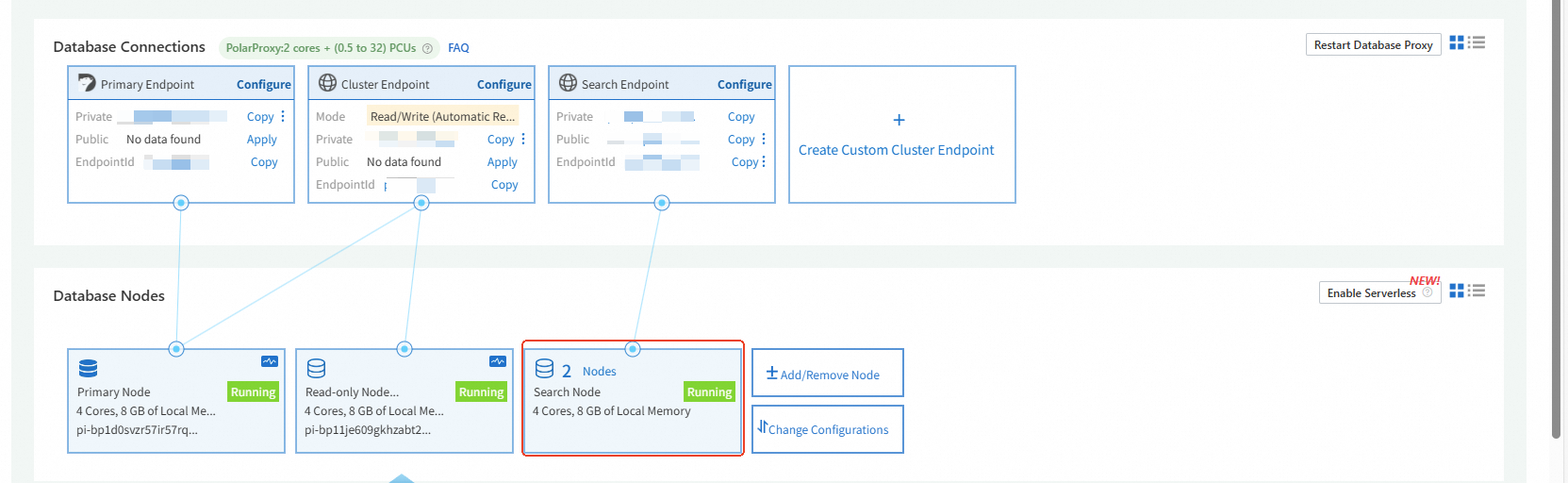
-
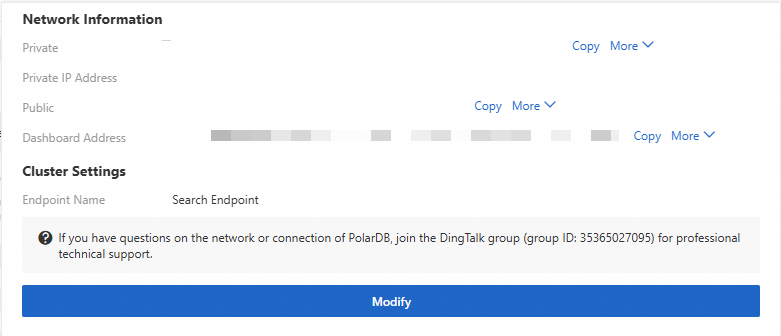
Note the connection information and dashboard address for PolarSearch — you will use them when configuring Dify.
Get an embedding model API key
Dify needs an embedding model to convert document text into vectors. Alibaba Cloud Model Studio and other providers are supported.
To get an API key from Alibaba Cloud Model Studio, follow Get an API key.

Deploy Dify with PolarSearch
Dify's cloud service uses Weaviate as its default vector database and does not support swapping it out. To use PolarSearch, deploy the self-hosted community edition of Dify.
Step 1: Clone and start Dify
Use Docker Compose for a quick deployment. The docker-compose.yaml file is available in the Dify open-source repository.
Step 2: Configure PolarSearch as the vector database
-
Open the
.envconfiguration file.vim .env -
Set the vector database to
opensearch.PolarSearch is built on OpenSearch, so set
VECTOR_STOREtoopensearch— notpolarsearch.VECTOR_STORE=opensearch -
Add the PolarSearch connection parameters.
# OpenSearch configuration, only available when VECTOR_STORE is `opensearch`
OPENSEARCH_HOST=<host>public.polardbsearch.rds.aliyuncs.com
OPENSEARCH_PORT=<port>
OPENSEARCH_USER=<search-node-admin-username>
OPENSEARCH_PASSWORD=<search-node-admin-password>
OPENSEARCH_SECURE=false
Replace each placeholder with the connection details from your PolarSearch dashboard.
Step 3: Start the containers
docker compose up -dConfigure model providers
Dify integrates with major model providers. Before building a knowledge base, configure the API key for your embedding model provider.
The following steps use Qwen as an example:
-
Log in to the Dify management console.
-
Click your profile picture and select Settings.
-
On the Workspace page, select Model Providers.
-
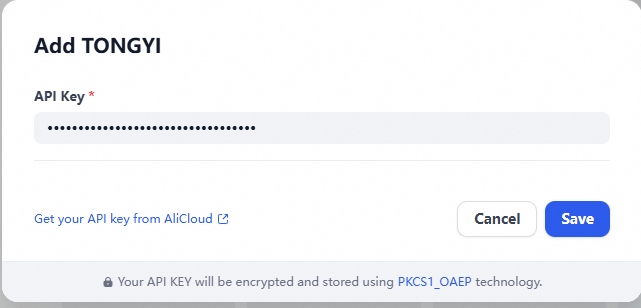
In the Models list, find Qwen and click Set.
-
Enter your API key.
Create a knowledge base
Import and process documents
-
In the top navigation bar, select Knowledge Base, then click
 to create a knowledge base.
 -
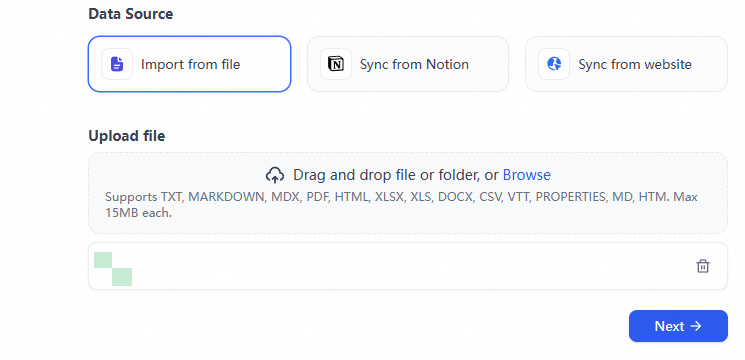
Import your text data.
-
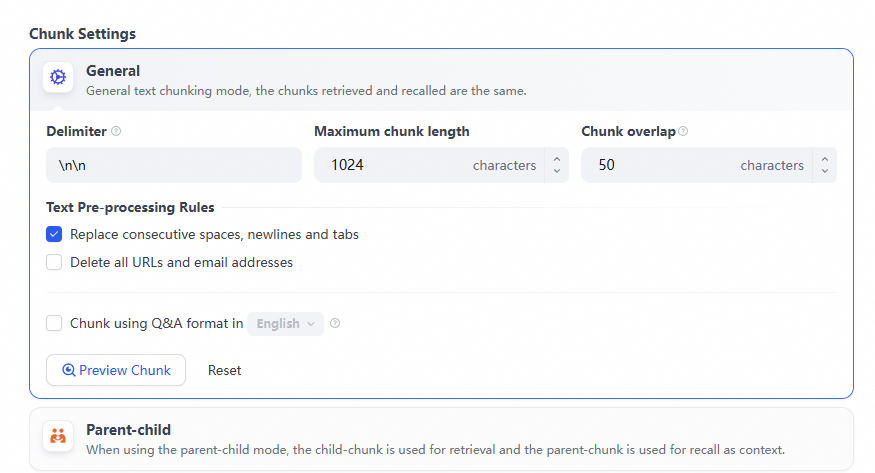
Specify the text pre-processing rules.
-
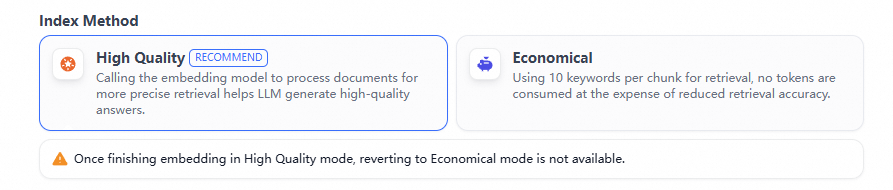
Specify the index method.
-
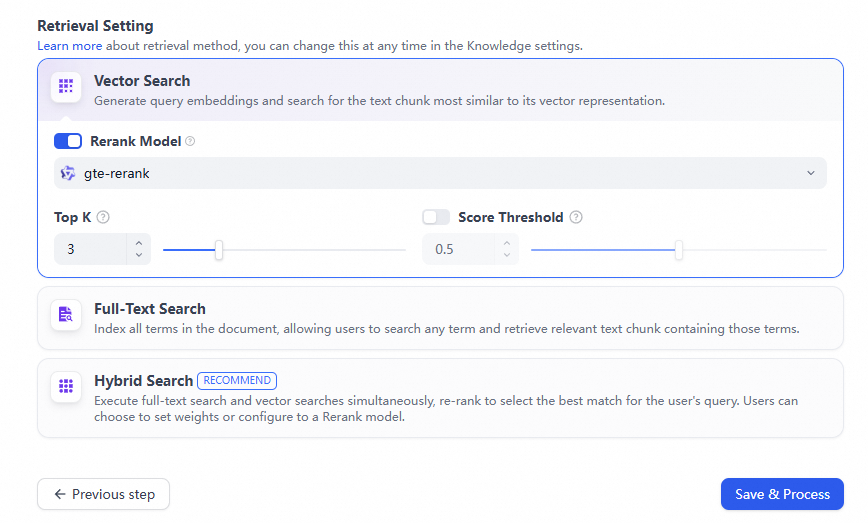
Configure the retrieval settings, then click Save & Process.
-
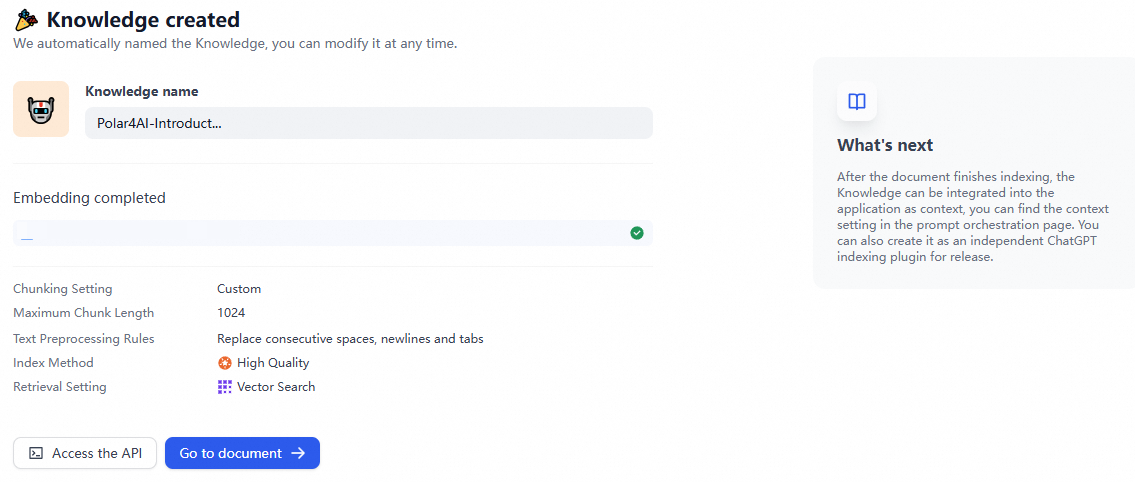
After processing completes, click Go to document ->.
Verify vector index data in PolarSearch
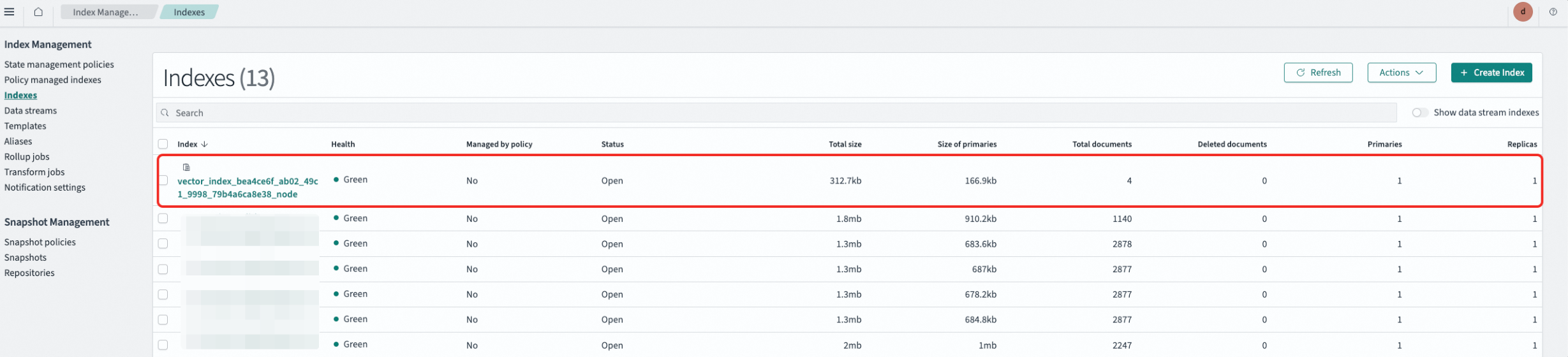
After Dify finishes processing, confirm that the vector index was written to PolarSearch.
-
In the PolarSearch dashboard, click
 , select Index Management, then click Indexes to view the vector index.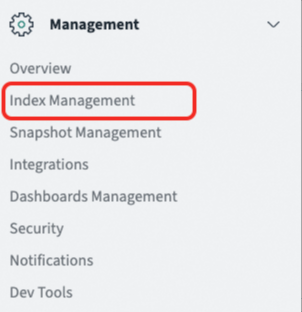
-
Click
 in the upper-left corner to return to the home page, then click Interact with the OpenSearch API.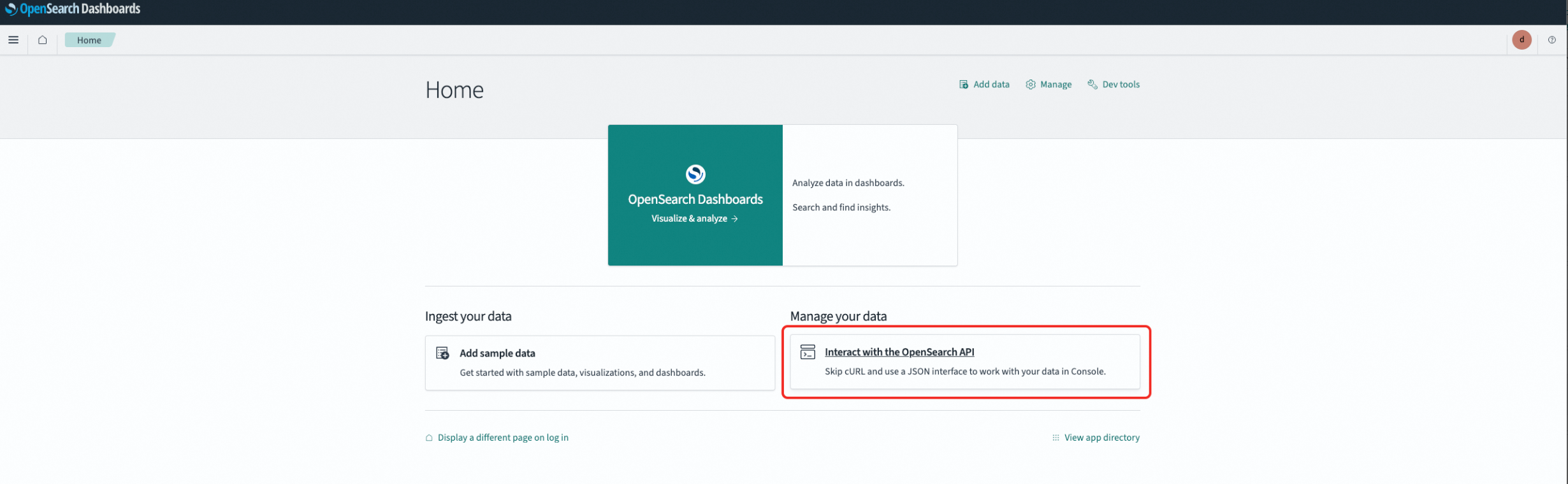
-
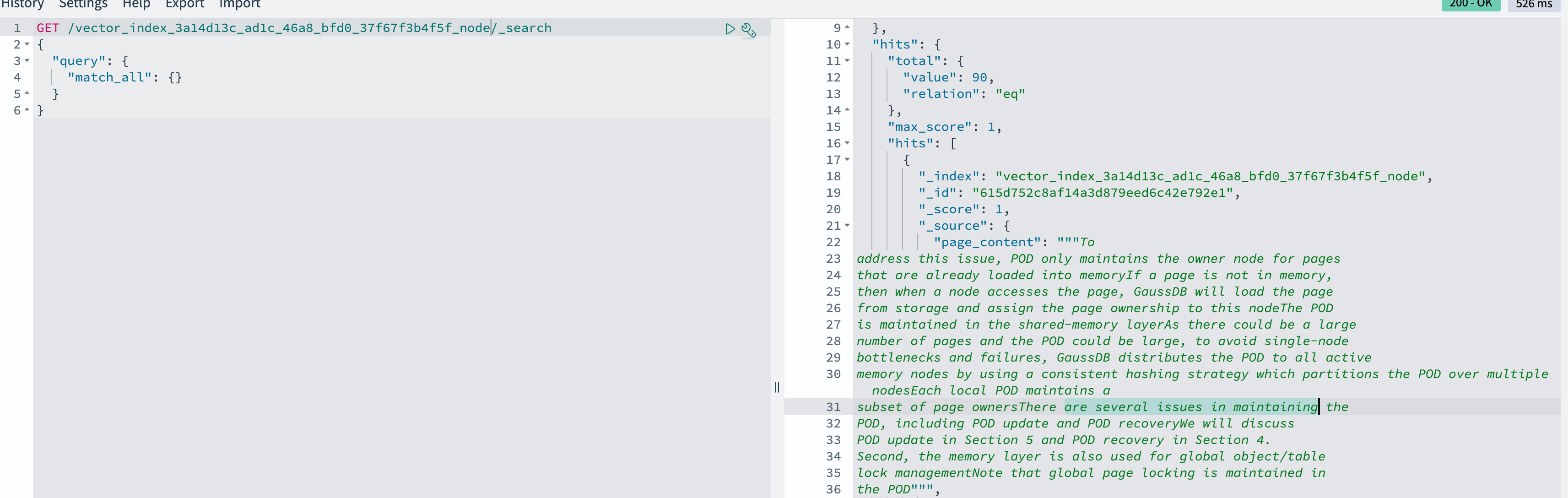
Query the vector index to confirm the data was written successfully.
What's next
With your knowledge base set up, you can:
-
Build a RAG application in Dify that queries the knowledge base to answer user questions
-
Add more documents to the knowledge base and monitor vector index updates in PolarSearch
-
Explore agent workflows in Dify that combine knowledge base retrieval with other tools