As Large Language Models (LLMs) become more widespread, enterprises are increasingly adopting this technology to enhance their business capabilities. Consequently, securely managing models and user data has become critically important. This document describes how to build a measurement-enabled LLM inference environment on a heterogeneous confidential computing instance.
Background information
Alibaba Cloud heterogeneous confidential computing instances (gn8v-tee) extend the capabilities of CPU-based TDX confidential computing by integrating a GPU into the Trusted Execution Environment (TEE). This integration protects data in transit between the CPU and GPU, and data processed within the GPU. This document provides a solution for integrating Intel TDX security measurements and remote attestation features into an LLM inference service. This approach establishes a robust security and privacy workflow for the LLM service, ensuring the security and integrity of the model and user data throughout the service lifecycle by preventing unauthorized access.
This solution is guided by two core design principles:
Confidentiality: Ensures that model and user data are processed only within the instance's confidential security boundary, preventing any external exposure of plaintext data.
Integrity: Guarantees that all components within the LLM inference service environment (including the inference framework, model files, and interactive interface) are tamper-proof. This also supports a rigorous third-party audit and verification process.
Technical architecture
The following diagram shows the overall technical architecture of this solution on Alibaba Cloud.

The components in this architecture are described below.
Client
This is the user interface (UI) through which end-users access the LLM service. The client initiates sessions, verifies the remote service's trustworthiness, and communicates securely with the backend.
Remote attestation service
Based on the Alibaba Cloud remote attestation service, this component verifies the security state of the model inference service environment. This includes the platform's Trusted Computing Base (TCB) and the inference model service environment itself.
Inference service components
Ollama: A model service framework that handles inference service requests. This solution uses version
v0.5.7.DeepSeek model: This solution uses the distilled version of DeepSeek-R1-70B (int4 quantized).
Open WebUI: A web-based interactive interface that runs inside the confidential VM and receives user model service requests through a RESTful API. This solution uses version
v0.5.20.CCZoo open-source project: This solution uses the Confidential AI source code from this project, specifically version
v1.2. For more information about this project, see CCZoo.
Confidential Computing Zoo (CCZoo) is a collection of security solutions for cloud computing scenarios, designed to help developers build their own end-to-end confidential computing solutions more easily. Its security technologies include Trusted Execution Environments (TEEs) such as Intel® SGX and TDX, Homomorphic Encryption (HE) and its hardware acceleration, remote attestation, LibOS, and cryptography with hardware acceleration. Its business scenarios cover cloud-native AI inference, federated learning, big data analytics, key management, and Remote Procedure Calls (RPCs) such as gRPC.
Workflow
The specific workflow of this solution is as follows.
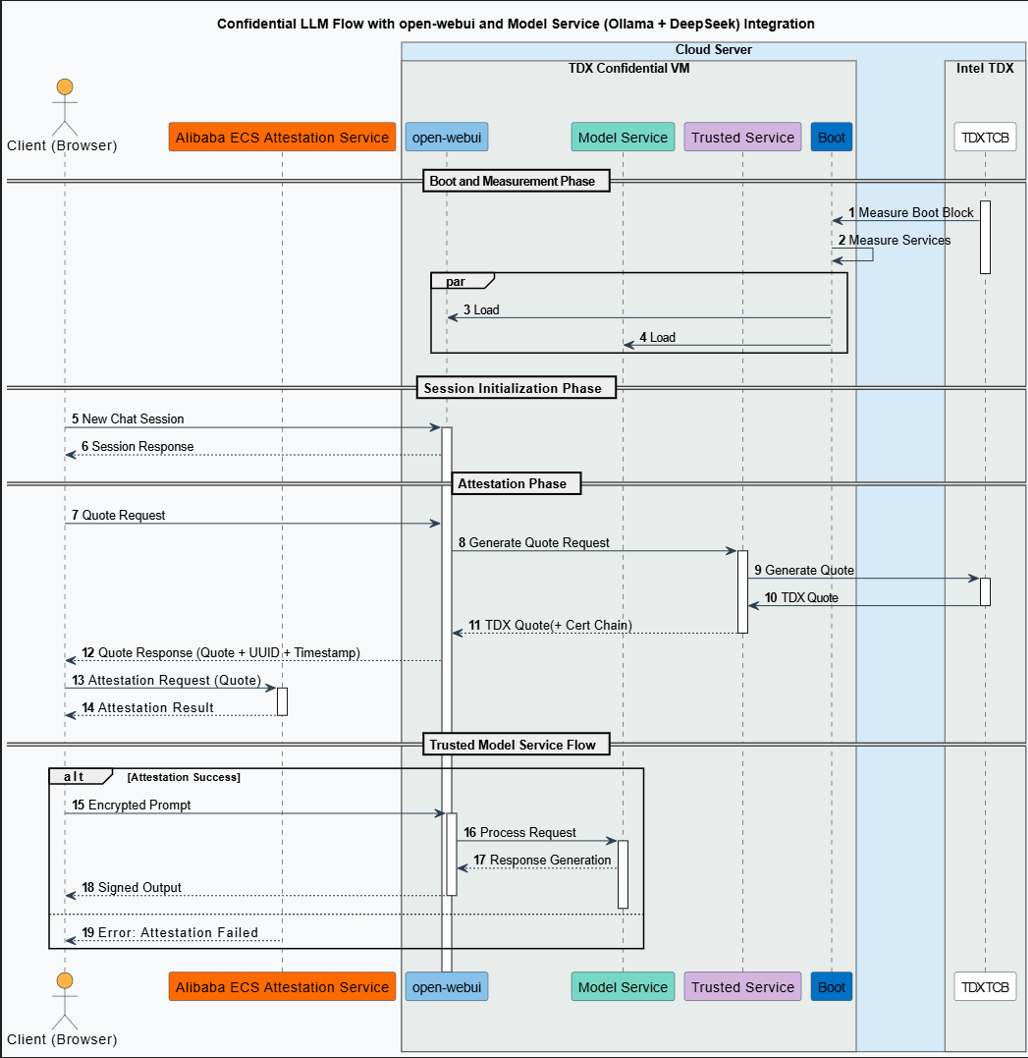
Service startup and measurement
The platform's TCB module performs an integrity measurement of the model service's runtime environment. The measurement result is stored in the TDX Module, which is located within the TCB.
Inference session initialization
The client (browser) initiates a new session request to Open WebUI.
Remote attestation
Attestation request: When the client initiates a session, it also requests a TDX Quote. This Quote serves as proof of the trustworthiness of the model's runtime environment and is used to verify the remote service environment, including the user session management service (Open WebUI) and the model service (Ollama + DeepSeek).
Quote generation: The Open WebUI backend forwards the attestation request to the Intel TDX-based Confidential VM. Inside the VM, a TDX Quote, which includes a complete certificate chain, is generated by the CPU hardware.
Quote verification: The client submits the received Quote to the remote attestation service for verification. The service validates the Quote's authenticity by checking its digital signature, certificate chain, and security policy. It then returns a result confirming the security and integrity of the remote model service environment.
Confidential LLM inference service
Attestation success: The client can fully trust the remote model service because it runs in a highly secure and trusted mode. This assurance means the end-user faces an extremely low risk of data leakage, although no system is entirely risk-free.
Attestation failure: The attestation service returns an error, indicating that the remote attestation failed. The user or system can choose to abort subsequent service requests. Alternatively, the service can continue after a warning is issued about the potential security risks. However, the remote model service may be exposed to data security risks.
Procedure
Step 1: Create a heterogeneous confidential computing instance
Model data downloaded by Ollama is saved to the /usr/share/ollama/.ollama/models directory. Because model files are typically large (for example, the DeepSeek-R1 70b quantized model is approximately 40 GB), consider the size of the models you plan to run when creating the instance and select an appropriate Cloud Disk capacity. A capacity two to three times the size of the model file is recommended.
Console
The steps to create an instance with heterogeneous confidential computing features in the console are similar to creating a regular instance. However, you must select specific options. This section highlights the specific configurations for heterogeneous confidential computing instances. For information about other general configurations, see Create an instance using the wizard.
Go to ECS console - Instances.
In the top navigation bar, select the region and resource group of the resource that you want to manage.

Click Create Instance and configure the instance with the following settings.
Configuration Item
Description
Region and Zone
China (Beijing) Zone L
Instance Type
Only ecs.gn8v-tee.4xlarge and higher instance types are supported.
Image
Select the Alibaba Cloud Linux 3.2104 LTS 64-bit image.
Public IP Address
Assign Public IPv4 Address. This ensures that you can download the driver from the official NVIDIA website later.
ImportantWhen you create an 8-GPU confidential instance, do not add extra secondary elastic network interfaces (ENIs). Doing so may prevent the instance from starting.
Follow the on-screen instructions to complete the instance creation.
API/CLI
You can call the RunInstances operation or use the Alibaba Cloud CLI to create an ECS instance that supports TDX security attributes. The following table describes the required parameters.
Parameter | Description | Example |
RegionId | China (Beijing) | cn-beijing |
ZoneId | Zone L | cn-beijing-l |
InstanceType | Select ecs.gn8v-tee.4xlarge or a larger instance type. | ecs.gn8v-tee.4xlarge |
ImageId | Specify the ID of an image that supports confidential computing. Only 64-bit Alibaba Cloud Linux 3.2104 LTS images with a kernel version of 5.10.134-18.al8.x86_64 or later are supported. | aliyun_3_x64_20G_alibase_20250117.vhd |
CLI example:
In the command,<SECURITY_GROUP_ID>represents the security group ID,<VSWITCH_ID>represents the vSwitch ID, and<KEY_PAIR_NAME>represents the SSH key pair name.
aliyun ecs RunInstances \
  --RegionId cn-beijing \
  --ZoneId cn-beijing-l \
  --SystemDisk.Category cloud_essd \
  --ImageId 'aliyun_3_x64_20G_alibase_20250117.vhd' \
  --InstanceType 'ecs.gn8v-tee.4xlarge' \
  --SecurityGroupId '<SECURITY_GROUP_ID>' \
  --VSwitchId '<VSWITCH_ID>' \
  --KeyPairName <KEY_PAIR_NAME>
Step 2: Build the TDX remote attestation environment
TDX Report is a data structure that is generated by CPU hardware to represent the identities of TDX-enabled instances. TDX Report includes critical information about TDX-enabled instances, such as attributes (ATTRIBUTES), runtime-extendable measurement registers (RTMR), and trusted-computing base (TCB) security-version number (SVN). TDX Report uses cryptographic methods to ensure information integrity. For more information, see Intel TDX Module.
Import the YUM software repository for Alibaba Cloud confidential computing.
The public URLs of the YUM software repository are in the following format:
https://enclave-[Region-ID].oss-[Region-ID].aliyuncs.com/repo/alinux/enclave-expr.repo.The internal URLs of the YUM software repository are in the following format:
https://enclave-[Region-ID].oss-[Region-ID]-internal.aliyuncs.com/repo/alinux/enclave-expr.repo.
Replace [Region-ID] in the preceding URLs with the actual region ID of the TDX-enabled instance. You can only create a TDX-enabled instance in the China (Beijing) region. To import the YUM software repository from an internal URL that is specific to the China (Beijing) region, run the following commands:
region="cn-beijing"

sudo yum install -y yum-utils
sudo yum-config-manager --add-repo https://enclave-${region}.oss-${region}-internal.aliyuncs.com/repo/alinux/enclave-expr.repo
Install a compilation tool and sample code.
sudo yum groupinstall -y "Development Tools"
sudo yum install -y sgxsdk libtdx-attest-devel
Configure the Alibaba Cloud TDX remote attestation service.
Specify the
PCCS_URLparameter in the/etc/sgx_default_qcnl.conffile. You can only specify the PCCS_URL parameter to point to the Distributed Cooperative Access Points (DCAP) service in the China (Beijing) region.sudo sed -i.$(date "+%m%d%y") 's|PCCS_URL=.*|PCCS_URL=https://sgx-dcap-server.cn-beijing.aliyuncs.com/sgx/certification/v4/|' /etc/sgx_default_qcnl.conf
Step 3: Install Ollama
Run the following command to install Ollama.
curl -fsSL https://ollama.com/install.sh | shNoteThe script above is the official installation script provided by Ollama. If the installation fails due to network issues, you can refer to the official Ollama website and choose an alternative installation method. For details, see the Ollama installation guide.
Step 4: Download and run DeepSeek-R1 using Ollama
Because model files are large and can be time-consuming to download, use the tmux tool to maintain your session and prevent the download from being interrupted.
Install the tmux tool.
Run the following command to install
tmux.sudo yum install -y tmuxDownload and run DeepSeek-R1 using Ollama.
Run the following commands to create a
tmuxsession and then download and run the DeepSeek-R1 model within that session.# Create a tmux session named run-deepseek tmux new -s "run-deepseek" # Download and run the deepseek-r1 model in the tmux session ollama run deepseek-r1:70bThe following output indicates that the model has been downloaded and started successfully. You can enter
/byeto exit the interactive model session....... verifying sha256 digest writing manifest success >>> >>> Send a message (/? for help)(Optional) Reconnect to the tmux session.
If you need to reconnect to the
tmuxsession after a network disconnection, run the following command.tmux attach -t run-deepseek
Step 5: Compile Open WebUI
To enable TDX security measurement in Open WebUI, download the TDX plugin and compile Open WebUI from source.
The following examples use /home/ecs-user as the working directory. Replace it with your actual working directory.
Install the required dependencies and environment
Install Node.js.
Run the following command to install Node.js.
sudo yum install -y nodejsNoteIf you encounter issues installing Node.js with the package manager, try using nvm (Node Version Manager) to install a specific version of Node.js.
# Download and install nvm
curl -o- https://raw.githubusercontent.com/nvm-sh/nvm/v0.39.0/install.sh | bash
# Load the nvm environment variables
source ~/.bashrc
# Install Node.js version 20.18.1
nvm install 20.18.1
# Use this version
nvm use 20.18.1
# Verify the version
node --version
Install Miniforge3 and configure its environment variables.
Run the following commands to install Miniforge3 and configure its environment variables to manage the open-webui virtual environment.
# Get the Miniforge3 installation package
wget https://github.com/conda-forge/miniforge/releases/download/24.11.3-2/Miniforge3-24.11.3-2-Linux-x86_64.sh
# Install miniforge3 non-interactively to the /home/ecs-user/miniforge3 directory
bash Miniforge3-24.11.3-2-Linux-x86_64.sh -bu -p /home/ecs-user/miniforge3
# Set the environment variable for Miniforge3
export PATH="/home/ecs-user/miniforge3/bin:$PATH"
Initialize Conda and verify its version.
Run the following commands to initialize Conda and verify its version.
# Initialize Conda
conda init
source ~/.bashrc

# Verify the version information
conda --version
Manually compile Open WebUI.
Download the TDX security measurement plugin.
Run the following commands to download the TDX security measurement plugin and switch to the
v1.2branch.cd /home/ecs-user git clone https://github.com/intel/confidential-computing-zoo.git git config --global --add safe.directory /home/ecs-user/confidential-computing-zoo cd confidential-computing-zoo git checkout v1.2Pull the Open WebUI source code.
Run the following commands to pull the Open WebUI source code and switch to the
v0.5.20branch.cd /home/ecs-user git clone https://github.com/open-webui/open-webui.git # Switch to the tag:v0.5.20 branch git config --global --add safe.directory /home/ecs-user/open-webui cd /home/ecs-user/open-webui git checkout v0.5.20 # Merge the patch provided by CCZoo, which adds TDX remote attestation features to open-webui cd /home/ecs-user cp /home/ecs-user/confidential-computing-zoo/cczoo/confidential_ai/open-webui-patch/v0.5.20-feature-cc-tdx-v1.0.patch . git apply --ignore-whitespace --directory=open-webui/ v0.5.20-feature-cc-tdx-v1.0.patchCreate and activate the open-webui environment.
Run the following commands to create and activate the
open-webuienvironment, which will be used to run the compiled Open WebUI.conda create --name open-webui python=3.11 conda activate open-webuiInstall the "Get TDX Quote" plugin.
cd /home/ecs-user/confidential-computing-zoo/cczoo/confidential_ai/tdx_measurement_plugin/
pip install Cython
python setup.py install
After the commands complete, run the following command to verify the installation. If there is no error output, the installation was successful.
python3 -c "import quote_generator"Compile Open WebUI.
# Install dependencies
cd /home/ecs-user/open-webui/
# Configure the npm source
npm config set registry http://registry.npmmirror.com
sudo npm install
# Compile
sudo npm run build
After the compilation is complete, run the following commands to copy the generated
buildfolder to thebackenddirectory and rename it tofrontend.rm -rf ./backend/open_webui/frontend cp -r build ./backend/open_webui/frontendNoteAt this point, the Alibaba Cloud remote attestation service has been successfully configured in the compiled Open WebUI. You can find the relevant configuration information in the
/home/ecs-user/open-webui/external/acs-attest-client/index.jsfile.Configure the Open WebUI backend service startup file.
Run the following commands to configure a startup file for the Open WebUI backend service and grant it executable permissions.
tee /home/ecs-user/open-webui/backend/dev.sh << 'EOF'
#Set the service address and port. The default port is 8080.
PORT="${PORT:-8080}"
uvicorn open_webui.main:app --port $PORT --host 0.0.0.0 --forwarded-allow-ips '*' --reload
EOF

# Add executable permissions to the startup file
chmod +x /home/ecs-user/open-webui/backend/dev.sh
Install the required dependencies for running Open WebUI.
cd /home/ecs-user/open-webui/backend/
pip install -r requirements.txt -U
conda deactivate
Step 6: Run Open WebUI and verify the TDX attestation information
Run the LLM and start the Open WebUI service.
(Optional) If the Ollama service is not running, you can start it by running the following command.
ollama serveRun the following command to run the DeepSeek-R1 model with Ollama.
ollama run deepseek-r1:70bRun the following command to activate the open-webui virtual environment.
conda activate open-webuiRun the following command to start the Open WebUI backend service.
cd /home/ecs-user/open-webui/backend && ./dev.shThe following output indicates that the Open WebUI backend service has started successfully.
......
INFO  [open_webui.env] Embedding model set: sentence-transformers/all-MiniLM-L6-v2
/root/miniforge3/envs/open-webui/lib/python3.12/site-packages/pydub/utils.py:170: RuntimeWarning: Couldn't find ffmpeg or avconv - defaulting to ffmpeg, but may not work
  warn("Couldn't find ffmpeg or avconv - defaulting to ffmpeg, but may not work", RuntimeWarning)
WARNI [langchain_community.utils.user_agent] USER_AGENT environment variable not set, consider setting it to identify your requests.

 ██████╗ ██████╗ ███████╗███╗   ██╗    ██╗    ██╗███████╗██████╗ ██╗   ██╗██╗
██╔═══██╗██╔══██╗██╔════╝████╗  ██║    ██║    ██║██╔════╝██╔══██╗██║   ██║██║
██║   ██║██████╔╝█████╗  ██╔██╗ ██║    ██║ █╗ ██║█████╗  ██████╔╝██║   ██║██║
██║   ██║██╔═══╝ ██╔══╝  ██║╚██╗██║    ██║███╗██║██╔══╝  ██╔══██╗██║   ██║██║
╚██████╔╝██║     ███████╗██║ ╚████║    ╚███╔███╔╝███████╗██████╔╝╚██████╔╝██║
 ═════╝ ╚═╝     ╚══════╝╚═╝  ╚═══╝     ╚══╝╚══╝ ╚══════╝╚═════╝  ╚═════╝ ╚═╝


v0.5.20 - building the best open-source AI user interface.

https://github.com/open-webui/open-webui
Access the Open WebUI service from a browser.
Add a security group rule.
In the security group of your heterogeneous confidential computing instance, add a rule to allow client access to port 8080. For detailed instructions, see Add a security group rule.
Access the Open WebUI service from a browser.
Open a local browser and navigate to the following address:
http://{ip_address}:{port}. Replace the parameters with your specific values.{ip_address}: The public IP address of the instance where Open WebUI is running.
{port}: The default port number is 8080.
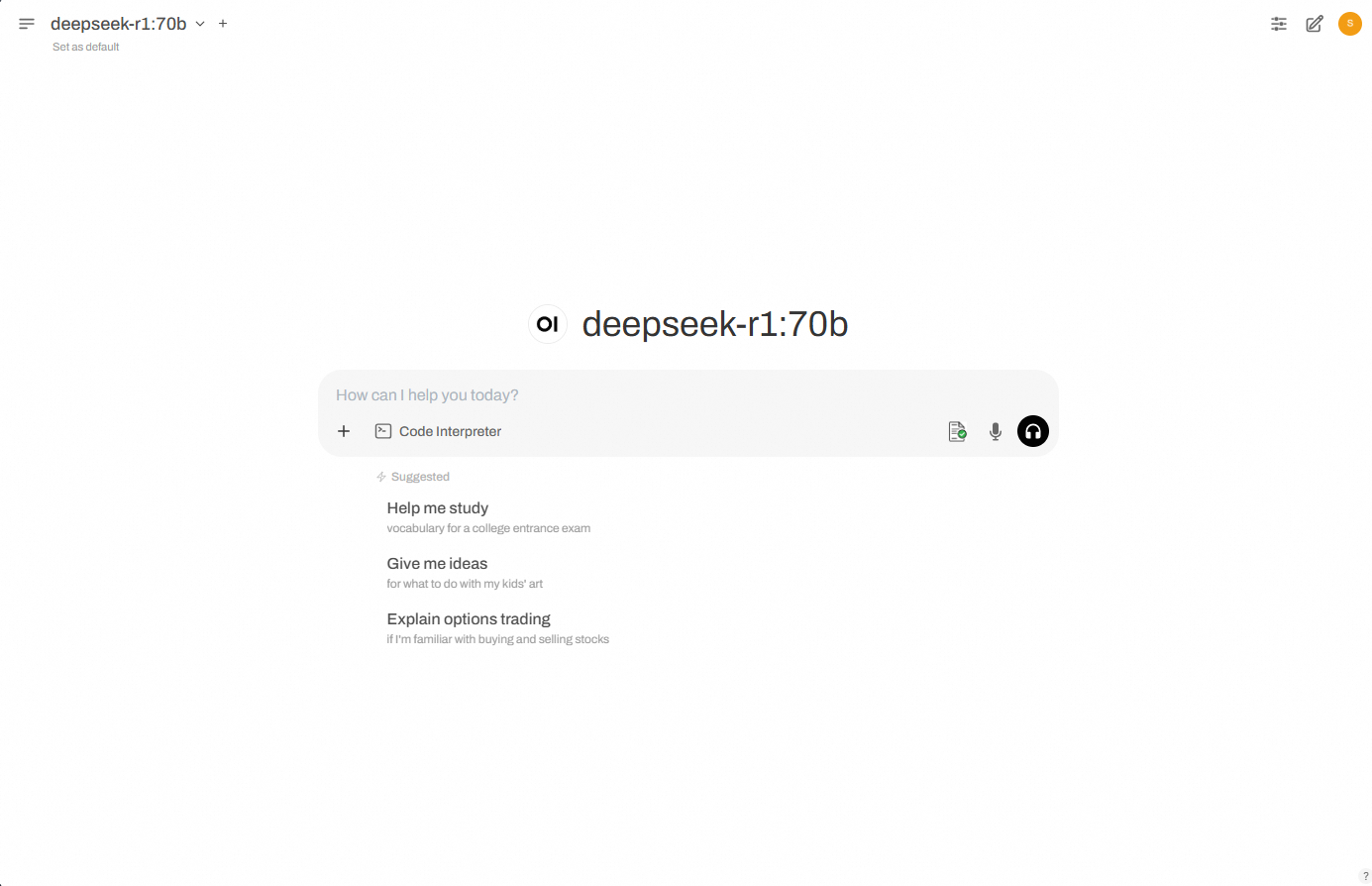
If the remote attestation is successful, a green check mark will appear on the first icon in the dialog box, as shown in the figure below. Otherwise, the icon will be red.
 Note
NoteEach time you click New Chat, the backend fetches the TDX environment's Quote, sends it for remote attestation, and displays the result. The icon is red by default (attestation incomplete or failed) and turns green upon successful attestation.
Verify the TDX attestation information.
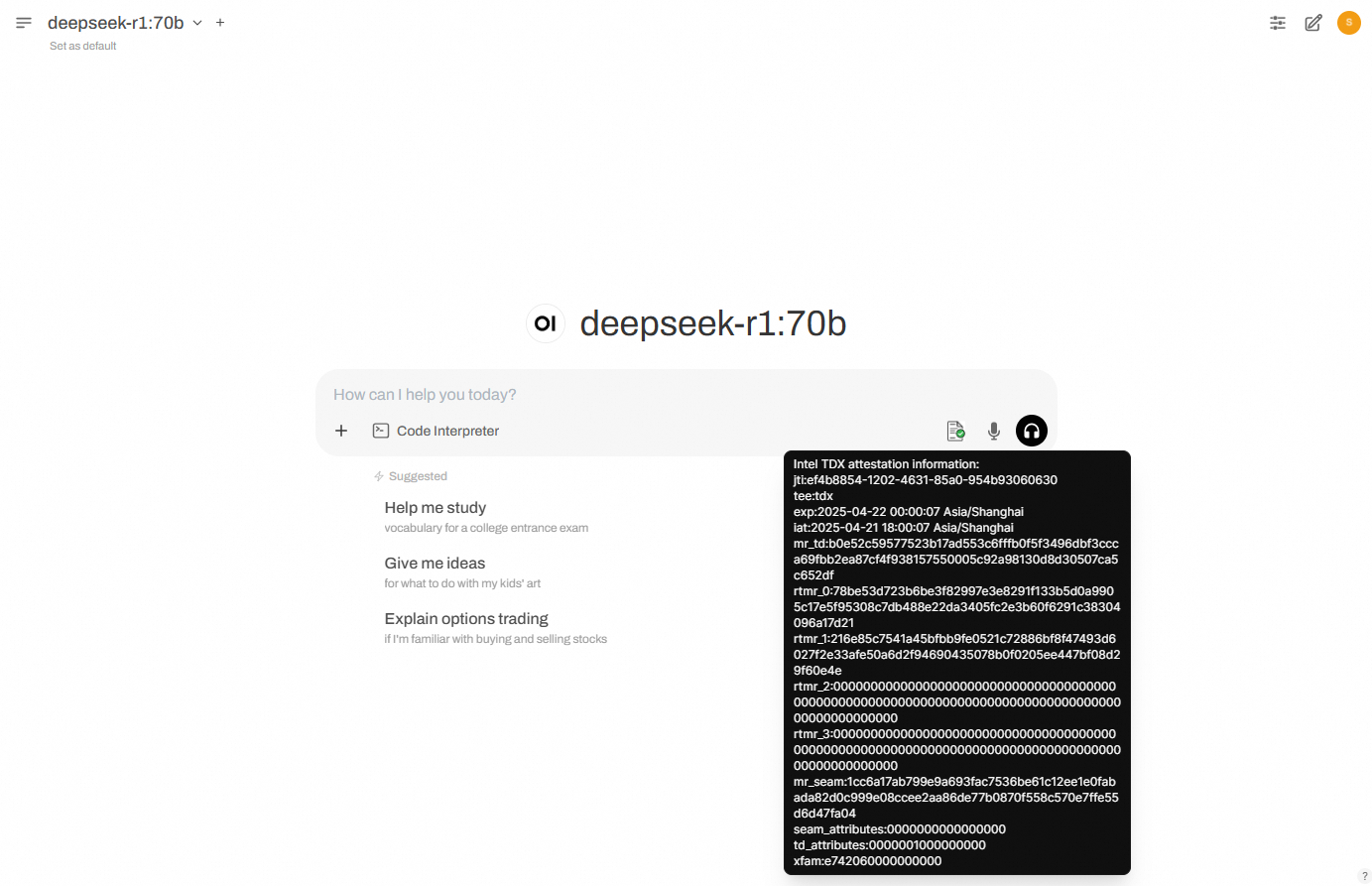
You can hover your mouse over the first icon in the dialog box to see detailed authentication information parsed from the TDX Quote.
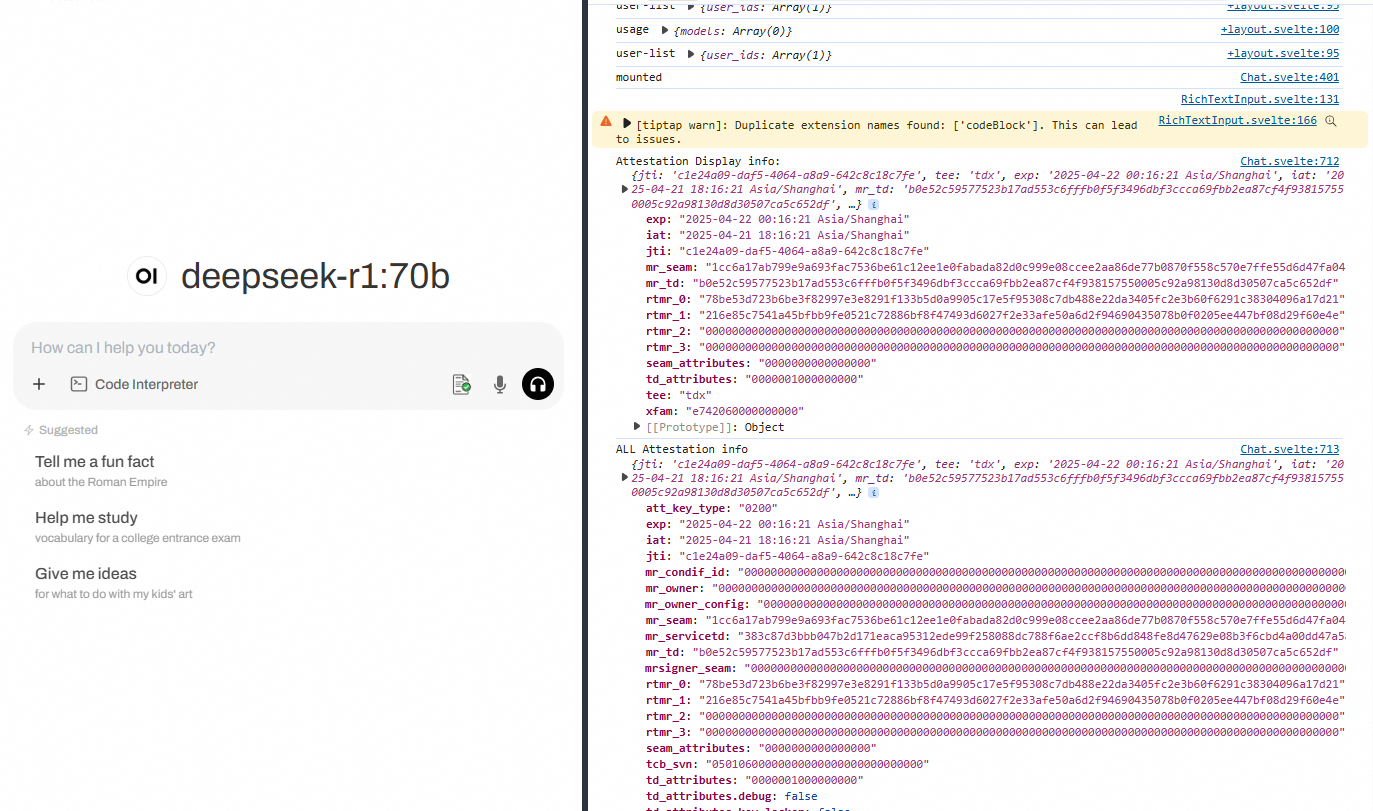
You can also view detailed information using your browser's developer tools. The output will be similar to the following example.
FAQ
Slow package download speed when using pip
"Cannot find package" error when compiling Open WebUI
References
Open WebUI is natively designed to support only the HTTP protocol. To secure data in transit, deploy HTTPS authentication with Alibaba Cloud SLB. For instructions, see Configure one-way authentication for HTTPS requests.