This topic describes how to configure different advanced parameters in an auto scaling policy and verify the impacts of these parameters on the system behavior.
Prerequisites
Stress testing is executed for an application in Performance Testing Service (PTS) to verify the impacts of advanced parameters in an auto scaling policy on application instance scaling. You must complete the following steps before the stress testing.
Create an Serverless App Engine (SAE) application.
NoteTo simplify the stress testing, set the number of application instances to 1.
Bind a Classic Load Balancer (CLB) instance deployed on the Internet to the application and enable the access log feature of CLB.
NoteAfter you enable the access log feature of CLB, you are charged additional fees.
Advanced parameters
Five advanced parameters is displayed on the Metric-based Auto Scaling Policy and Hybrid Auto Scaling Policy tabs of the SAE condole. You can select the required parameters based on your business requirements. The following table describes the five parameters.
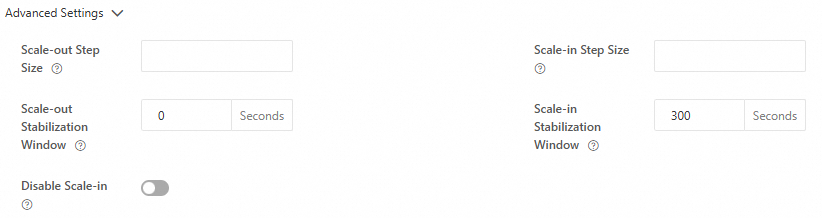
Scale-out Step Size: the maximum number of instances that can be scaled out per unit time.
Scale-in Step Size: the maximum number of instances that can be scaled in per unit time.
Scale-out Stabilization Window: the period of time during which the scale-out is stable. The auto scaling algorithm is used to ensure that the minimum number of expected instances calculated within the specified interval is used when a scale-out operation is performed.
Scale-in Stabilization Window: the period of time during which the scale-in is stable. The auto scaling algorithm is used to ensure that the maximum number of expected instances calculated within the specified interval is used when a scale-in operation is performed.
Disable Scale-in: specifies that application instances cannot be scaled in.
Configure an auto scaling policy for an application
After you click the Metric-based Auto Scaling Policy and Hybrid Auto Scaling Policy tabs, you can specify the preceding advanced parameters to configure an auto scaling policy for an application. This section describes only the key steps that are required to configure an auto scaling policy.
The metric-based auto scaling policy configured in this section is available only to the stress testing. In the production environment, adjust the settings based on your business requirements.
On the Basic Information page of an application that you want to manage, click the Auto Scaling tab and then click Create Auto Scaling Policy.
In the Edit Auto Scaling Policy box, configure an auto scaling policy based on the Internet-facing CLB Instance QPS metric and set the Average QPS of Internet-facing CLB Instances Within 15 Seconds parameter to 10.
NoteNo advanced parameters are specified.
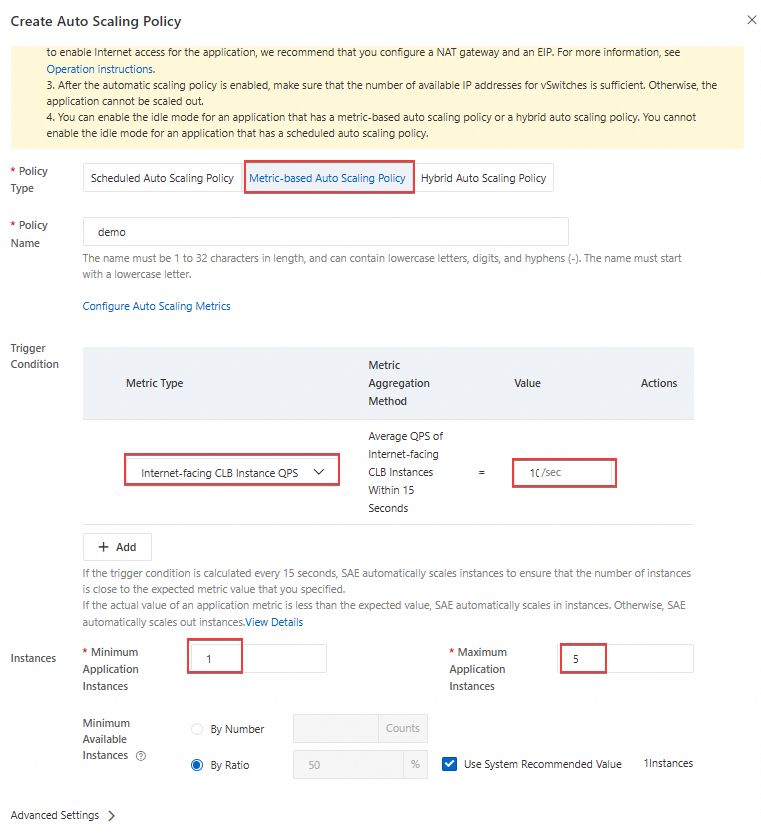
After you create an auto scaling policy, apply the policy.

Verify the impacts of advanced parameters
Before you verify each advanced parameter, make sure that no advanced parameters are specified in a metric-based auto scaling policy.
Verify the Scale-out Step Size parameter
Scale-out Step Size is logically similar to Scale-in Step Size. To simplify the stress testing, only verify Scale-in Step Size in this section.
Verify scale-out effect without the Scale-out Step Size parameter specified
Log on to the PTS console and perform stress testing on the SAE application.
NoteThe URL used in the stress testing is the IP address of the CLB instance that is bound to the SAE application and deployed on the Internet. The URL is in the format of
http://Public IP address port number.After the stress testing starts, you can view the auto scaling events of the SAE application.

The auto scaling events show that the HPA controller has expanded the SAE application to 5 instances.
Verify scale-out effect with the Scale-out Step Size parameter specified
Specify the Scale-out Step Size parameter on the Metric-based Auto Scaling Policy tab.
On the Basic Information page of an application that you want to manage, click the Auto Scaling tab and then click Edit in the Actions column that corresponds to an existing auto scaling policy.
In the Edit Auto Scaling Policy panel, click Advanced Settings to expand the advanced parameter configuration section.
In the Advanced Settings section, set Scale-out Step Size to
1and ignore other advanced parameters. Then, click OK.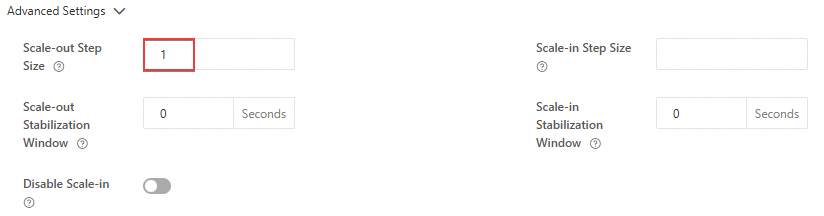
Use PTS to perform stress testing on the SAE application.
After the stress testing starts, you can view the auto scaling events of the SAE application on the Application Events page.
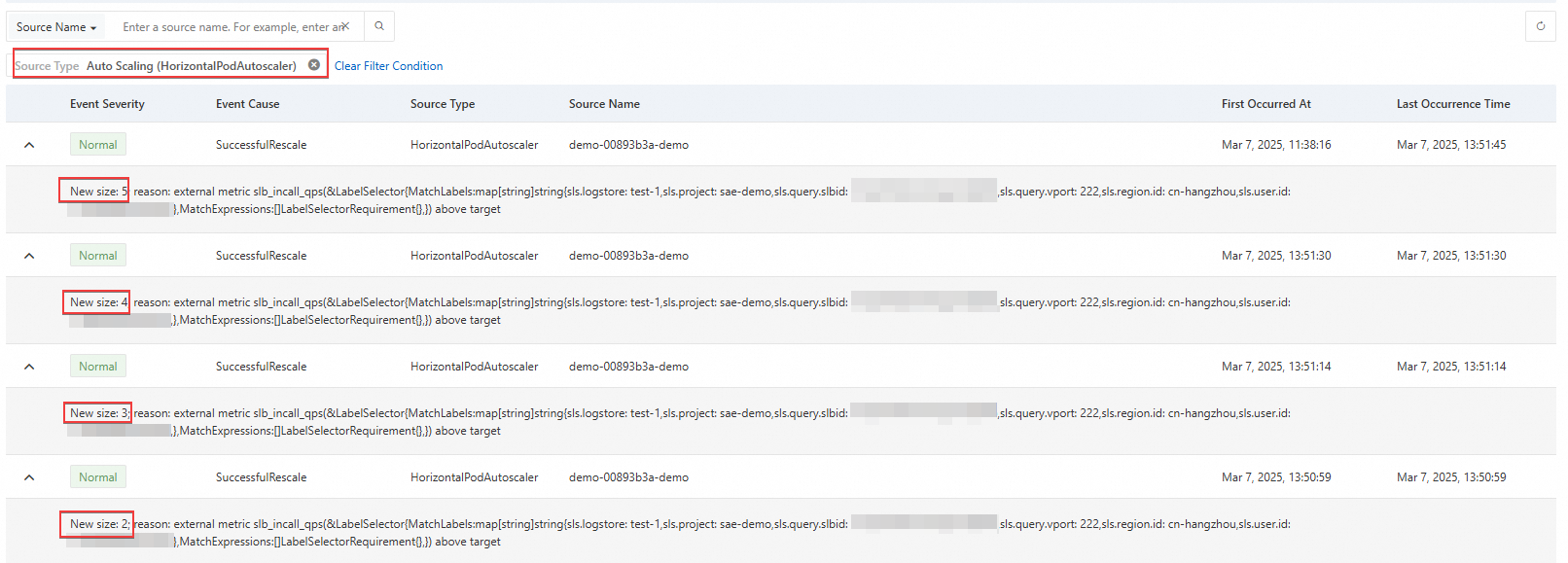
Auto scaling events show that instances in the SAE application are scaled out one by one, instead of scaling out to five instances at a time. This indicates that the Scale-out Step Size parameter is taking effect and limits the number of instances that are scaled out each time, thus achieving a balance between system stability and response speed by controlling the scale-out rhythm.
Verify the Scale-out Stabilization Window parameter
Scale-out Stabilization Window is logically similar to Scale-in Stabilization Window. To simplify the stress testing, only verify Scale-out Stabilization Window in this section.
Verify scale-out effect without the Scale-out Stabilization Window specified
Log on to the PTS console and perform stress testing on the SAE application.
NoteThe URL used in the stress testing is the IP address of the CLB instance that is bound to the SAE application and deployed on the Internet. The URL is in the format of
http://Public IP address port number.After the stress testing starts, you can compare the start time of the stress test and the scale-out time of the SAE application.
Start time of stress testing
Start time of scaling out the SAE application
View the start time on the Reports page.
2025-03-07 17:36:55
View the start time on the Application Events page.

The test result shows that instances in the SAE application are quickly scaled out within more than 20 seconds after the application receives traffic without the Scale-out Stabilization Window parameter specified.
Verify scale-out effect with the Scale-out Stabilization Window specified
Specify the Scale-out Stabilization Window parameter on the Metric-based Auto Scaling Policy tab.
On the Basic Information page of an application that you want to manage, click the Auto Scaling tab and then click Edit in the Actions column that corresponds to an existing auto scaling policy.
In the Edit Auto Scaling Policy panel, click Advanced Settings to expand the advanced parameter configuration section.
In the Advanced Settings section, set Scale-out Stabilization Window to
300and ignore other advanced parameters. Then, click OK.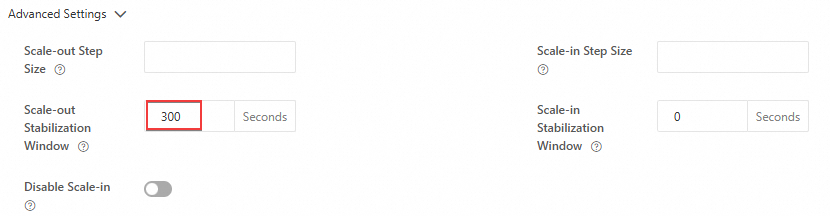
Use PTS to perform stress testing on the SAE application.
After the stress testing starts, you can compare the start time of the stress test and the scale-out time of the SAE application.
Start time of stress testing
Start time of scaling out the SAE application
View the start time on the Reports page.
2025-03-10 09:50:35
View the start time on the Reports page.

The test result shows that when the Scale-out Stabilization Window parameter is set to 300, an instance scale-out operation is not immediately triggered after the SAE application receives traffic. Instead, an instance scale-out operation starts after the specified stabilization window ends. This indicates that the Scale-out Stabilization Window parameter can effectively delay scale-out operations and avoid resource waste caused by short-term traffic fluctuations.
Verify the Disable Scale-in parameter
Verify scaling effect without Disable Scale-in enable
Log on to the PTS console and perform stress testing on the SAE application.
NoteThe URL used in the stress testing is the IP address of the CLB instance that is bound to the SAE application and deployed on the Internet. The URL is in the format of
http://Public IP address port number.After the stress testing is complete, you can view the scaling events of the SAE application on the Application Events page.
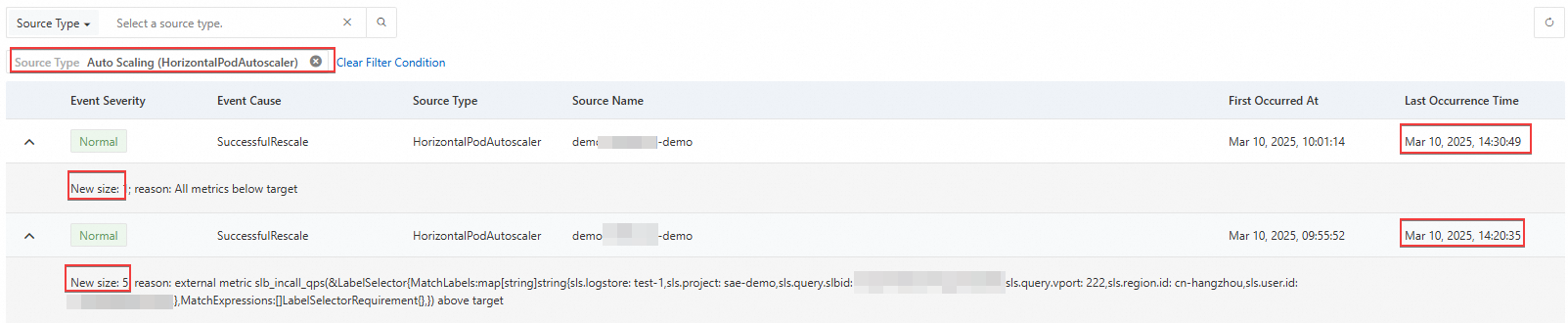
The test result shows that if you do not enable Disable Scale-in parameter, the SAE application is gradually scaled in to one instance after the stress testing is complete.
Verify scaling effect with Disable Scale-in enabled
On the Metric-based Auto Scaling Policy tab, enable the Disable Scale-in parameter.
On the Basic Information page of an application that you want to manage, click the Auto Scaling tab and then click Edit in the Actions column that corresponds to an existing auto scaling policy.
In the Advanced Settings section, enable the Disable Scale-in parameter.
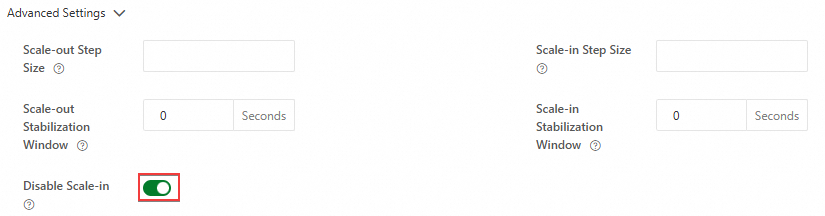
Use PTS to perform stress testing on the SAE application.
NoteThe specified stress testing duration is 10 minutes.
After the stress testing is complete (the traffic is 0), check whether application instances have been scaled in.
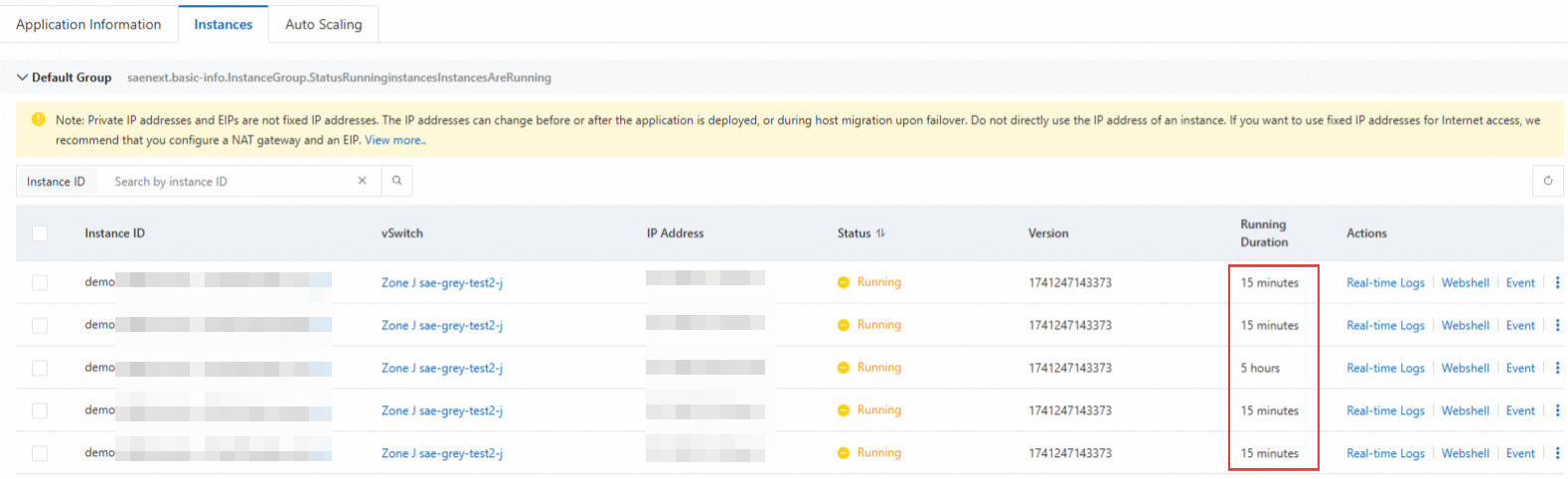
The test result shows that the number of application instances remains at 5 within about 5 minutes after the stress testing is complete, and no scale-in operation occurs. This indicates that the Disable Scale-in parameter has taken effect. This can effectively avoid excessive resource release caused by traffic fluctuations or misjudgments, thus ensuring service stability.