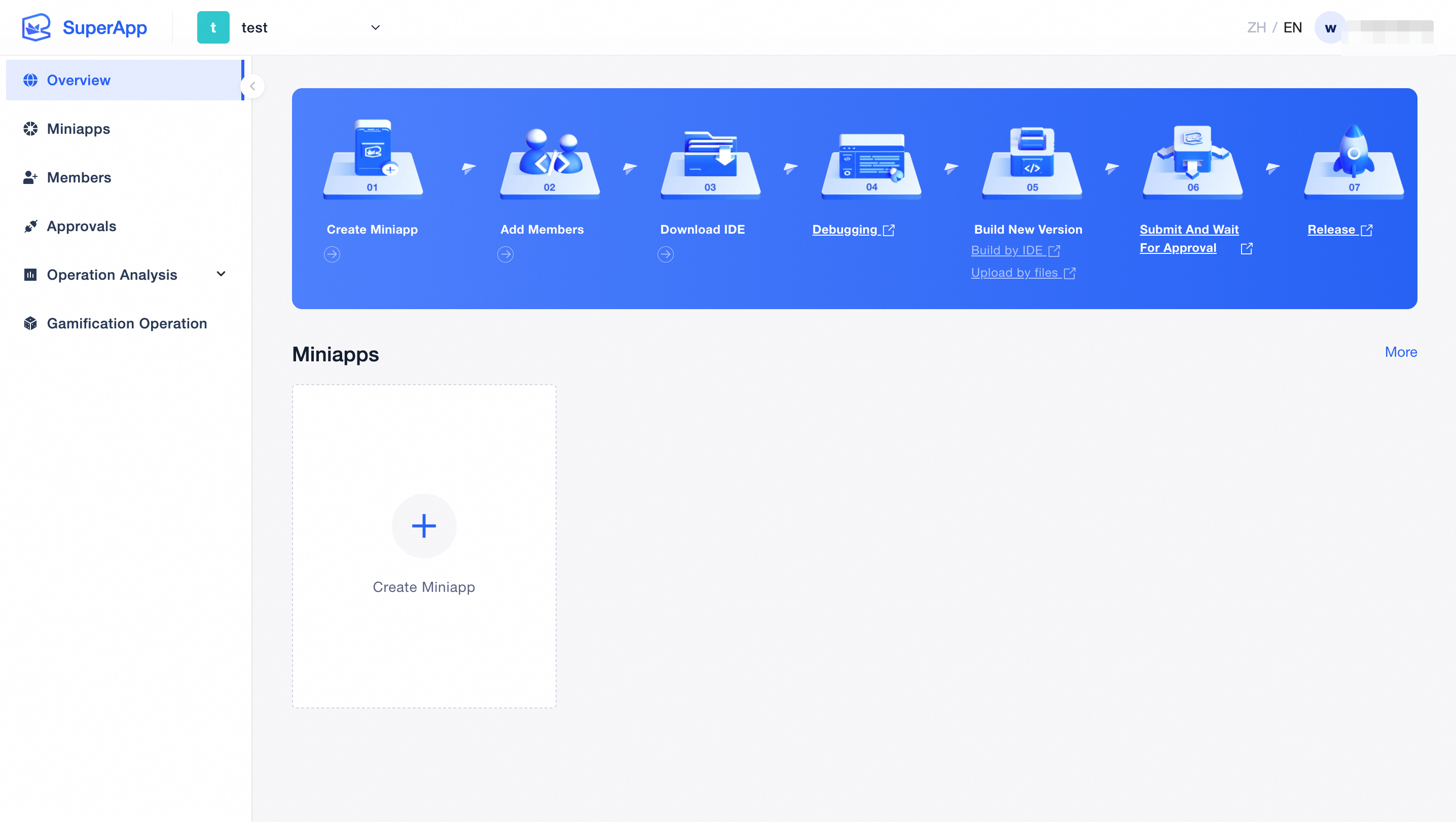
This document explains how an admin of the First-party Space can invite a Third-Party to join the SuperApp Business Application Platform.
1. Send the Invitation
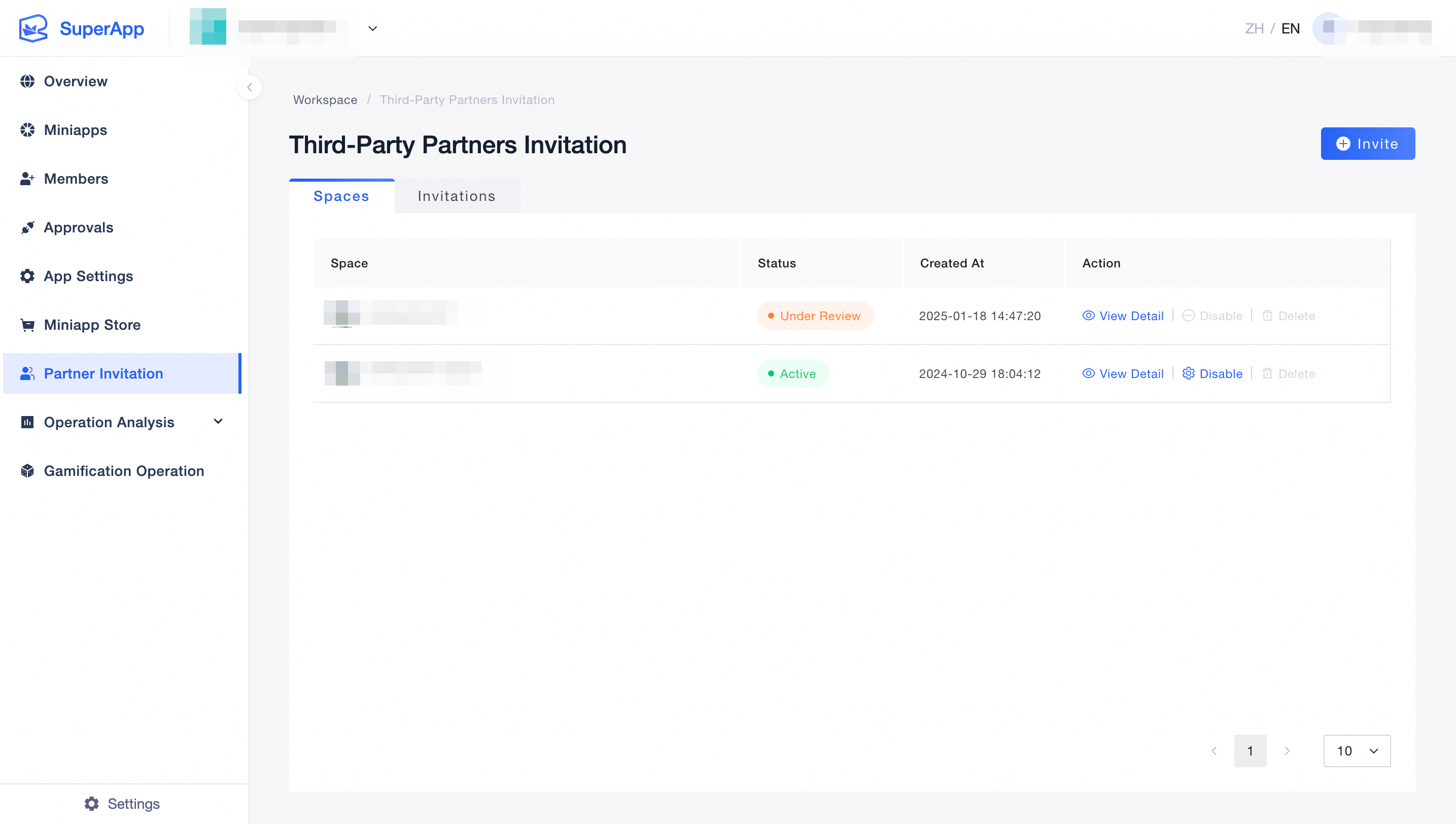
After logging in to the SuperApp Business Application Platform, the admin should Click on 「Partner Invitation」 to access the invitation page.
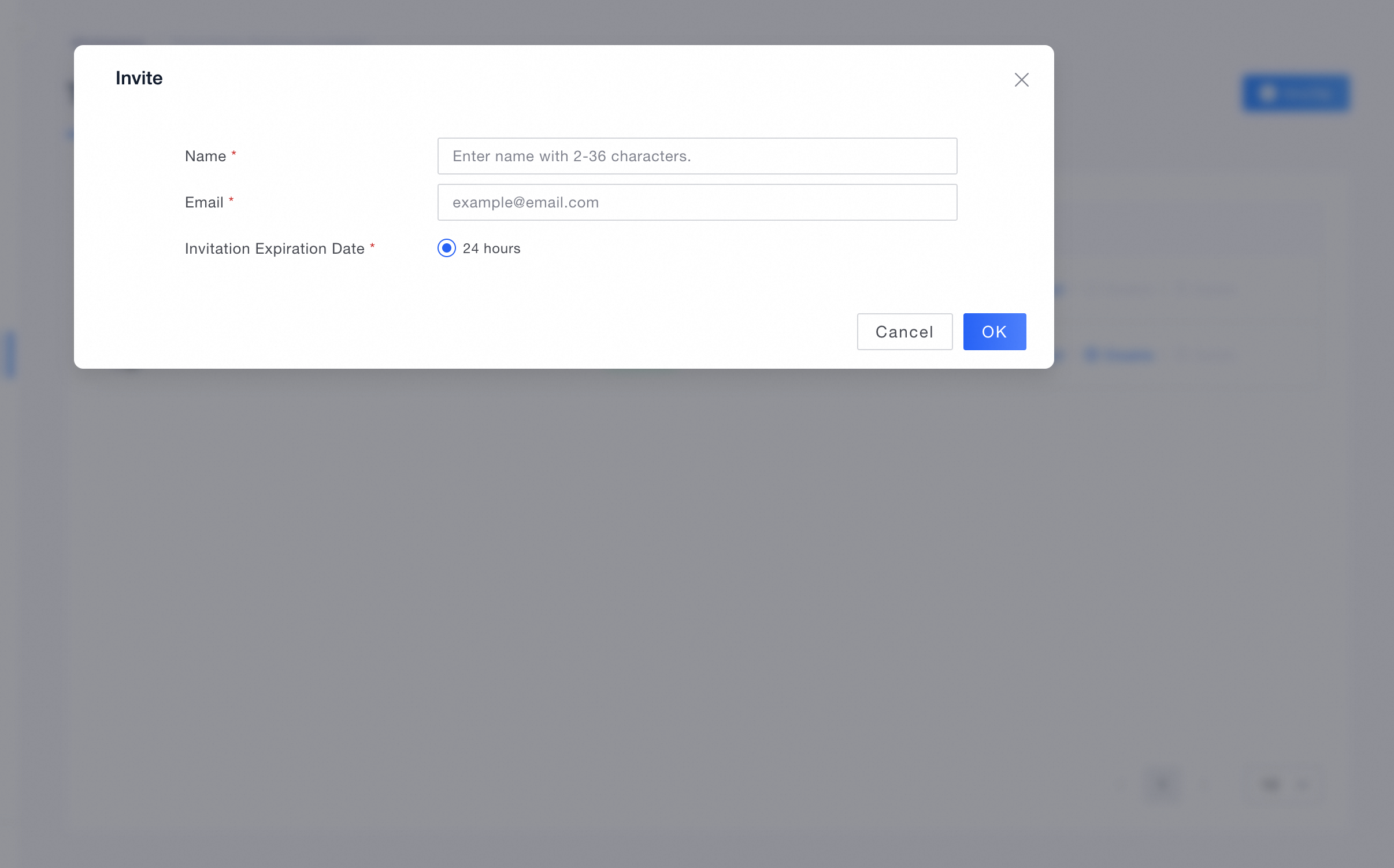
Click the「Invite」 button, Enter the name and email address of the invitee.
Confirm the information is correct, then click「OK」 to send the invitation.
Entrance for Inviting Third-Party Partners:
Fill in the Invitation Information:
2. Accept the Invitation
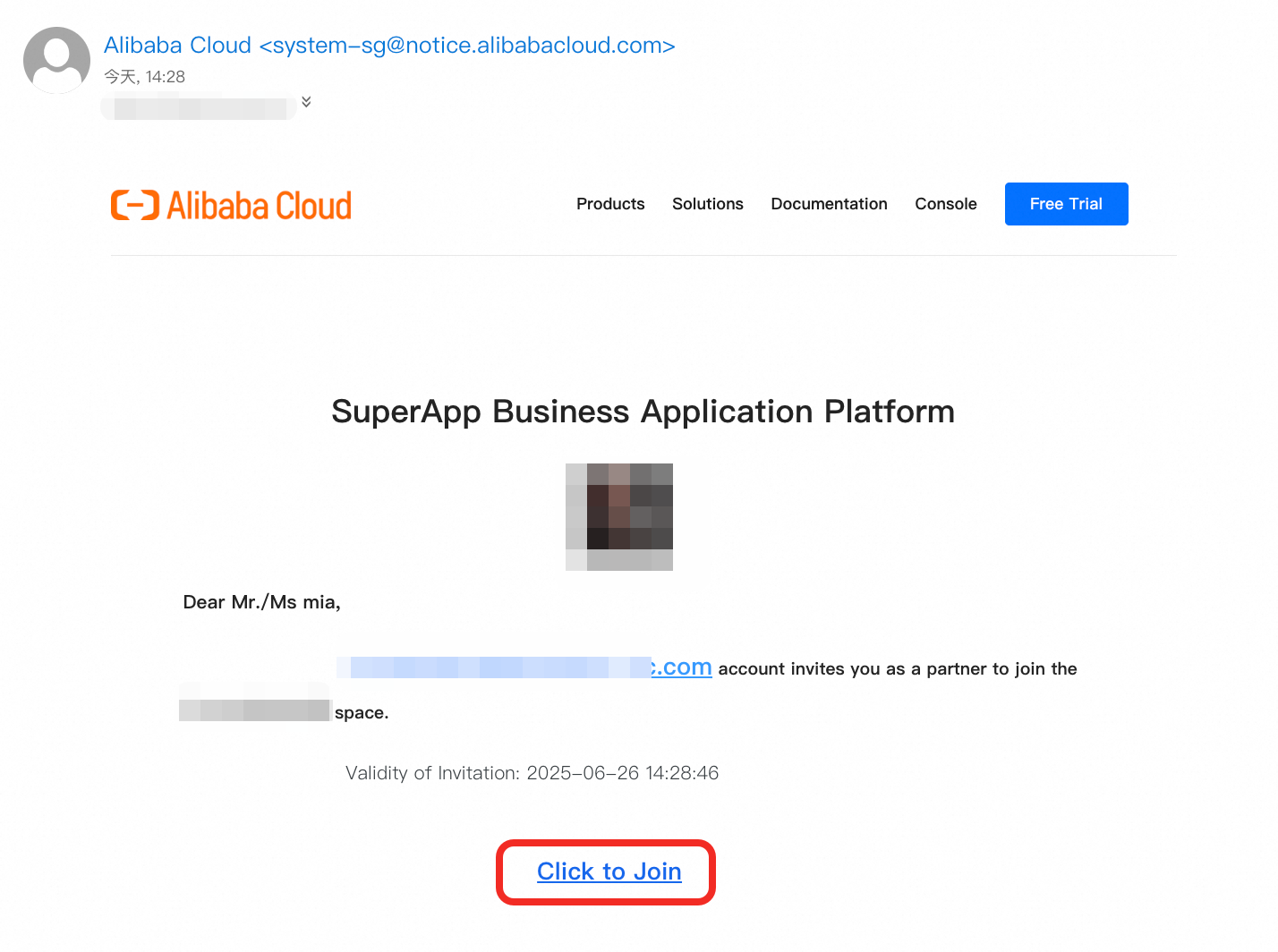
After you receive the invitation email, click the 「Click to Join」 link in the email. If you are not already logged in to the platform, complete the login or sign-up process first. For details, see: Login / Sign Up. If you are already logged in, the system will automatically redirect you to the workspace.
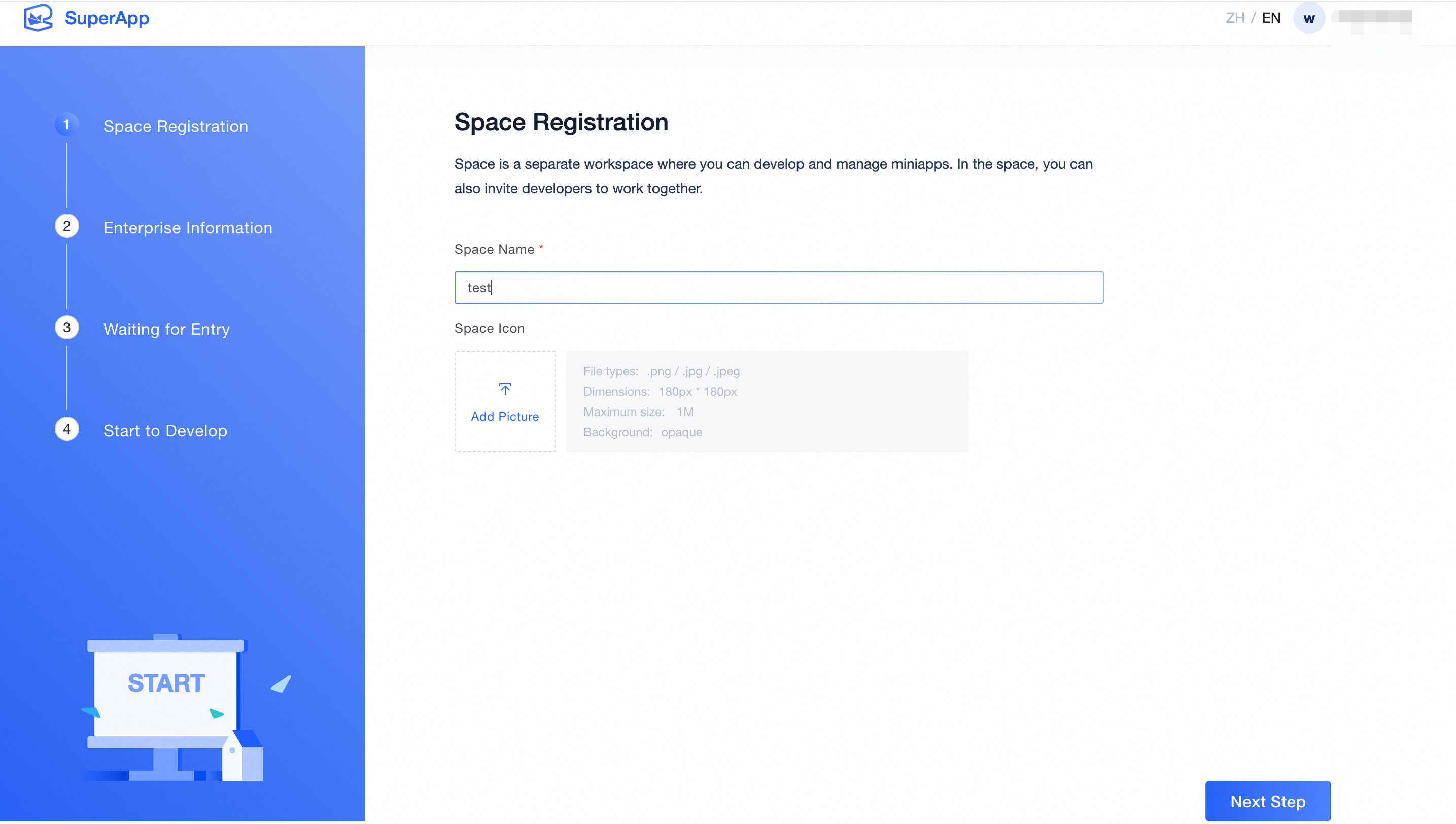
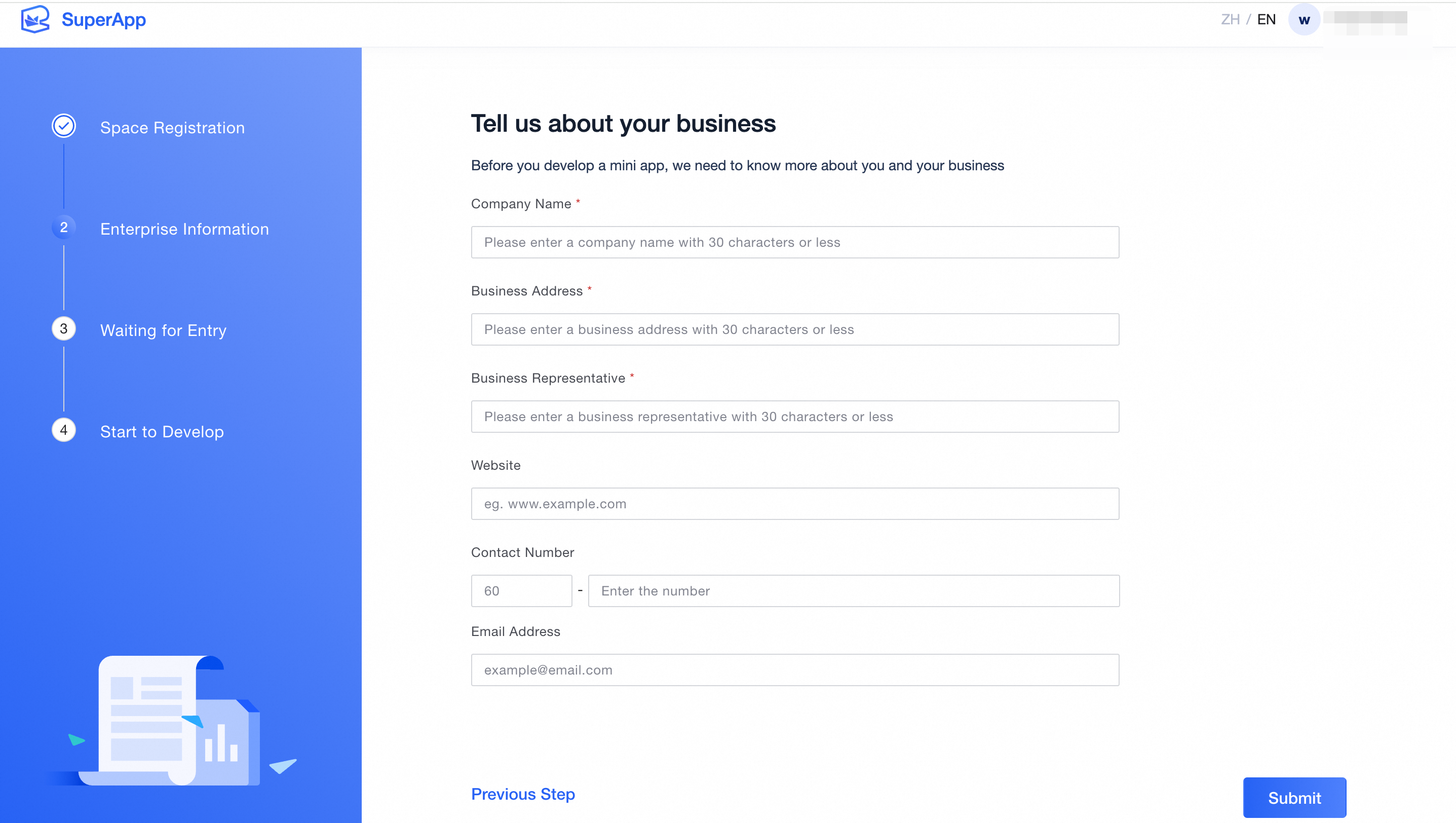
Next, fill in the required workspace information and company information.Review all the details to make sure they are correct, then click 「Submit」.
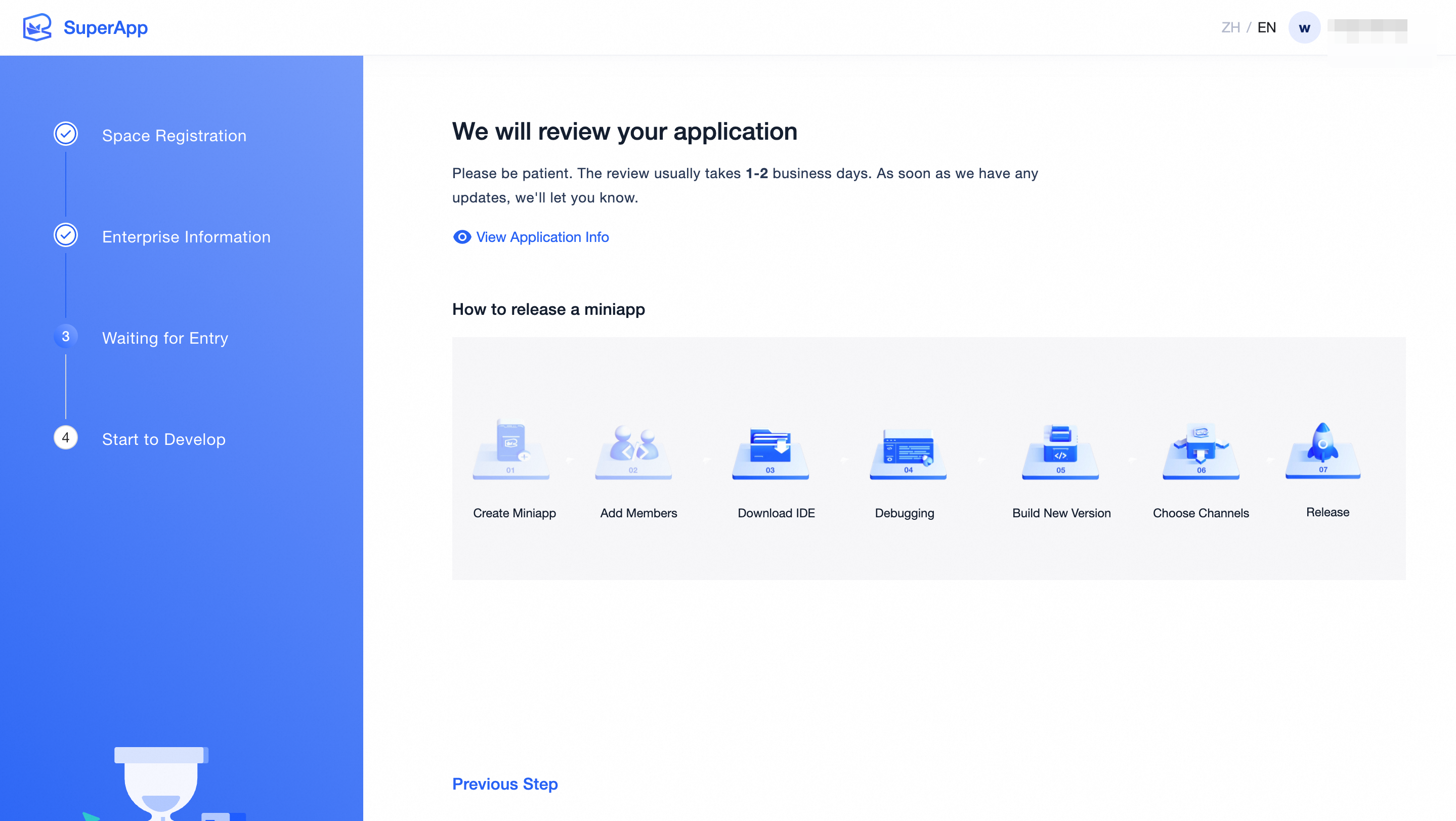
Once submitted, your request will enter the approval workflow and await review by the First-party Space admin.
Example of the Invitation Email:
Space Registration:
Fill in Company Information:
Waiting for Approval:
3. Handle the Approval Request
After the invitee submits their information, the approval process begins.
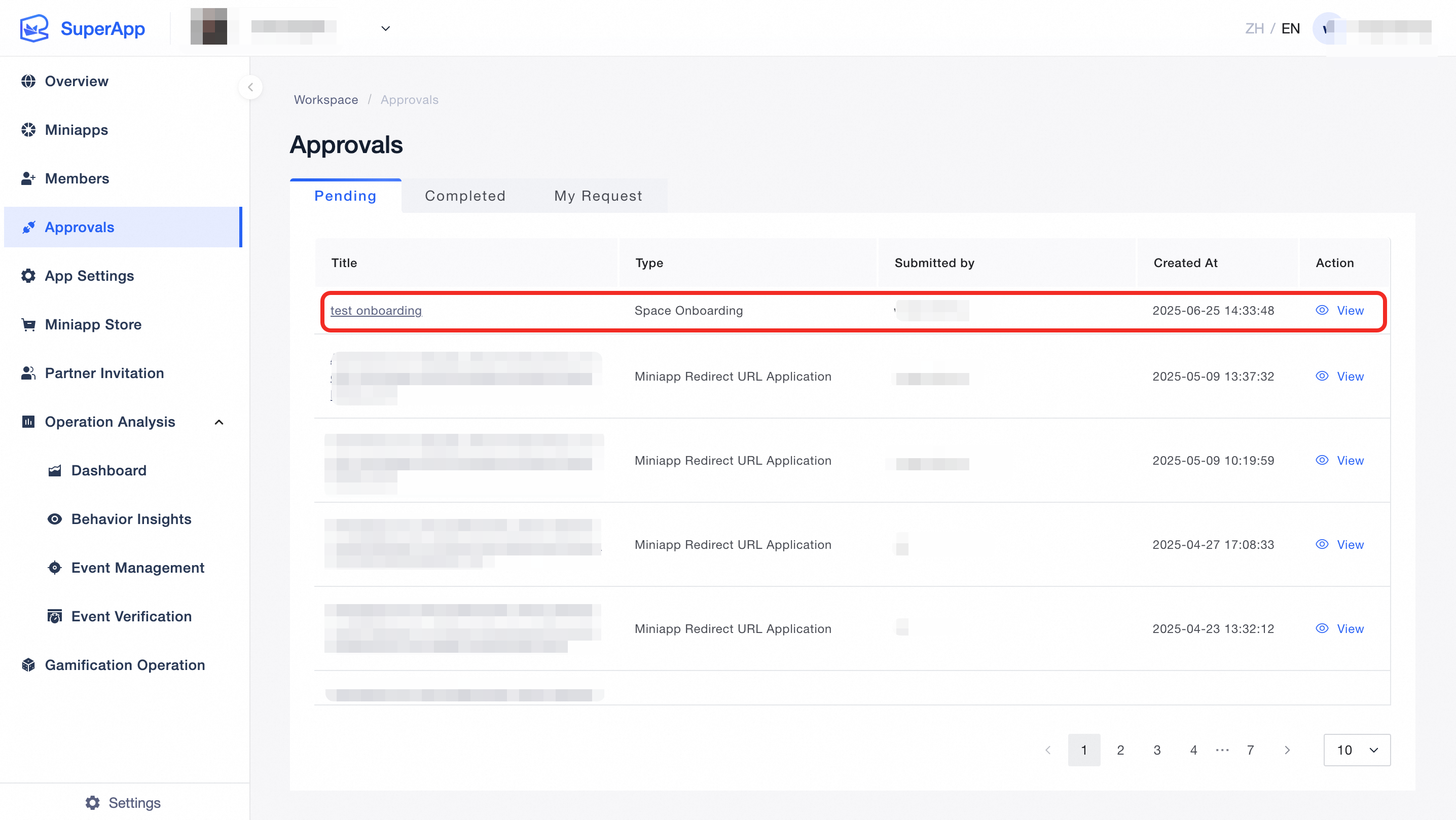
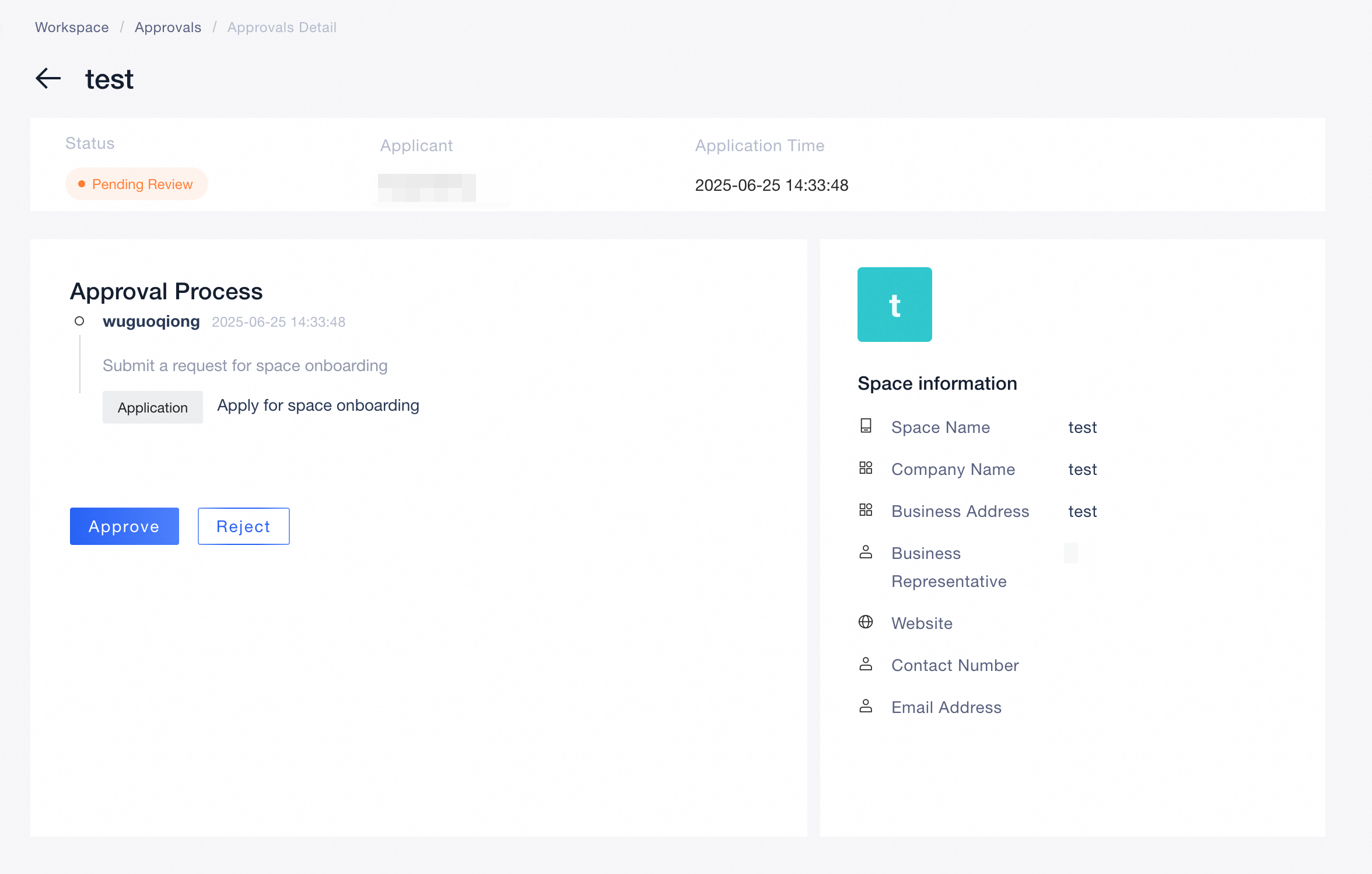
As the First-party Space admin, go to the 「Approvals」 section and locate the pending Third-Party Space application.
Click the approval link or view button to review the request.
If you approve the request: The invitee will be added as a Third-Party Space admin and gain access to view and manage the associated space.
If you reject the request: The onboarding process will end, and the invitee will not be added.
View Approval Details:
Approval Success Example:
4. Successfully Joined
Upon approval, the invitee will officially assume the role of Third-Party Space admin and be granted the corresponding permissions. They may now perform management tasks within the assigned space.