The Lindorm (compute engine) output component writes data from external databases to Lindorm (compute engine). You can also use this component to copy and push data from storage systems that are connected to the big data platform to Lindorm (compute engine) for data integration and reprocessing. This topic describes how to configure the Lindorm (compute engine) output component.
Prerequisites
You have created a Lindorm (compute engine) data source. For more information, see Create a Lindorm (compute engine) data source.
The account that you use to configure the properties of the Lindorm (compute engine) output component requires write-through permission for the data source. If you do not have this permission, request it for the data source. For more information, see Request data source permission.
Procedure
On the Dataphin home page, choose Development > Data Integration from the top menu bar.
From the top menu bar of the Data Integration page, select Project. In Dev-Prod mode, you must also select an environment.
In the navigation pane on the left, click Batch Pipeline. In the Batch Pipeline list, click the offline pipeline that you want to configure to open its configuration page.
In the upper-right corner of the page, click Component Library to open the Component Library panel.
In the navigation pane on the left of the Component Library panel, select Output. In the list of output components on the right, find the Lindorm (compute engine) component and drag it to the canvas.
Click and drag the
 icon from the target upstream component to the Lindorm (compute engine) output component to connect them.
Click the
 icon on the Lindorm (compute engine) output component card to open the Lindorm (compute engine) Output Configuration dialog box.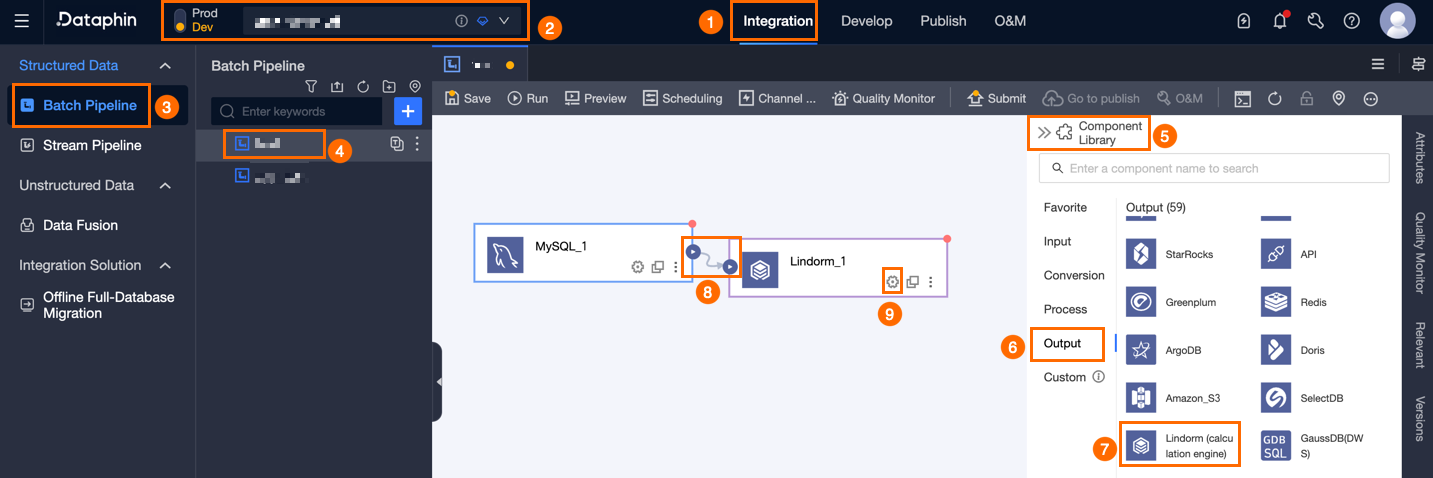
In the Lindorm (compute engine) Output Configuration dialog box, configure the parameters.
Parameter
Description
Basic settings
Step Name
The name of the Lindorm (compute engine) output component. Dataphin automatically generates a step name, which you can modify as needed. The naming conventions are as follows:
The name can contain only Chinese characters, letters, underscores (_), and digits.
The name cannot exceed 64 characters.
Datasource
The Data source drop-down list displays all Lindorm (compute engine) data sources in Dataphin. The list also indicates if you have write-through permission for each data source. Click the
 icon to copy a data source name.
If you do not have write-through permission for a data source, click Request next to the data source to request the permission. For more information, see Request data source permissions.
If you do not have a Lindorm (compute engine) data source, click Create to create one. For more information, see Create a Lindorm (compute engine) data source.
Table
Select the target table for the output data. Click the
 icon to copy the name of the selected table.Important
If the table schema changes, you must reconfigure the pipeline node.
File Encoding
Supports UTF-8 and GBK.
Loading Policy
Supports appending data and overwriting all data.
Append data: Directly append data to the target table.
Overwrite all data: First delete all data in the target table or configured partition, then write new data.
Compression Format
This parameter is optional. If the source file is compressed, select the corresponding compression format so that Dataphin can decompress the file. Supported formats include zlib, hadoop-snappy, lz4, and none. By default, ORC tables use zlib compression. Tables in other formats do not have a default compression format.
Performance Configuration
In scenarios where the output table is in ORC format and has many fields, you can adjust this configuration. If you have sufficient memory, increase this value to improve write performance. If you have insufficient memory, decrease this value to reduce garbage collection (GC) time and improve write performance. The default value is
{"hive.exec.orc.default.buffer.size":16384}in bytes. Do not configure a value larger than 262,144 bytes (256 KB).Partition
For partitioned tables that use a non-Iceberg format, configure a fixed static partition for write operations, such as
hh=xx,mm=xx. Partitioned tables that use the Iceberg format support dynamic partitions. This means you do not need to configure partitions, but the field mapping must include the partition fields. If static partitions are configured, they are used for write operations.Prepare Statement
An SQL script to execute on the database before the data import.
End Statement
The SQL script executed on the database after data import.
Field mapping
Input Field
Displays the input fields from the upstream component.
Output Field
Displays output fields. Click Field Management to select output fields.
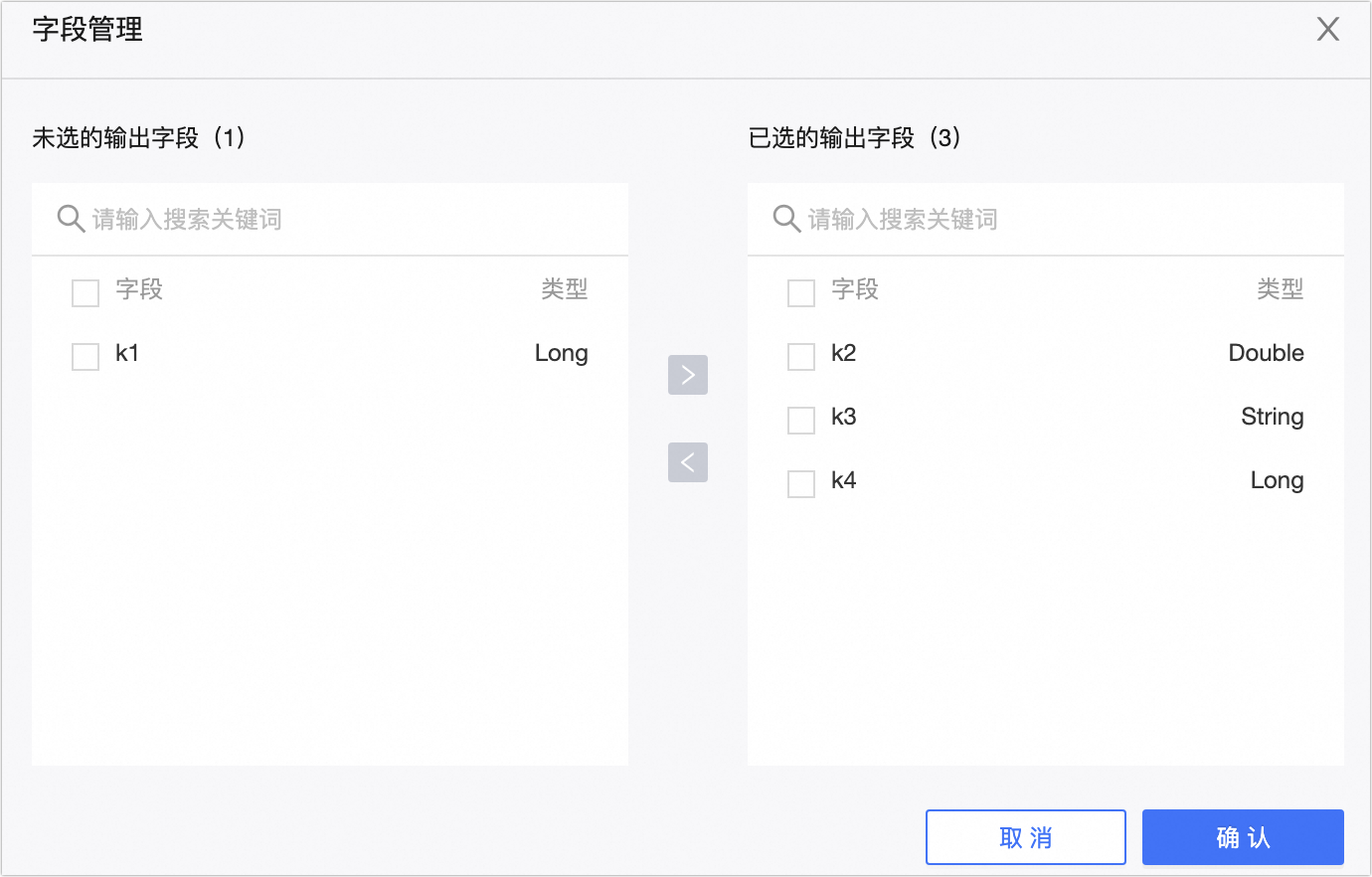
Click the
 icon to move Selected Input Fields to Unselected Input Fields.
Click the
 icon to move Unselected Input Fields to Selected Input Fields.
Mapping
Mappings connect input fields from a source table to output fields in a target table. Mappings include same-name mapping and same-row mapping. The scenarios are as follows:
Same-name mapping: Maps fields that have the same name.
Same-row mapping: The field names in the source and target tables do not match, but the data in corresponding rows must be mapped. It maps only fields in the same row.
Click Confirm to save the configuration for the Lindorm (compute engine) output component.