Model Gallery lets you evaluate LLMs against custom datasets or public benchmarks (MMLU, C-Eval, GSM8K) using rule-based metrics (ROUGE, BLEU) and LLM-as-a-Judge scoring.
Evaluation methods
PAI supports two evaluation approaches:
-
Custom dataset evaluation
-
Rule-based evaluation: Measures similarity between model predictions and ground truth using ROUGE and BLEU metrics.
-
LLM-as-a-Judge evaluation: A PAI Qwen2-based judge model scores each output individually. Best suited for open-ended and complex Q&A scenarios.
-
-
Public dataset evaluation
-
Evaluates models on public benchmarks: MMLU, TriviaQA, HellaSwag, GSM8K, C-Eval, and TruthfulQA.
-
Scores align with industry evaluation standards.
-
All HuggingFace AutoModelForCausalLM model types are supported.
LLM-as-a-Judge scoring is available free in Expert Mode under Model Evaluation. [2024.09.01]
Use cases
Common evaluation scenarios:
-
Model benchmarking
-
Evaluate general model capabilities on public benchmarks.
-
Compare your model against industry baselines or competing models.
-
-
Domain-specific capability evaluation
-
Test model performance in a specific domain.
-
Compare pre-trained and fine-tuned model performance across domains.
-
Measure how well the model applies domain knowledge.
-
-
Model regression testing
-
Build a regression test dataset.
-
Evaluate model performance on business-critical scenarios.
-
Determine whether the model meets production requirements.
-
Billing
-
OSS storage: Stores evaluation datasets and results. OSS billing information.
-
DLC evaluation task: Runs evaluation tasks on DLC compute resources. DLC billing information.
Data preparation
You can evaluate models using custom datasets or public benchmarks such as C-Eval.
-
Public datasets:
PAI provides the following public datasets: MMLU, TriviaQA, HellaSwag, GSM8K, C-Eval, and TruthfulQA. You can use them directly. More datasets will be added.
-
Custom datasets:
Prepare a JSONL-formatted evaluation file, upload it to OSS (Upload an OSS file), and create a custom dataset (Create and manage datasets). Required format:
Use
questionfor the question column andanswerfor the answer column. You can also select specific columns on the evaluation page. For LLM-as-a-Judge–only evaluation, theanswercolumn is optional.{"question": "Did China invent papermaking? Is this correct?", "answer": "Correct"} {"question": "Did China invent gunpowder? Is this correct?", "answer": "Correct"}Example file: eval.jsonl
Workflow

Step 1: Select a model
-
Go to the Model Gallery page.
-
Log on to the PAI console.
-
In the navigation pane on the left, click Workspaces. Then, select and enter your target workspace.
-
In the navigation pane on the left, choose QuickStart > Model Gallery to go to the Model Gallery page.
-
-
Find models that support evaluation.
-
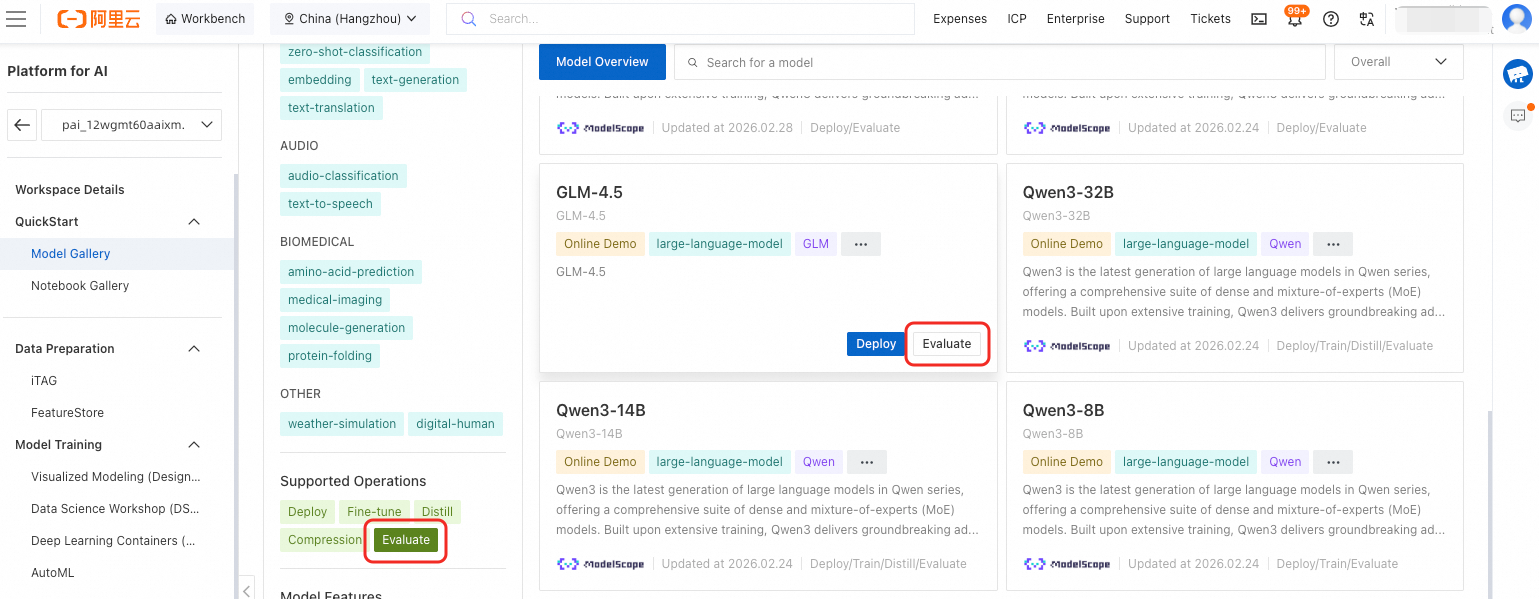
Filter for evaluatable models. In the Supported Operations filter section, select Evaluate to display only models supporting evaluation.
-
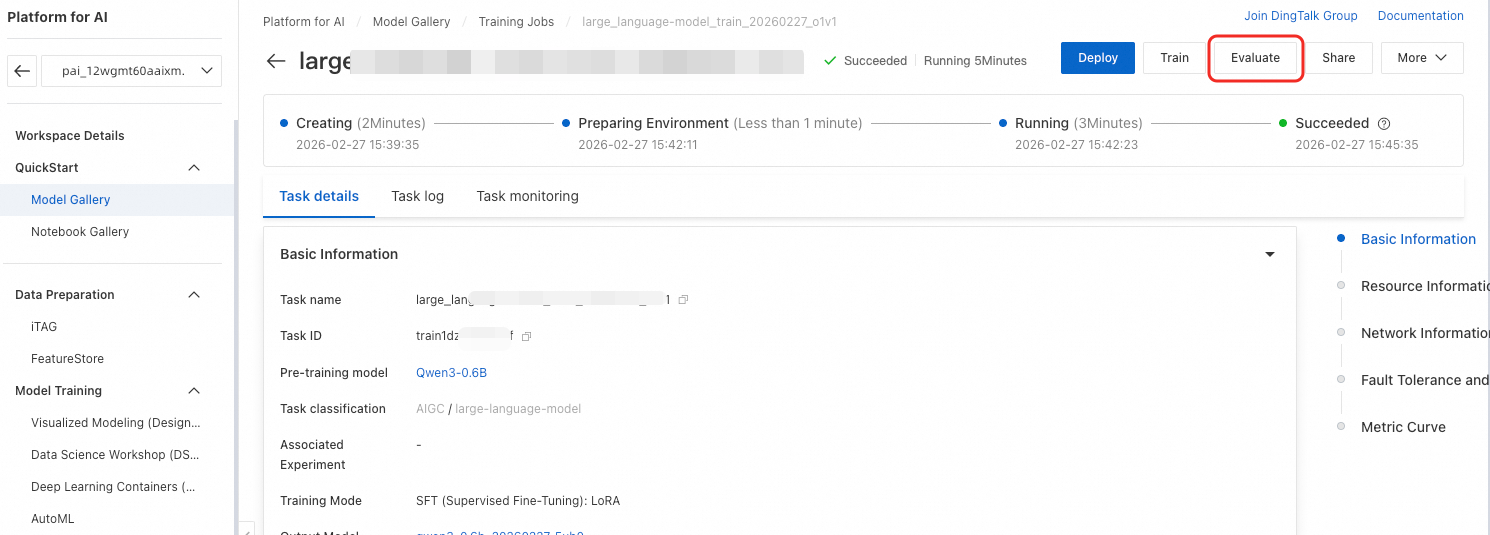
Evaluate a fine-tuned model. If a model supports evaluation, its fine-tuned versions also support it. On the Model Gallery page, click Job Management > Training Jobs in the top-left corner, click the target job name, and then click Evaluate in the top-right corner.
-
Step 2: Configure evaluation task
Configure the evaluation task with the following settings:
-
Configure basic settings:
-
Job Name: Automatically generated unique name.
-
Result Output Path: OSS path for evaluation results.
-
Label: Tags for searching, filtering, and cost allocation.
-
-
Configure evaluation approach:
-
Evaluation Method: Select one:
-
Set Dataset to Public: Select multiple datasets.
-
Custom Dataset: Specify question and reference answer columns. For LLM-as-a-Judge–only evaluation, reference answer column is optional.
-
Dataset Source: Choose Select OSS File or Select an existing dataset..
-
Evaluation Method: Select Judge Model Evaluation or General Metric Evaluation.
-
PAI-Judge Model Service Token: Auto-configured for LLM-as-a-Judge evaluation. Obtain from the LLM-as-a-Judge page.
-
-
-
-
Configure compute resources:
-
Resource Group Type: Select a pay-as-you-go public resource group or a subscription resource quota.
-
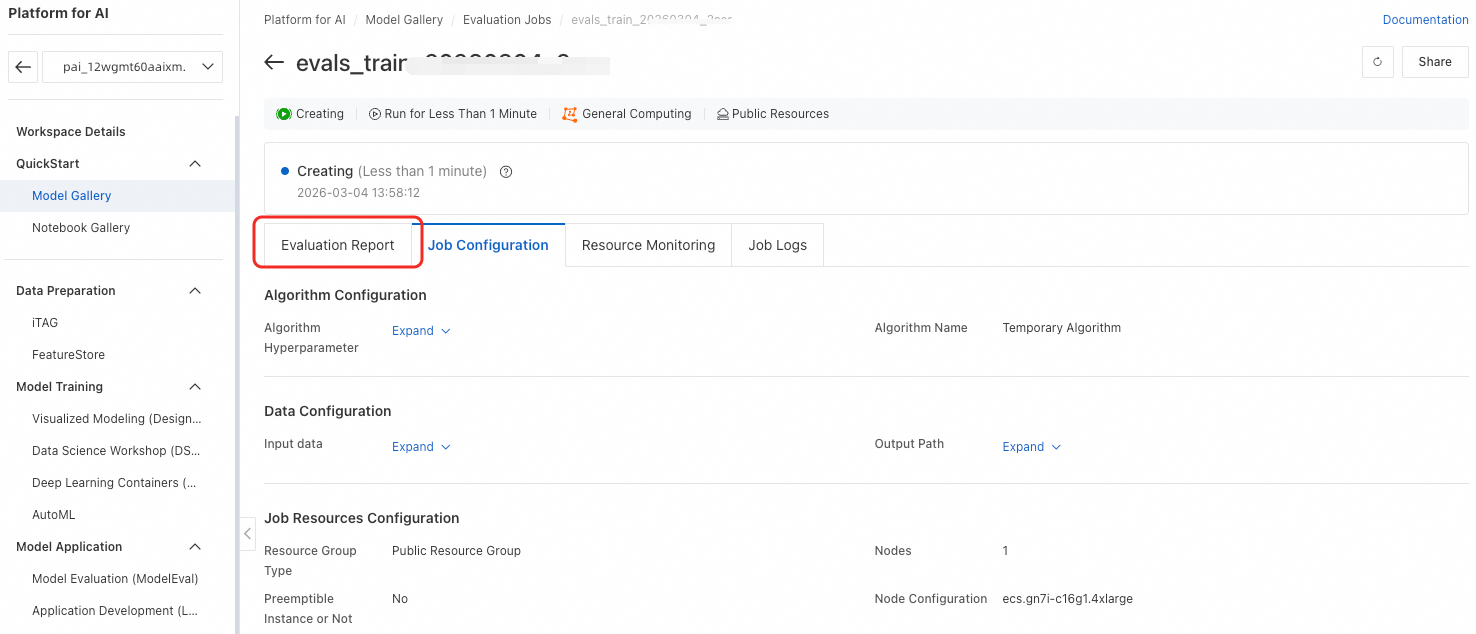
Click OK to submit. After the task completes, click Evaluation Report to view the report.
View evaluation results
Task list
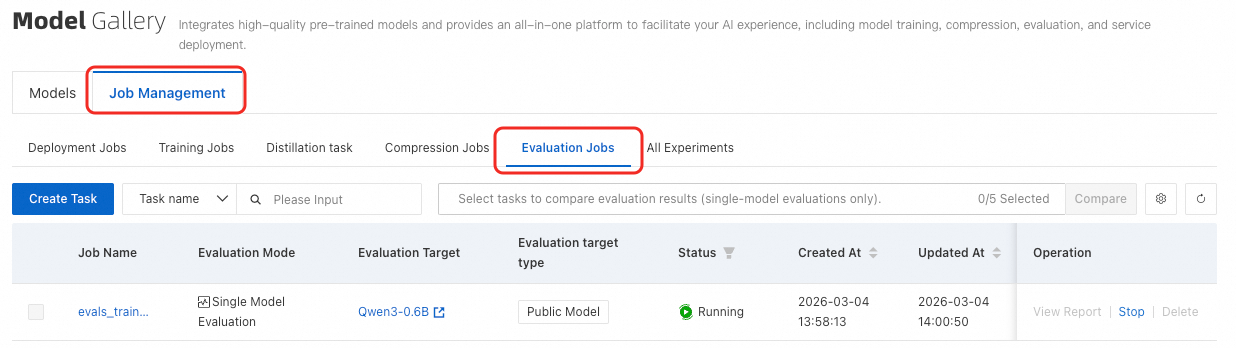
On the Model Gallery page, click Job Management. Then, switch to the Evaluation Jobs tab.
Single-task results
On the task list page, click View Report in the Actions column for the target task to open the task details page. Under Evaluation Report, view scores for custom and public datasets.
Custom dataset results

-
For General Metric Evaluation, a radar chart shows ROUGE and BLEU scores. Default metrics: rouge-1-f, rouge-1-p, rouge-1-r, rouge-2-f, rouge-2-p, rouge-2-r, rouge-l-f, rouge-l-p, rouge-l-r, bleu-1, bleu-2, bleu-3, and bleu-4.
-
ROUGE metrics:
-
ROUGE-n measures N-gram overlap. ROUGE-1 and ROUGE-2 are most common (unigrams and bigrams):
-
rouge-1-p (Precision): Fraction of system summary unigrams found in the reference summary.
-
rouge-1-r (Recall): Fraction of reference summary unigrams captured in the system summary.
-
rouge-1-f (F-score): Harmonic mean of precision and recall.
-
rouge-2-p (Precision): Fraction of system summary bigrams found in the reference summary.
-
rouge-2-r (Recall): Fraction of reference summary bigrams captured in the system summary.
-
rouge-2-f (F-score): Harmonic mean of precision and recall.
-
-
ROUGE-L uses longest common subsequence (LCS):
-
rouge-l-p (Precision): Precision based on LCS between system and reference summaries.
-
rouge-l-r (Recall): Recall based on LCS between system and reference summaries.
-
rouge-l-f (F-score): F-score based on LCS between system and reference summaries.
-
-
-
BLEU metrics:
BLEU (Bilingual Evaluation Understudy) measures N-gram overlap between model output and reference translations.
-
bleu-1: Measures unigram overlap.
-
bleu-2: Measures bigram overlap.
-
bleu-3: Measures trigram overlap.
-
bleu-4: Measures 4-gram overlap.
-
-
-
For LLM-as-a-Judge evaluation, the page lists statistical metrics from judge scores.
-
The judge model is a Qwen2-based LLM fine-tuned by PAI. Its performance matches GPT-4 on open-source benchmarks such as AlignBench and outperforms GPT-4 in some scenarios.
-
Four statistical metrics from judge scores:
-
Mean: Average score (1–5, excluding invalid scores). Higher values indicate better responses.
-
Median: Median score (1–5, excluding invalid scores). Higher values indicate better responses.
-
Standard Deviation: Score spread (excluding invalid scores). Given equal mean and median, a smaller deviation indicates more consistent performance.
-
Skewness: Asymmetry of score distribution (excluding invalid scores). Positive skew indicates a longer tail toward high scores; negative skew indicates a longer tail toward low scores.
-
-
-
The page also shows per-line evaluation details from the evaluation file.
Public dataset results
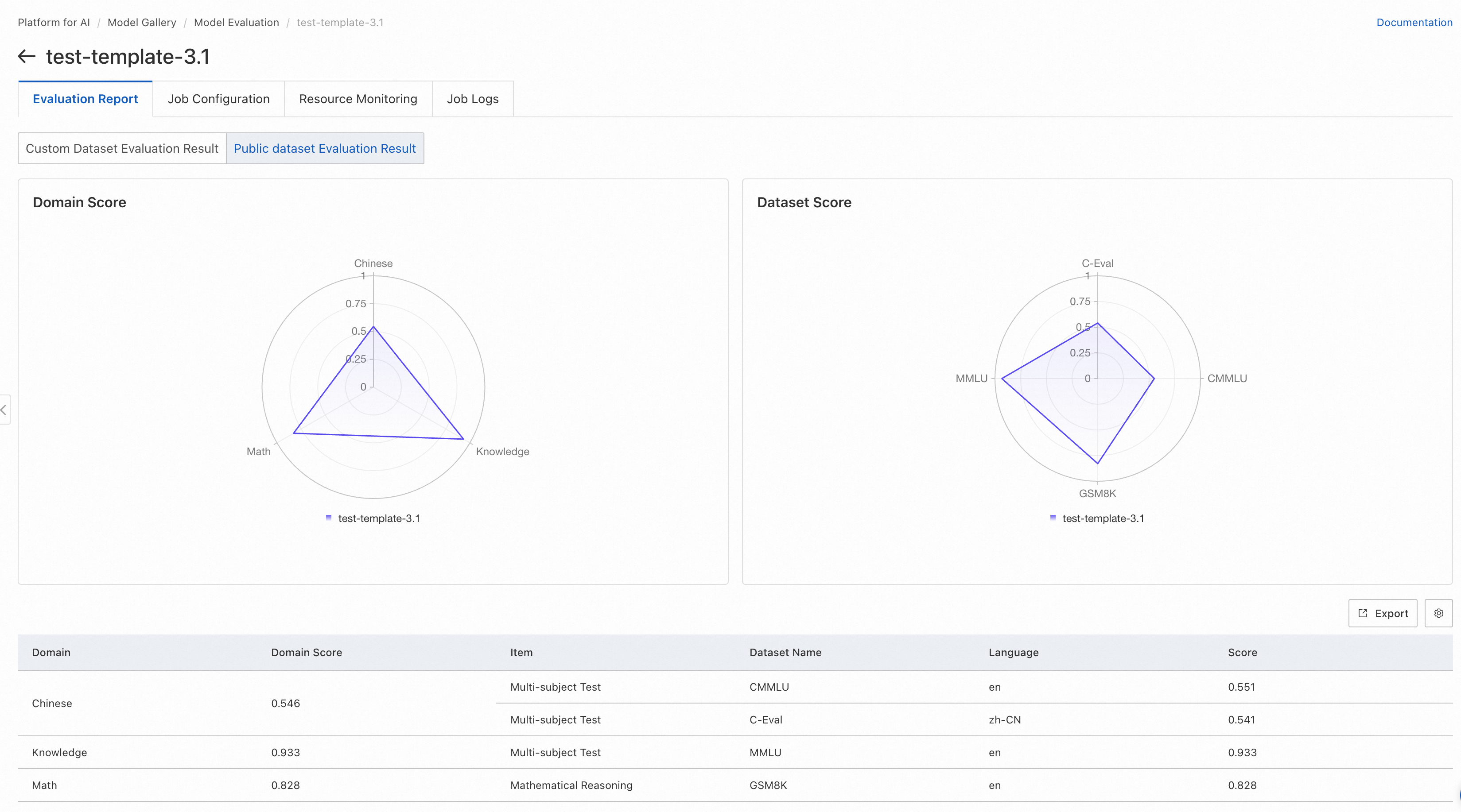
For public benchmarks, a radar chart displays scores across datasets.
-
Left chart displays domain scores. Scores from datasets in the same domain are averaged into a single domain score.
-
Right chart displays scores per public dataset. Refer to each dataset's documentation for evaluation scope.
Compare multiple tasks
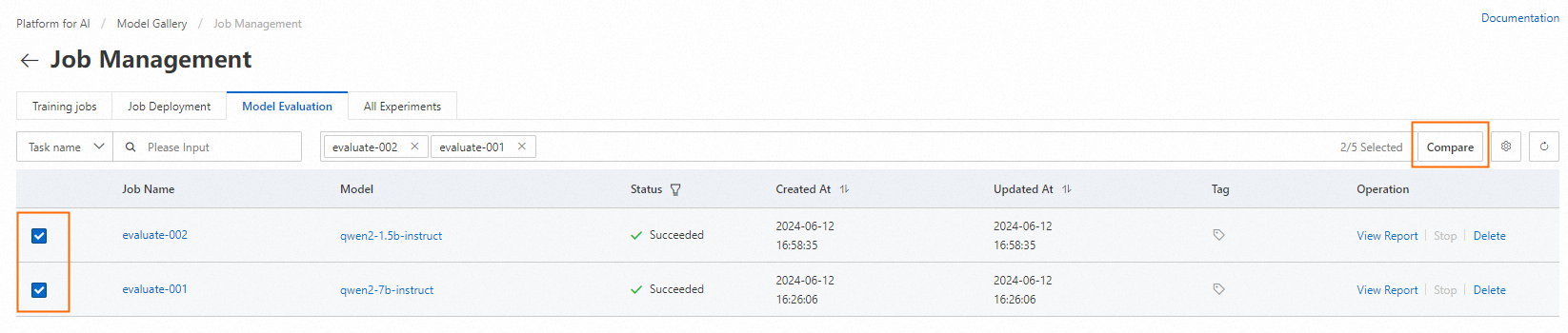
On the task list page, select the tasks to compare and click Compare in the top-right corner:
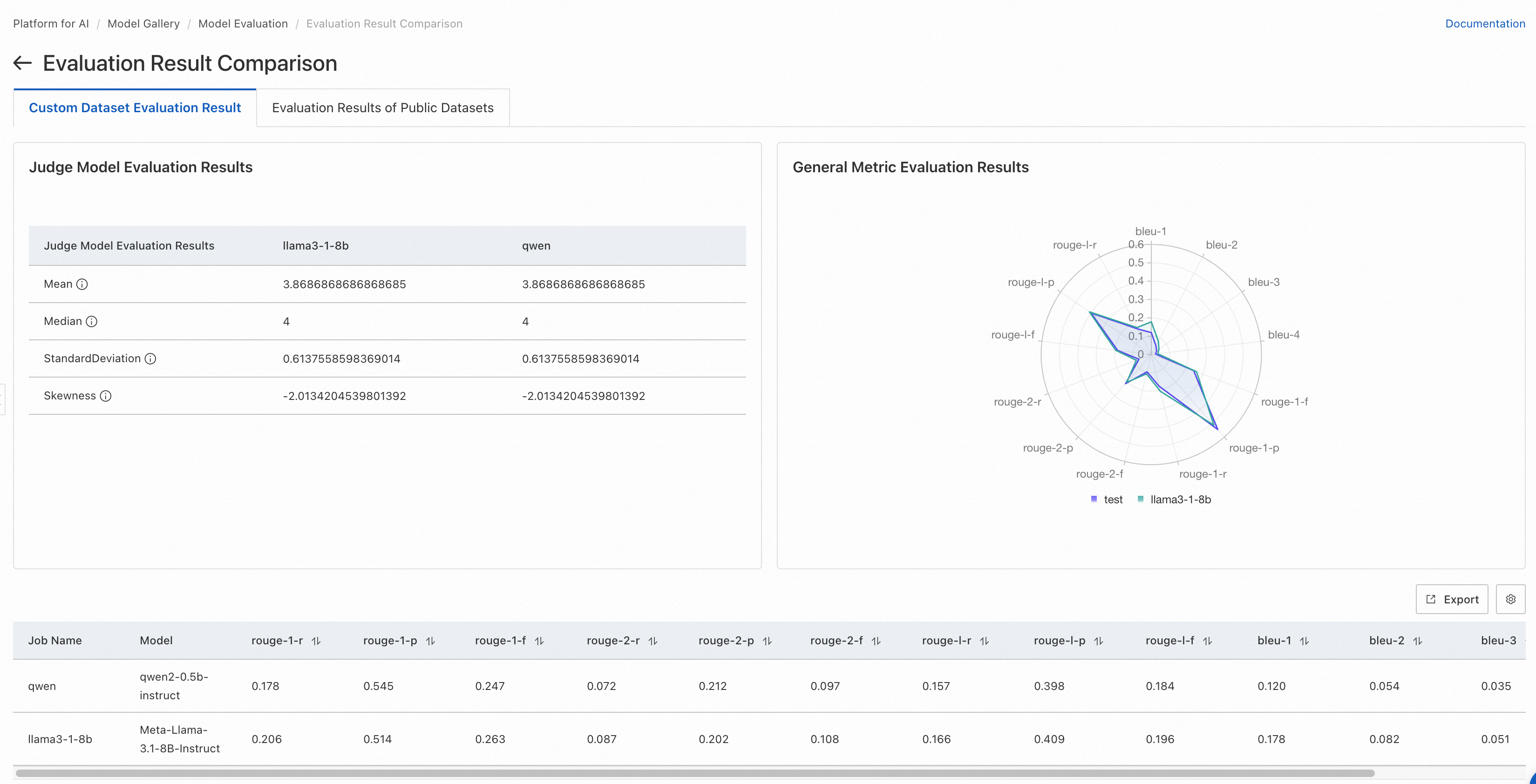
Custom dataset comparison
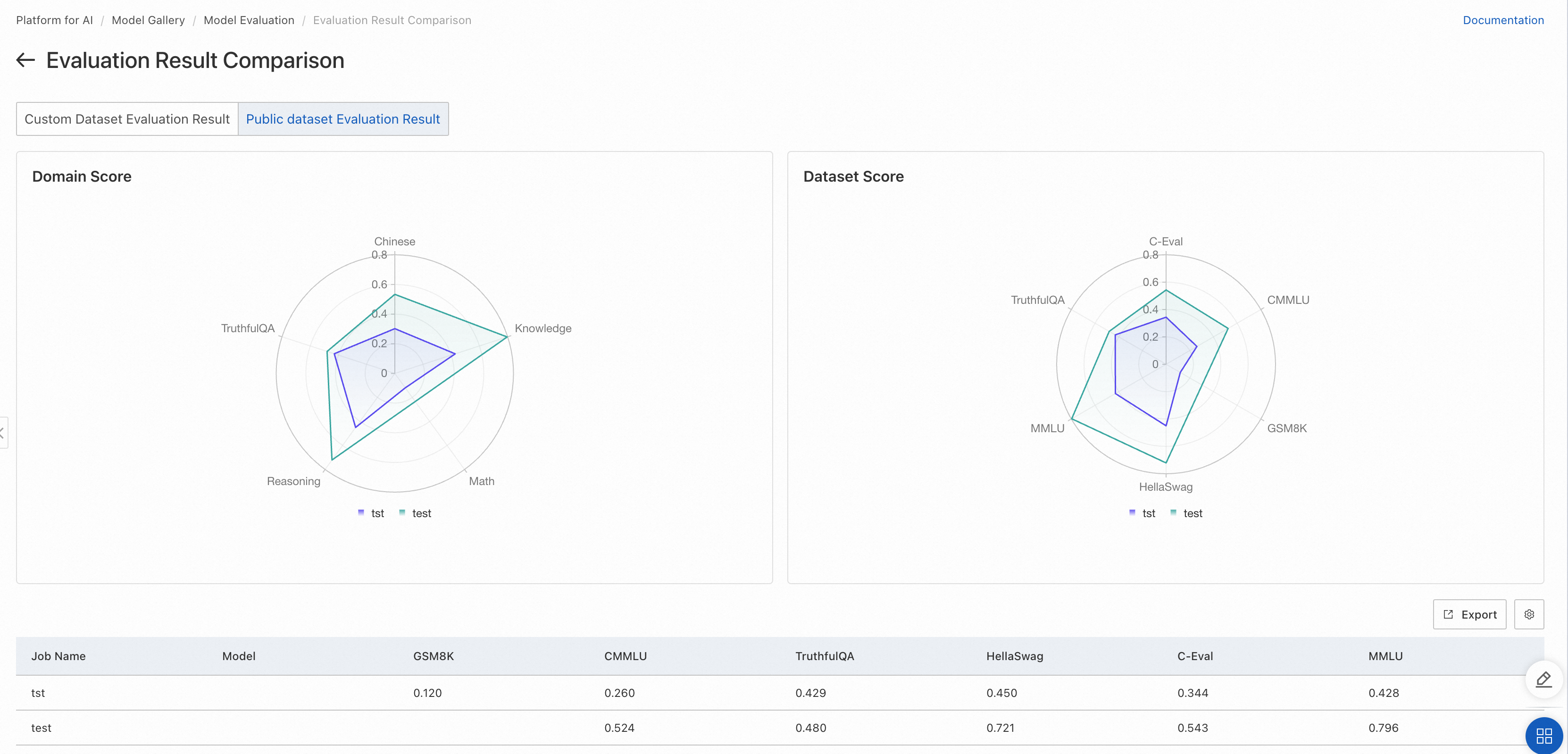
Public dataset comparison
Result analysis
Custom dataset evaluation
General metric evaluation: Calculates text similarity between model output and ground truth. Higher scores indicate better performance. Useful for evaluating model fit to specific scenarios with domain data.
LLM-as-a-Judge evaluation: Evaluates output quality at the semantic level. Higher mean and median scores with lower standard deviation indicate better performance. More accurate than text matching for open-ended responses.
Public dataset evaluation
Public benchmarks cover domains such as math and coding for comprehensive capability assessment. Higher scores indicate better performance.
References
You can also run model evaluation through the PAI Python SDK: