This topic describes the scenarios of parameter files. This topic describes four scenarios in which you can use parameter files based on different parameter requests.
Scenario 1: Simulate multi-user logons and use a parameter file in a request body
For more information about the example on how to use a parameter file in a request body, see Stress testing example for online education.
Scenario 2: Simulate multi-user logons and use a parameter file in a request header
To simulate multi-user logons, you must use file parameters to construct logon information. If multiple valid tokens are generated, add the tokens to the parameter file and include the tokens in the request to complete authentication. The following section provides an example on how to use a parameter file in a request header.
Prepare a parameter file.
Create a file named
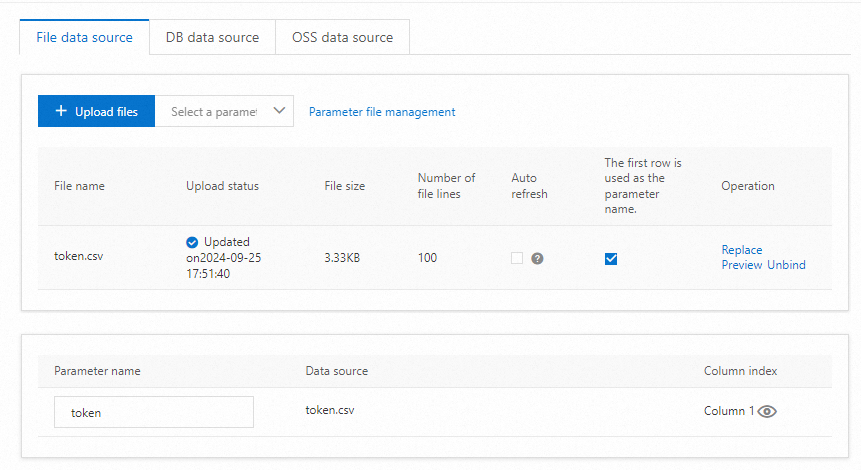
token.csvand construct a column of data that contains the required tokens. You can use Excel to modify the file and save the file as a CSV file or use Apache Commons CSV to generate the file.token T7MeDnBIMKRJdgUB8RNQixyhUPJPaJEG cqKscgeNWFPkkkaR4dBfcD4A2pD1CYFK eh3lbjmsjd9jh65xSwvBWvDtmky25CK9Log on to the PTS console, choose , and then click PTS.
Add the parameter file to a data source.
Click Data Sources. On the Parameter Files tab, click Upload File. In the panel that appears, click Upload File and select and upload the parameter file from your computer.
Select the check box in the Use First Line as Parameter Name column. You do not need to specify the parameter name. When Performance Testing Service (PTS) reads the parameter file, PTS skips the data in the first row of the parameter file. If the first row of the parameter file is not a parameter name, you must specify a parameter name for each column of data based on your business scenario.
Add a parameter instruction.
On the Scenario Settings tab, add a stress testing API, click the drop-down arrow next to Add Instruction, and then select Parameter.
On the Data Source Parameters tab, select the parameter name that you specified.
Add a token to the API request header.
On the Header definition tab of the Scenario Settings page, enter the required token in the Value column.
Scenario 3: Simulate the scenario in which a user sends different API requests and use a parameter file in a URL
If you want to query the details of a product by calling an API operation, you can specify parameters in the URL of the API. For example, if you query the product details based on the product ID, the URL is configured in the /api/v1/products/{productId} format. The value of productId can be randomly selected from a parameter file. The following example describes how to use a parameter file in a URL.
Prepare a parameter file.
Create a file named
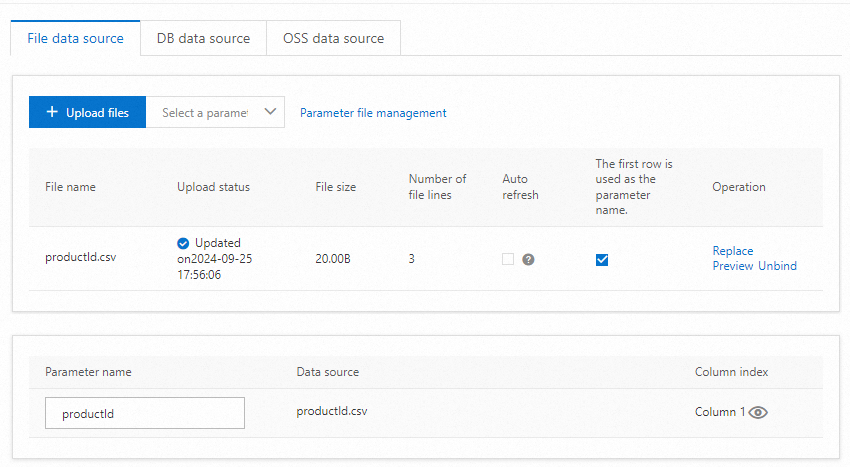
productId.csvand construct a column of data. You can use Excel to modify the file and save the file as a CSV file or use Apache Commons CSV to generate the file. Example:productId 1 2 3Log on to the PTS console, choose , and then click PTS.
Add the parameter file to a data source.
Click Data Sources. On the Parameter Files tab, click Upload File. In the panel that appears, click Upload File and select and upload the parameter file from your local computer.
Select the check box in the Use First Line as Parameter Name column. You do not need to specify the parameter name. When PTS reads the parameter file, PTS skips the data in the first row of the parameter file. If the first row of the parameter file is not a parameter name, you must specify a parameter name for each column of data based on your business scenario.
Add a parameter instruction.
On the Scenario Settings tab, add a stress testing API, click the drop-down arrow next to Add Instruction, and then select Parameter.
On the Data Source Parameters tab, select the parameter name that you specified. Select Random in the Access Mode column for the parameter name.
Add the required parameter to the URL of the API request.
Scenario 4: Simulate the scenario in which a user sends a single request
In most stress testing scenarios, the system simulates the scenario in which a user sends requests in a business session on a recurring basis until the stress test ends. In specific scenarios, the user wants to manage the number of times a request sent on a recurring basis. In this case, the Use Once feature that is supported for file parameters must be enabled. After you enable the Use Once feature, each row of data in the parameter file is used only once during the stress test. The number of rows in the parameter file determines the number of times a business session is executed.
The following section provides an example on how to use a parameter file in an examination system. This scenario involves the process of logging on to the examination system, answering questions, and submitting answers. Each user needs to run the entire process only once.
Prepare a parameter file.
Create a file named
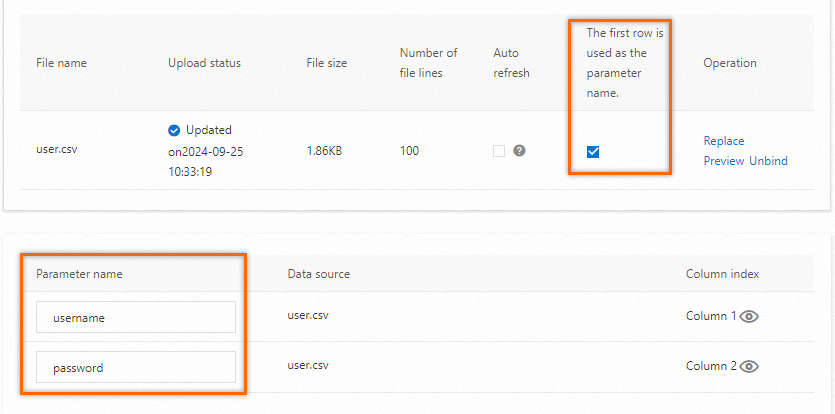
user.csvand construct a column named username and a column named password. You can use Excel to modify the file and save the file as a CSV file or use Apache Commons CSV to generate the file.username,password user1,Password1 user2,Password2 user3,Password3Log on to the PTS console, choose , and then click PTS.
Add the parameter file to a data source.
Click Data Sources. On the Parameter Files tab, click Upload File. In the panel that appears, click Upload File to select and upload the parameter file from your computer.
Select Use First Row as Parameter Name. After you select this option, you do not need to specify the parameter names. The data in the first row is used as the parameter names. When PTS reads the parameter file, PTS ignores the data in the first row. If the data in the first row of the parameter file is not parameter names, you must specify a parameter name for each column based on your business scenario.
Add a parameter instruction.
On the Scenario Settings tab, add a stress testing API, click the Add Command drop-down list, and then select Data Configuration.
On the Data Source Parameters tab, select the parameter name that you specified. Select the check box in the Use Once column for the required
username.
Add the required parameter in the API request.
On the Request Body Definition tab, set the
Content-Typeparameter tox-www-form-urlencoded. Then, click Type Format in the upper-right corner and enter{"username":"${username}","password":"${password}"}in the text box.After you complete the preceding operations, the system can simulate the scenario in which each user performs the business session only once.