Transforms provided by Elasticsearch is a data processing and analysis tool that you can use to perform operations such as pre-processing, aggregation, and transformation on data. You can use Transforms to process data without imposing impacts on raw data, which can meet your requirements for data analysis and visualization. This topic describes how to use Transforms to transform basketball shooting data and view the transformation result.
Preparations
Download sample data. In this example, the
NBA shot logsdataset from Kaggle is used. The dataset contains data such as the shooting time, the shooters, the shooting spots, the closest defenders, and the distances to the closest defenders. You can click shot_logs.csv to download the sample data.Create an Alibaba Cloud Elasticsearch cluster. For more information, see Create an Alibaba Cloud Elasticsearch cluster. In this example, an Alibaba Cloud Elasticsearch V7.10.0 cluster is created.
NoteAlibaba Cloud Elasticsearch V8.5 clusters are not supported.
Log on to the Kibana console of the Elasticsearch cluster. For more information, see Log on to the Kibana console.
Import the NBA shot logs dataset and create an index.
In the upper-left corner, click the
 icon. In the left-side navigation pane, choose .
 Click the Data Visualizer tab.
In the Import data card of the Data Visualizer tab, click Upload file.
Click the
 icon.
icon. Select the
shot_logsfile from your on-premises machine.In the lower-left corner of the Data Visualizer tab, click Import.
On the Simple tab, enter
nba_short_logsin the Index name field and select Create index pattern.Click Import.
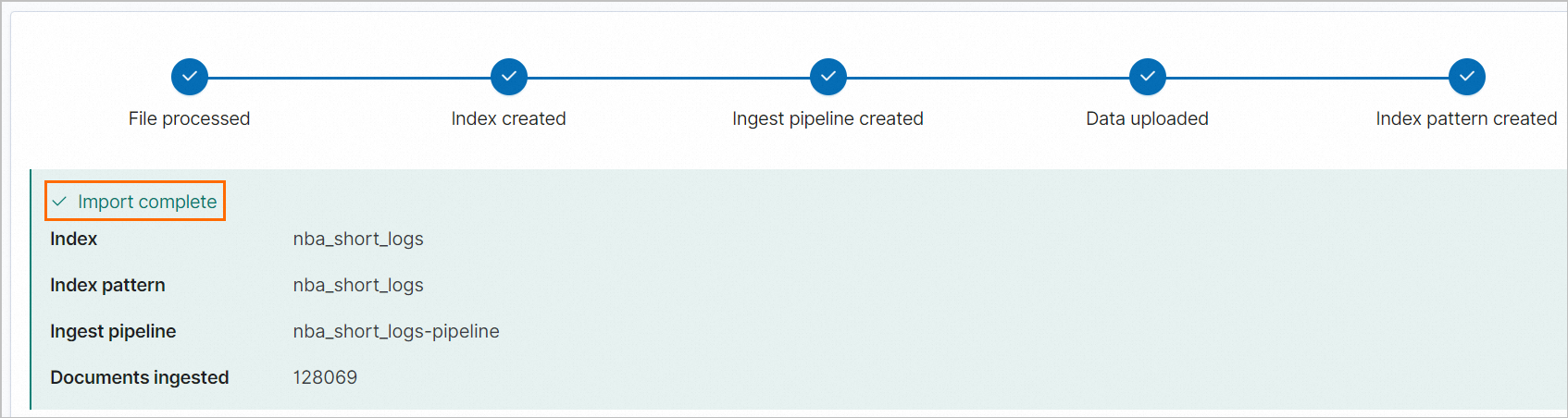
If the dataset is successfully imported, the information shown in the following figure is displayed.
Procedure
You can use one of the following methods to transform the data and view the transformation result.
Method 1: Create a transformation task in the Kibana console to transform the data and view the transformation result
In the upper-left corner, click the
icon. In the left-side navigation pane, choose . In the left-side navigation pane of the Stack Management page, choose .
On the Transforms page, click Create your first transform.
In the dialog box that appears, select the
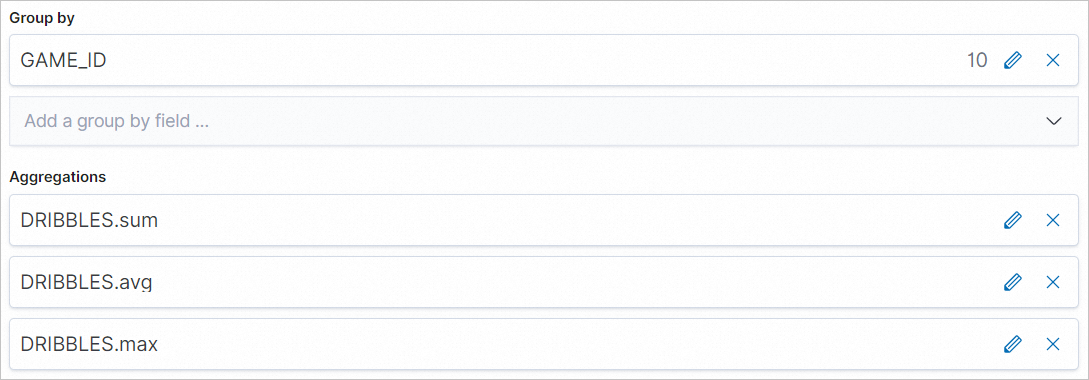
nba_short_logsindex.In the Configuration section of the Create transform page, select histogram(GAME_ID) for Group by and DRIBBLES.sum, DRIBBLES.avg, and DRIBBLES.max for Aggregations.
 Note
NoteGroup by GAME_ID: Groups players by game ID.
DRIBBLES.sum: Calculates the total number of dribbles of all players in each game.
DRIBBLES.avg: Calculates the average number of dribbles of each player in each game.
DRIBBLES.max: Calculates the largest number of dribbles in each game.
In the lower-right corner of the Configuration section, click Next.
In the Transform details section, configure the Transform ID and Destination index parameters. Then, click Next.
In the Create section, click Create and start.
NoteIf the progress percentage in the progress bar becomes 100%, the transformation task is created.
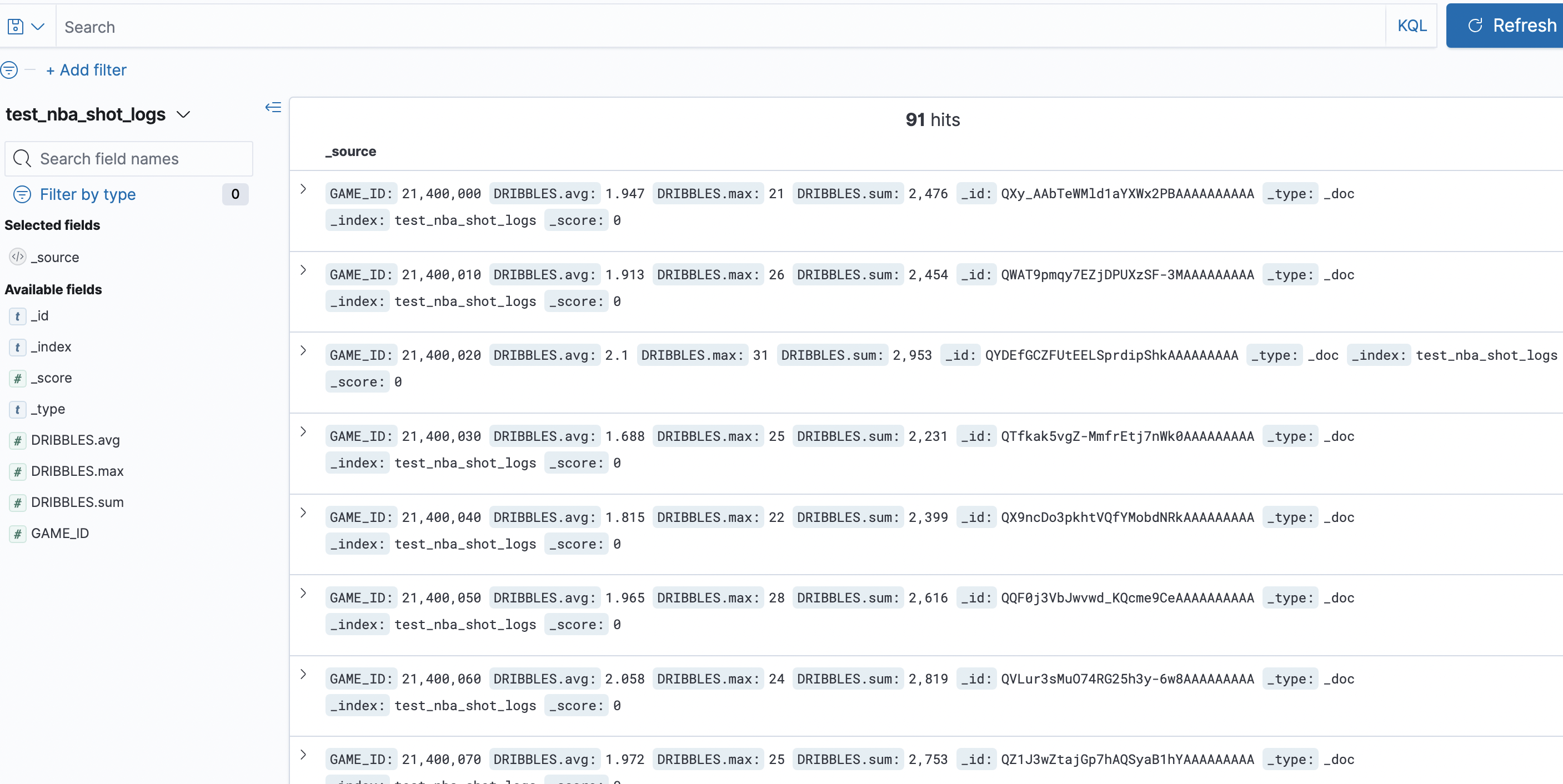
Click Discover to view the data in the destination index.
Method 2: Call APIs to create a transformation task to transform the data and view the transformation result
In the upper-left corner, click the
icon. In the left-side navigation pane, choose . On the Console tab, run the following command to create a transformation task:
PUT _transform/test2_nba_shot_logs
{
    "source": {
    "index": "nba_short_logs"
  },
  "dest" : {
    "index" : "test2_nba_short_logs"
  },
  "pivot": {
    "group_by": {
      "game_id": { "terms": { "field": "GAME_ID" }}
    },
    "aggregations": {
      "dribbles_sum": { "sum": { "field": "DRIBBLES" }},
      "dribbles_avg": { "avg": { "field": "DRIBBLES" }},
      "dribbles_max": { "cardinality": { "field": "DRIBBLES" }}
    }
  }
}
Run the following command to call the _preview API to view the transformation result:
POST _transform/_preview
{
  "source": {
    "index": "nba_shot_logs"
  },
  "dest" : {
    "index" : "test2_nba_shot_logs"
  },
  "pivot": {
    "group_by": {
      "game_id": { "terms": { "field": "GAME_ID" }}
    },
    "aggregations": {
      "dribbles_sum": { "sum": { "field": "DRIBBLES" }},
      "dribbles_avg": { "avg": { "field": "DRIBBLES" }},
      "dribbles_max": { "cardinality": { "field": "DRIBBLES" }}
    }
  }
}
Method 3: Call APIs to create a transformation task to transform the data and view the transformation result on the Discover page
Create and start a transformation task.
In the upper-left corner, click the
icon. In the left-side navigation pane, choose . On the Console tab, run the following command to create a transformation task:
PUT _transform/test2_nba_shot_logs
{
    "source": {
    "index": "nba_short_logs"
  },
  "dest" : {
    "index" : "test2_nba_short_logs"
  },
  "pivot": {
    "group_by": {
      "game_id": { "terms": { "field": "GAME_ID" }}
    },
    "aggregations": {
      "dribbles_sum": { "sum": { "field": "DRIBBLES" }},
      "dribbles_avg": { "avg": { "field": "DRIBBLES" }},
      "dribbles_max": { "cardinality": { "field": "DRIBBLES" }}
    }
  }
}
Run the following command to start the transformation task:
POST _transform/test2_nba_shot_logs/_startNoteBy default, the transformation task is not started after it is created.
Create an index pattern.
NoteYou must create an index pattern before you can view data on the Discover page.
In the upper-left corner, click the
icon. In the left-side navigation pane, choose . In the left-side navigation pane of the Stack Management page, choose .
In the upper-right corner of the Index patterns page, click Create index pattern.
On the Create index pattern page, enter the name of the destination index that is obtained after the transformation in the Index pattern name field, and click Next step. In this example, test2_nba_short_logs is entered.
Click Create index pattern.
View the transformation result on the Discover page.
In the upper-left corner, click the
icon. In the left-side navigation pane, choose . On the Discover page, select the name of the destination index and view the data in the index.