Malicious crawlers can overload your servers, scrape sensitive content, and degrade the experience for legitimate users. The bot management module of Web Application Firewall (WAF) provides scenario-specific anti-crawler rules that you can tailor to your traffic profile—protecting login pages, registration flows, or order placement without blocking real users.
Prerequisites
Before you begin, make sure that you have:
A subscription WAF instance running the Pro, Business, or Enterprise edition (the Bot Management module must be enabled)
Added your website to WAF. For more information, see Tutorials
Create an anti-crawler rule
The setup flow has four steps: configure scenarios, configure protection rules, verify actions (optional), and publish.
Log on to the WAF console.
In the top navigation bar, select the resource group and region of your WAF instance. The region can be Chinese Mainland or Outside Chinese Mainland.
In the left-side navigation pane, choose Protection Settings > Website Protection.
At the top of the Website Protection page, select the domain name you want to protect.

Go to the Bot Management tab.
First-time setup: In the Scenario-specific Configuration section, click Start.
Adding another rule: Click Add in the upper-right corner.
Each domain name supports up to 50 anti-crawler rules.
In the Configure Scenarios step, set the basic information and click Next.
Parameter Description Scenario The service scenario to protect, such as logon, registration, or order placement Service type Select Websites to protect web pages, HTML5 pages, and HTML5 apps. If the domain is accessed through a different domain name, select Use Intermediate Domain Name and choose the intermediate domain name from the drop-down list Traffic characteristics Add up to five match conditions to identify target traffic. Each condition consists of a matching field (an HTTP request header field), a logical operator, and matching content. After entering an IP address, press Enter to confirm. For a full list of matching fields, see Fields in match conditions In the Configure Protection Rules step, enable the protection options you need and click Next.
Option What it does Script-based Bot Block Runs a JavaScript challenge on clients. Requests from non-browser tools that cannot execute JavaScript are blocked, stopping simple script-based attacks Dynamic Token Challenge Off by default. When enabled, WAF verifies a signature on every request and blocks requests that fail. Signature Verification Exception is selected by default and cannot be deselected. Optionally enable Signature Timestamp Exception and WebDriver Attack detection Intelligent Protection Uses machine learning to analyze access traffic and generate a blocklist or protection rule. Set Protection Mode to Monitor (log matching traffic without blocking) or Slider CAPTCHA (require slider CAPTCHA before access is granted) Bot Threat Intelligence Feed Checks client IP addresses against Alibaba Cloud's threat intelligence library. Clients identified as frequent crawlers must pass slider CAPTCHA verification Data Center Blacklist Blocks requests from known malicious IP addresses belonging to Alibaba Cloud and other mainstream cloud providers' data centers. Select the libraries to apply from the drop-down list. 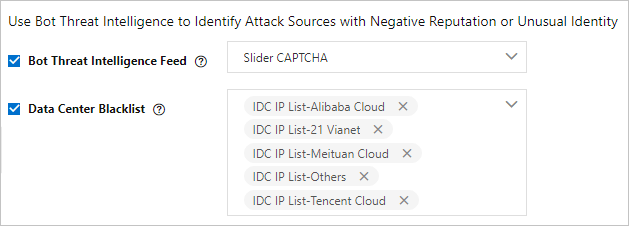
IP Address Throttling Rate-limits requests by IP address to mitigate HTTP flood attacks. If the number of requests from the same IP within the configured time window exceeds the threshold, WAF applies the selected action (Monitor, Block, or Captcha) for the configured duration. Supports up to three throttling conditions. For configuration details, see Create a custom protection policy Custom Session-based Throttling Rate-limits requests by session. If the number of requests from the same session within the configured time window exceeds the threshold, WAF applies the selected action (Monitor, Block, or Captcha) for the configured duration. For configuration details, see Create a custom protection policy (Optional) In the Verify Actions step, test your rule before it goes live. Skip this step by clicking Skip in the lower-left corner. If this is your first time creating an anti-crawler rule, complete this step to catch false positives from misconfiguration or compatibility issues before publishing. Step 1: Enter a public IP address Enter the public IP address of your test device (a computer or mobile phone). The test applies only to requests from this IP address and does not affect live traffic. Step 2: Select an action to test Choose one action to validate: JavaScript Validation, Dynamic Token-based Authentication, Slider CAPTCHA Verification, or Block Verification. After clicking Start Test, WAF delivers the test rule to your device immediately and shows the test procedure, expected result, and a demo. Read through it before testing. After testing, click I Have Completed Test to continue. If the result shows exceptions, click Go Back to adjust the rule and test again. For common test errors and solutions, see Troubleshoot test errors.
ImportantDo not use the IP address from
ipconfig—that command returns an internal IP address. To get your public IP address, click Alibaba Network Diagnose Tool and look for the Local IP value. You can also search for your IP address from a browser.In the Preview and Publish Protection Rules step, review the rule and click Publish. The rule takes effect immediately after publishing.
If this is your first anti-crawler rule, the rule ID is not displayed until after you publish. Find it on the Bot Management tab of the Security Report page. Use the rule ID to filter matching requests in Log Service for WAF.
Troubleshoot test errors
No valid test requests are detected
The most common cause is that test traffic is not reaching WAF. Check that the request is sent to the IP address that maps the CNAME provided by WAF, and that the header fields in the request match the Traffic Characteristics settings in your rule. If the source IP address of your test device doesn't match what you entered in step 1, use the Alibaba Network Diagnose Tool to get your current public IP address.
Test requests failed verification
This usually means the test didn't simulate real user access. Automation tools and debugging modes bypass the browser-based signals that WAF checks. Use a real browser session on the test device. Also verify that Service Type is set correctly—select Websites for web pages, not the app option. If you are using an intermediate domain name, confirm the correct one is selected.
No verification was triggered
Test rules may take a few attempts to generate. Run the test several more times until the rule is delivered to your device.
Frontend compatibility issues
Contact customer service in the DingTalk group or submit a ticket.
What's next
Open the Bot Management tab on the Security Report page to review protection results and inspect requests that matched the rule. Use the rule ID to query detailed logs in Log Service for WAF.