To back up files from an on-premises server or virtual machine (VM), you must first install the Cloud Backup client. The client supports both Windows and Linux, so ensure you download the version appropriate for your server's operating system.
(Recommended) Use the AccessKey of a RAM user
Resource Access Management (RAM) is Alibaba Cloud's service for centralized identity and access control. It enables you to create and manage multiple user identities under a single account and assign them granular permissions, thereby controlling who has access to specific cloud resources.
Client activation requires an AccessKey pair. However, using your Alibaba Cloud account's AccessKey poses a significant security risk, as its compromise would expose all your cloud resources. Therefore, as a security best practice, use the AccessKey belonging to a RAM user with limited permissions. For more information, see Create a RAM user and Create an AccessKey pair.
Usage notes
For optimal backup performance, run the Cloud Backup client on a machine with a 64-bit CPU that has two or more cores and more than 8 GB of available memory.
Backup capacity is determined by available memory. For example:
4 GB memory: Supports up to 1 million files (~8 TB total).
16 GB+ memory: Required for backing up tens of millions of files or more.
The installation package of the 64-bit Cloud Backup client does not support the ARM64 architecture.
Before you install or uninstall the client, check the installation path for the following:
If a NAS folder is mounted on the installation path, run the umount command to unmount the NAS folder. This prevents the accidental deletion of NAS files.
If the installation path contains other important folders or files, move them to another location to prevent accidental deletion.
Before you use Cloud Backup, review its limits, default backup rate, and features available by region. For more information, see Limits, Backup and recovery speeds, Features, and Features by region.
Download and activate a Windows client
Log on to the Cloud Backup console.
In the navigation pane on the left, choose . In the upper-left corner of the top menu bar, select a region, and then click Add Client.
Download the Windows client.
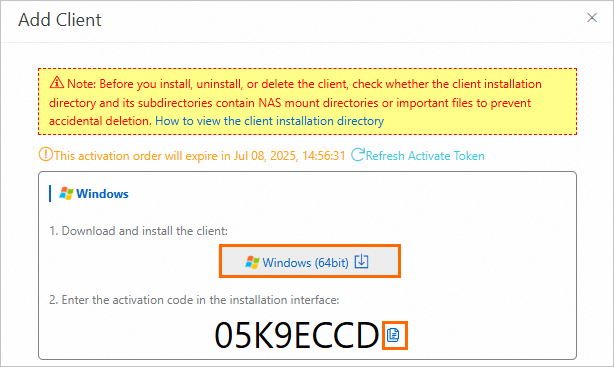
Install and activate the Windows client.
Double-click the client installation package and select an installation language.
Select an installation path and click Next.
Select Local client connecting to Alibaba Cloud and click Next.
If you want to use a proxy server, enter the proxy server address. Click Next. For more information, see Use an Apache HTTP service to build a proxy server.
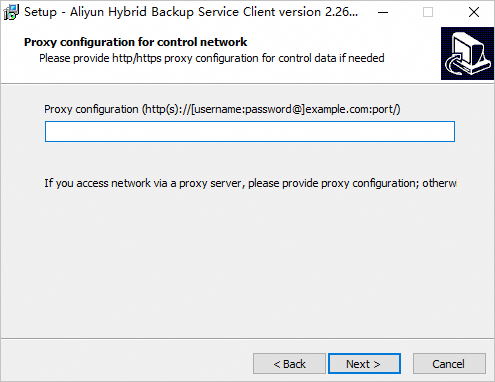
Enter the Activation Token and click Next.
Click Install.
After the client is installed, its Client Status changes to Activated on the Clients tab.

To view the installation path, logs, and running status of the backup client on the server, see View the default installation path and logs of a Cloud Backup client.
Download and activate a Linux client
Log on to the Cloud Backup console.
In the navigation pane on the left, choose . In the upper-left corner of the top menu bar, select a region, and then click Add Client.
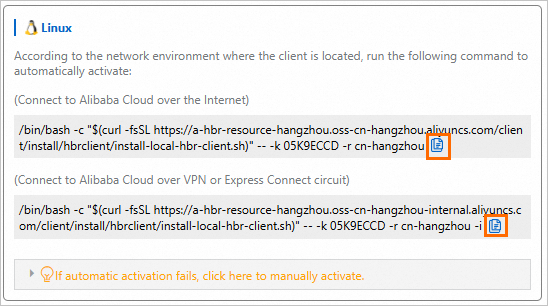
Run a command to automatically activate the Linux client.
Choose an access method based on your network type: Internet, VPN, or leased line. Then, copy the code and run the command on the client to activate it.
After the client is installed, its Client Status changes to Activated on the Clients tab.
To view the installation path, logs, and running status of the backup client on the server, see View the default installation path and logs of a Cloud Backup client.
More operations
After you install the backup client, go to the Clients tab. In the Actions column of the client, click ┇ to perform the following operations.
Operation | Description |
Reactivate Client | Try this operation if the client status is abnormal. For more information, see Troubleshoot and handle file backup client status exceptions. |
Delete Backup | Deletes all backup data generated by this backup client and causes any running backup or restore jobs to fail. Important Before you delete the client, make sure that you no longer need its backup data and that no backup or restore jobs are running on it. |
Alert Settings | Specifies the method for sending alert notifications when the backup vault client or a backup or restore job is abnormal.
|
Client Settings | Configure client settings. The following parameters are available:
|