Use the BaaS console to manage your consortium blockchain network. This guide covers the full set of operations: creating a blockchain, applying for access, managing certificates, viewing on-chain data, and managing accounts and nodes.
Create a blockchain
In the left-side navigation pane, click Blockchain Management, and then click Create blockchain.
Enter the required configuration details to complete the setup.
On the Blockchain Management page, confirm that the new blockchain appears in the list.
The free blockchain is available for 14 days only. Do not upload business code or business data to a free blockchain.
Apply for blockchain permissions
After the BaaS platform administrator creates a blockchain, members can apply for access. Once approved, download the development components and signature certificate to your local disk to start building blockchain applications. For setup instructions, see Quick Start.
Reset a certificate
Reset a certificate when you have lost the private key file or password, or when you want to replace an existing certificate. After resetting, generate a new certificate request and reapply.
The BaaS platform does not store your private key. Keep it secure.
Steps
Click Contract Blockchains. On the My Consortia page, select a consortium and click Manage in the Actions column.
In the left-side navigation pane, click Blockchain Management. Select a blockchain and choose More > Reset Certificate.
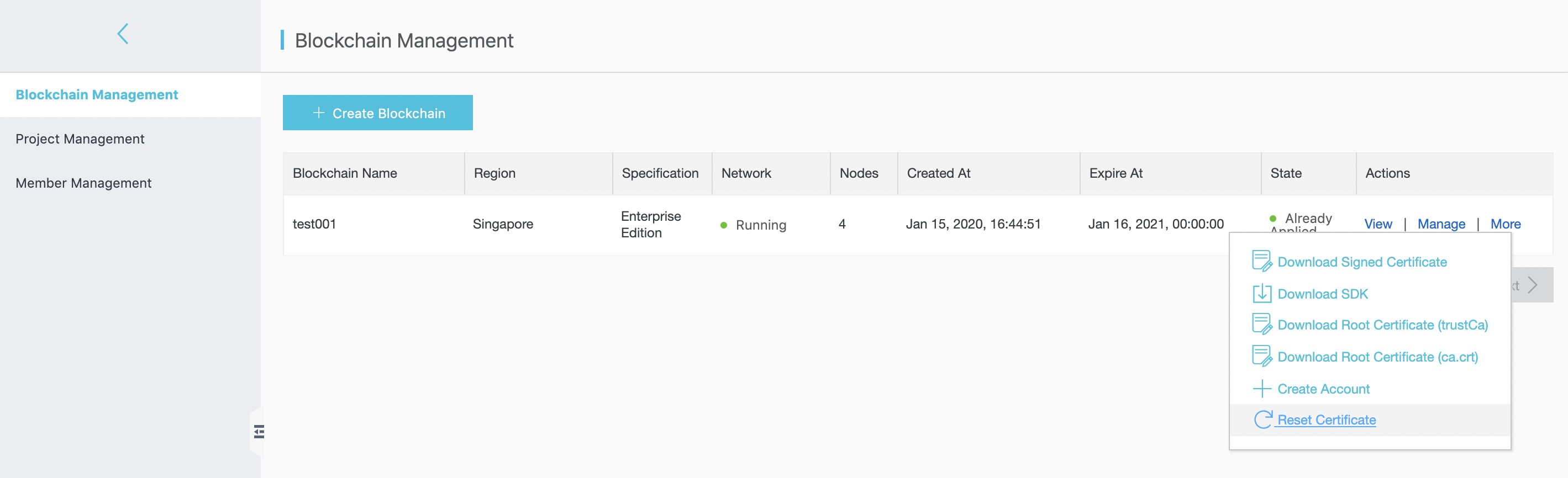
In the dialog box that appears, click OK.
After resetting, reapply for a certificate. For instructions, see Quick Start.
View blockchain details
After your permission request is approved, click View on the blockchain to open the details page.
The details page shows the following information:
Business statistics
Transaction history
Latest blocks
To query specific records, enter a block height or transaction hash in the search bar.

The transaction details page shows the following fields for each transaction:
| Field | Description |
|---|---|
| Timestamp | The date and time when the transaction was recorded. |
| Block height | The position of the block that contains this transaction. |
| Initiator account | The account that submitted the transaction. |
| Target account | The account that received the transaction. |
Manage blockchains
Select a blockchain and click Manage in the Actions column to open the blockchain management page. The following operations are available:
| Operation | Description |
|---|---|
| Apply for management permissions | View certificate applications in Application Management. Click Reset to submit a new certificate request. |
| Manage accounts | Create, view, freeze, or unfreeze accounts on Ant Blockchain. |
| Manage nodes | View all nodes in the blockchain, including IP address, service port, and consensus status. |
Apply for management permissions
In Application Management, view the certificates you have applied for. To replace a certificate, click Reset to submit a new certificate request.

Manage accounts
Create, view, freeze, and unfreeze accounts on Ant Blockchain. If an account is found to contain illicit content, the administrator can freeze it. A frozen account can no longer join a consortium, and its applied certificate on the consortium chain will be revoked.

The BaaS platform does not save your private key. Save it yourself and keep it confidential.
Manage nodes
View information for all nodes in the current blockchain.
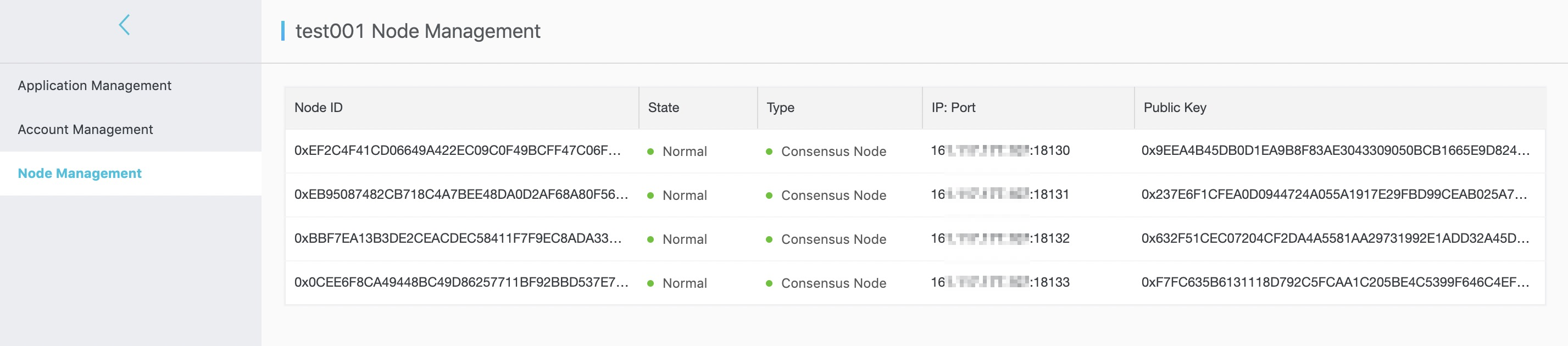
| Field | Description |
|---|---|
| Node IP address | The IP address of the node. |
| Service port | The port used by the node for communication. |
| Consensus status | Whether the node is participating in consensus. |
What's next
Quick Start — apply for permissions and set up your development environment after creating a blockchain.